

Configuring the settings page
The Smart Rentals Settings page lets you configure the default behavior for rental products across your store.
The Smart Rentals Settings page lets you configure the default behavior for rental products across your store. These settings control rental scheduling, security deposits, order processing, customer notifications, and the appearance of the booking interface.
Navigate to WordPress Dashboard → Smart Rentals → Settings.
Availability & Scheduling
Configure the default rental schedule and availability settings used across your rental products.
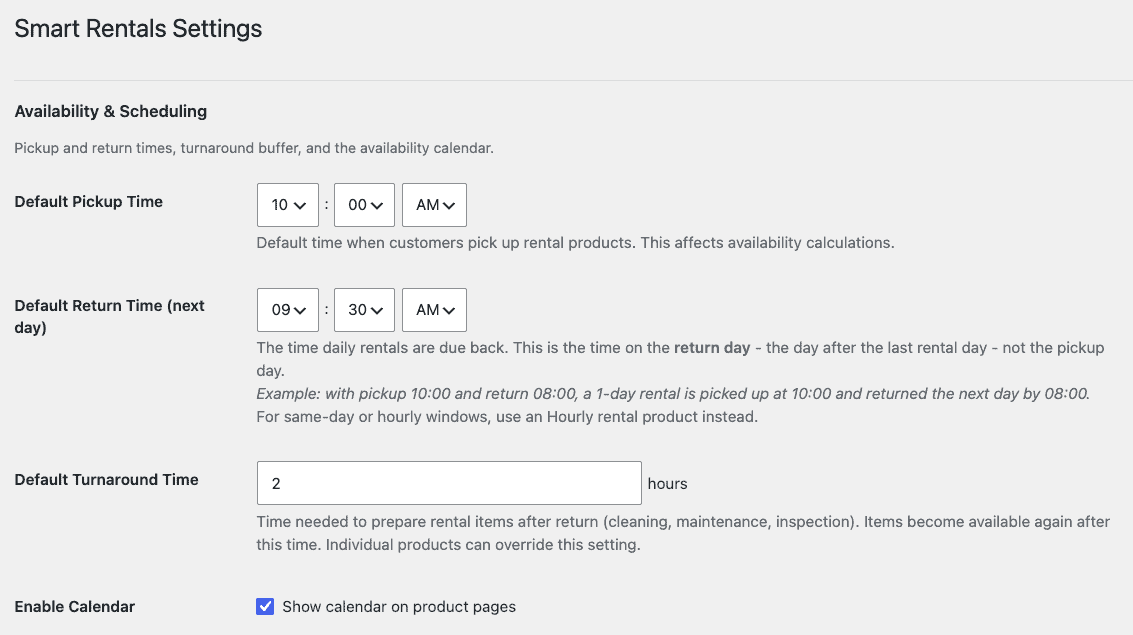
| Setting | Description |
|---|---|
| Default Pickup Time | Sets the default pickup time for rental bookings. This time is used when calculating rental duration and availability unless a product has its own pickup time configured. |
| Default Return Time (next day) | Defines the default return time for daily rentals. The return time applies to the day after the final rental day. |
| Default Turnaround Time | Specifies the preparation time required after a rental is returned before it becomes available for the next booking. Use this for cleaning, maintenance, inspection, or restocking. |
| Enable Calendar | Displays the availability calendar on rental product pages so customers can check available dates before making a booking. |
Example
Suppose your store uses the following settings:
- Pickup Time: 10:00 AM
- Return Time: 9:30 AM (next day)
- Turnaround Time: 2 hours
If a customer books an item for one day, they’ll pick it up at 10:00 AM, return it by 9:30 AM the next day, and the item will become available again at 11:30 AM.
Financials & Orders
Configure how rental bookings are processed after customers place an order.
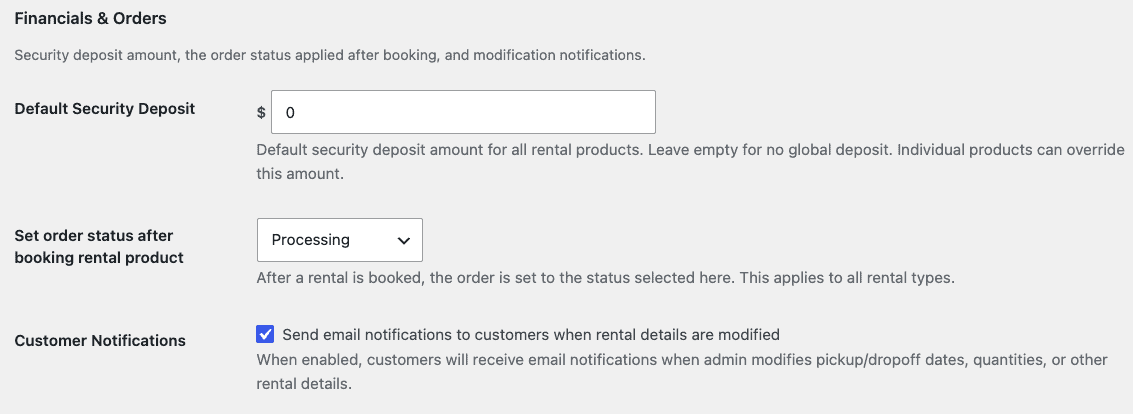
| Setting | Description |
|---|---|
| Default Security Deposit | Sets a refundable security deposit that is applied to rental products by default. Individual products can specify a different deposit if required. |
| Set order status after booking rental product | Selects the WooCommerce order status assigned immediately after a customer places a rental booking. |
| Customer Notifications | Sends email notifications to customers whenever an administrator updates rental details such as pickup date, return date, quantity, or other booking information. |
Frontend Customization
Customize the booking experience shown to customers on rental product pages.
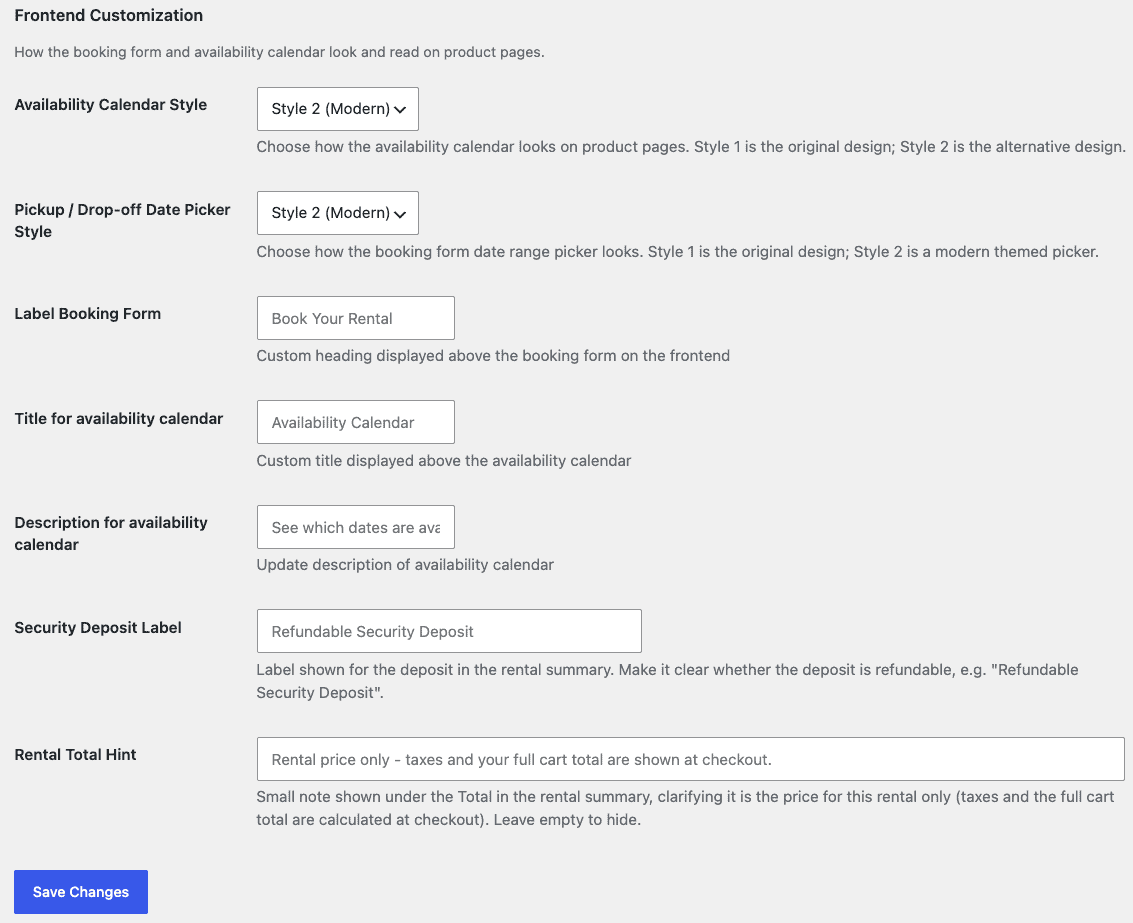
| Setting | Description |
|---|---|
| Availability Calendar Style | Select the appearance of the availability calendar displayed on rental product pages. |
| Pickup / Drop-off Date Picker Style | Choose the style of the date picker customers use to select rental dates. |
| Label Booking Form | Changes the heading displayed above the booking form. |
| Title for Availability Calendar | Sets the title displayed above the availability calendar. |
| Description for Availability Calendar | Displays a short message below the calendar title to provide additional information for customers. |
| Security Deposit Label | Customizes the label displayed for the security deposit throughout the booking process. |
| Rental Total Hint | Displays a helpful message below the rental total. Leave this field empty if you don't want to show a hint. |
Example
You can customize the booking experience to match your store’s branding. For example, instead of displaying Book Your Rental, you could use labels such as Reserve Your Equipment or Schedule Your Rental.
Settings Priority
When the same setting is configured in multiple places, Smart Rentals uses the following priority:
- Product settings
- Global Smart Rentals settings
For example, if your store has a default security deposit of $100, but a specific rental product has its own security deposit of $250, customers booking that product will be charged the product-specific deposit.
Frequently Asked Questions
Why isn’t my default security deposit being applied?
Check whether the rental product has its own security deposit configured. Product-level settings always override the global setting.
Do these settings affect existing bookings?
No. Changes to these settings apply only to future bookings. Existing bookings remain unchanged.
Can I hide the availability calendar?
Yes. Disable the Enable Calendar setting to remove the availability calendar from rental product pages.
Can I customize the text shown on the booking form?
Yes. The Frontend Customization section lets you customize the booking form heading, calendar title, calendar description, security deposit label, and rental total hint.