

How to Create, Apply, and Delete Saved Bulk Edits
Smart Manager's powerful Bulk Edit feature helps you update hundreds of records in seconds.
Smart Manager’s powerful Bulk Edit feature helps you update hundreds of records in seconds. But repeating the same bulk edits can be time-consuming.
That’s why Smart Manager Pro lets you save your bulk edit actions as presets and reuse them anytime, instantly applying them with just a click.
Steps to Create Saved Bulk Edits (Presets)
- Go to the Smart Manager dashboard. Using the top navigation bar, search for and select a dashboard from the dropdown menu. For example, select the
Productsdashboard. - Select as many records as you want. You can also apply search filters to filter records and select some records from it to perform the bulk edit operation. To bulk edit all records, tick the header checkbox.
- Click on the Bulk Edit button in the floating action bar (appears on record selection) to open the Bulk Edit panel.
- Under the New Action tab, add one or more bulk edit actions:
- Choose a field (e.g., Regular Price, Stock Status).
- Select the corresponding action (e.g., Increase by %, Set to, Decrease by value).
- Enter the value you want to apply for that action (e.g., Increase by 8%, Set to 49, etc.).
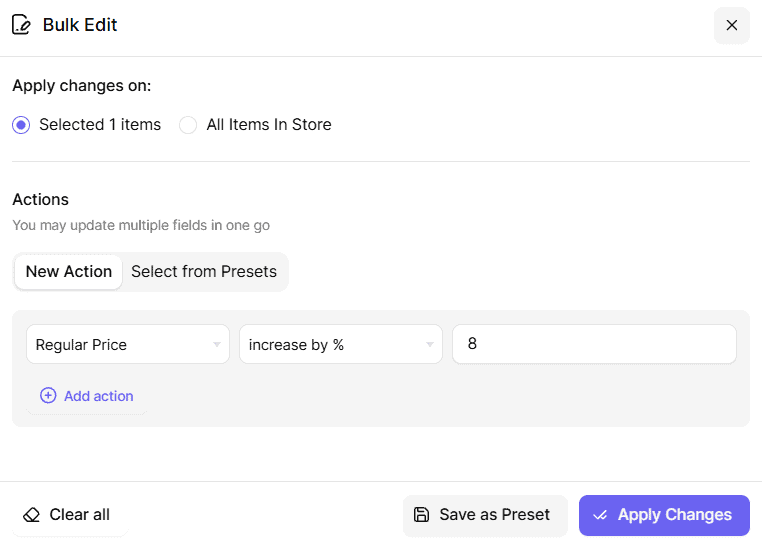
- Click on the Save as Preset button (next to Apply Changes) in the panel. This will open a Save as Preset modal.
- In the Save as Preset modal, enter a name for your preset (e.g., Increase Regular Price) and click Save.
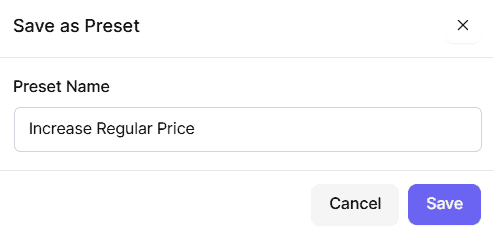
That’s it! Your saved bulk edit preset is now ready to use.
Steps to Apply Saved Bulk Edits (Presets)
- Go to the Smart Manager dashboard. Using the top navigation bar, search for and select a dashboard from the dropdown menu. For example, select the
Productsdashboard. - Select as many records as you want. You can also apply search filters to filter records and select some records from it to perform the bulk edit operation. To bulk edit all records, tick the header checkbox.
- Click on the Bulk Edit button in the floating action bar (appears on record selection) to open the Bulk Edit panel.
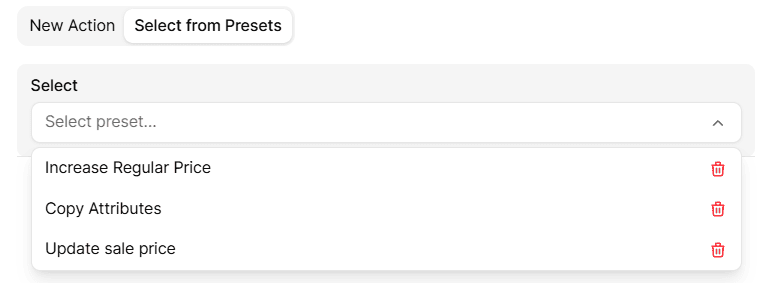
- Click on the Select from Presets tab.
- From the Select dropdown, choose the preset you want to apply (e.g., Increase Regular Price). The saved field, action, and value will be prefilled automatically.
- Review the prefilled action(s), and click Add action if you’d like to include additional actions.
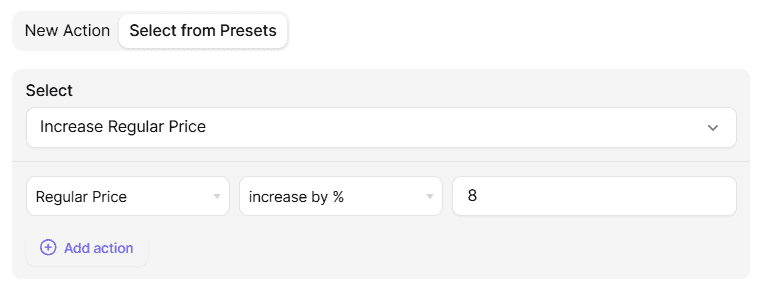
- Click on the Apply Changes button to proceed.
Steps to Delete Saved Bulk Edits (Presets)
- Go to the Smart Manager dashboard. Using the top navigation bar, search for and select a dashboard (that has saved presets) from the dropdown menu. For example, select the
Productsdashboard in this case. - Select any record and click on the Bulk Edit button in the floating action bar to open the Bulk Edit panel.
- Click on the Select from Presets tab.
- Click on the Select dropdown to view the list of saved presets.
- Click the
delete iconnext to the preset you want to remove.
Note(s):
- Bulk Edit & Saved Bulk Edit (Presets) functionalities are available only in the Pro version.
- Always review your bulk edit actions before applying them to ensure accuracy.