

How to Setup WooCommerce One Click Upsell Offer on Your Store?
Smart Offers and Buy Now - an excellent remedy to reduce cart abandonment and used together to create WooCommerce one click upsell.
A combination of Smart Offers and Buy Now is an excellent remedy to reduce cart abandonment i.e. they can be used together for 1-click / 2-clicks upsell.
How it works?
Smart Offers sets up the upsell functionality and the Buy Now plugin allows the upsell to automatically trigger the 2nd purchase on the order complete page of the first purchase.
The only catch with this is the fact that for Buy Now to work, user should have atleast 1 previously placed order in completed state i.e. guest checkouts won’t work.
How to use it?
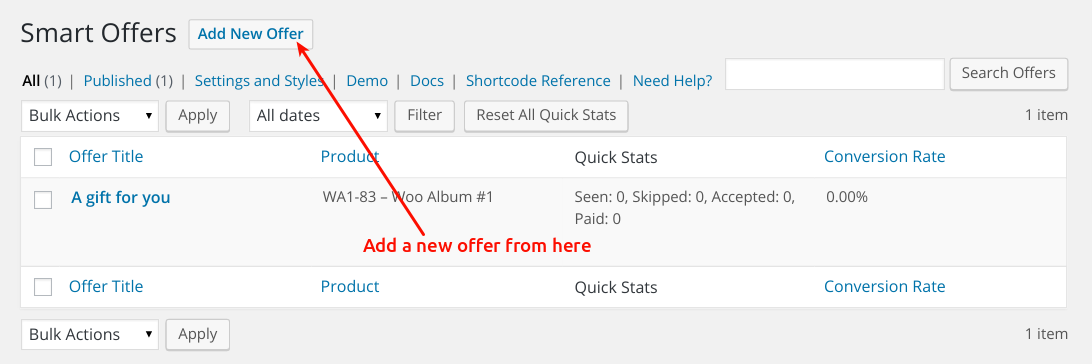
First set up a Smart Offer.
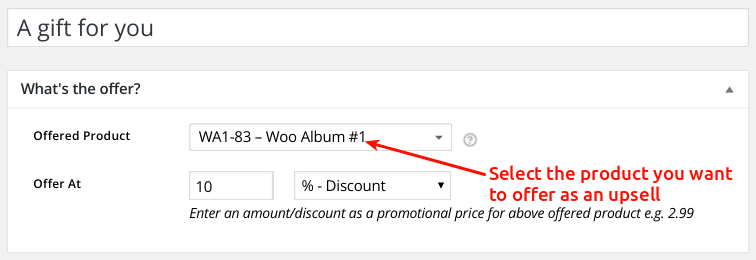
Select the product you’d like to use as the offered product. The price you enter here will be the price that’s automatically charged if the customer accepts the offer, so be sure to enter the price somewhere within your upsell content. Once they click that “Accept” button, the product is automatically purchased.
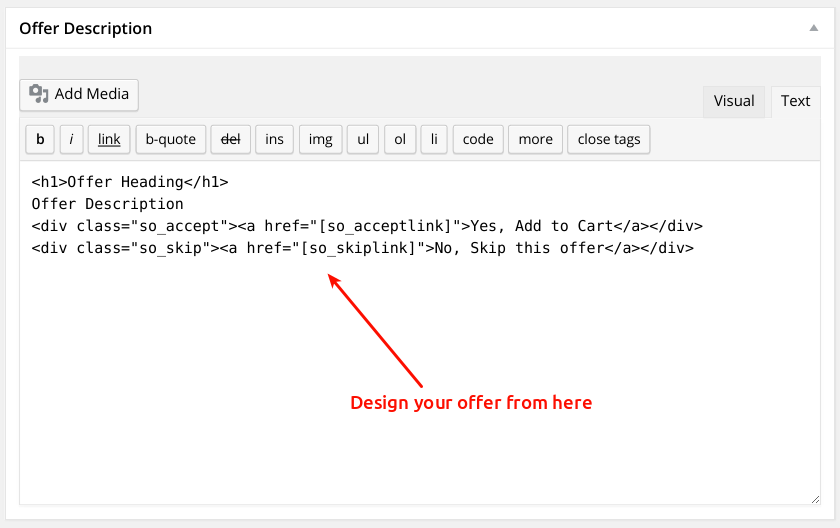
Now, fill in the desired text in Offer Description that you’d like to use for the Upsell.
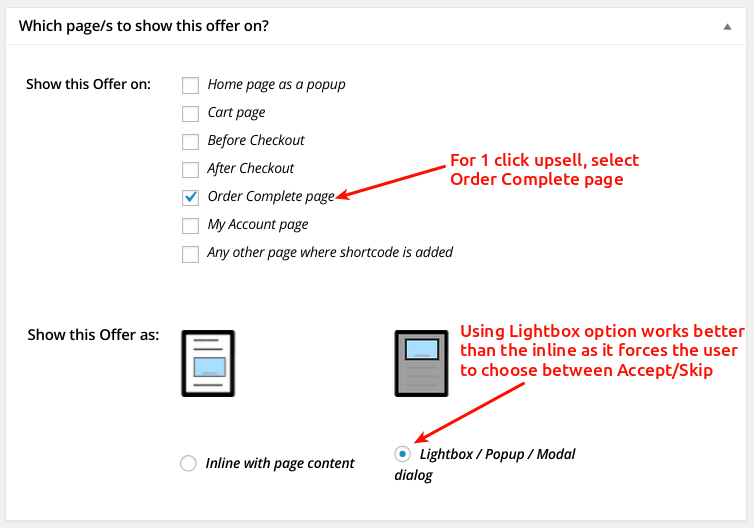
Here is where you can set the options of when to show the Upsell in your purchase process. As you can see there’s a lot of options, the one that works the best for a 1 Click Upsell is using the “Order Complete page” option and using the Lightbox option for displaying the Upsell.
Go further in depth using Smart Offer’s rules section. If you have a specific upsell for a specific product, be sure to use this to limit where your upsell is shown.
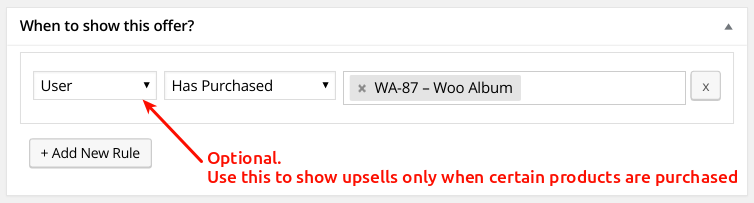
To complete the Upsell setup, make sure the Buy Now plugin is installed then check out the next image.
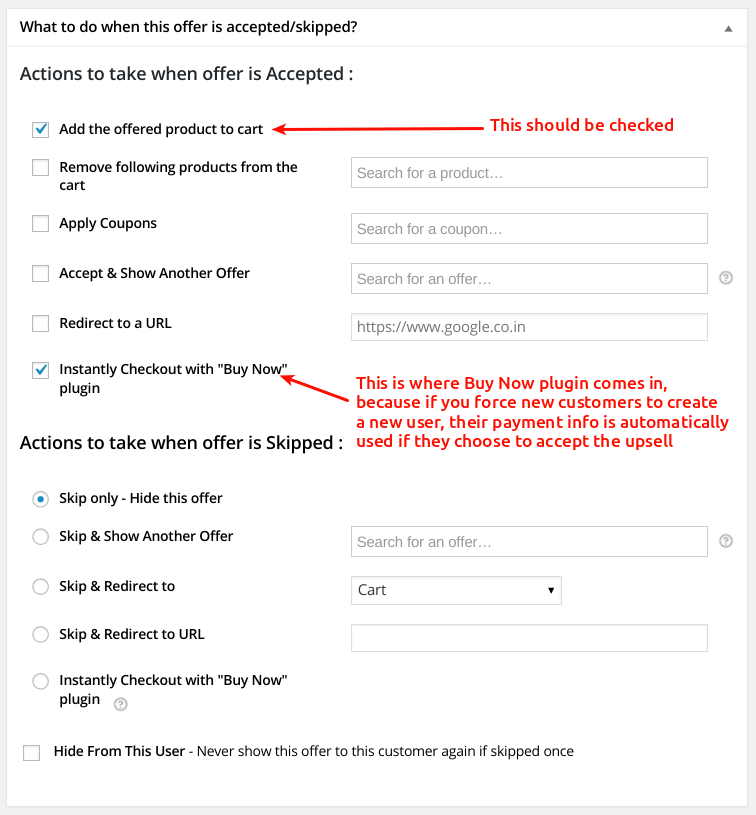
That’s it!
Note: Buy Now only works successfully if user has atleast previously placed Order in completed status. Read more for Buy Now 1 click requirements from here : 1 click Requirements
Recommended Reading :