
How to Create an Order Bump Offer
Setting up an order bump is a fantastic way to boost your average order value right at the finish line – at the checkout!
To get started, head over to your WordPress admin dashboard and navigate to: Smart Offers > All Offers > Add New > Order Bump. Now follow these steps:
1. Offer title
Before diving into the details, give your offer a clear, relatable name in the Offer Title field at the top of the page. This is purely for your own internal admin reference to keep things organized!
2. What to offer
First, decide what product you are offering and what kind of deal your customers will get.
- Offered Product: Search for the specific product you want to pitch. You can offer one product per order bump. Once the customer accepts, it is instantly added to their cart!
- Offer At: Set the price for your offer. Use the dropdown to choose your discount type: Fixed Price, Fixed Price Discount, or % Discount, and enter the amount.
- If you are offering a subscription product that is created using WooCommerce Subscriptions, you will find discount types like: Fixed Price, Recurring Product Discount, or Recurring Product % Discount once you select the product in the Offered Product.
Pro tip: Want to give away a freebie? Simply leave the price field blank, and the item will be offered for Free!
You can read this doc to learn more.
3. Offer rules
Define exactly when and to whom this bump should appear.
Set your target audience and cart conditions here. For a deep dive into setting this up, check out our guide on Offer rules.
4. Offer position
Where should this offer live on your checkout page? Select the position from the dropdown to select the perfect spot:
- Before place order button
- After place order button
5. Order bump style
Make your offer look great instantly. Choose from our pre-defined, conversion-optimized templates.
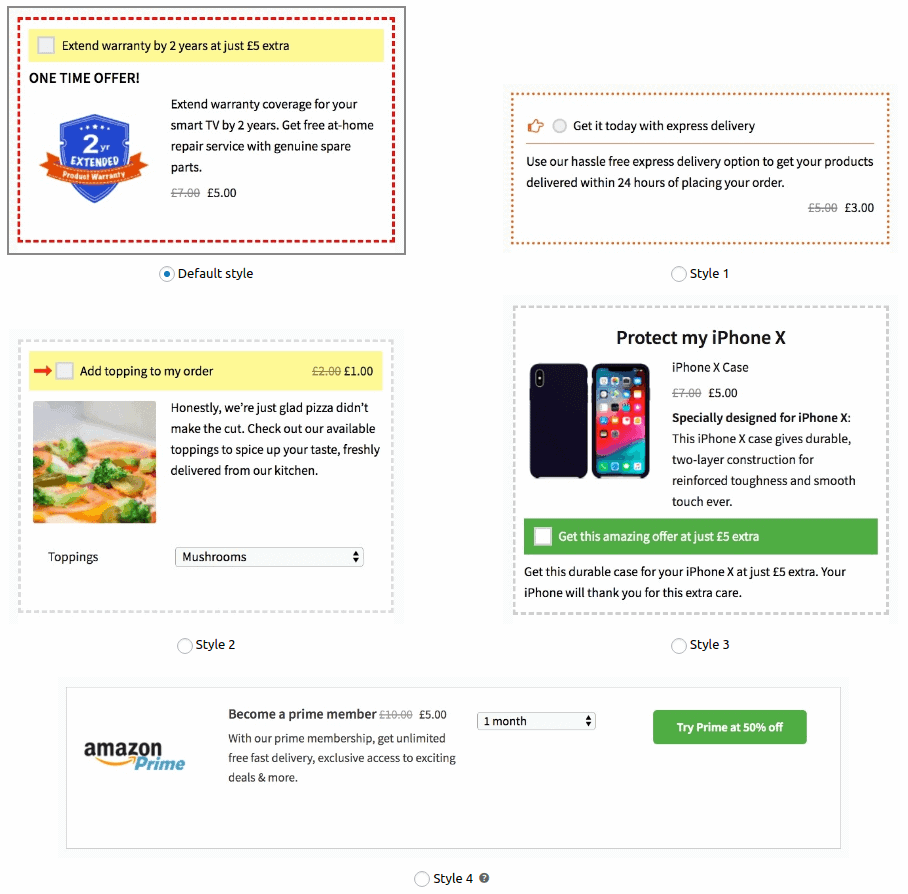
6. Offer content
This is your sales pitch! Customize the text and visuals to make your offer irresistible.
- CTA – The text right next to the accept checkbox (e.g., “Yes, add this to my order!”).
- Headline – A catchy title for your order bump.
- Content – A brief, compelling reason why they should add this item.
- Offer image – Choose whether to use the offered product’s default featured image or click Set Image to upload a custom graphic for the offer.
Note: If you leave the CTA, headline, or Ccntent fields blank, Smart Offers will automatically display default placeholder text.
You can also use the following shortcodes inside Offer content > Content to dynamically show the offered product details:
[so_product_name]– Displays the offered product’s name.[so_product_short_description]– The product’s short description.[so_quantity allow_change=true]– By default, accepting an order bump adds exactly one of the offered items to the cart. With this, a quantity box will appear inside your offer. (Note: Using justwithout theallow_change=trueparameter will keep the quantity box hidden).
7. Offer priority
Sometimes, your offer rules might overlap, triggering multiple offers to display on the same page. The ‘Offer Priority’ meta box helps you dictate the exact order in which they appear.
Choose from: Highest, High, Default, Low, or Lowest.
Default: Show as per your global settings defined in Smart Offers > Settings under “Multiple Offers on page? Show offer with…” (learn more).
8. Go live
Once you are happy with your setup, click Publish to go live and enjoy the extra sales.