


If you are looking for an “Export” button on your WooCommerce Orders screen, you will not find one. Core WooCommerce includes built-in CSV exporters for products and customers, but it provides no native, one-click order CSV exporter.
When you need to run a woocommerce export orders workflow for tax compliance, accounting, or warehouse fulfillment, default WordPress tools fall short. You are forced to rely on Analytics summaries, deprecated Reports, or raw XML files that lack itemized line items and custom checkout metadata.
In this guide, I will break down what native WooCommerce export tools actually do, where their limits lie, and how to filter and export clean order data to CSV or Excel without crashing your server.
Why export WooCommerce orders to CSV or Excel?
Store owners export WooCommerce orders to reconcile accounts, supply packing lists, and audit customer spend. Daily transactions live in WordPress. External accounting software and fulfillment warehouses require structured spreadsheets to process orders cleanly.
Three core operational needs drive order exports:
- Tax compliance and bookkeeping: Accounting platforms like QuickBooks and Xero require clean transaction totals, gross revenue, collected taxes, and coupon discounts.
- Warehouse fulfillment and dropshipping: Logistics partners need exact product SKUs, quantities, shipping notes, and customer addresses to pack parcels accurately.
- Customer segmentation: Isolating repeat buyers and high-order-value customers lets marketing teams run targeted re-engagement campaigns.
If you only need customer contact records rather than order transactions, you can export WooCommerce customer records separately.
WooCommerce export orders: native options and their limitations
A common point of confusion is searching for a direct “Export” button under WooCommerce → Orders. In standard WooCommerce, that button does not exist. Core WooCommerce provides native CSV export only for products, while orders must rely on three indirect built-in mechanisms:
| Export Method | File Format | Line Items per Row | Custom Meta / HPOS | Filtering Options | Timeout Risk |
|---|---|---|---|---|---|
| WooCommerce Analytics | CSV | No (aggregate) | No | Date / Order Status | Low to Medium |
| WooCommerce Reports (Legacy) | CSV | No (sales totals) | No | Date Range only | Medium |
| WordPress Tools > Export | XML | Yes (raw tags) | Partial (legacy postmeta) | Date / Status / Products | High |
| Smart Manager | CSV | Configurable | Yes (HPOS native) | Advanced multi-conditional | Zero (chunked) |
Method 1: Exporting via WooCommerce Analytics Orders
WooCommerce Analytics provides a downloadable CSV export under Analytics → Orders. This report displays order IDs, dates, customer names, net revenue, and order status.
Analytics CSV files serve performance tracking, not order fulfillment. You cannot view product attributes, custom checkout fields, phone numbers, or line-item quantities. Every line in the export is a total order summary rather than the products purchased inside it.
Method 2: Exporting legacy sales reports via WooCommerce Reports
The older reporting screen under WooCommerce → Reports → Orders allows you to export sales figures by date, product category, or coupon code. Clicking Export CSV downloads gross sales and refund totals.
This legacy screen exports numerical aggregates. It will not export customer shipping addresses, transaction IDs, or payment gateway details.
Method 3: Exporting raw store records via WordPress Tools > Export
WordPress includes a core export tool under Tools → Export → Orders. Selecting this option downloads an XML file containing your store’s underlying order post records.
XML preserves deep database tags, but it is clumsy for daily business workflows. Spreadsheet programs like Excel or Google Sheets cannot convert nested XML tags into neat columns without manual reformatting.
Why native exports fail for high-volume stores
When your store scales past 500 orders, native export mechanisms frequently trigger server timeouts. WordPress tries to load all matching database rows into PHP memory at once. If your database contains tens of thousands of orders, the server exhausts its memory limit and returns a 504 Gateway Timeout.
On stores running WooCommerce 9.0 or newer with High-Performance Order Storage (HPOS) enabled, older export plugins fail to locate custom order fields. The data has moved out of traditional WordPress post tables.
To learn how to handle catalog migrations alongside order data, see our complete guide to WooCommerce order and customer export.
Order-level vs line-item exports: which layout do you need?
Order exports require different row structures depending on whether you report revenue or ship physical parcels. Choosing the wrong format causes calculation errors in bookkeeping or missing item quantities on packing slips.
There are two primary ways to format an order export spreadsheet:
-
One row per order: Each row contains a single transaction ID with columns for customer details, order total, tax paid, and shipping method. This layout suits sales audits, tax filing, and payment gateway reconciliation.
-
One row per line item: An order with three separate items produces three distinct spreadsheet rows sharing one order ID. Columns display the exact product SKU, item title, unit price, and line quantity. This layout is required by fulfillment warehouses, dropshippers, and inventory managers.
Handling custom checkout fields under WooCommerce 9+ HPOS
High-Performance Order Storage (HPOS) stores order records in dedicated database tables (wp_wc_orders and wp_wc_orders_meta) instead of legacy wp_posts tables.
If you collect delivery dates, VAT numbers, or gift notes at checkout, older export scripts will generate blank columns. An enterprise-grade export tool queries HPOS tables directly so that custom checkout fields map into your CSV reliably.
How to export WooCommerce orders with advanced filters using Smart Manager
Smart Manager gives you an Excel-like spreadsheet interface directly inside your WordPress dashboard. You can search, filter, and export orders without manual spreadsheet editing. Instead of downloading a massive, unorganized file, you isolate exact segments before exporting.
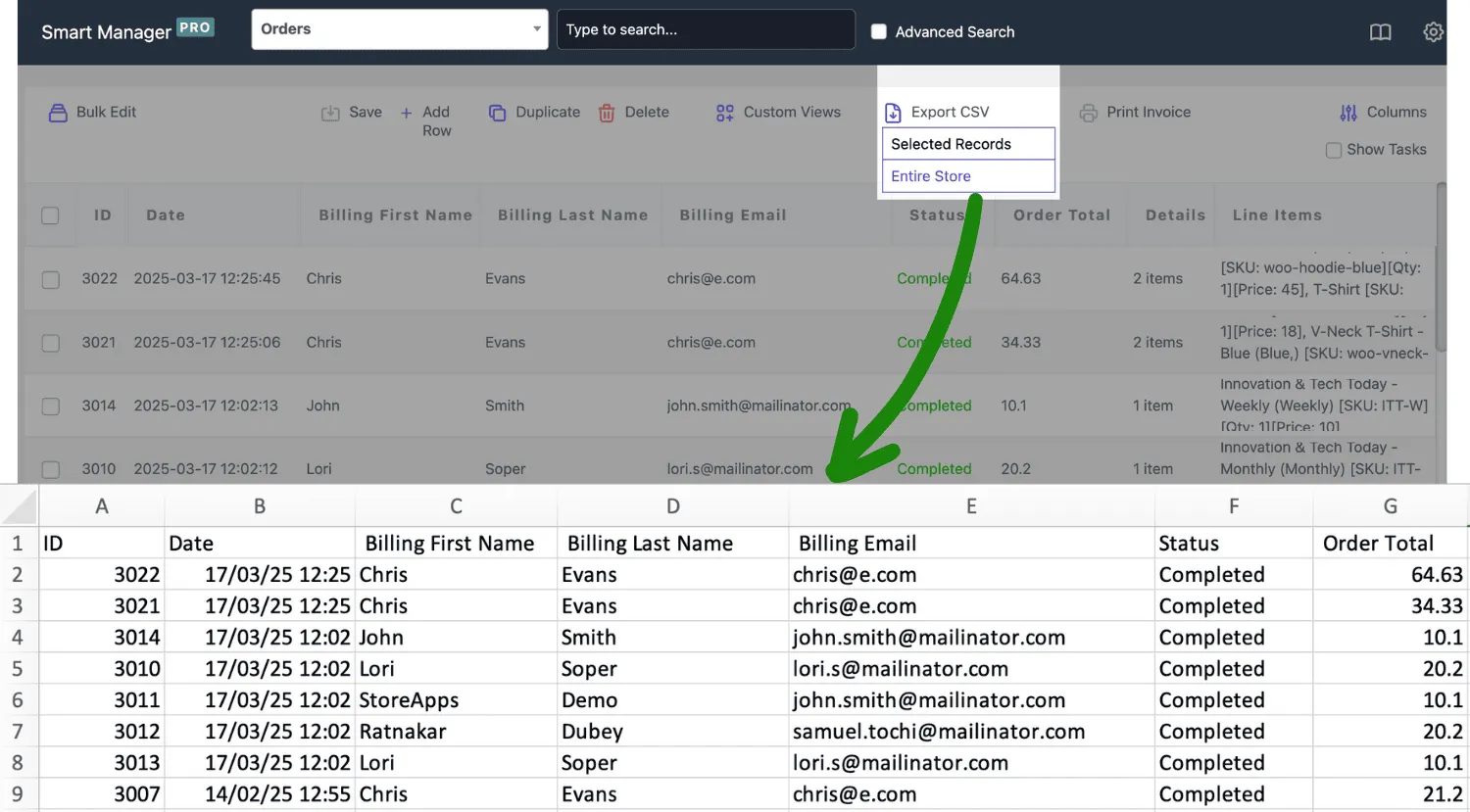
As shown above, the orders dashboard displays columns for customer details, order totals, and itemized line items. Clicking the Export CSV button lets you download either Selected Records or your Entire Store directly into a clean spreadsheet.
With Smart Manager, you can export 30+ data fields and custom metadata directly to CSV:
- Order date, status, and currency
- Order subtotal, total, and shipping details
- Line items, product SKUs, and quantities
- Billing and shipping names, emails, and street addresses
- Payment method titles and transaction IDs
- Applied coupons and discount totals
- Custom fields added by checkout and delivery extensions
If you need automated background exports sent to an SFTP server or email address on a recurring cron schedule, you can automate WooCommerce orders export on a schedule.
8 practical WooCommerce order export scenarios
The main benefit of advanced order exports is filtering down to exact operational records. Below are eight real-world scenarios where targeted exports save hours of manual sorting.
How to export country-wise refunds
Tracking regional returns helps identify localized shipping damage or high international return rates.
- Navigate to
Smart Manager → Ordersand clickAdvanced Search. - Set the first condition:
Shipping Country → is → Canada(or your target country). - Click
Add a conditionand set:Status → is → Refunded. - Click
Search.
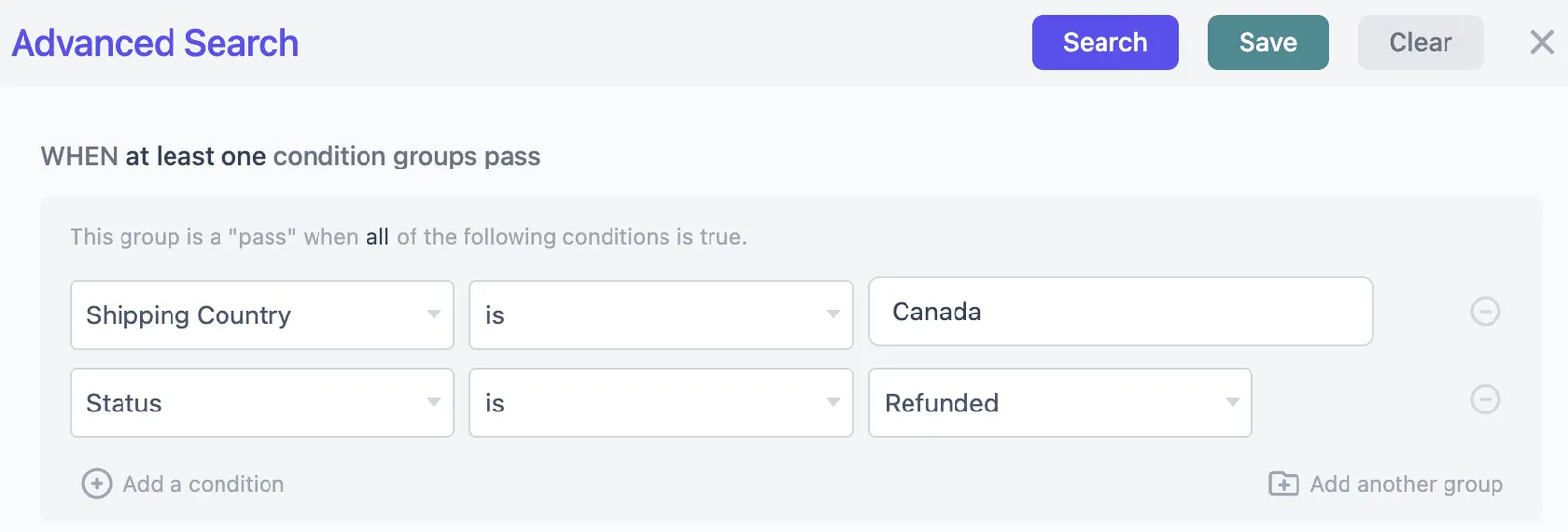
Once filtered, click Export CSV → Selected Records to download an itemized refund sheet.
How to export orders by payment method to audit gateway fees
Payment processing fees differ across Stripe, PayPal, and digital wallets. Exporting transactions by payment gateway lets your finance team reconcile deposits against processor fees.
- Open the
Smart Manager → Ordersdashboard. - Click
Advanced Search. - Set the condition:
Payment Method Title → is → PayPal. - Click
Search.
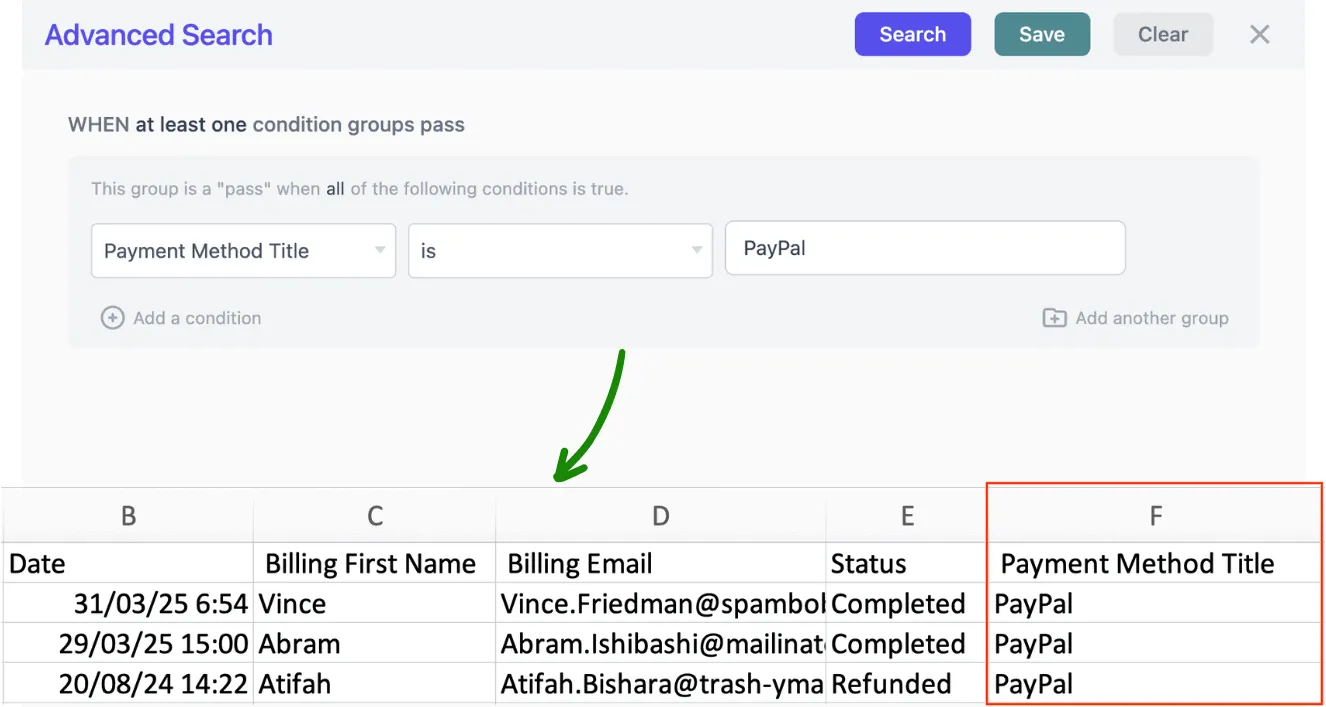
As shown in the screenshot, this filter isolates all transactions where Payment Method Title is PayPal. You can review gross receipts, check refund counts, and repeat the search for Stripe to compare fee overhead.
How to export top customers by order total
Rewarding your highest-spending buyers increases retention and lifetime customer value.
- Go to
Smart Manager → Orders. - Open
Advanced Search. - Set the filter condition:
Order Total → > → 2000. - Click
Search.
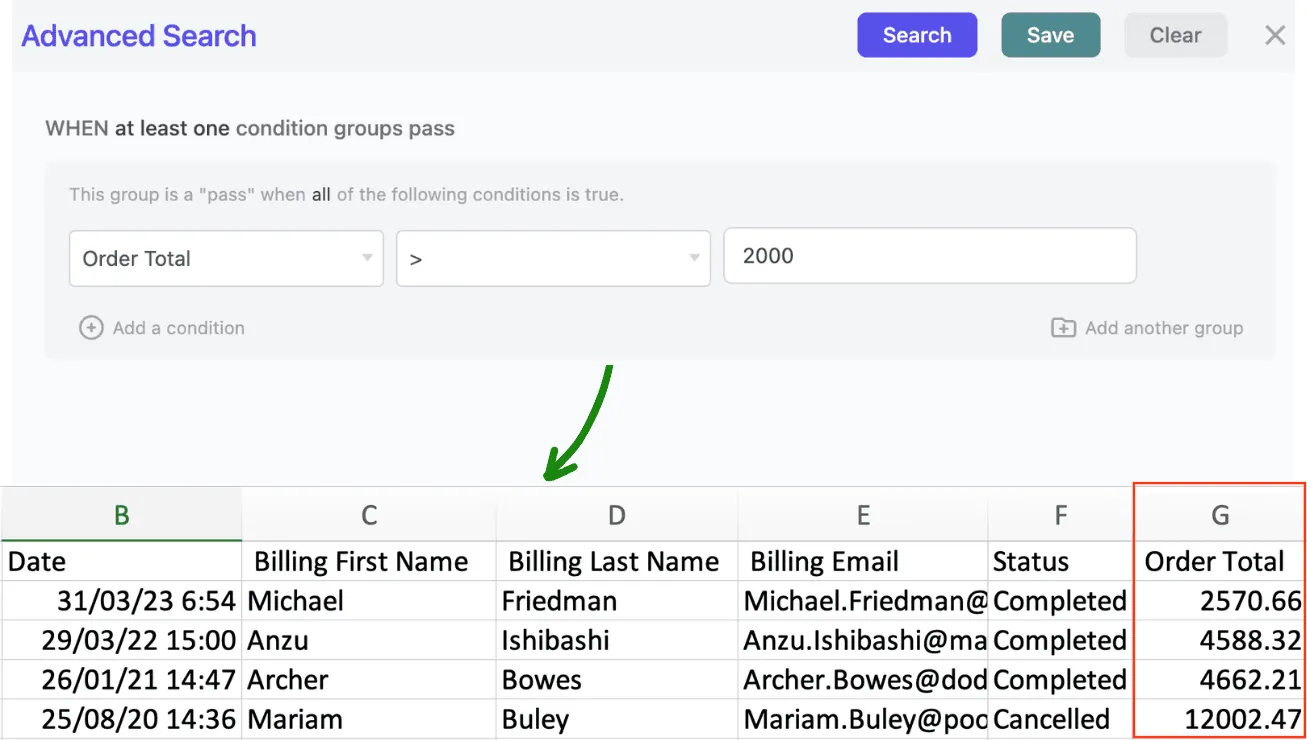
As shown in the exported spreadsheet above, filtering with the > operator isolates high-value accounts, such as $4,500+ and $12,000+ orders, along with customer names, emails, and order statuses. Download this VIP list to deliver exclusive discount codes or personalized follow-up offers.
How to export orders containing specific product SKUs
When reviewing product batch recalls or evaluating sales for a flagship item, you need orders containing that specific SKU.
- Navigate to
Smart Manager → Orders. - In
Advanced Search, select:Product SKU → is → SKU-BBYM. - Click
Search.
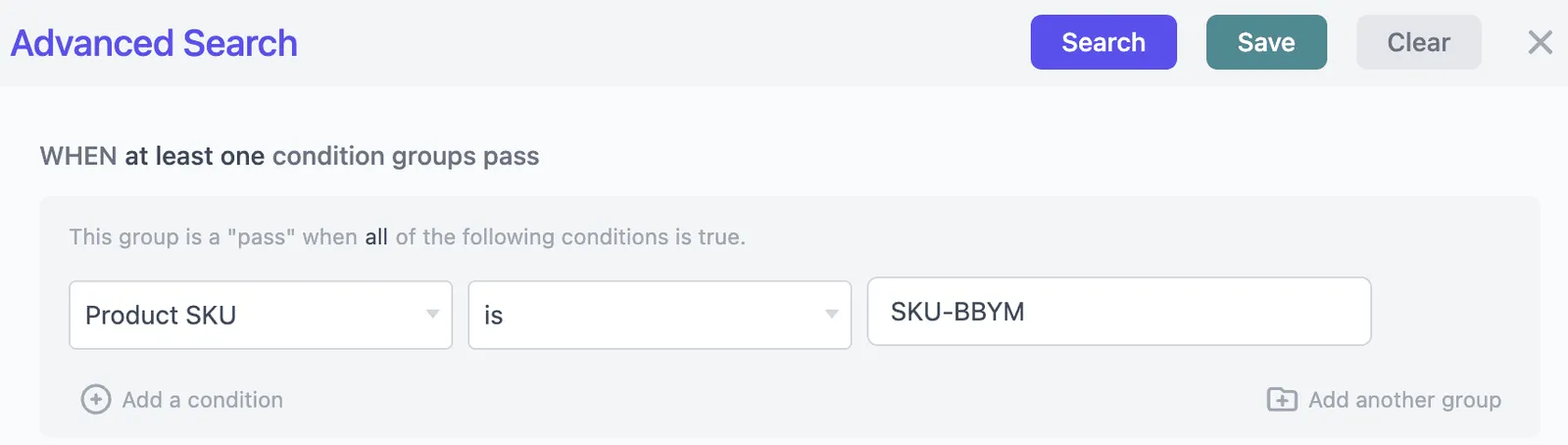
Export the results to evaluate sales velocity, check customer notes, or audit warehouse stock. You can also export WooCommerce products to cross-check SKU catalogs.
How to export orders pending fulfillment
To keep order processing smooth, your shipping crew needs an actionable list of paid orders waiting to be packed.
- In the
Smart Manager → Ordersview, clickAdvanced Search. - Set the condition:
Status → is → Processing. - Click
Search. - Click
Export CSV → Selected Records.
Hand this file directly to your fulfillment warehouse to assemble packages without delays.
How to export cancelled subscriptions for re-engagement
Subscription churn hurts recurring revenue. Exporting recently cancelled subscription orders lets customer success teams follow up and address cancellation reasons.
- In Smart Manager, select
Subscriptionsfrom the top post type dropdown. - Open
Advanced Search. - Set the filter:
Status → is → Cancelled. - Click
Search.
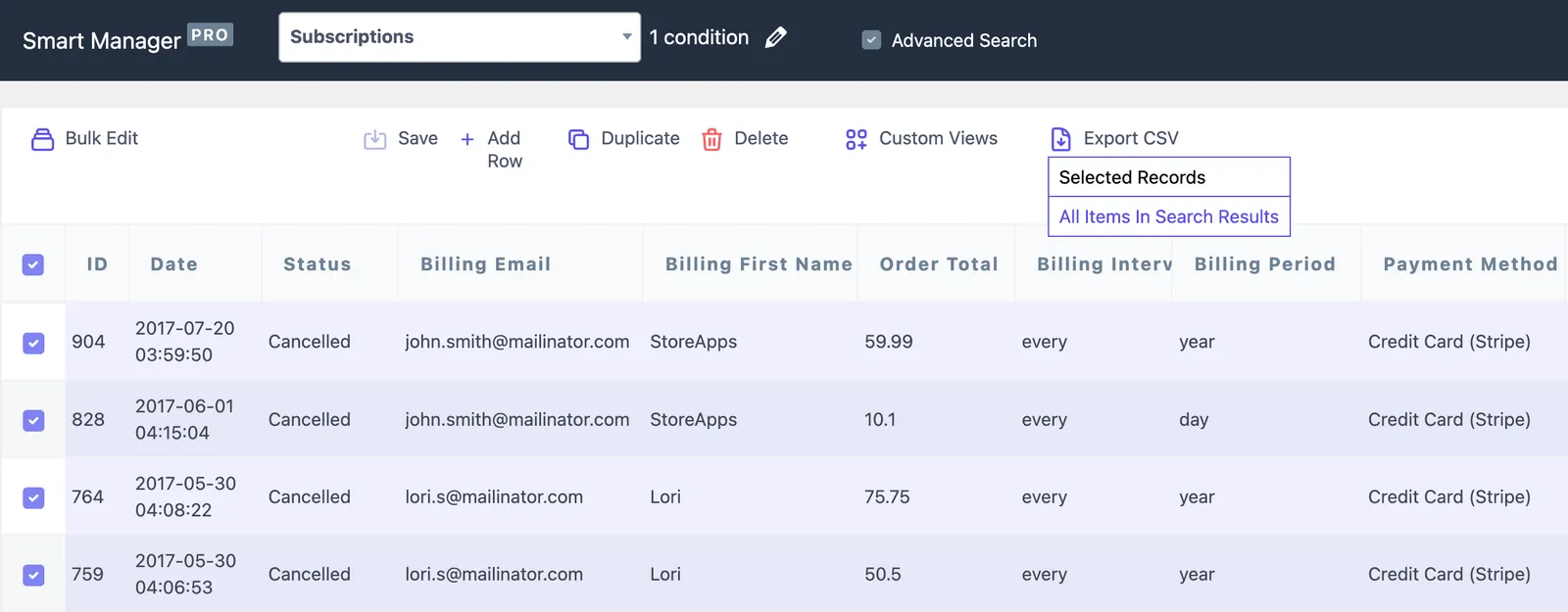
As shown above, click Export CSV and choose Selected Records or All Items In Search Results to download your cancelled subscribers, including billing cycles and renewal intervals. Export these accounts to send targeted win-back emails or exit surveys. For a comprehensive walkthrough of recurring revenue data, refer to our guide on exporting WooCommerce subscriptions.
How to compare promotional coupon orders against full-price sales
Heavy discounting can erode profit margins if too many customers purchase only during promotions.
- Export your store orders using Smart Manager with the
Coupons Usedcolumn enabled. - Filter the CSV in your spreadsheet program for rows where the coupon field contains a code.
- Calculate the revenue total for discounted orders versus full-price purchases.
This comparison reveals exactly how reliant your sales volume is on promotional codes.
How to export customers by last purchase date
Customer recency is one of the strongest predictors of repeat conversions, especially before seasonal sale periods.
- Navigate to
Smart Manager → Users. - Apply an advanced search filtering users with orders placed within the last 90 days and an order total above $300.
- Export the filtered CSV.
This target list provides high-intent prospects for loyalty incentives or early-access holiday promotions.
How to avoid common spreadsheet and export errors
Opening raw CSV exports in spreadsheet applications can cause silent data corruption or application freezes if files are not configured properly.
Fixing dropped leading zeros on postal codes in Excel
Microsoft Excel automatically detects columns containing numeric values and formats them as standard integers. When opening an order export, Excel strips leading zeros from postal codes (for example, converting Massachusetts ZIP code 02111 into 2111).
To prevent this issue:
- Do not double-click the CSV file to open it directly in Excel.
- Open a blank spreadsheet, navigate to
Data → Get Data → From Text/CSV. - In the import preview, select the postal code column and explicitly set its data type to Text before clicking
Load.
Resolving UTF-8 character encoding issues on macOS
If your customer records contain accented characters, umlauts, or non-Latin alphabets, Excel for Mac may display garbled text (such as é instead of é).
This occurs because Excel defaults to ANSI or Windows-1252 encoding when opening text files directly. Always use Excel’s import wizard and select Unicode (UTF-8) as the file origin, or open the CSV directly inside Google Sheets, which detects UTF-8 encoding automatically.
Preventing 504 gateway timeouts on large order databases
Exporting 20,000 orders in a single unbuffered database query can lock your MySQL tables and trigger server memory crashes.
To keep your exports running smoothly:
- Increase your PHP memory limit in
wp-config.phpto at least 256MB:define('WP_MEMORY_LIMIT', '256M');. - Break large historical exports into smaller quarterly or monthly date ranges.
- Use Smart Manager’s background batch processing, which exports large datasets in manageable chunked iterations without exhausting server resources.
Run your WooCommerce operations with precision
Messy spreadsheets and crashed exports slow down your fulfillment and reporting.
Smart Manager gives you full control over your WooCommerce order data with instant search, multi-condition filters, and clean CSV exports directly inside WordPress.
No more spreadsheet corruption, no missed customer fields, and no server timeouts.
Frequently asked questions about exporting WooCommerce orders
Can I export WooCommerce orders without installing a plugin?
Yes. You can export order summaries via WooCommerce Analytics (Analytics → Orders), legacy sales totals via WooCommerce Reports (WooCommerce → Reports), or raw XML records via WordPress Tools (Tools → Export → Orders). However, none of these native tools provide a line-item CSV with custom checkout fields.
How do I export WooCommerce orders to CSV with custom checkout fields?
To export custom checkout metadata, use a tool like Smart Manager that detects custom post meta and HPOS order tables. Open the dashboard, ensure your custom meta columns are toggled visible, apply your search filters, and click Export CSV.
How do I export only completed orders for a specific date range?
In your export tool’s advanced search, add two conditions: set Status to “Completed”, and set Date to your desired range (for example, between 2026-01-01 and 2026-03-31). Once the list refreshes, choose Export CSV for the selected records.
Why does Microsoft Excel drop leading zeros from ZIP codes?
Excel treats numbers without letters as integers and automatically removes leading zeros. To keep leading zeros intact, import the CSV using Excel’s Data > From Text/CSV feature and format the ZIP code column as Text rather than General or Number.
Does WooCommerce High-Performance Order Storage (HPOS) break CSV exports?
HPOS moves order data from wp_posts and wp_postmeta to dedicated tables like wp_wc_orders. Older, unmaintained export plugins that query postmeta tables directly will produce blank custom columns. Modern tools like Smart Manager are built to support HPOS natively.