


A WooCommerce grouped product lets you display multiple related items on a single product page so customers can buy them together in one click. Instead of searching your store for matching pieces, shoppers see the whole collection - such as a camera body, extra lenses, and spare batteries - and choose the exact quantity they want for each item.
Unlike a pre-packaged bundle, a grouped product has no standalone price or stock of its own. It is a shared display for independent simple products, where each item keeps its own regular price, SKU, and inventory count.
What is a WooCommerce grouped product and how does it work?
A WooCommerce grouped product is a non-purchasable parent item that presents child products in a structured table. The parent product holds no price or inventory of its own; it is a navigational hub for the items listed inside it.
Under the hood, WooCommerce stores child items as an array of post IDs inside the wp_postmeta database table under the _children meta key. When a customer views the grouped product page, WooCommerce queries those child IDs and renders each product’s title, price, and a quantity selector.
Parent Grouped Product (e.g., Camera Starter Kit)
├── Child 1: Mirrorless Camera Body ($899) [Qty: 1]
├── Child 2: 50mm f/1.8 Lens ($199) [Qty: 1]
└── Child 3: Extra Rechargeable Battery ($49) [Qty: 2]
When the shopper clicks the “Add to Cart” button, WooCommerce checks every item with a quantity above zero. It validates stock for each item independently and adds them to the cart as distinct line items.
Because each item remains a distinct entity, your fulfillment team sees exact SKUs on the order invoice. If the camera body is in stock but the extra battery is backordered, your inventory system tracks them accurately without custom configuration.
Grouped products vs product bundles vs categories: what is the difference?
Choosing between categories, grouped products, and bundles depends on how you want customers to discover, price, and purchase your products.
While WooCommerce product bundles allow you to package items together with package discounts and fixed bundle configurations, native grouped products sell each item at its standard price.
Here is how the three approaches compare:
- Product categories: The primary taxonomic hierarchy for browsing. Categories group products across multiple pages in your store catalog, but customers cannot add multiple items to the cart from a category archive.
- Grouped products: A single transactional product page. Customers view complementary items together and choose custom quantities, but pay individual standard prices for each item.
- Product bundles: A packaged merchandising unit. Bundles allow fixed or configurable item combinations, often with dynamic bundle discounts, minimum quantity rules, or forced item inclusions.
If you sell a camera body and want to recommend lenses and memory cards at regular prices, a grouped product is the simplest solution. If you want to offer 15% off when customers buy all three together, you need a dedicated bundling plugin.
How to create a grouped product in WooCommerce (step-by-step)
Setting up a grouped product requires creating your simple products first, adjusting their catalog visibility, and linking them to a parent container.
Step 1: create the simple child products
Every item that appears inside a grouped product must exist as an independent simple product first.
- Navigate to
WordPress Admin → Products → Add New. - Enter the product title (for example, “50mm Prime Lens”), description, and featured image.
- In the Product Data panel, leave the type set to
Simple product. - Enter the Regular price, SKU, and stock status under the General and Inventory tabs.
- Repeat this process for every complementary product you plan to include in the group.
Step 2: configure catalog visibility to prevent clutter
By default, every simple product you publish appears on your main shop and category archive pages. If you publish five accessories designed specifically for a grouped set, they will clutter your storefront.
- On the child product edit screen, look at the Publish box in the top-right corner.
- Locate Catalog visibility: Shop and search results and click Edit.
- Select Hidden (or Search results only if you still want customers to find it via site search).
- Click OK, then click Update.
Setting child products to hidden keeps your main shop catalog clean while allowing the products to display inside your grouped product.
Step 3: create the parent grouped product
Now create the container product that presents the collection to your shoppers.
- Go to
WordPress Admin → Products → Add New. - Add a clear title for the collection (for example, “Complete Home Office Desk Setup”).
- Add a primary featured image that showcases all the grouped items together.
- Scroll to the Product Data panel and open the dropdown menu.
- Select
Grouped product.
Notice that the General pricing tab disappears immediately. A grouped product cannot have its own price; its price displays as a range based on the cheapest and most expensive child items inside it.
Step 4: link child products in the product data panel
The final step links your simple child products to the parent container.
- In the Product Data panel, click the
Linked Productstab on the left sidebar. - Click inside the Grouped products field.
- Type the first three letters of your simple child product’s name.
- Select the child product from the search dropdown.
- Add all child products you want to feature. You can drag and drop items in this field to change their display order on the product page.
- Click Publish.
Visit the frontend URL of your new grouped product. You will see a neat table listing your child items with individual prices and quantity selectors beside each item.
The variable product limitation and how to solve it safely
WooCommerce core does not permit variable products inside a grouped product. When you search for items under the Grouped products field in the Linked Products tab, WooCommerce automatically filters out variable product IDs.
Why WooCommerce core blocks variable products in grouped sets
Variable products require interactive dropdown menus, variation price scripts, and stock checks for every attribute combination. The native grouped product template (single-product/add-to-cart/grouped.php) is built solely for flat table rows with standard quantity inputs.
Handling variation matrices for five different products on a single page creates severe UI conflicts and cart session bloat in core templates.
Why you should never edit core files for variations
Some developer forums recommend editing html-product-data-linked-products.php or modifying class-wc-product-grouped.php to bypass the variable product check.
Never modify WooCommerce core files. Any core modification is wiped out the moment you update WooCommerce. More importantly, forcing a variable product ID into a core grouped product breaks cart validation, causing checkout errors and missing variation metadata on orders.
Two safe ways to offer variations in product sets
You have two clean, upgrade-safe approaches to handle variations:
- The core workaround (simple products with hidden visibility): If you only offer two or three variations (such as Small and Large cushions), create each variation as an independent simple product. Name them clearly (“Cushion - Small”, “Cushion - Large”), set their catalog visibility to Hidden, and link them directly to the grouped product. Shoppers select their preferred size from the list.
- The plugin approach (true variation dropdowns): If your items require multi-attribute dropdowns (Color, Size, Material), use a dedicated bundling extension like Chained Products or Product Bundles. These plugins render full variation selectors directly inside the product kit.
When to upgrade: 5 types of WooCommerce product grouping
When your merchandising requires bundle discounts, mandatory items, or automated gifts, native grouped products reach their limit.
| Grouping type | Best used for | Shopper quantity | Variable support | Package discounts |
|---|---|---|---|---|
| Native Grouped | Optional complementary accessories | Shopper chooses per item | No (simple only) | None |
| Chained Products | Automatic gifts or BOGO sets | Tied to main item | Full variation support | Yes |
| Product Bundles | Discounted kits with custom options | Configurable ranges | Full variation support | Yes |
| Force Sells | Mandatory warranties or service fees | Synced 1:1 with main | Full variation support | None |
| Composite Products | Step-by-step kit builders (PCs or bikes) | Configurable per component | Full variation support | Optional |
1. Chained Products
Chained products are ideal when you want to link items to a main product so they automatically land in the customer’s cart. When a buyer adds the primary item to their cart, all chained products attach to the order instantly.
For example, if you sell a shaving razor, you can chain shaving cream and a travel case to it as a complimentary gift or pre-configured set.
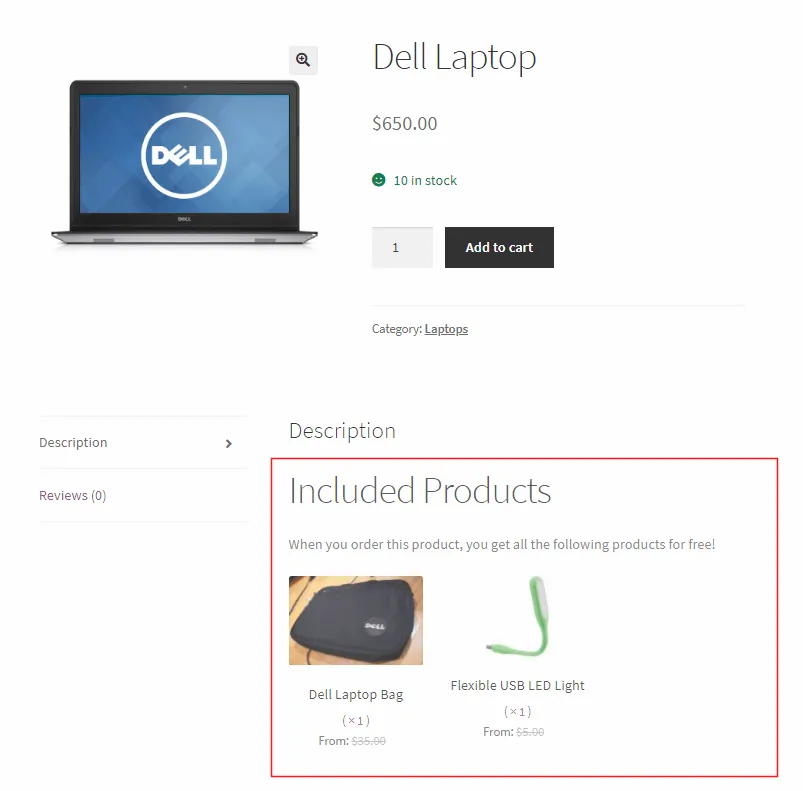
Chained Products supports both simple and variable items. You can price chained items individually or set their price to zero for automated giveaways.
Top features:
- Chain multiple products with preset quantities to a main item.
- Offer automated gifts or BOGO deals that add to the cart with one click.
- Maintain independent stock tracking for every chained component.
- Works with WooCommerce force sells vs chained products comparisons when choosing between mandatory and promotional sets.
2. Product Bundles
Product bundles let you assemble multiple related products into a single packaged offering, typically accompanied by a special bundle discount.
Unlike native grouped products, customers can be required to buy the entire package to receive the promotional price.
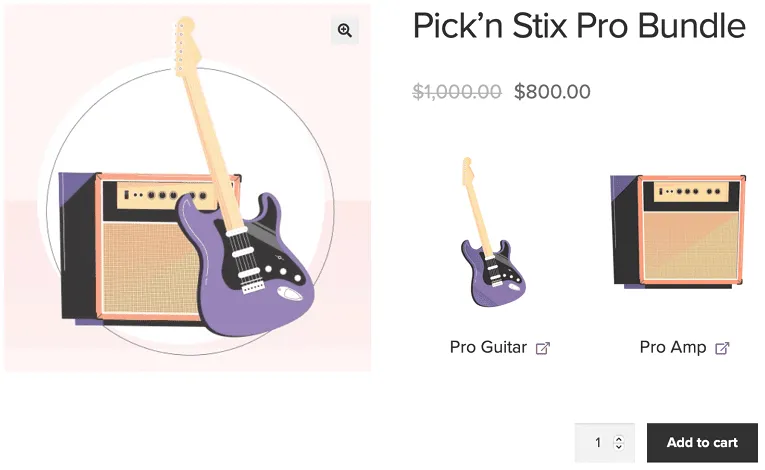
The Product Bundles extension gives you granular control over minimum and maximum quantities, dynamic pricing rules, and variation filtering.
Top features:
- Bundle simple, variable, and subscription products into a single package.
- Offer bulk quantity discounts and package-level pricing rules.
- Set optional versus mandatory items within the bundle.
- Learn how to create WooCommerce product bundles for step-by-step configuration workflows.
3. Force Sells
Force sells automatically link secondary items to a primary product so both are added to the cart in equal quantities. This structure is built for mandatory add-ons, such as extended service contracts, bottle deposits, or setup fees.
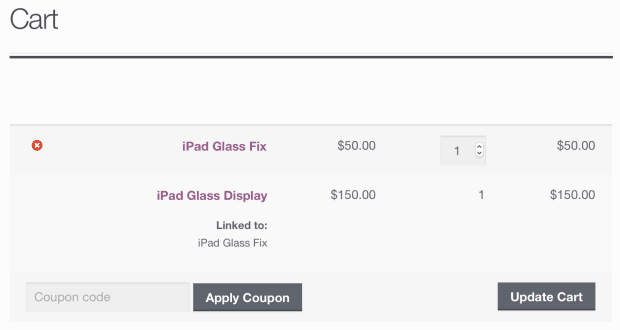
The Force Sells extension offers two distinct modes:
- Normal force sells: Linked products are added to the cart in matching quantities, but customers can remove the linked item if they choose.
- Synced force sells: Linked items cannot be removed from the cart independently. If the customer deletes the main product or changes its quantity, the synced item updates automatically.
4. Composite Products
Composite products provide a configurable builder interface for items assembled from multiple interchangeable components.
This model fits technical products like custom desktop computers, custom skateboards, or gift hampers where customers must choose one item from several component stages.
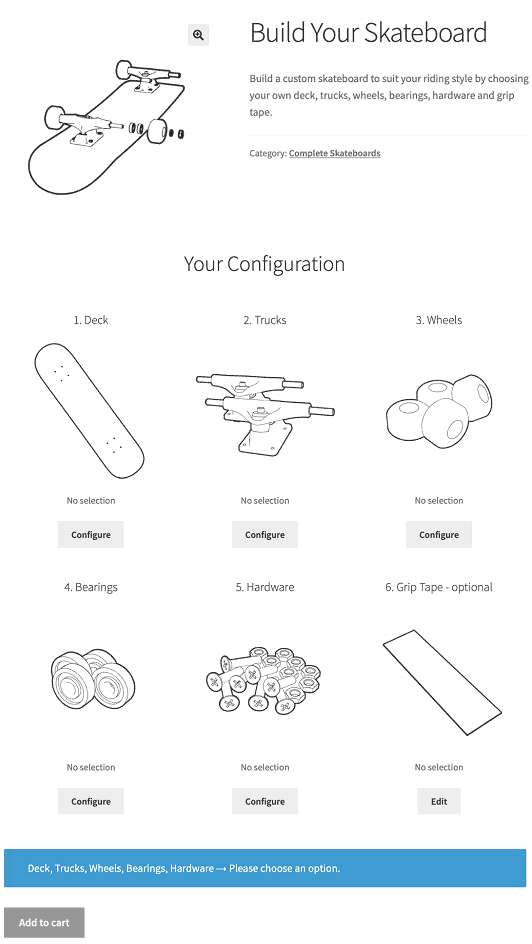
The Composite Products extension breaks down complex product configuration into clean, sequential steps.
Top features:
- Multi-step visual builder layout with pagination or accordion steps.
- Filter component selections by categories, tags, or specific product IDs.
- Dynamic price calculation based on chosen component upgrades.
5. Mix and Match Products
Mix and match products allow customers to build their own assortment within a fixed container size.
Common applications include doughnut boxes (pick 12 flavours from 20 options), custom six-packs of craft beer, or chocolate gift boxes.
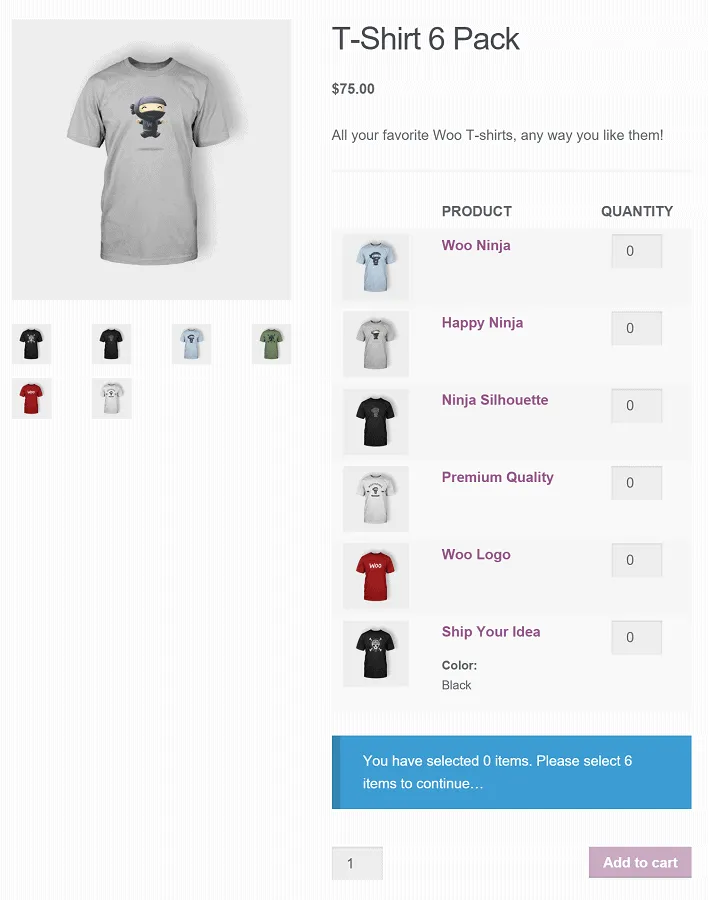
The Mix and Match Products plugin lets merchants set the container capacity and define which simple items and variations can fill the slots.
Top features:
- Enforce exact container sizes (for example, must select exactly 6 items).
- Support static box pricing or calculate prices per selected item.
- Manage stock deduction accurately across individual items chosen.
Can WooCommerce handle thousands of grouped products without slowing down?
Yes. Grouped products add virtually zero database performance penalty to large WooCommerce stores.
In the database, a grouped product creates one standard entry in wp_posts and stores its child relationships as a small array in wp_postmeta. Loading a grouped product page triggers the same standard query as loading simple products.
The primary performance risk comes from catalog bloat, not database queries. If you create 500 grouped products containing 2,500 child items without hiding the child items, your search index and catalog archives must handle 3,000 active entries.
Setting your simple child items to Hidden under catalog visibility ensures your store archives remain fast and focused.
What should you do next?
Start by evaluating whether your product set requires customer choice or a fixed package.
- Audit your catalog: If you sell complementary items where shoppers choose their own quantities at standard prices, stick with native WooCommerce grouped products.
- Follow the clean setup: Create your simple child products, set catalog visibility to Hidden, and link them inside a parent grouped product.
- Upgrade when strategy requires discounts: If your sales strategy relies on package discounts, automated bonus gifts, or multi-attribute variation selectors, explore specialized extensions like Chained Products or Product Bundles.
FAQ
Can I add variable products to a WooCommerce grouped product?
No. WooCommerce core only permits simple products inside grouped products. To offer variations natively, create each variation as an individual simple product, set its catalog visibility to “Hidden”, and link it to the group. For dropdown menus, use Chained Products or Product Bundles.
How do inventory and stock management work for grouped products?
Inventory is managed entirely at the individual child product level. The parent grouped product has no stock count. When a customer purchases two units of a child item from the grouped page, WooCommerce deducts two units from that specific child product’s inventory.
Can I set a discounted bundle price on a native grouped product?
No. Native grouped products always calculate prices by summing the regular prices of the chosen child products. If you want to offer a fixed discount (such as 10% off when purchasing the complete set), you need an extension like WooCommerce Product Bundles.
What is the difference between a product category and a grouped product?
Product categories are organizational taxonomies used to sort items across archive pages in your store catalog. Grouped products are single product pages that display complementary items together so customers can purchase multiple products in a single click.