

WooCommerce memberships control content, products, and discounts on a WordPress site. But they do not process recurring billing on their own. Launching a profitable membership site requires a clear architectural choice. You can pick an all-in-one membership plugin, or pair access control with an automated recurring subscription engine.
Getting this decision right protects your store margins and eliminates technical headaches. If you pick the wrong plugin stack, you risk paying unexpected transaction fees. You may also face broken page caching, or end up paying over $450 every year for software you do not need.
Many store owners buy the official WooCommerce Memberships extension expecting automated recurring revenue. When they install it, they discover it only manages access permissions. To charge credit cards on a recurring schedule, they must purchase a second plugin.
Here is the exact framework to evaluate plugins, calculate true ownership costs, configure access rules, and scale operations efficiently.
What are WooCommerce memberships and how do they work?
WooCommerce memberships are rule-based access systems. They restrict pages, products, purchasing rights, and pricing tiers to authenticated users on a WordPress store. Standard eCommerce products transfer ownership at checkout. In contrast, a membership grants conditional, time-bound privileges across your store.
Over 30,000 stores use WooCommerce memberships to gate access. In fact, our search data shows that 80% of merchants evaluating membership systems want purchasing clubs or recurring communities rather than simple post restrictions.
When a customer joins a tier, WordPress assigns that user account a membership record tied to your plan rules. Every time that user loads a page, WooCommerce checks their active membership status against your restriction rules.
Content restriction versus product gating
Membership sites usually rely on two distinct access models:
- Content restriction: Restricting access to blog posts, digital downloads, video tutorials, or private forums. Non-members see a customized teaser excerpt or an invitation to purchase a membership.
- Product gating: Controlling which customers can view or purchase physical inventory. This lets you build private VIP collections, early-access product drops, or wholesale-only catalog categories.
Digital content sites versus physical purchasing clubs
Not all membership sites sell digital courses or articles. Many top-earning stores use memberships to power physical retail clubs, inspired by Costco and Amazon Prime.
In a purchasing club model, customers pay an annual membership fee solely to access wholesale pricing, discounted shipping, and exclusive physical products. The content on the site remains open, but checkout privileges and tiered discounts apply only to verified members.
How content dripping works
Content dripping releases restricted material gradually based on signup dates rather than releasing everything on day one.
For example, a training program can grant immediate access to Module 1. It can make Module 2 available seven days later, and reveal Module 3 after thirty days. This steady schedule prevents members from signing up, downloading every resource in an afternoon, and immediately cancelling their account.
What is the difference between WooCommerce Memberships and Subscriptions?
WooCommerce Memberships governs access permissions, member perks, and content restrictions. Meanwhile, WooCommerce Subscriptions manages recurring payment schedules, billing intervals, and payment gateway tokenization. A membership dictates what a user can view, whereas a subscription dictates when and how often their credit card is charged.
Confusing these two concepts is the most common mistake merchants make when planning a site. You can use either plugin alone, or pair them together depending on how your business charges for access.
| Business Model | Required Plugin Stack | Payment Flow | Customer Experience |
|---|---|---|---|
| One-Time VIP Club Pass | WooCommerce Memberships alone | Single checkout payment | Customer pays once for lifetime or 1-year access |
| Physical Product Box Delivery | WooCommerce Subscriptions alone | Automated recurring charges | Customer is billed monthly for coffee or vitamin refills with no site restrictions |
| Recurring Digital Community | Memberships + Subscriptions paired | Automated recurring renewal | Customer is billed monthly; access is revoked automatically if renewal payment fails |
When access control is enough (Memberships alone)
You do not need a subscription plugin if you do not plan to charge automated, recurring credit card payments. WooCommerce Memberships alone works cleanly for:
- Lifetime access passes: Customers pay a single upfront fee to access digital archives or software documentation permanently.
- Fixed-length memberships: Customers pay once for a fixed duration (such as 365 days). When the period ends, access expires unless the customer manually purchases a renewal product.
- Free registration clubs: Users gain access to basic discounts or member articles simply by registering a free WordPress customer account on your store.
When recurring billing is required (and how they pair together)
If you run a private community, monthly coaching portal, or ongoing subscription box, manual renewal invoices create friction and spike member churn.
When you pair WooCommerce Memberships with WooCommerce Subscriptions, purchasing a subscription product automatically grants membership access. If the recurring payment succeeds, access continues uninterrupted. If the renewal charge fails or the customer cancels their subscription, WooCommerce Memberships automatically pauses or cancels their access privileges.
For a deeper analysis of this technical pairing, read our detailed comparison of WooCommerce subscriptions vs memberships.
What are the best WooCommerce membership plugins?
The best plugin depends on your core business model. Retail clubs require deep catalog integration, while learning portals prioritize paywalls. Leading options include WooCommerce Memberships, Paid Memberships Pro, MemberPress, and ARMember. Each tool offers distinct tradeoffs between annual licensing fees, transaction costs, and checkout flexibility.
Many comparison articles rank plugins by vanity feature lists while ignoring the true total cost of ownership (TCO) and hidden transaction fees.
| Plugin Name | Best For | Annual Base Cost | Includes Recurring Billing? | Checkout Experience |
|---|---|---|---|---|
| WooCommerce Memberships | Native WooCommerce retail stores | $199 (stack total: $478 with Subscriptions) | Uses native WooCommerce checkout | |
| Paid Memberships Pro | Freemium and community sites | Free or $249/year | Dedicated custom membership checkout | |
| MemberPress | Course creators and digital paywalls | $179.50 to $399.50/year | Standalone checkout (WooCommerce requires add-ons) | |
| ARMember | Budget-conscious single sites | $69 one-time (CodeCanyon) | Built-in modal or dedicated forms |
Official WooCommerce Memberships extension
The official WooCommerce Memberships extension (live demo), developed by SkyVerge, provides the deepest integration with WooCommerce core.
It treats memberships as an extension of your existing product catalog rather than a separate platform. You can link memberships to simple, variable, or subscription products, grant access on purchase, and restrict individual product variations.
- Strengths: Native compatibility with WooCommerce checkout blocks, standard payment gateways, and customer account dashboards. Clean user notes and admin restriction controls.
- Weaknesses: It does not handle recurring billing. Adding automated renewals requires purchasing WooCommerce Subscriptions for $279 annually, bringing your software overhead to $478 every year.
- Who it is for: Established WooCommerce stores selling physical products alongside member discounts and exclusive perks.
Paid Memberships Pro
Paid Memberships Pro is one of the most widely used open-source membership solutions in the WordPress ecosystem.
It operates as an all-in-one system, handling access restrictions, user registrations, and recurring subscription billing within a single plugin framework. You also get dozens of free and premium add-ons for member directories, Discord integrations, and affiliate tracking.
- Strengths: Generous core plugin available on WordPress.org. Handles recurring subscriptions through Stripe and PayPal without requiring separate billing plugins.
- Weaknesses: The free version charges a 2% gateway transaction fee on all membership sales unless you upgrade to a paid license starting at $249 annually. Its WooCommerce integration requires configuring a bridge add-on.
- Who it is for: Publishers, associations, and community portals looking for a single plugin to manage registrations and recurring dues.
MemberPress
MemberPress is the premier WordPress membership plugin for digital creators, paywalled publications, and online course educators.
It includes a built-in course curriculum builder, sophisticated content dripping rules, and native paywall popups. Subscription billing and payments run natively through Stripe, PayPal, and Authorize.Net.
- Strengths: Powerful content protection rules, built-in LMS capabilities, and fast rule creation based on tags, categories, or parent pages.
- Weaknesses: MemberPress is built as a standalone membership environment. Selling MemberPress tiers through WooCommerce products requires high-tier licenses, webhook bridges, or Zapier connectors.
- Who it is for: Educators, digital publishers, and course businesses whose primary product is gated content rather than physical merchandise.
Budget-friendly alternatives: ARMember and Paid Member Subscriptions
If you run a small project or need a straightforward access barrier on a tight budget, full enterprise stacks may be overkill.
- ARMember: Available on CodeCanyon for a one-time fee of $69, offering built-in form builders, profile templates, content restriction, and recurring payments.
- Paid Member Subscriptions: A lightweight alternative by Cozmoslabs that embeds directly into your WooCommerce product and shop pages with minimal server overhead.
For a comprehensive evaluation of recurring billing engines versus access plugins, review our dedicated plugin comparison in the previous section.
How to set up WooCommerce memberships step-by-step?
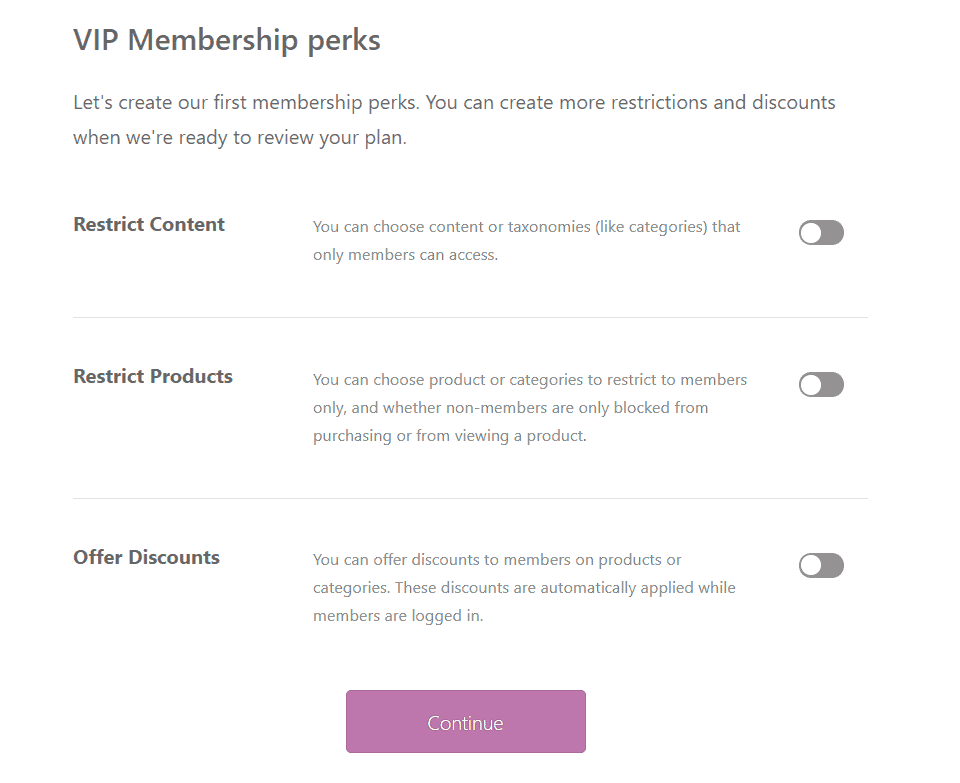
Setting up WooCommerce memberships is straightforward. First, install the extension and configure restriction behavior. Next, define tiers and access rules. Finally, enable member account dashboards.
The following walkthrough covers the setup sequence using the official WooCommerce Memberships extension.
Step 1: Install the extension and configure restriction behavior
After purchasing WooCommerce Memberships from the WooCommerce marketplace, upload and activate the plugin on your store:
- In your WordPress dashboard, navigate to
Plugins → Add New. - Click Upload Plugin, select the plugin zip file, and click Install Now.
- Click Activate Plugin.
Next, configure how restricted content appears to non-members:
- Navigate to
WooCommerce → Settings → Memberships(consult the official WooCommerce Memberships documentation for detailed parameter options). - Select your Restriction Mode:
- Hide content only: Keeps post titles, featured images, and excerpt summaries visible, while replacing the main body with a restricted access message.
- Hide completely: Removes restricted posts and products entirely from catalog archives, searches, and direct URLs (returning a 404 error or redirecting visitors).
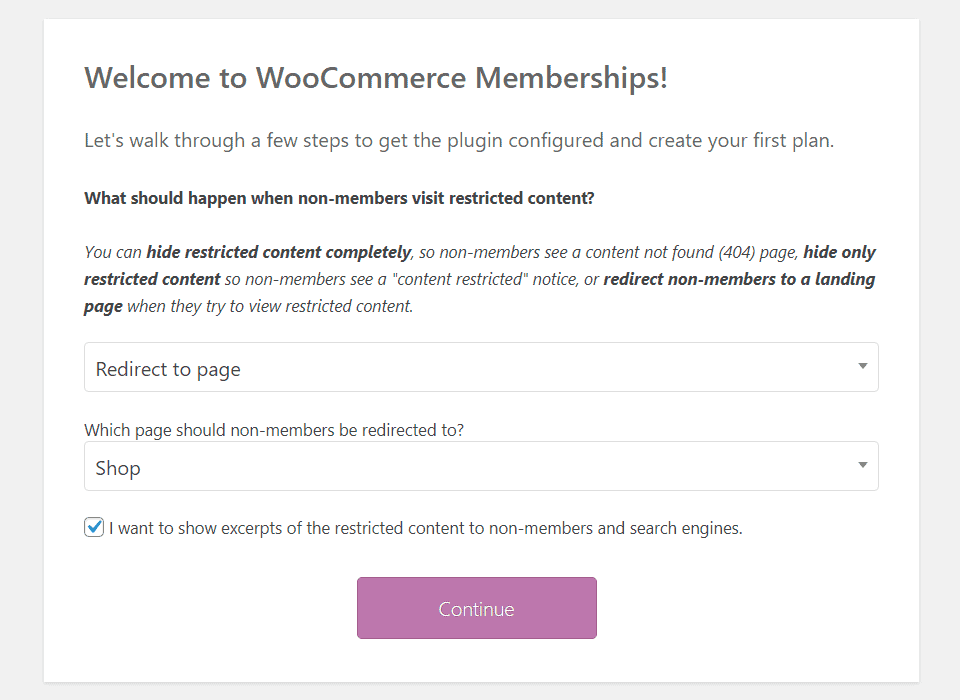
Choosing Hide content only is generally best for SEO and conversion rates. It allows search engines to index your article summaries while giving casual visitors a clear prompt to purchase a membership.
Step 2: Create membership plans and set access duration
Membership plans define the rules, pricing, and access lengths for your tiers:
- Navigate to
WooCommerce → Memberships → Membership Plans. - Click Add Membership Plan and enter a plan title (such as Gold VIP Pass).
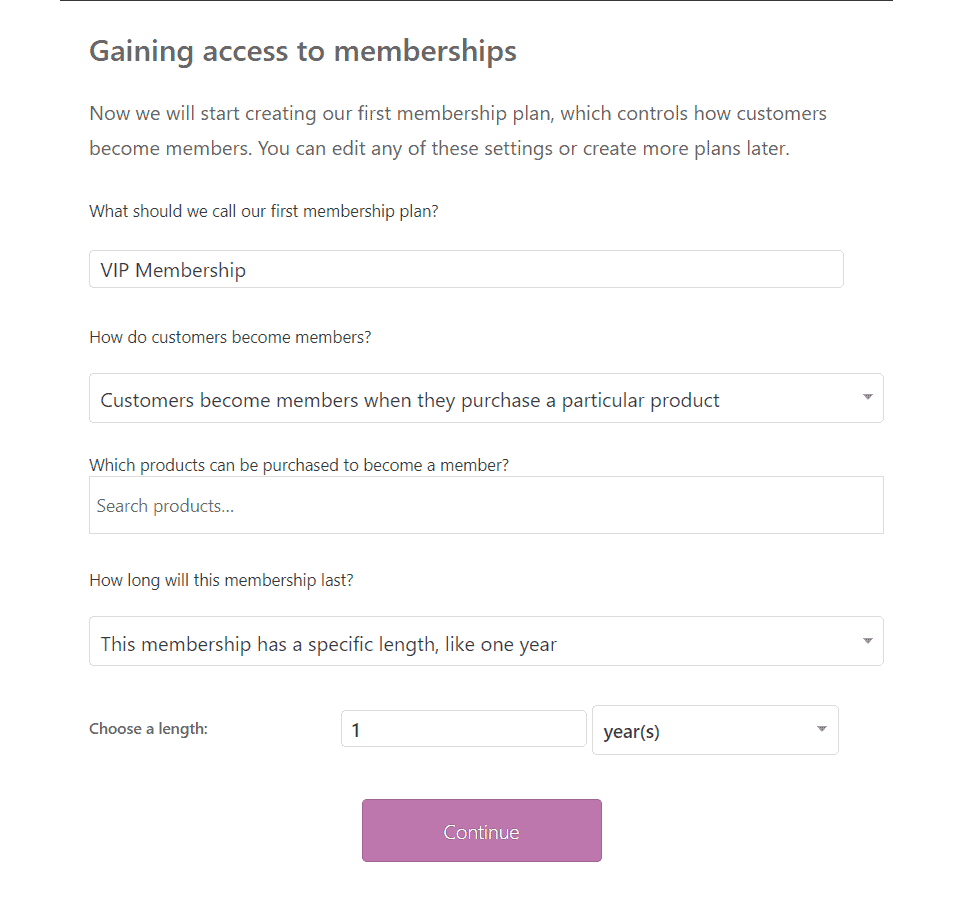
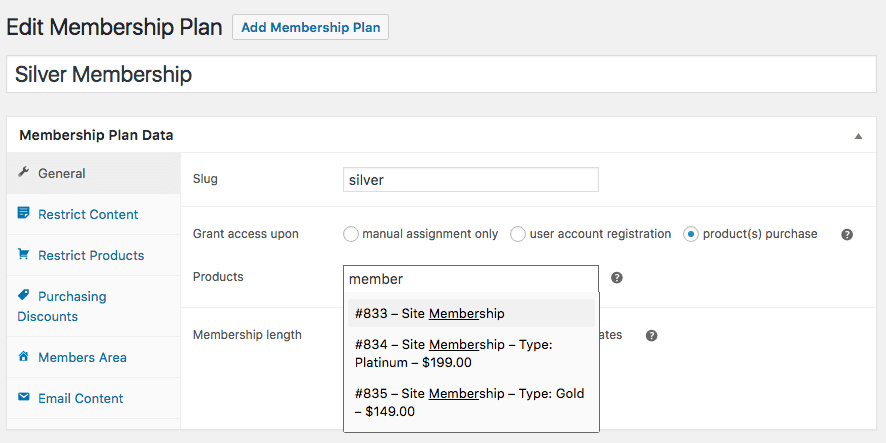
- Under the General tab, select the Access Method:
- Manual assignment only: For invite-only corporate or private tiers.
- Customer registration: Automatically grants access when a user registers a store account.
- Product purchase: Automatically grants access when a customer buys a specific simple, variable, or subscription product.
- Set the Membership Length:
- Unlimited: Access never expires.
- Specific length: Valid for a set number of days, weeks, months, or years from signup.
- Fixed dates: Valid between specific calendar start and end dates (ideal for annual cohorts or seasonal sports leagues).
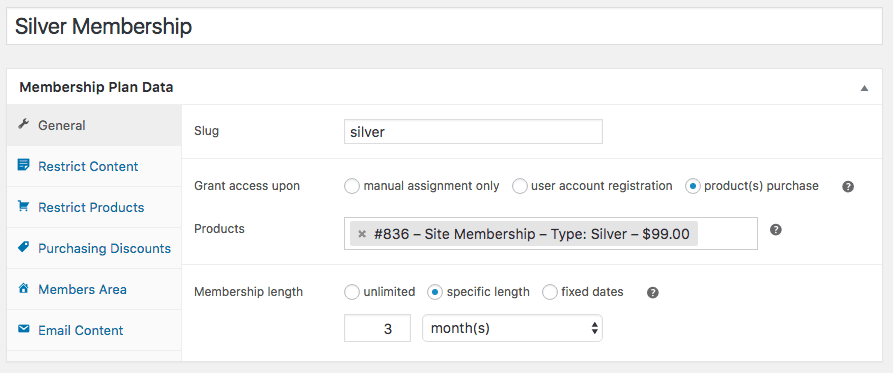
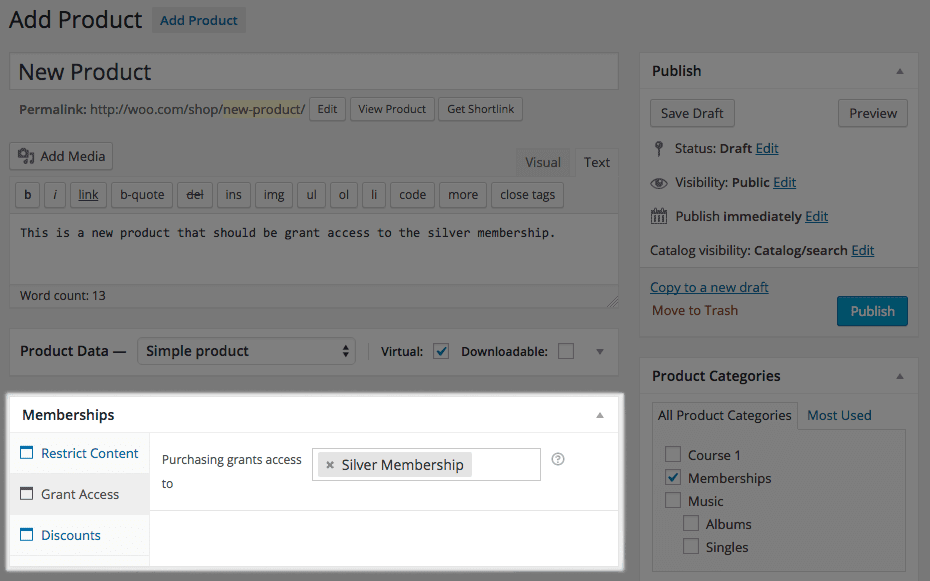
- Link your membership plan to a product under the General tab or directly inside any WooCommerce product’s settings meta box.
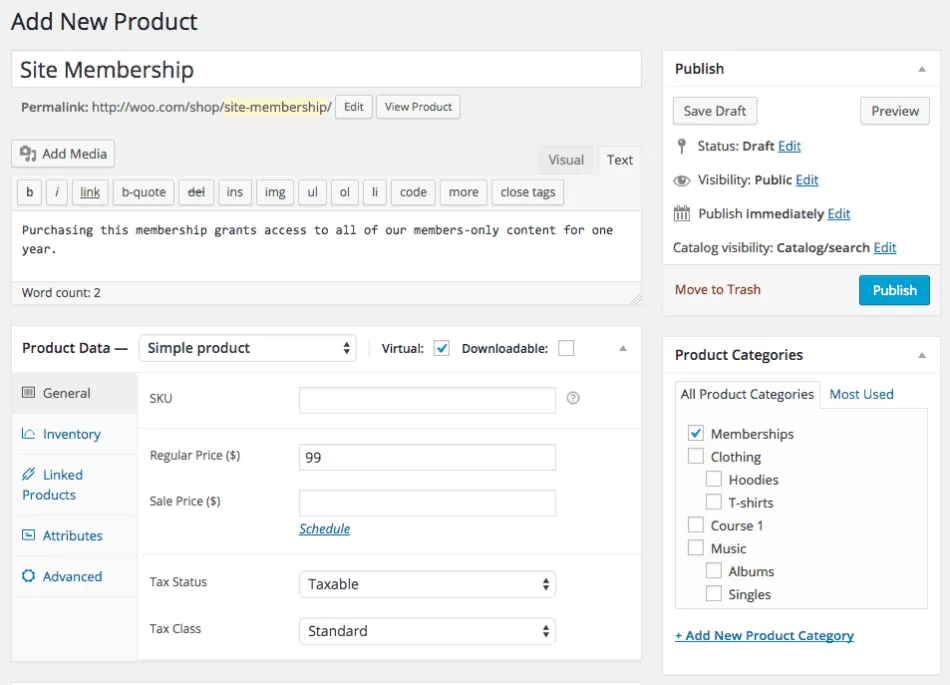
Step 3: Restrict posts, pages, and catalog products
Once your plan is configured, assign the specific content and products it protects:
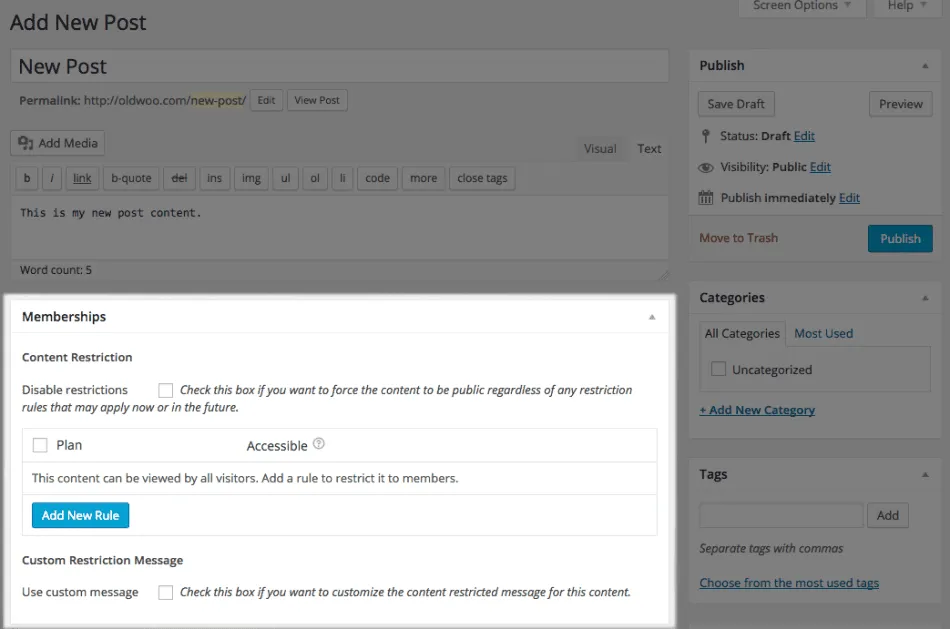
- Under your membership plan, open the Restrict Content tab.
- Click Add Rule, select your post type (Posts, Pages, or Custom Post Types), and choose whether to restrict all items or specific titles.
- Set the access schedule to grant access immediately upon purchase or drip access after a specified timeframe.
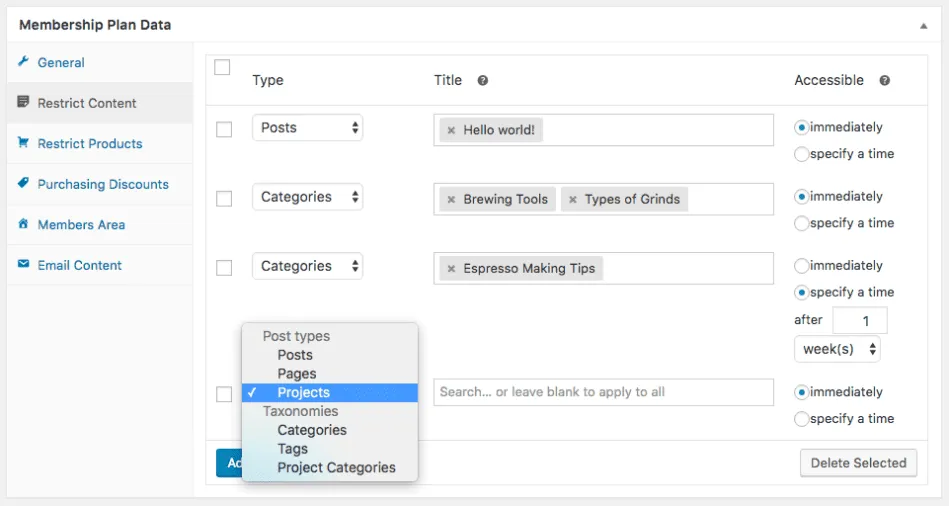
- Switch to the Restrict Products tab to restrict individual catalog products or entire product categories.
- Choose whether non-members are blocked from viewing the product entirely or allowed to view the product details while being restricted from purchasing it.
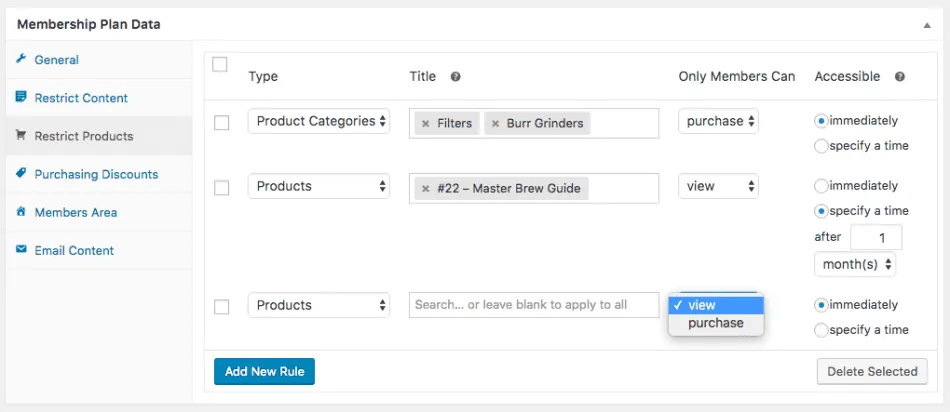
Restricting purchasing rights while keeping product pages visible is an effective tactic for creating exclusive demand. Shoppers see the item in your store, but the checkout button is replaced with a notice stating that only active members can buy it.
You can also restrict access directly from individual product and post edit screens:
Step 4: Configure member-only discount rules
Rewarding members with exclusive catalog pricing helps boost customer lifetime value:
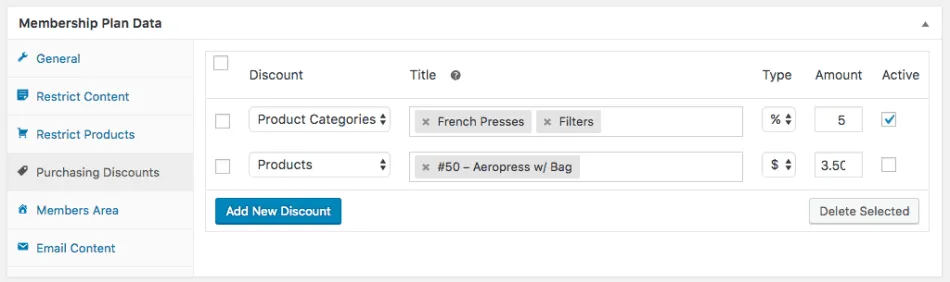
- Open the Purchasing Discounts tab within your membership plan settings.
- Click Add Rule and select whether the discount applies to specific products or entire product categories.
- Choose the discount type: Percentage discount (e.g. 15% off) or Fixed discount (e.g. $10 off).
- Decide whether active member discounts should stack on top of existing sales, or check the box under
WooCommerce → Settings → Memberships → Productsto exclude sale items from member discounts.
When an active member logs into your store, WooCommerce automatically updates catalog prices across the shop to reflect their special rate, showing their member savings directly on product pages.
Step 5: Configure the member area dashboard and notification emails
Members manage their account privileges through the WooCommerce My Account area:
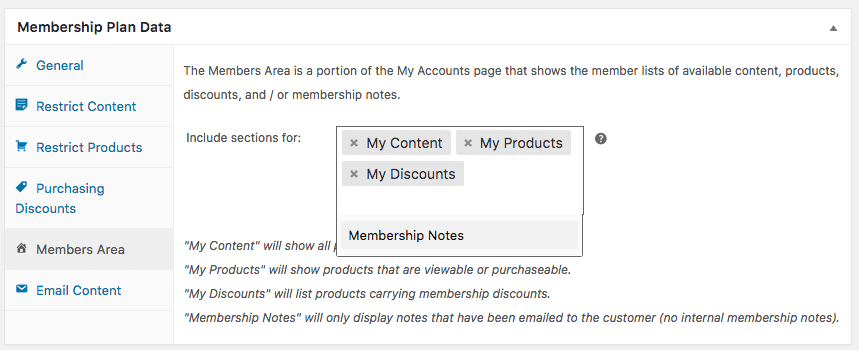
- Open the Members Area tab in your plan settings.
- Toggle the dashboard sections you want members to see:
- Content: Lists all posts, pages, and courses the member can access now or in the future.
- Products: Displays all exclusive products the member has permission to purchase.
- Discounts: Shows all products currently discounted under their plan.
- Manage: Displays plan start and expiration dates with links to update billing details.
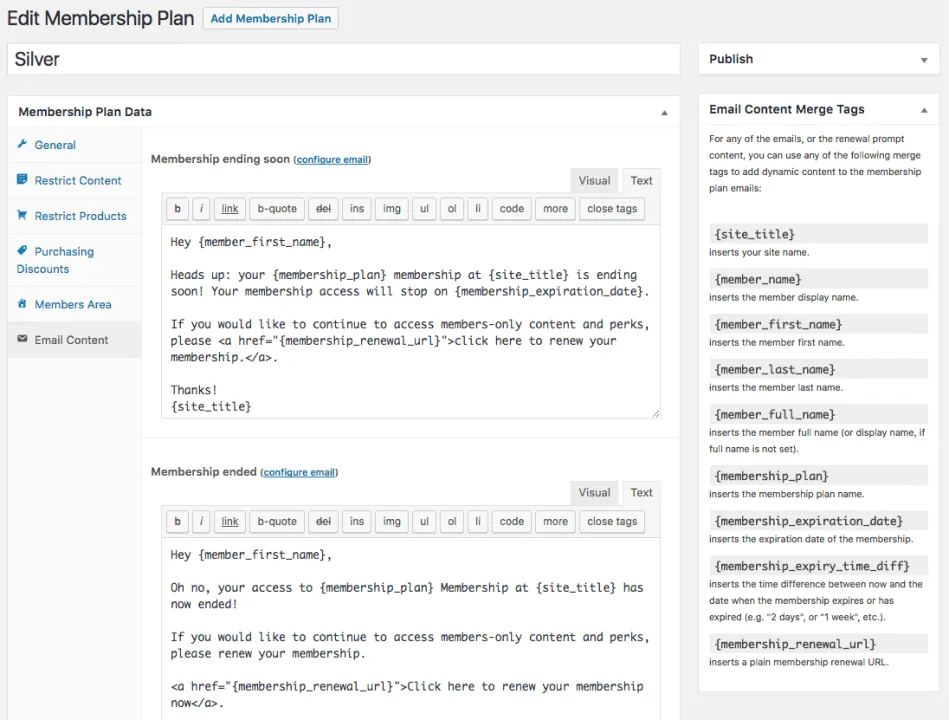
To minimize churn from expired accounts, activate automated reminder emails:
- Navigate to
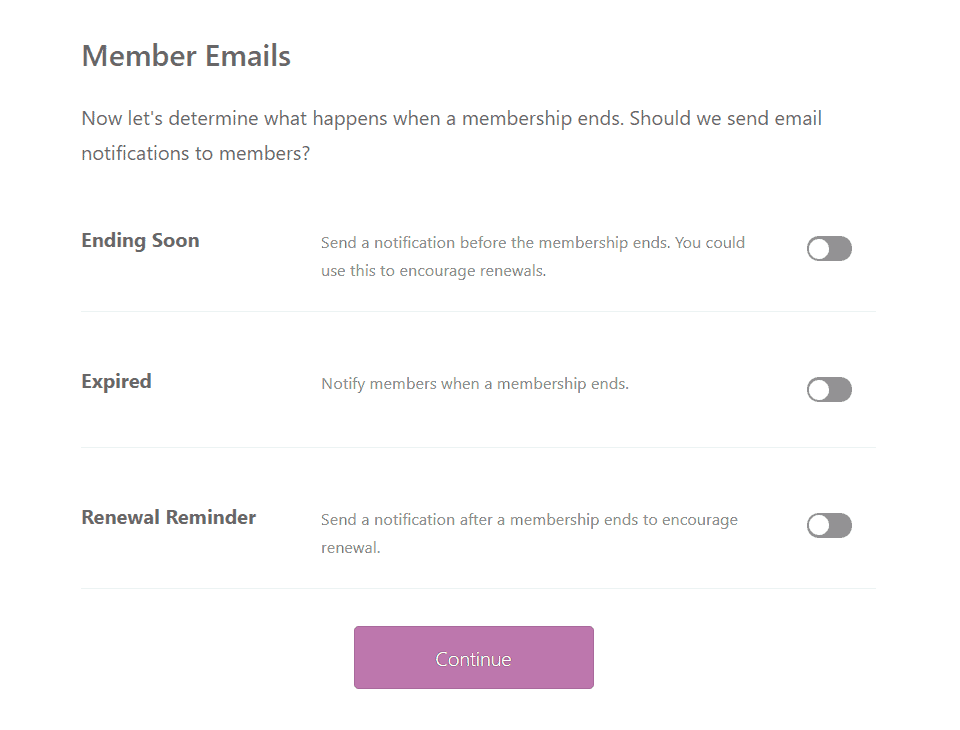
WooCommerce → Settings → Emails. - Configure the three built-in membership notifications:
- Membership Ending Soon: Sends an alert 1 to 60 days before expiration prompting renewal.
- Membership Ended: Informs the user their access has expired.
- Renewal Reminder: Follows up 1 to 60 days after expiration with an invitation to reactivate.
How to handle team, group, and corporate B2B memberships?
Corporate memberships require a multi-seat architecture. One company manager purchases an umbrella license, then allocates sub-seats to employees. Because core WooCommerce Memberships treats each purchase as a single user license, managing corporate teams requires the Teams for WooCommerce Memberships extension.
In B2B and institutional environments, team leaders cannot share account passwords. Doing so violates security policies, breaks analytics tracking, and prevents individual progress monitoring.
The parent-child membership architecture
A corporate membership stack uses a parent-child account relationship:
- The team manager (buyer): Purchases a membership tier with a defined seat count (e.g. 10 employee seats for $1,200/year). The manager owns the billing relationship and receives all invoices.
- The team members (sub-accounts): Receive individual WordPress logins linked to the parent team. They access member content, product discounts, and courses without seeing corporate billing details.
Using Teams for WooCommerce Memberships
The Teams for WooCommerce Memberships extension ($129/year) layers directly onto WooCommerce Memberships to handle multi-seat management:
- You create a membership product and set it as a Team product, specifying a minimum, maximum, or fixed number of seats.
- During checkout, the team manager names their organization and completes the purchase.
- In their My Account → Teams dashboard, the manager invites employees by entering their email addresses or generating a secure, shareable registration link.
- If an employee leaves the company, the manager revokes their seat with one click and reallocates the opening to a new hire.
This setup opens up corporate sales pipelines for training institutes, trade organizations, and B2B wholesale suppliers.
How to optimize performance, caching, and database scaling for membership sites?
Membership websites place heavy demands on WordPress databases. Logged-in members require personalized pricing and access checks that bypass static page caches. Optimizing a store requires persistent object caching, clean cache exclusion cookies, and offloaded media delivery.
On a public store, static caching plugins serve pre-rendered HTML in milliseconds. WP Rocket, LiteSpeed, and Cloudflare Edge Cache deliver pages without querying MySQL.
A membership site behaves differently. Every page load must verify the user identity, query wp_usermeta, and calculate custom discount rules.
Configure private cookie cache partitioning
If your caching layer serves cached HTML to logged-in members, users will see broken account screens or see other customers’ private data. Conversely, if you disable caching completely for all logged-in users, your web server will choke under traffic spikes.
To solve this:
- Configure your server or edge cache (such as NGINX or Cloudflare) to bypass full-page caching only when specific authentication cookies are present (
wordpress_logged_in_*). - Keep public marketing and landing pages fully cached for non-members.
- Use fragment caching or private REST API endpoints to load dynamic member badges without un-caching global layout elements.
Implement persistent object caching with Redis
Every time a membership plugin verifies whether a user can read an article, it queries the wp_posts and wp_usermeta database tables. On a store with 2,000 members and 500 catalog items, these capability checks generate thousands of redundant database queries per hour.
Installing Redis or Memcached stores database query results in RAM. When WooCommerce checks a member’s plan status on the next page view, it retrieves the verified capability from memory in microseconds rather than querying MySQL again.
Offload digital downloads to Amazon S3
If your membership includes large digital assets, video files, or software archives, never serve them directly through your WordPress web server.
Serving large downloads through PHP processes consumes server workers. If ten members download a 500MB zip file at once, your server runs out of PHP workers. That crashes the checkout for paying shoppers.
Store heavy downloads in an Amazon S3 bucket using presigned URLs. When a member clicks download, WordPress generates a temporary link valid for 15 minutes. The file streams directly from S3, offloading all server strain.
How to bulk manage WooCommerce memberships at scale?
Standard WordPress admin screens become painful at scale. Once your member list exceeds several hundred accounts, updates drag. Bulk updating statuses or adjusting expiration dates in default WooCommerce frequently triggers server timeouts.
Default WooCommerce stores each membership as a custom post type. To update an expiration date manually, you must open each record individually. You change the dropdown, click update, and repeat.
When an operational emergency occurs - such as extending all active memberships by 30 days following a warehouse delay, or bulk-activating 500 renewal accounts - WordPress bulk actions frequently crash with 504 Gateway Timeouts.
Using Smart Manager resolves this operational bottleneck by providing an Excel-like spreadsheet interface directly inside your WordPress admin.
Operational tasks you can execute in Smart Manager:
- Direct inline grid editing: Click into any membership status, expiration date, or plan field in the spreadsheet grid and edit it instantly without opening separate screens.
- Batch updates across thousands of records: Select hundreds of members using advanced filters (such as all members whose plan expired in the last 30 days) and update their statuses or end dates in a few clicks. Smart Manager executes the changes in background database batches to prevent server memory crashes.
- Member migration between plans: Move customers from deprecated tiers to newly structured tiers across your entire database in minutes.
- Instant CSV data exports: Filter members based on their join date, current status, or lifetime spend, and export custom CSV files for accounting reviews or targeted email campaigns.
For a detailed operational walkthrough, read our guide on how to bulk manage WooCommerce memberships.
How to drive membership retention with automated rewards?
Maximizing retention requires active engagement beyond static access rules. Dynamic store credits, automated welcome vouchers, and renewal perks motivate members. These incentives keep users active and curb churn.
Subscribers cancel memberships when they feel they are paying for benefits they do not actively use. If a member pays $30 a month but forgets to log into your portal for two months, they will inevitably cancel.
You can prevent this by pairing your membership tiers with Smart Coupons.
Automate monthly store credit allowances
Instead of offering a flat percentage discount, give members a monthly store credit allowance (e.g. $20 in credit deposited on the first of every month).
Because store credit acts like real currency in your checkout, members return every month to spend their balance before it expires. This drives regular site traffic and encourages members to purchase additional products that exceed their credit allowance.
Auto-apply member perks at checkout
Entering coupon codes on mobile devices creates checkout abandonment. With Smart Coupons, you can configure exclusive discount vouchers that automatically apply to the cart whenever an active member logs in.
Non-members see the full retail price, while members see their exclusive savings deducted automatically without typing coupon codes.
Deliver automated renewal incentives
When a customer’s membership is approaching its renewal date, automated emails can deliver a unique, single-use promotional voucher valid only for their account. Offering an exclusive gift card balance upon successful annual renewal provides a tangible incentive to stay subscribed.
Learn how to configure these promotional workflows in our guide on pairing WooCommerce memberships with Smart Coupons.
Where should you start with WooCommerce memberships?
Every successful membership site starts with a single high-value tier.
Finalize your billing model before purchasing software. Launch with one clearly defined access tier, and configure server caching rules before welcoming your first members.
When planning your rollout, prioritize these four steps:
- Decide your billing mechanism first: If you only need one-time upfront payments for lifetime or fixed-duration access, purchase WooCommerce Memberships alone. If you require recurring monthly or annual dues, budget for the combined $478 stack with WooCommerce Subscriptions or evaluate all-in-one alternatives like Paid Memberships Pro.
- Start with a single high-value tier: Rather than launching multiple confusing tiers on day one, launch a single VIP access pass. Once your member onboarding, content dripping, and discount perks are battle-tested, introduce secondary or corporate team tiers.
- Configure cache bypass rules and object caching: Install Redis or Memcached and verify that your page cache does not bypass caching for all logged-in traffic. Test that non-member page teasers serve from cache while member dashboards render dynamically.
- Prepare operational management tools: Before your member list grows into thousands of accounts, verify your ability to update expirations, migrate plans, and audit user records without triggering server timeouts.
Once your membership architecture is running smoothly, your store shifts from unpredictable one-off transactions to stable, recurring community revenue.
Frequently asked questions about WooCommerce memberships
Can you set up memberships in WooCommerce for free?
Yes. You can build a basic membership site for free. The core Paid Memberships Pro plugin and Paid Member Subscriptions are available on WordPress.org. However, free plugins often charge transaction fees on payments. Advanced tools like team accounts and content dripping also require paid plans.
Do you need WooCommerce Subscriptions to use WooCommerce Memberships?
No. WooCommerce Memberships operates independently for one-time access fees. You can sell lifetime passes, fixed-duration access, or free registered user tiers. You only need WooCommerce Subscriptions if you want to charge automated, recurring subscription renewals on a monthly or annual schedule.
How can you prevent members from sharing login credentials?
You can prevent account sharing by limiting concurrent active sessions per user account. Plugins like Prevent Concurrent Logins automatically terminate older sessions when a user logs in from a new browser. Restricting digital downloads with expiring S3 links also stops members from sharing direct download URLs.
Can you sell lifetime memberships with a one-time fee?
Yes. In WooCommerce Memberships, create a membership plan and set the membership length to Unlimited. Then link that plan to a standard simple or variable WooCommerce product. When a customer purchases that product, their account is granted permanent access with no recurring billing schedules or expiration dates.