
How to Sync WooCommerce Product Stock Logs from Stock Manager for WooCommerce to Smart Manager
Switching from Stock Manager for WooCommerce plugin to Smart Manager plugin? You can sync all your existing WooCommerce Product Stock Logs data to Smart Manager so you don’t lose any of your inventory tracking data.
With Smart Manager’s data synchronization feature, you can import all your stock log records from Stock Manager for WooCommerce plugin in just a few clicks, giving you a complete view of your WooCommerce Product Stock Logs in one centralized dashboard.
Steps to Sync WooCommerce Product Stock Logs from Stock Manager for WooCommerce plugin
- Go to the Smart Manager dashboard and navigate to Settings > General Settings.
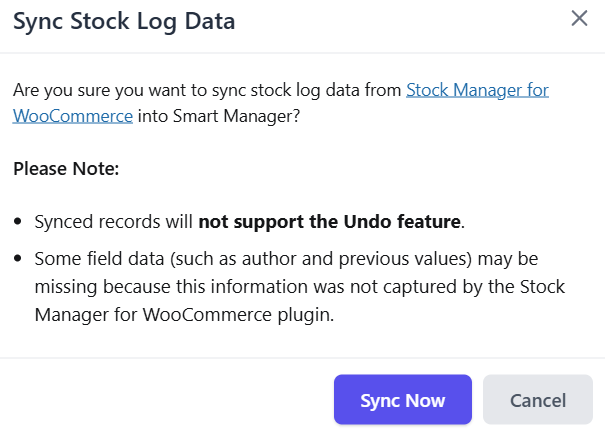
- In the ‘Data Synchronization’ section, locate the Sync stock log data from Stock Manager for WooCommerce plugin option and click on the sync icon(🔄) next to it. This will open a modal prompting you to sync stock log data.
- Click on ‘Sync Now’ to initiate the synchronization process.
-
Once the process completes, you can access the synced records in the Smart Manager
Product Stock Logdashboard.
That’s it. Happy managing!
Note(s):
- The sync option will only appear in the settings if you have (or previously had) stock log data in the Stock Manager for WooCommerce plugin.
- Synced records in Smart Manager will not support the Undo feature.
- Some field data (such as author and previous values) will not be available, as this information was not captured by the Stock Manager for WooCommerce plugin.