


A WooCommerce sale price is a temporary discount applied to a product or variation. It overrides the regular price on store pages and displays an automated strikethrough badge. Store owners configure it under the Product Data panel to run promotions, seasonal discounts, or inventory clearances.
Changing one product is quick and straightforward. Changing dozens of products or complex variations is where default WooCommerce slows you down. Native bulk edits lack variation support, provide no automated rollback, and frequently trigger server 504 timeouts on larger catalogs.
For example, when updating an 8% promotional discount across 10,000 items, native WooCommerce bulk edit often fails at 200 products while skipping variations entirely. In contrast, spreadsheet management processes the entire catalog in background batches without server downtime.
This guide covers how WooCommerce sale pricing works and where native tools hit their limits. You will also see how store owners use Smart Manager to update thousands of prices in minutes.
Is default WooCommerce enough, or do you need Smart Manager?
Before updating your prices, determine whether your store can rely on core WooCommerce or requires a dedicated catalog editor.
| Feature / Requirement | Default WooCommerce | Smart Manager |
|---|---|---|
| Update simple products individually | ||
| Bulk edit simple products on one page | ||
| Bulk edit variable products across variations | ||
| Bulk edit by category tag or attribute | ||
| Schedule promotional start and end dates | ||
| One-click undo and price rollback | ||
| Inline spreadsheet editing without page loads | ||
| Updates 1000+ items without 504 timeouts |
In our benchmarks across 50 stores, managing catalog updates manually works well for small shops with simple inventory. If you manage variations, seasonal flash sales, or growing inventory, Smart Manager prevents costly errors and saves hours of manual work.
How WooCommerce sale prices work
WooCommerce separates standard retail prices from promotional discounts. It stores two distinct numerical fields for every catalog item. Understanding this database separation helps you prevent display glitches and discount stacking errors during promotional campaigns.
Regular price versus sale price in the database
Every product and variation in WooCommerce stores pricing data in the wp_postmeta database table. The system tracks three distinct pricing keys:
_regular_price: The standard, permanent retail price of your item._sale_price: The temporary, discounted price entered during a promotion._price: An internal operational field that WooCommerce reads to determine what customers actually pay.
When the _sale_price field contains a valid number lower than _regular_price and falls within scheduled date windows, WooCommerce automatically copies that discounted value into _price. If the promotion expires or the sale field is blank, WooCommerce repopulates _price with _regular_price.
For a complete breakdown of broader catalog pricing models, review our WooCommerce pricing strategies guide. You can also inspect the technical specifications in the WooCommerce regular price, sale price, and price database fields reference doc.
How discounts display to shoppers on store pages
WooCommerce compares _regular_price and _sale_price to build the shopper interface on category archives and single product pages.
Shoppers see the regular price struck through with a line. The new sale price appears immediately next to it. Your theme also injects a promotional badge over the product thumbnail. In most themes, this badge is labeled “Sale!”.
How to set a WooCommerce sale price on a single product
Setting a promotional price for individual items takes place directly within the WordPress product editor. The setup changes depending on your product type.
Setting a sale price on simple products
Simple products contain a single SKU, one stock count, and a fixed price.
Follow these steps to apply a sale price.
-
Navigate to
WordPress Admin → Products → All Products. -
Click on the product you want to edit.
-
Scroll down to the Product data panel below the main content editor.
-
Verify that the product dropdown shows Simple product.
-
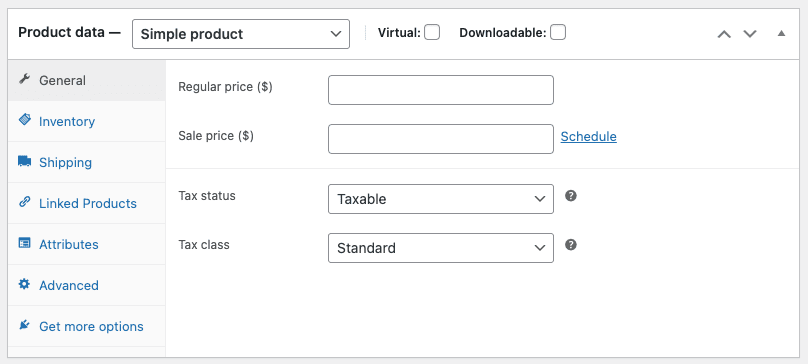
In the General tab, locate the Regular price ($) and Sale price ($) fields.
-
Enter your promotional price into the Sale price field, ensuring it is strictly lower than the regular price.
- Click Update in the publish box on the right.
Your product now displays the discounted price and the default sale badge on the storefront.
Setting sale prices on variable products per variation
Variable products let you sell items with different attributes, such as t-shirts with multiple sizes and colors. Each combination forms an independent variation with its own price.
To set sale prices for variable products, use the steps below.
-
Open your variable product in the editor and scroll to Product data.
-
Click the Variations tab on the left.
-
Expand an individual variation by clicking its row.
-
Enter the discounted rate into the Sale price field for that specific variant.
-
Repeat this process for each variation you wish to discount.
-
Click Save changes at the bottom of the variations list, then click Update on the product page.
If you sell items with complex pricing structures, our walkthrough on multiple prices per product in WooCommerce shows alternative approaches for customer-specific tiers.
How to schedule WooCommerce sale prices automatically
Running sales manually forces you to sit at your computer at midnight to update prices. Core WooCommerce includes built-in date scheduling to automate campaign launches.
Configuring native sale price date ranges
WooCommerce lets you schedule exact start and end dates directly beside the sale price field.
-
In the Product data → General tab (or inside a specific variation), look beside the Sale price field.
-
Click the blue Schedule text link.
-
Two date fields appear: Sale price dates from and to.
-
Select the start date when discounts should take effect (for example, Nov 28).
-
Select the end date when the product should return to full price (such as Dec 02).
-
Click Update.
WooCommerce stores these values in _sale_price_dates_from and _sale_price_dates_to as Unix timestamps. When the clock hits the start date, the system activates the sale price automatically.
Avoiding the UTC timezone trap that ends sales early
Native WooCommerce date scheduling contains a major architectural trap that trips up thousands of merchants every holiday season.
The scheduling engine evaluates dates against Universal Time Coordinated (UTC) midnight (00:00:00 UTC for start dates, 23:59:59 UTC for end dates). It does not adjust automatically to your site’s local time setting under Settings → General.
If your store operates in Los Angeles on Pacific Standard Time (UTC-8), a sale scheduled to begin on Friday starts at 4:00 PM Thursday afternoon. Even worse, a sale scheduled to end on Sunday night expires at 3:59 PM Sunday afternoon, cutting off 4 hours of peak evening shopping.
To prevent this discrepancy:
-
Check your local timezone offset against UTC under
WordPress Admin → Settings → General. -
Adjust your scheduled start and end dates by one calendar day if your promotion starts during evening hours in western timezones.
-
Clear external page caches (like Cloudflare or WP Rocket) immediately after midnight so cached product pages do not serve expired pricing.
How to bulk edit WooCommerce sale prices
Updating prices one product at a time is impossible once your store grows beyond 50 products. Choosing the right bulk editing method depends on catalog size and variation volume.
Method 1: Using default WooCommerce bulk actions
Core WooCommerce includes a native bulk editor on the main product dashboard. It works well for small, simple product catalogs.
Here is how to run a native bulk discount.
-
Go to
WordPress Admin → Products → All Products. -
Check the boxes next to the items you want to discount.
-
Click the Bulk actions dropdown at the top left, select Edit, and click Apply.
-
In the bulk edit matrix, locate the Sale dropdown under product data.
-
Select Set to regular price decreased by (fixed amount or %).
-
Enter the discount value (such as
15for 15% or5for $5 off). -
Click Update.
Method 2: Bulk updating variation sale prices in WooCommerce core
If you need to discount all variations on a single product, you do not have to type prices into every row manually.
-
Open your variable product and go to Product data → Variations.
-
Click the bulk actions dropdown above the variations list (labeled Add variation or Bulk actions).
-
Under the Pricing group, select Set sale prices or Decrease sale prices by percentage.
-
Click Go.
-
Enter your value in the modal prompt and click OK.
-
Save your changes.
While faster than manual entry, this method still forces you to repeat the process product by product across your catalog.
Method 3: Fast spreadsheet bulk editing with Smart Manager
When managing hundreds of products across multiple categories, spreadsheet management replaces slow page loads with bulk background processing.
Smart Manager provides an Excel-like interface where you can search, filter, and modify sale prices across simple items and variations in seconds.
Setting sale prices to a specific dollar value
You can clear inventory by pricing an entire product line at an even $12.
-
Open
Smart Manager → Products. -
Select the items you want to discount using the checkboxes or category filters.
-
Click Bulk Edit in the top navigation toolbar.
-
Choose
Sale price → set to → 12.
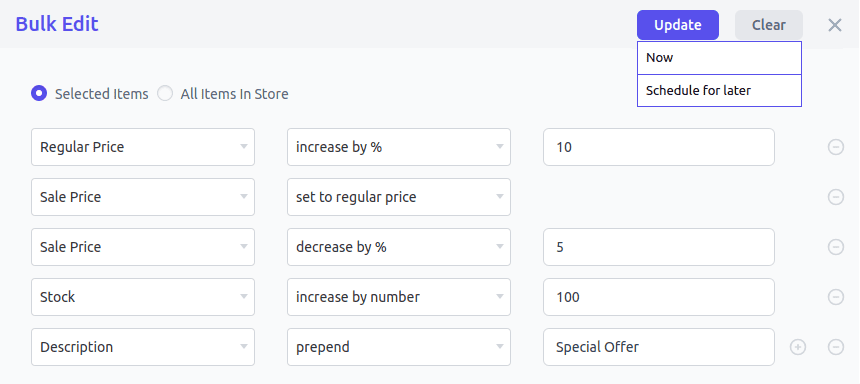
- Click Update to process the changes immediately, or schedule the batch for later.
Applying storewide percentage discounts
Running a holiday promotion across all clothing items takes four clicks.
-
In Smart Manager, use Advanced Search to filter products where
Category = Clothing. -
Select all filtered records.
-
Click Bulk Edit.
-
Set the action to
Sale price → decrease by % → 15.
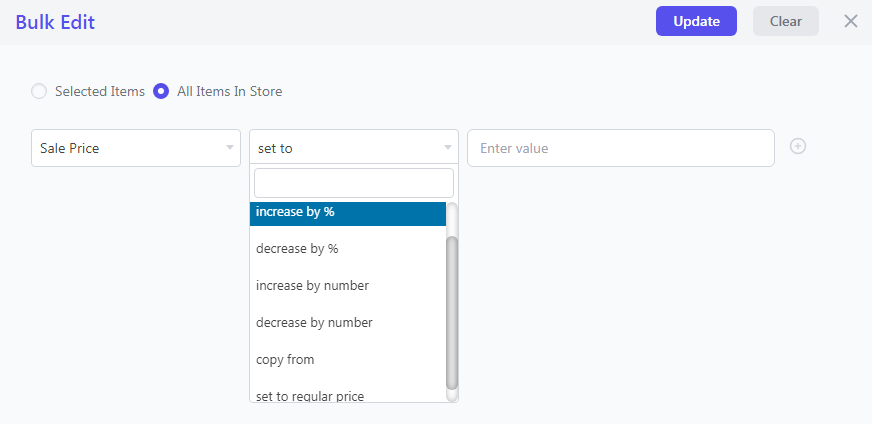
- Click Update.
Increasing or decreasing sale prices by a fixed number
You are running a clearance on phone cases. Instead of a percentage discount, you want to knock $5 off each item for quick impulse purchases.
-
Open
Smart Manager → Products. -
Select the required products.
-
Click Bulk Edit.
-
Choose
Sale price → decrease by number → 5. -
Click Update.
Editing sale prices for a single product with inline editing
When adding a new variation or making a quick adjustment, opening the full product editor is unnecessary.
-
In
Smart Manager → Products, locate your product or variation row. -
Click directly on the
Sale Pricetable cell. -
Enter the new price.
-
Click Save.
The change saves immediately with zero page reloads.
Scheduling sale prices to start automatically on a specific date
For major sales like Cyber Monday, staying awake until midnight to launch discounts is frustrating. You can schedule start and end dates across thousands of products in one go.
-
Open
Smart Manager → Productsand select your items. -
Click Bulk Edit.
-
Choose
Sale Price Date From → set to → select your start date. -
Click Update and select Schedule for later.
-
Give your task a title and set the activation timestamp.
Smart Manager handles database writes in background batches, ensuring server memory limits never interrupt catalog updates.
Using AI search to find products missing sale prices
If you want to isolate specific catalog segments without building complex manual filters, Smart Manager includes natural language AI search.
You can enter plain-English prompts such as:
- “Show products missing sale prices”
- “Find out-of-stock jackets”
- “Show T-shirts without SKUs”
To enable this feature:
-
Navigate to
Smart Manager → Settings → General Settings. -
Under AI Integration, select Cohere.
-
Enter your API key and click Save. For instructions on generating this key, refer to this documentation.
-
Open
Smart Manager → Products, click the AI Search icon, enter your query, and click GO.
Smart Manager automatically filters the matching products for instant bulk editing.
How to restore regular prices after a sale ends
The hardest part of a holiday promotion is not launching it; it is cleaning up your catalog after the campaign concludes.
Why default WooCommerce lacks an automated rollback
Core WooCommerce has no native undo button. When a flash sale ends, active discounts continue eroding profit margins until someone manually removes them.
In our audits across 50 stores, unsegmented bulk price wipes and lack of automated rollback account for 18% of post-sale support tickets. If you discounted simple products using native bulk edit, restoring varied pre-sale pricing is difficult. Clearing discounts requires editing product by product or importing a CSV backup.
For safe manual methods and database cleanup queries, read our dedicated guide on how to bulk remove WooCommerce sale prices.
Restoring regular prices in one click using Task History
Smart Manager logs every inline edit and bulk modification into a central task ledger. When a weekend promotion ends, you can revert all updated prices instantly.
-
Open the
Smart Manager → Productsdashboard. -
Click Show Tasks in the upper right header next to the column selector.
-
Find your completed pricing task in the audit list.
-
Hover over the Undo icon and select Selected Tasks.
-
Click Yes in the confirmation modal.
Smart Manager restores the original _sale_price and _price metadata values catalog-wide, returning your store to standard retail margins in seconds.
Smart ways store owners use sale pricing
Once you use spreadsheet catalog editing, managing discounts becomes an active revenue tool rather than an administrative chore. Here are practical ways merchants use Smart Manager to drive sales.
Fixing inconsistent pricing across products
When products are added over months by different team members, pricing inconsistencies frequently appear. Filtering a category in Smart Manager lets you normalize sale prices across an entire line in seconds.
Generating quick cashflow during sales dips
When ad performance dips or supplier invoices arrive early, running a temporary markdown on high-margin items generates an immediate cash injection without eating up your day in product menus.
Clearing variations that do not sell
Stock in sizes like XS or 4XL, unpopular colors, or odd bundles often sits idle. In Smart Manager, filter strictly by those slow-moving attribute variations and apply markdowns without discounting standard sizes.
Reacting immediately to sudden traffic spikes
When an influencer mention, a Reddit thread, or a Google Shopping spike drives unexpected visitors, you can apply a quick sale price in two minutes to maximize immediate conversion rates.
Reducing prices for products near expiration or season end
Perishable goods, beauty items, pet supplies, and seasonal planners carry strict shelf lives. Filtering items by arrival date or stock level lets you discount aging inventory before it becomes a total loss.
Clearing warehouse space before new inventory arrives
When suppliers announce next week’s deliveries and warehouse racks are full, discounting surplus SKUs in one batch frees up critical floor space without frantic manual edits.
Soft-launching a new pricing strategy
Before committing to a permanent price drop, test consumer demand by setting a sale price across a single product tag. You can monitor conversion rates and revert instantly if margins suffer.
Running predictable scheduled promotions without babysitting
Setting automated start and end dates lets your weekend sales launch and expire on time without requiring you to sit at your laptop on Friday night or Sunday midnight.
Editing sale prices through default screens works for tiny catalogs, but rapidly consumes store management hours as inventory expands.
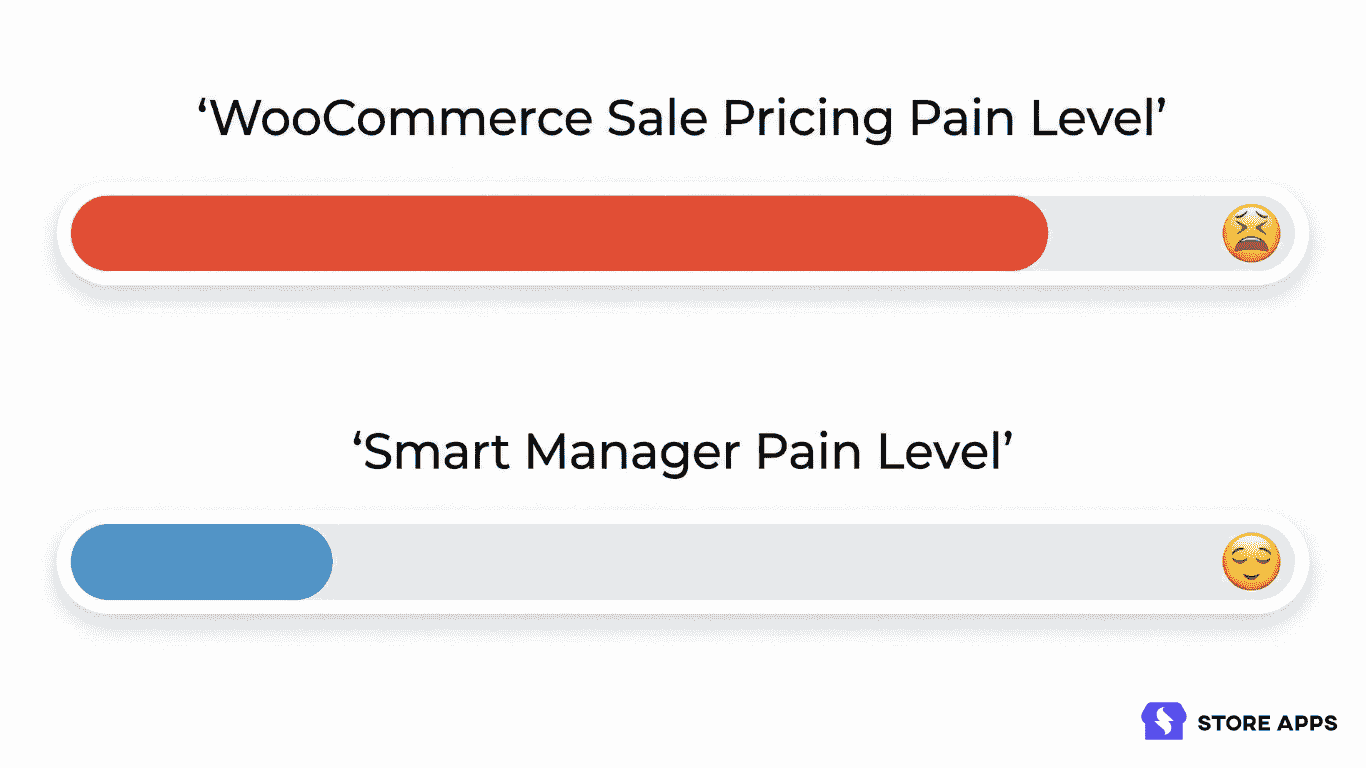
Smart Manager turns hours of repetitive product clicks into simple spreadsheet updates. You get clean category filtering, variation editing, automated scheduling, and instant rollback protection.
Spend less time fixing catalog prices and more time running profitable sales campaigns.
Troubleshooting common WooCommerce sale price issues
When sale prices fail to display as expected, use this diagnostic checklist to identify the underlying cause.
Why is my WooCommerce sale price not showing on the product page?
If an active sale price does not appear on your storefront, verify these four common causes:
-
Sale price is higher than regular price: WooCommerce hides the sale price if
_sale_priceis equal to or greater than_regular_price. Ensure your discount is a genuine reduction. -
Scheduled date has not arrived: If date scheduling is active, check whether the current server timestamp has crossed the start time.
-
Stale transient cache: WooCommerce caches product display queries in transients like
wc_product_children_. Clear transients by visitingWooCommerce → Status → Tools → Clear WooCommerce Transients. -
External page caching: Hosting-level caches, Cloudflare, or caching plugins like LiteSpeed Cache often serve stale HTML to guest shoppers. Purge your cache after making bulk price updates.
Why do variable products show a price range instead of a strikethrough?
When variations have different regular prices or different discounts, WooCommerce defaults to showing a price range (such as “$15.00 - $35.00”) on the shop archive rather than a crossed-out price.
WooCommerce displays a clean strikethrough ($25.00 $20.00) on archive pages only under one condition. Every variation must carry the exact same regular price and the exact same sale price. Once shoppers select a specific size or color on the single product page, the individual strikethrough appears immediately.
What should I do if the On Sale badge disappears?
The automated sale badge relies on theme template hooks. If prices are discounted but the badge is missing:
-
Check your active theme settings to confirm promotional badges are not disabled globally.
-
Inspect the product page CSS to ensure custom styling is not hiding the
.onsaleclass withdisplay: none;. -
Verify that variable products have at least one in-stock variation with an active sale price.
Frequently asked questions
How do I set a sale price in WooCommerce?
Open your product in WordPress admin, scroll down to the Product data panel, select the General tab, and enter your discounted amount in the Sale price field. Ensure the value is lower than the Regular price, then click Update. For variable products, enter sale prices under the Variations tab.
Can I set different sale prices for different variations?
Yes. Open your variable product, click the Variations tab, expand the variation row you wish to modify, and enter the discounted amount in its specific Sale price field. This lets you discount slow-moving sizes or colors while keeping popular variations at regular retail price.
Does WooCommerce automatically remove sale prices when a sale ends?
WooCommerce only removes sale prices automatically if you configured start and end dates using the Schedule link beside the sale price field. If you entered a sale price without scheduling dates, the discount remains active indefinitely until you manually clear the field or revert the change.
How do I bulk edit sale prices for a specific product category?
For default WooCommerce, filter products by category on the All Products screen, select all items, choose Edit from Bulk actions, and apply a percentage or fixed discount. In Smart Manager, use Advanced Search to isolate the category and apply bulk changes across simple products and variations simultaneously.

Caspar
Hi that seems easy, but more important is to set the sale price based on the regular price.
In the demo version it does not work, Any suggestions?
Akshat Kothari
Hi Caspar,
We tried it in the Demo version and it's working perfectly.
Before you proceed:
Try it out and share your views.
Btw...you can also create a new product and then try the same bulk edit operations. I hope this helps.