

How to Filter Records using Advanced Search
Smart Manager lets you filter records in WooCommerce and WordPress using advanced search, with AND, OR conditions, search operators and combination of them.
WooCommerce Smart Manager Advanced Search functionality lets you get to specific results by allowing you to put multiple conditions while searching.
You can also use the Advanced Search with multiple AND, multiple OR, multiple AND + OR conditions and search operators (<,>,=,<=, >=, is, contains, etc.) Example – Search for SKU – WC01 and price >= $100.
Watch this video on how to perform simple and advanced search
Steps to perform Advanced Search
- Go to Smart Manager Dashboard and select any post type or taxonomy from the drop-down.
- Click on the Advanced Search icon next to the Search field in the top navigation bar, which will open a slide over panel to enter search conditions
- Here, you will see the ‘WHEN’ option and rule group. You can add multiple conditions within a rule group using the ‘Add a condition’ option. And also create multiple rule groups using the ‘Add group’ option located at the bottom right in each rule group.
- Between multiple rule groups, at least one condition must be satisfied. However, within a single rule group, all conditions must be satisfied.
- Click on Search and all your desired results will be displayed.
- To reset / clear your search, click on the ‘Clear all’ button
Important note - First, all conditions within a rule group will be checked. And then, conditions between two or more main rule groups will be checked.
Saved searches for Advanced Search
Save your frequently used search queries for quick access. No need to re-apply filters again. Save advanced searches and apply them across multiple dashboards.
For example, if you performed an advanced search (e.g., filtering products by price, stock status, or custom attributes) and saved it, you can select it again from the ‘Saved Searches’ tab to instantly view the same filtered results.
Advanced search example
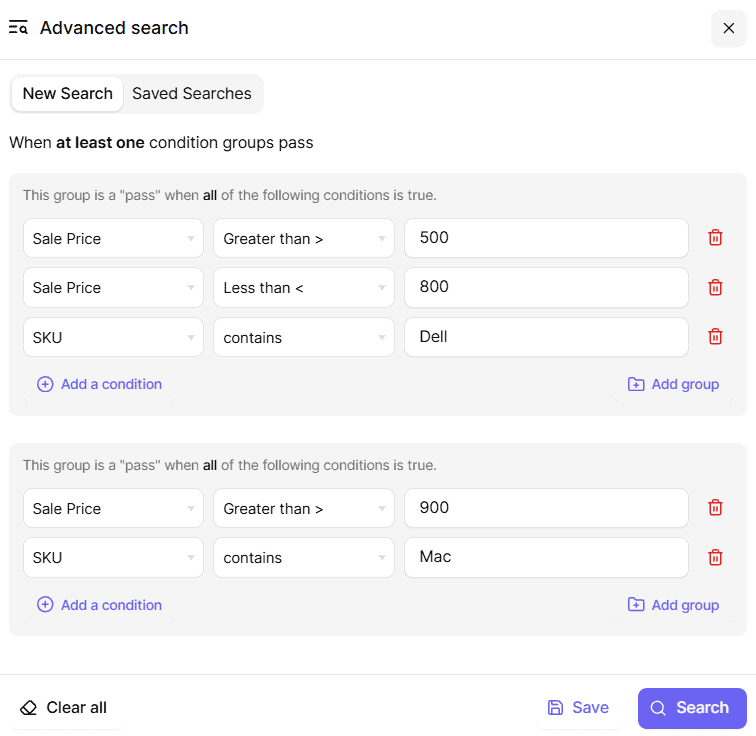
You want to search based on the following conditions -
- Sale price between $500 to $800 and SKU contains Dell OR
- Sale price above $500 and SKU contains Mac
As shown in the image above :
- Go to Smart Manager Dashboard and select Products from the drop-down
- Click on the Advanced Search icon next to the Search field in the top navigation bar, which will open a slide over panel to enter search conditions
- Enter Sale price, choose ‘Greater than >’ operator and enter 500
- Click on ‘Add a condition’ and Enter Sale price, choose ‘Less than <’ operator and enter 800
- Again, click on ‘Add a condition’ and Enter SKU contains Dell
- Now click ‘Add group’ to enter rules for other search conditions
- Enter Sale price, choose ‘Greater than >’ operator and enter 900
- Click on ‘Add a condition’ and Enter SKU contains Mac
- Click on ‘Search’
That’s it.
Pro Features for Faster Searching:
- Save Advanced Searches - Save your Advanced Search conditions and reuse them anytime with just a click.
- AI-Powered Advanced Search - Filter records by simply describing what you need in any language, and AI will automatically configure the search conditions for you.
Note: Advanced Search with multiple AND and multiple OR is available in Smart Manager Pro version only.