

Need to reuse an existing WordPress page or post without rebuilding it from scratch? You can duplicate it in several ways, from simply copying the content to using a page builder, duplication plugin, custom code, or a bulk management tool.
The catch is that copying the content isn’t always the same as cloning the entire page. Depending on the method, things like SEO metadata, featured images, categories, custom fields, and other settings may not come across.
In this guide, you’ll learn how to duplicate WordPress pages and posts, what each method actually copies, and which option makes the most sense for your workflow.
How to duplicate a WordPress page or post
There are several ways to duplicate a WordPress page or post, and the right option depends on what you actually need to copy.
If you only need the content, Gutenberg is usually enough. If you want to reuse a complete page design, your page builder may already have a duplication or template feature. For regular cloning, a dedicated duplication plugin is more convenient. And if you’re duplicating dozens of pages, posts, or WooCommerce records, a bulk-management tool can save considerably more time.
One important distinction: copying a page’s content is not necessarily the same as duplicating the entire WordPress record. Depending on the method, featured images, categories, tags, SEO metadata, custom fields, taxonomies, and other post data may not be copied.
| Method | Best for | What it copies | Difficulty |
|---|---|---|---|
| Gutenberg or manual copy | One-off content reuse | Blocks, text, images and formatting | Easy |
| Page builder | Reusing a page design | Layouts, sections, widgets and styling | Easy |
| Custom code | Custom duplication workflows | Whatever your code is designed to copy | Advanced |
| Duplication plugin | Regular page or post cloning | Content plus selected WordPress data | Easy |
| Bulk management tool | Duplicating many records | Pages, posts, products and supported data | Easy |
Copy vs. duplicate a WordPress page: what’s the difference?
The terms copy and duplicate are often used interchangeably, but there is a useful distinction.
Copying a page usually means copying what you see in the editor: text, images, blocks, formatting and other visible content. You then create a new page and paste that content into it.
Duplicating a page means creating a new WordPress record based on the original. A proper duplication workflow can also copy things such as taxonomies, custom fields, featured images and other post metadata, depending on the tool you’re using.
That’s why manual copy-and-paste can be perfectly fine for a simple page, while a duplication plugin makes more sense when you want the new page to closely match the original.
Method 1: Duplicate a WordPress page manually
If you only need to make a copy once in a while, you don’t necessarily need another plugin. You can create a new page or post and copy the existing content into it.
This is the simplest approach, but there’s an important catch: you’re copying the content, not necessarily the entire WordPress record. Things such as the featured image, categories, SEO fields, custom fields, and other metadata may need to be added separately.
How to copy a WordPress page manually
- Go to
WordPress Admin > Pagesand open the page you want to copy. - Open the editor’s options menu and switch to
Code Editorif you want to copy the complete block markup. - Copy the page content.
- Create a new page from
Pages > Add New. - Open the Code Editor on the new page and paste the copied content.
- Switch back to the Visual/Block Editor and review the result.
- Add or change the title, featured image, categories, SEO fields, slug, and any other settings the new page needs.
- Save the page as a draft until you’ve finished making your changes.
This works well for a simple one-off copy. It becomes tedious when you’re doing it repeatedly because every piece of information that isn’t part of the editor content has to be checked separately.
What does manual copying actually duplicate?
| Usually copied | Usually needs to be handled separately |
|---|---|
| Text and headings | SEO metadata |
| Images and embeds | Featured image |
| Blocks and formatting | Categories and tags |
| Shortcodes | Custom fields |
| Page content | Slug and permalink |
Bottom line: manual copying is fine when the job is small. If you’re regularly creating copies, you’re better off using a method that can duplicate the underlying WordPress data too.
Method 2: Duplicate content using the WordPress editor
If you’re using the WordPress Block Editor (Gutenberg), you can copy all the blocks from an existing page or post and paste them into a new one. It’s quicker than rebuilding the layout block by block, but it still has the same limitation as manual copying: you’re mainly reusing the editor content.
How to duplicate a page using Gutenberg
- Open the page or post you want to copy.
- Open the three-dot menu in the top-right corner of the editor.
- Select
Copy all blocksor the equivalent copy-content option available in your WordPress version. - Create a new page or post.
- Click inside the editor and paste the copied blocks.
- Change the title and edit the content as needed.
- Review the featured image, categories, tags, slug, and SEO settings before publishing.
This is a handy option when you’re mainly interested in reusing a layout or a collection of blocks. It isn’t the same as creating a complete clone of the original WordPress record.
What about the Classic Editor?
With the Classic Editor, the process is even more straightforward: open the original post or page, copy its content, create a new one, and paste it into the editor.
Just remember that the same rule applies. Copying the editor content doesn’t automatically mean you’ve copied every setting attached to the original post or page.
Method 3: Duplicate a WordPress page with a page builder
If your page was built with Elementor, Divi, WPBakery, or another visual builder, check its duplication or template features before reaching for another plugin.
Page builders are particularly useful when your main goal is to reuse a design. You can take a page that already has the right sections, columns, buttons, images, spacing, and styling, then change the copy without rebuilding the layout.
Elementor
Elementor lets you reuse existing designs through its template and duplication workflows. Depending on your Elementor setup and version, you can save a page or section as a template and insert it into a new page.
This approach is useful when you’re creating several pages that share the same structure but have different content.
Divi
Divi includes options for loading an existing layout when creating a new page. You can start with an existing Divi layout and then replace the text, images, links, and other page-specific content.
WPBakery
WPBakery allows you to duplicate individual elements and rows within its editor. This is useful when you don’t need to clone the entire page and only want to reuse a particular section or layout.
One thing to watch: a page builder can reproduce the design without necessarily copying every WordPress-level setting. Always check the page’s SEO fields, URL, featured image, taxonomy settings, and custom fields before publishing the duplicate.
Method 4: Duplicate WordPress pages and posts with custom code
If you’re comfortable working with PHP, you can add your own duplication functionality to WordPress instead of installing a dedicated plugin.
The basic idea is simple: a custom function reads the original post, creates a new draft, and copies the data you want to retain. You can then add a Duplicate action to the WordPress admin list.
The advantage is control. You decide exactly what gets copied and how the duplicate is created.
To add post cloning functionality, you’ll need to edit your functions.php file. You can do this using FTP or another file management method you’re comfortable with.
Then you’ll need to add the following code snippet to the end of the file:
/*
 * Function for post duplication. Dups appear as drafts. User is redirected to the edit screen
 */
function sa_duplicate_post_as_draft(){
  global $wpdb;
  if (! ( isset( $_GET['post']) || isset( $_POST['post'])  || ( isset($_REQUEST['action']) && 'sa_duplicate_post_as_draft' == $_REQUEST['action'] ) ) ) {
    wp_die('No post to duplicate has been supplied!');
  }
  /*
   * Nonce verification
   */
  if ( !isset( $_GET['duplicate_nonce'] ) || !wp_verify_nonce( $_GET['duplicate_nonce'], basename( __FILE__ ) ) )
    return;
  /*
   * get the original post id
   */
  $post_id = (isset($_GET['post']) ? absint( $_GET['post'] ) : absint( $_POST['post'] ) );
  /*
   * and all the original post data then
   */
  $post = get_post( $post_id );
  /*
   * if you don't want current user to be the new post author,
   * then change next couple of lines to this: $new_post_author = $post->post_author;
   */
  $current_user = wp_get_current_user();
  $new_post_author = $current_user->ID;
  /*
   * if post data exists, create the post duplicate
   */
  if (isset( $post ) && $post != null) {
    /*
     * new post data array
     */
    $args = array(
      'comment_status' => $post->comment_status,
      'ping_status'    => $post->ping_status,
      'post_author'    => $new_post_author,
      'post_content'   => $post->post_content,
      'post_excerpt'   => $post->post_excerpt,
      'post_name'      => $post->post_name,
      'post_parent'    => $post->post_parent,
      'post_password'  => $post->post_password,
      'post_status'    => 'draft',
      'post_title'     => $post->post_title,
      'post_type'      => $post->post_type,
      'to_ping'        => $post->to_ping,
      'menu_order'     => $post->menu_order
    );
    /*
     * insert the post by wp_insert_post() function
     */
    $new_post_id = wp_insert_post( $args );
    /*
     * get all current post terms ad set them to the new post draft
     */
    $taxonomies = get_object_taxonomies($post->post_type); // returns array of taxonomy names for post type, ex array("category", "post_tag");
    foreach ($taxonomies as $taxonomy) {
      $post_terms = wp_get_object_terms($post_id, $taxonomy, array('fields' => 'slugs'));
      wp_set_object_terms($new_post_id, $post_terms, $taxonomy, false);
    }
    /*
     * duplicate all post meta just in two SQL queries
     */
    $post_meta_infos = $wpdb->get_results("SELECT meta_key, meta_value FROM $wpdb->postmeta WHERE post_id=$post_id");
    if (count($post_meta_infos)!=0) {
      $sql_query = "INSERT INTO $wpdb->postmeta (post_id, meta_key, meta_value) ";
      foreach ($post_meta_infos as $meta_info) {
        $meta_key = $meta_info->meta_key;
        if( $meta_key == '_wp_old_slug' ) continue;
        $meta_value = addslashes($meta_info->meta_value);
        $sql_query_sel[]= "SELECT $new_post_id, '$meta_key', '$meta_value'";
      }
      $sql_query.= implode(" UNION ALL ", $sql_query_sel);
      $wpdb->query($sql_query);
    }
    /*
     * finally, redirect to the edit post screen for the new draft
     */
    wp_redirect( admin_url( 'post.php?action=edit&post=' . $new_post_id ) );
    exit;
  } else {
    wp_die('Post creation failed, could not find original post: ' . $post_id);
  }
}
add_action( 'admin_action_sa_duplicate_post_as_draft', 'sa_duplicate_post_as_draft' );
/*
 * Add the duplicate link to action list for post_row_actions
 */
function sa_duplicate_post_link( $actions, $post ) {
  if (current_user_can('edit_posts')) {
    $actions['duplicate'] = '<a href="' . wp_nonce_url('admin.php?action=sa_duplicate_post_as_draft&post=' . $post->ID, basename(__FILE__), 'duplicate_nonce' ). '" title="Duplicate this item" rel="permalink">Duplicate</a>';
  }
  return $actions;
}
add_filter( 'post_row_actions', 'sa_duplicate_post_link', 10, 2 );
To enable cloning for pages as well, use the same code but replace the final line with:
add_filter('page_row_actions', 'sa_duplicate_post_link', 10, 2);.
After that, save the file and upload it again to your server.
Next, head back to your WordPress dashboard. A Duplicate button should now appear when you hover over a page or post you want to clone.
The downside is maintenance. A custom solution needs to account for permissions, security checks, custom post types, taxonomies, post meta, revisions, featured images, and other data your site relies on. A mistake in functions.php can also break your site or admin area.
For developers, custom code can make sense. For everyone else, the time saved by avoiding plugin development usually isn’t worth the extra maintenance.
Method 5: Use a WordPress duplication plugin
For most site owners, a duplication plugin is the easiest option when copying pages and posts is something they do regularly.
Instead of opening the original, copying content, creating a new page, and then rebuilding the settings around it, a duplication plugin can create a copy directly from the WordPress admin.
The important thing is to check what the plugin actually copies. Some are focused on cloning the content, while others can also copy taxonomies, custom fields, post metadata, or other settings.
What to look for in a WordPress duplicate page plugin
- One-click duplication: Create a copy directly from the Pages or Posts screen.
- Draft creation: Keep duplicates unpublished while you edit them.
- Post type support: Useful if you work with custom post types as well as standard pages and posts.
- Metadata support: Important if your pages contain custom fields or SEO plugin data.
- Taxonomy support: Check whether categories, tags, and other taxonomies are copied.
- Permission controls: Useful for sites with multiple editors.
- Bulk duplication: Worth prioritizing if you need to clone several records at once.
Here are some commonly used options to consider.
Yoast Duplicate Post
This is the most popular WordPress duplicate page plugin with 4 million+ and 450+ five-star reviews.
This plugin lets WordPress site owners clone posts of any type or copy them to new drafts for further editing.
There is also a template tag, so you can use it for frequent duplication of your posts/pages from the front end.
The plugin also provides additional and other useful settings that help customize its behavior.
It also restricts its use to certain roles and post types.

Top features:
- Duplicate pages and posts as drafts.
- Do bulk duplication of pages or posts.
- Select which elements you want to copy.
- Determine who of your editors get access to the duplication feature.
- Edit your content within WordPress, without taking it offline.
Pricing: Free
Download Yoast Duplicate Post plugin
Duplicate Pages and Posts
Duplicate Pages and Posts is the go-to productivity tool for WordPress users. It transforms content duplication into a seamless and efficient process, catering to the needs of bloggers, editors, developers, and more.
Why choose this plugin?
Default WordPress lacks duplication, wasting valuable time. Created by the developers of Icegram Engage and Icegram Express (185,000+ satisfied users), this plugin is built for performance.
Key features:
- One-click duplication: Duplicate any post, page, or custom type.
- Customizable copies: Select what elements to duplicate.
- Draft copies: Edit duplicates before publishing.
- Role-based access: Control duplication permissions.
- Simplified workflow: Maintain original formatting and settings.
Real benefits:
- Maintain site uniformity: Consistent layouts across pages and posts.
- Instant cloning: Replicate complex content and settings.
- Safe experimentation: Edit duplicates without affecting originals.
- Efficient redesigns: Speed up site updates and overhauls.
Download the plugin and clone smarter, not harder!
Pricing: Free
Download Duplicate Pages and Posts
Post Duplicator
This plugin has 200,000+ active installations and has 60+ 5-star ratings.
The Post Duplicator is also a simple plugin for creating duplicate pages. Custom post types are supported, along with custom taxonomies and custom fields.
This plugin is simply meant to quickly and easily duplicate a post.
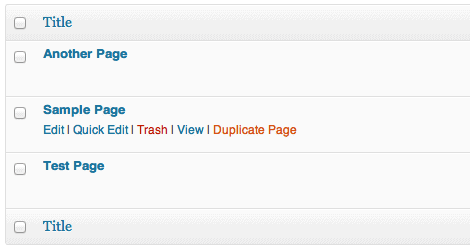
Just hover over a post in the edit screen and select ‘Duplicate {post_type}’ to create a duplicate post.
Key features:
- Create and duplicate multiple posts quickly.
- Support for all custom post types.
- No need to configure settings.
- Allows adding custom fields such as texts, images, checkout boxes and radio buttons on the duplicated posts.
- With the duplicated post, you can edit or delete the information without affecting the existing version.
Pricing: Free
Download Post Duplicator plugin
Duplicate Page plugin
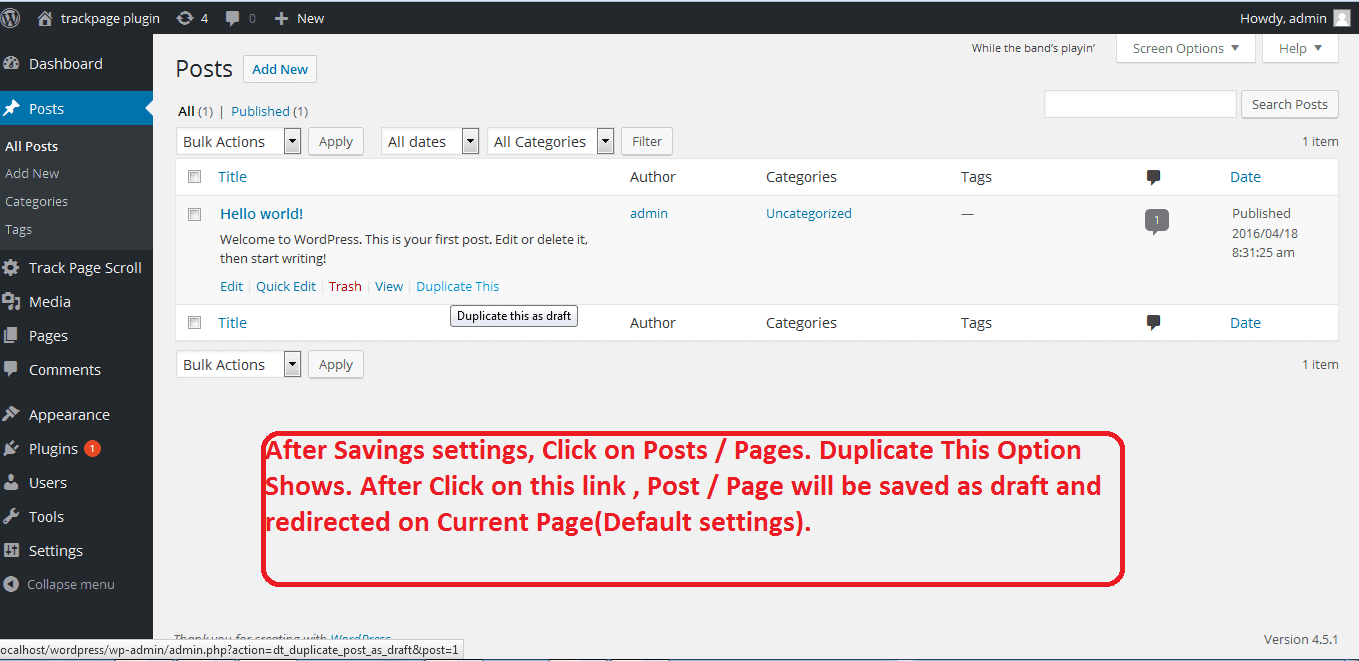
The Duplicate Page Plugin lets you quickly clone pages, posts, and custom posts.
With a simple click, you can duplicate content and set the new page’s status.
Boasting over 3 million active installs and excellent reviews, its popularity is clear.
However, advanced features like status changes, post type conversions, and redirects require the Pro version.
Top features:
- Select where to show the duplicate page link – post edit page, item row on the post landing page, under the post button on the admin bar.
- Set a default Prefix and Suffix to your duplicated pages.
- Option to select a duplicated post Status.
- Set role-based access restrictions for duplicated pages.
- Option to Redirect after clicking on the clone link.
- The plugin also allows cloning link locations. This is the option where to show the clone link.
- Allows adding many more features and filters.
- Offers the option to change duplicate post link titles.
- Allows creating a clone of a particular custom post (CPT).
- Offers options to select the editor (Classic and Gutenberg).
Pricing: Free version on WordPress.org, Pro version for $15.
Download Duplicate Page plugin
Duplicate Page and Post
The plugin has 100,000+ active installations and is yet another promising alternative in the world of WordPress duplicate posts.
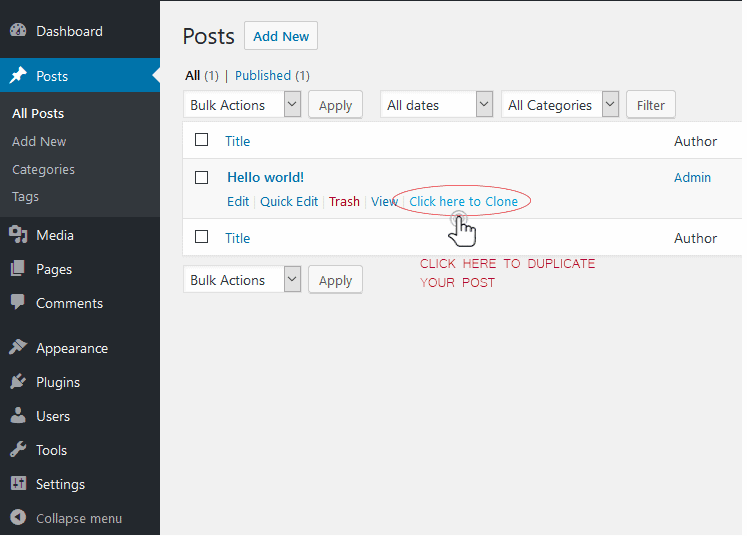
With the Duplicate Page and Post WordPress plugin, you can clone any of your pages or posts as Draft.
After that, you can also update the post suffix, redirect and post status for the replicated page using this WP plugin.
Top features:
- Helps choose between the Classic or Gutenberg editors.
- Option to add custom text for duplicate link button, which enhances the user experience.
- Option to redirect after clicking on Duplicate.
- Allows cloning custom posts (CPT). This helps users replicate any custom posts, thereby streamlining the work process.
- The redirect option redirects the users after clicking on Duplicate, which improves navigation and user-friendliness.
Pricing: Free
Download Duplicate Page and Post plugin
Bulk duplication in WordPress (using Smart Manager)
If you need to clone multiple pages, posts, or WooCommerce products in one go, Smart Manager makes it effortless.
Instead of duplicating items one-by-one, you get a spreadsheet-like dashboard where you can select as many items as you want and clone them instantly.
Also, isn’t just a “duplicate page” tool, it’s a full control panel for WordPress content and WooCommerce data.
You can clone, edit, filter, bulk-update, and manage everything, pages, posts, media, coupons, orders, products, and even custom post types, all from one screen.
It also supports custom fields and taxonomies, helping you duplicate complete structures, not just basic content.
How to duplicate pages, posts, WooCommerce products with Smart Manager?
To duplicate posts, pages, or custom post types in WordPress using the Smart Manager plugin, follow these steps:
- Go to
WordPress admin > Smart Manager. Select any dashboard: Pages, Products or Posts using the dropdown menu on the top of the page. - Look for the page to be cloned or duplicated. You can search for a phrase or page ID using the search bar.
- Select the page(s).
- To perform duplication, hover on
Duplicateand clickSelected Records. You may also perform complete duplication of your site by clicking theEntire Store.
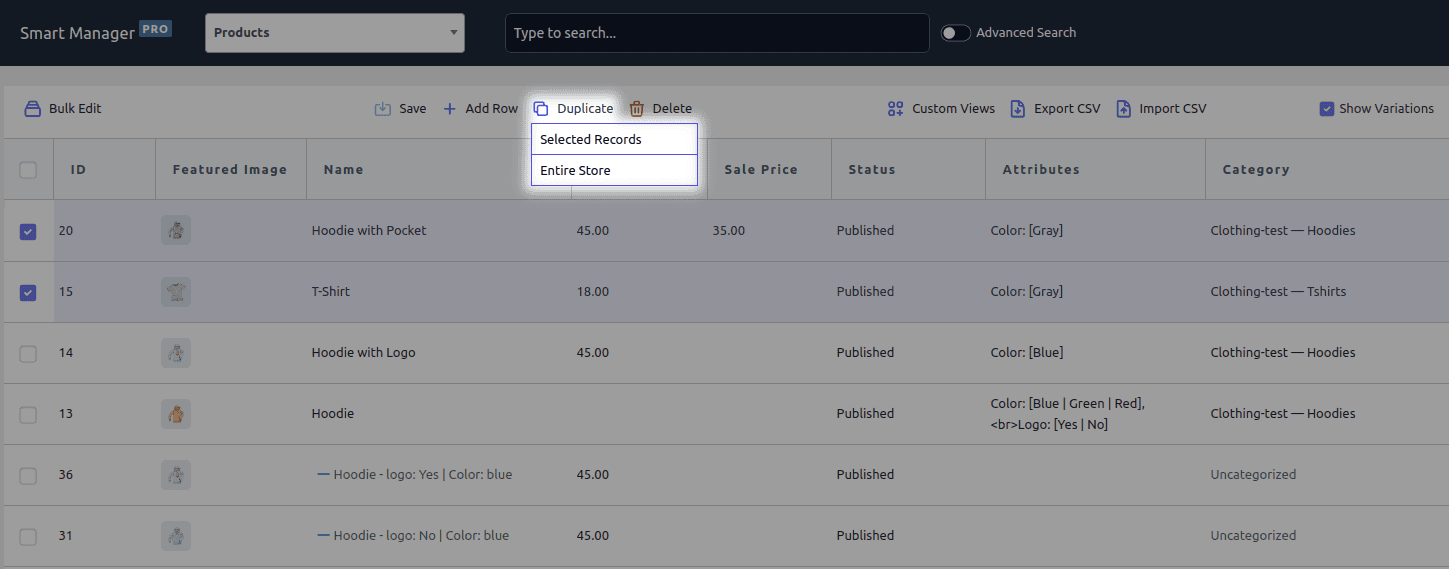
This action will duplicate posts, post meta, related taxonomies and all other data in the selected items for you.
So, if you use the Smart Manager plugin, you can easily retain your SEO fields and data when you clone a page.
After that, you can edit data using the rows enlisted in front of you.
Why Smart Manager is the ideal bulk duplication tool?
- Duplicate anything: Posts, pages, custom types (orders, products, etc.).
- CSV exports: Export any post-type data.
- Inline editing: Add/edit posts directly, with copy/paste support.
- Direct field edits: Title, content, status, image, date, categories, tags, and more.
- Bulk edits: Mass updates for core fields, statuses, categories, dates, SEO, etc.
- Multiple creations: Create multiple posts simultaneously.
- Quick duplication: Products, orders, coupons, users, and more.
- Front-end editing: Edit any field without opening the post.
- Simple duplication/export: Single or bulk actions.
- Bulk deletion: Delete posts, pages, or data, individually or in bulk.
- Image management: Directly update product gallery and featured images.
- Custom views: Create views with specific fields (e.g., SEO).
- No-reload editing: Edit hundreds of posts seamlessly.
- Manage Yoast, RankMath SEO fields: Manage SEO fields of RankMath or Yoast on your page/post in Smart Manager.
Bulk duplication is where Smart Manager truly shines.
Instead of copying one post at a time, it gives you complete control over your entire WordPress and WooCommerce database, duplicating, editing, and managing everything in one go.
Which method is best for duplicating WordPress pages?
There isn’t one best method for every WordPress site. It comes down to how often you duplicate content and how much of the original data you need to carry over.
| If you need to… | Use… |
|---|---|
| Copy a simple page once | Manual copy or Gutenberg |
| Reuse a page design | Your page builder |
| Clone pages regularly | A duplication plugin |
| Preserve additional post data | A plugin that supports the required metadata |
| Duplicate custom post types | A plugin that supports custom post types or custom code |
| Duplicate many pages or posts | A bulk-management tool such as Smart Manager |
| Build a highly customized workflow | Custom code |
For most people, the decision is pretty simple: copy manually for an occasional job, use your page builder for design-heavy work, use a duplication plugin for regular cloning, and use a bulk-management tool when you’re dealing with large numbers of records.
How to avoid SEO problems when duplicating WordPress pages
Creating a duplicate doesn’t automatically hurt SEO. The problem is publishing multiple pages that are substantially the same without giving each URL a clear reason to exist.
Before publishing a duplicate, work through this checklist:
- Give it a unique purpose: Don’t publish a second page if it doesn’t serve a distinct searcher or business need.
- Rewrite the title and content: Replace placeholder copy and make the page genuinely relevant to its new purpose.
- Change the slug: Make sure the new page has the correct URL rather than inheriting a confusing or temporary slug.
- Review the SEO title and meta description: Don’t leave metadata copied from the original if the page targets a different topic or audience.
- Check the canonical URL: Make sure the canonical points to the version you actually want search engines to treat as the main page.
- Update internal links: Check buttons, navigation links, breadcrumbs, and links inside the copied content.
- Review featured images and alt text: Replace anything that only made sense for the original page.
- Check indexing settings: If the duplicate is only a working draft, make sure you don’t accidentally expose it for indexing.
- Delete unnecessary copies: Old drafts and unused duplicates are better cleaned up than left around indefinitely.
Duplicate smart, not hard
Rebuilding pages from scratch every time you need a similar layout isn’t hard, it’s just unnecessary.
Duplication exists for a reason.
So whether you’re testing new ideas, launching pages faster, or keeping your design consistent, cloning content saves time and keeps your site structure clean.
Different workflows need different methods and now you know them all. Pick the one that matches your setup, tidy up the SEO bits, and publish.
Work smart. Reuse what works. Duplicate, adjust, move on.
FAQs
Will duplicating a WordPress page also duplicate its URL?
No. The duplicate needs its own unique URL. WordPress will typically generate a new slug based on the page title, but always review it before publishing.
Can I edit a duplicated WordPress page without changing the original?
Yes. A properly created duplicate is a separate WordPress record, so you can edit its content, settings, images and other supported data without changing the original.
Can I duplicate a WordPress page and change its author?
Yes. Depending on the duplication method, you can assign the duplicate to a different author. Some plugins let you configure the author during or after duplication.
Can I duplicate a published WordPress page as a draft?
Yes. This is one of the safest ways to reuse an existing page. Create the duplicate as a draft, make your changes, review it, and publish it only when it’s ready.
Can I duplicate a WordPress page and keep its custom fields?
Yes, but it depends on the duplication tool. If the page relies on custom fields, choose a method that explicitly supports copying post metadata and custom fields.
Can I duplicate a WordPress page with its categories and tags?
Yes, if the duplication method copies taxonomies. Manual content copying usually won’t carry over these settings automatically, so check them before publishing.
Can I duplicate a WordPress page and keep its internal links?
The links contained in the copied content can usually be carried over, but they may still point to the original page or other content. Review internal links and update any URLs that should point to the new page.
Can I duplicate a WordPress page from one site to another?
Not with a standard duplication plugin alone. Duplicating within WordPress normally creates a copy on the same site. Moving a page to another site requires a migration, export/import, or other cross-site transfer method.
What should I check after duplicating a WordPress page?
Check the title, slug, content, featured image, internal links, categories or tags, custom fields, SEO settings, canonical URL, and indexing settings before publishing the duplicate.
Can I duplicate custom post types in WordPress?
Yes, but the method must support the specific custom post type and its associated taxonomies and metadata. Check compatibility before duplicating custom content.