


Show download count on WooCommerce Product Page of your store. It will contribute to your sales pitch. And as the download count will grow, your visitor will get confidence on your product. They will know that other peoples are using your product as well.
If you’re in business of selling digital / downloadable products, you’ll need good number of downloads to increase your sale. Download counts certainly affects purchase behaviour of your visitor. When they see a positive download count, they may consider purchasing your product. These numbers will always keep growing. And it’ll add a great point in pitching your product.
How the download count will look
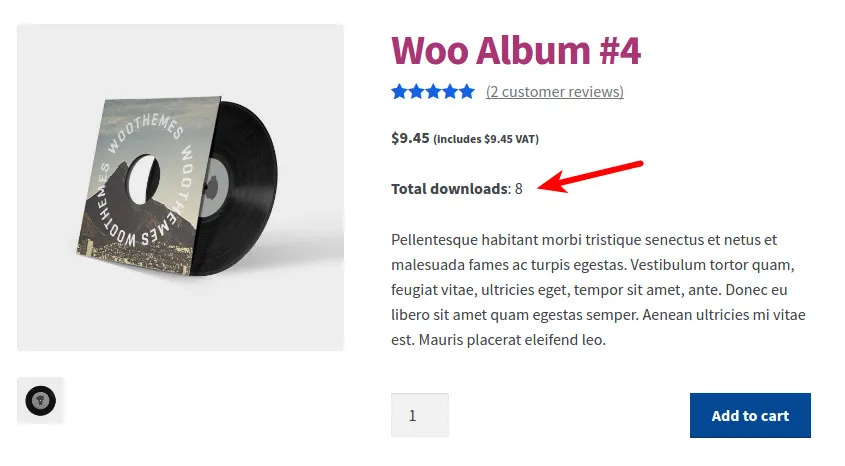
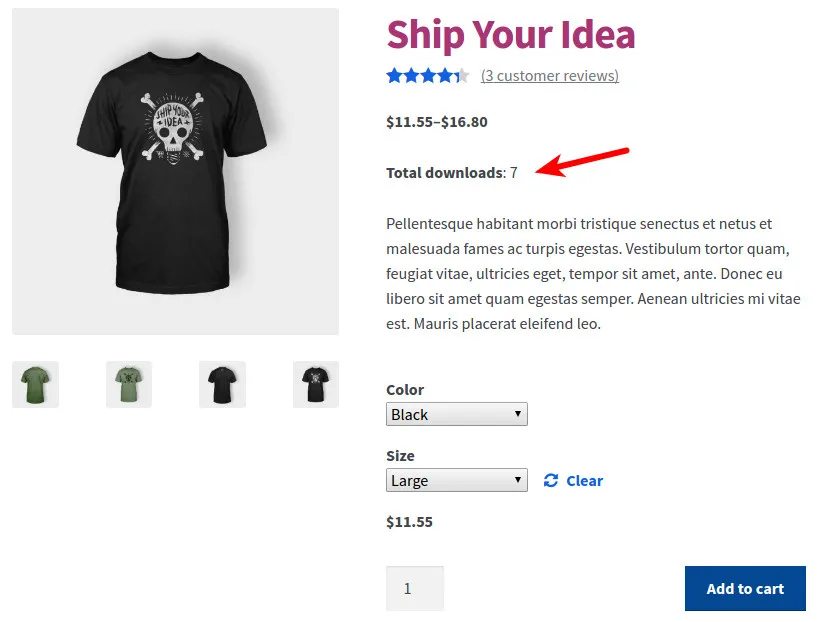
How to enable download count on WooCommerce product page
- Choose a file which will never be updated during any kind of update, whether it’s WordPress upgrade, plugin updates or theme update. Most commonly it can either be
functions.phpfile of your custom theme or any other file of your custom plugin. - Add following code in that file
function show_number_of_downloads() {
    global $wpdb, $product;

    $product_id = ( is_object( $product ) && is_callable( array( $product, 'get_id' ) ) ) ? $product->get_id() : 0;

    if ( empty( $product_id ) ) return;

    $product_type = ( is_object( $product ) && is_callable( array( $product, 'get_type' ) ) ) ? $product->get_type() : 'simple';

    if ( 'variable' === $product_type ) {
        $product_ids = $product->get_children();
    } else {
        $product_ids = array( $product_id );
    }

    $how_many_product_ids = count( $product_ids );
    $id_placeholder       = array_fill( 0, $how_many_product_ids, '%d' );

    $count = $wpdb->get_var(
        $wpdb->prepare(
            "SELECT SUM( download_count ) AS count
                FROM {$wpdb->prefix}woocommerce_downloadable_product_permissions
                WHERE product_id IN (".implode( ',', $id_placeholder ).")",
            $product_ids
        )
    );
    if ( ! empty( $count ) ) {
        echo '<strong>' . esc_html__( 'Total downloads' ) . '</strong>: ' . $count;
    }
}
add_action( 'woocommerce_single_product_summary', 'show_number_of_downloads' );
Note: This code will work with WooCommerce 2.5.0+ 3. Save the file. You’re done!
The above code will work for both simple & variable products. For simple products, it’ll simply show total download counts. But a variable product can have more than a variations & each variations can provide either separate or same downloadable file.
Therefore download count of each variations are recorded separately. The above code automatically combines download count of each variations & display on product page.
Learn how to setup digital / downloadable product in WooCommerce.
Akila
Awesome tutorial. Thank you. How can I show total product views on WooCommerce product page like this? With a little "eye" icon? Can you please help me?
Ratnakar
Thank you for your appreciation.
Here's one free plugin on WordPress Product View Counter Page Visit Counter
Rony
Product View Counter is no longer compatible. Can anyone suggest an alternate option?
Ratnakar
You can consider Page Visit Counter
Cyril
Hi,
Thank you for the snippets, it works great. One question, would be how to control the position of where it appears ? For now it shows under the price - But I'd like to have it show up under the add to cart button. Can you help with the position ?
Let me know thanks!
Ratnakar
In the above-mentioned code, replace this line of code add_action( 'woocommerce_single_product_summary', 'show_number_of_downloads' ); with this add_action( 'woocommerce_after_add_to_cart_button', 'show_number_of_downloads' );
seffal
Thank you for the snippets, it works great. i want to add total download for all product example in footer Thank you
Ratnakar
The above-mentioned snippet is only for a single product. It's not possible to do a smaller tweaking in the above-mentioned code to display total downloads for all products. It will require an entirely new snippet.
Ruberti Gio
Thank you and that’sThat’s what it looks like https://ibb.co/Rys6n1w
But just another question is there a way to add an icon before the text as in this template thank you in advance https://ibb.co/B3W291j
Ratnakar
To add an icon before the download count, you'll need to add the HTML of that icon in the above-mentioned code like this. Replace this line echo '<strong>' . esc_html__( 'Total downloads' ) . '</strong>: ' . $count; with this line echo '<strong>' . esc_html__( 'Total downloads' ) . '</strong>: {HTML-code-for-icon}' . $count; and insert the HTML code of that icon in place of {HTML-code-for-icon}
Fidan Selmani
Hi, let's say someone just purchased a digital product on my store. After he completes it, how I can show one small text with a hyperlink that says eg: You purchased this item. Click Here to download.
The words click here to be clickable hyperlink that redirect to My Downloads page.
Akshat Kothari
Hi Fidan,
Use the Custom Thank You Page for WooCommerce plugin to achieve your task. Create a custom thank you/order complete page, add any content, text and hyperlink as you want above using the WordPress editor.
Try it out and let me know if you need any help.