

Most store owners judge gift card success by gross issuance. That metric is misleading. The real profit drivers are breakage margins and cart expansion.
Selling WooCommerce gift cards provides immediate cash flow. It secures interest-free working capital. Even better, it brings in new buyers. Industry data shows these shoppers spend an average of $59 above the card denomination at checkout.
WooCommerce does not support stored-value balances out of the box. Core coupons only handle basic percentage or fixed discounts. These fail the moment a shopper tries to spend a balance across multiple visits.
Does WooCommerce support gift cards natively?
WooCommerce does not support gift certificates or stored-value credits out of the box.
The built-in engine under Marketing → Coupons only recognizes three static discount types. You get percentage discounts, fixed cart discounts, and fixed product discounts. None of these hold a running balance.
If you try using a standard $50 fixed cart coupon as a gift card, WooCommerce zeroes it out on the first purchase. Even if the customer only spends $20, the remaining $30 balance disappears permanently.
| Feature | Core WooCommerce Coupons | WooCommerce Gift Cards (Smart Coupons) |
|---|---|---|
| Stored-value balance tracking | ||
| Partial redemption carryover | ||
| Custom buyer-entered amounts | ||
| Scheduled email delivery to recipient | ||
| Printable physical voucher codes | ||
| Exemption from sales tax at issuance |
To run real gift certificates, you need an extension that treats balances as stored value rather than simple discounts. For a full breakdown of how native discounts differ from stored value, see our comprehensive guide to WooCommerce coupons.
Digital vs. physical WooCommerce gift cards: which format fits your store?
Choosing between digital e-gift cards and physical certificates comes down to your fulfillment capacity.
Digital e-gift cards account for over 80% of online gift card purchases. Fulfillment is fully automated. The store generates a unique balance code. It then emails the code directly to the recipient on the requested date.
Physical cards serve brick-and-mortar storefronts, corporate holiday packages, and unboxing experiences. However, physical cards introduce printing and shipping logistics.
| Evaluation Criteria | Digital E-Gift Cards | Physical Gift Cards |
|---|---|---|
| Fulfillment overhead | Zero (automated email delivery) | Manual printing and postal shipping |
| Delivery timing | Instant or future scheduled date | Dependent on shipping transit |
| Best suited for | Last-minute buyers and remote gifting | In-store POS and holiday gift boxes |
| Production cost | $0 per issued card | Cost of cardstock or plastic card embossing |
If your store operates a physical counter or ships tactile gift boxes, you can combine both models. Start by selling physical gift cards for WooCommerce alongside digital codes.
How to create WooCommerce gift cards (5 essential types)
With Smart Coupons installed on your WordPress site, you can set up five distinct gift card variations depending on your sales strategy.
How to create a gift card of any amount
A variable gift card lets the buyer type in any custom amount. Popular choices include $35, $75, or $250. This eliminates hesitation when buyers have a specific budget in mind.
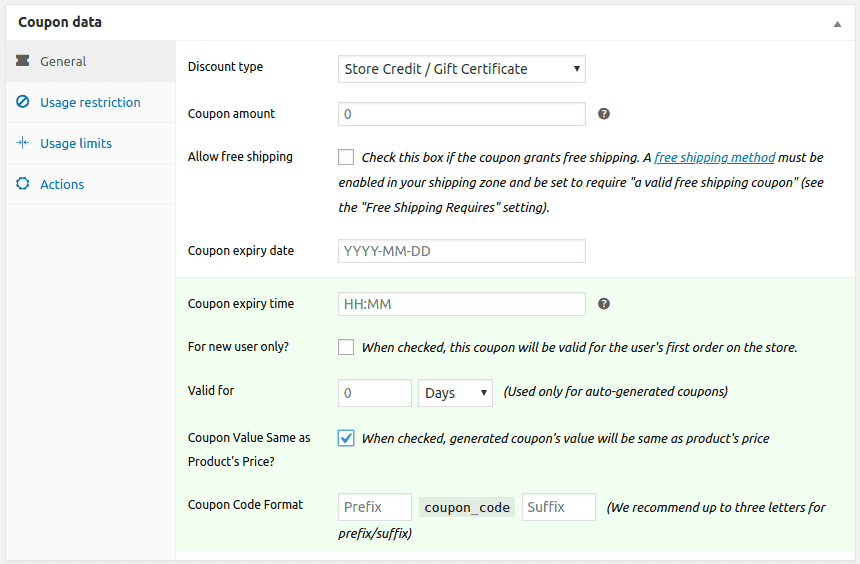
To configure a variable gift card, first create the underlying store credit coupon:
-
Navigate to
Marketing -> Coupons -> Add couponin your WordPress dashboard. -
Enter a descriptive coupon code name, such as
gift_card_master. -
Under the
Generaltab, setDiscount typetoStore Credit / Gift Certificate. -
Leave the
Coupon amountfield completely blank. -
Check the box labeled
Coupon Value Same as Product’s Price. -
Configure your preferred usage restrictions, then click
Publish.
Next, link this master coupon rule to a WooCommerce product:
-
Go to
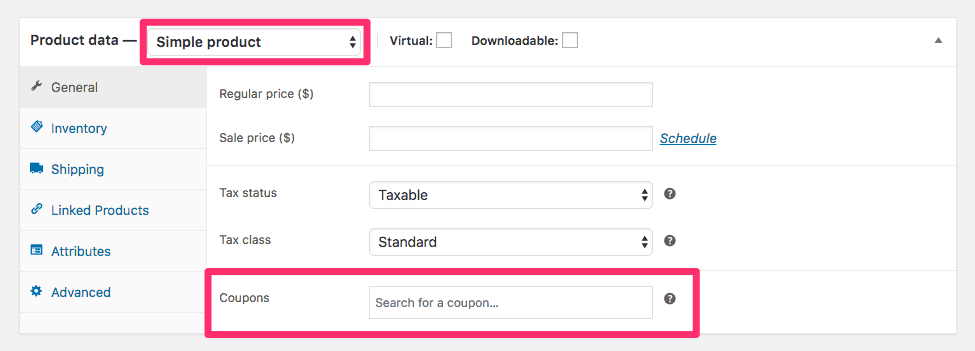
Products -> Add Newand select aSimple product. -
Name the product (for example, “Digital Gift Card - Choose Your Amount”).
-
Check the
Virtualcheckbox to prevent WooCommerce from charging shipping fees. -
Leave both
Regular priceandSale pricefields blank. -
In the
Couponssearch field under product data, select the master coupon you created in the previous step. -
Publish the product.
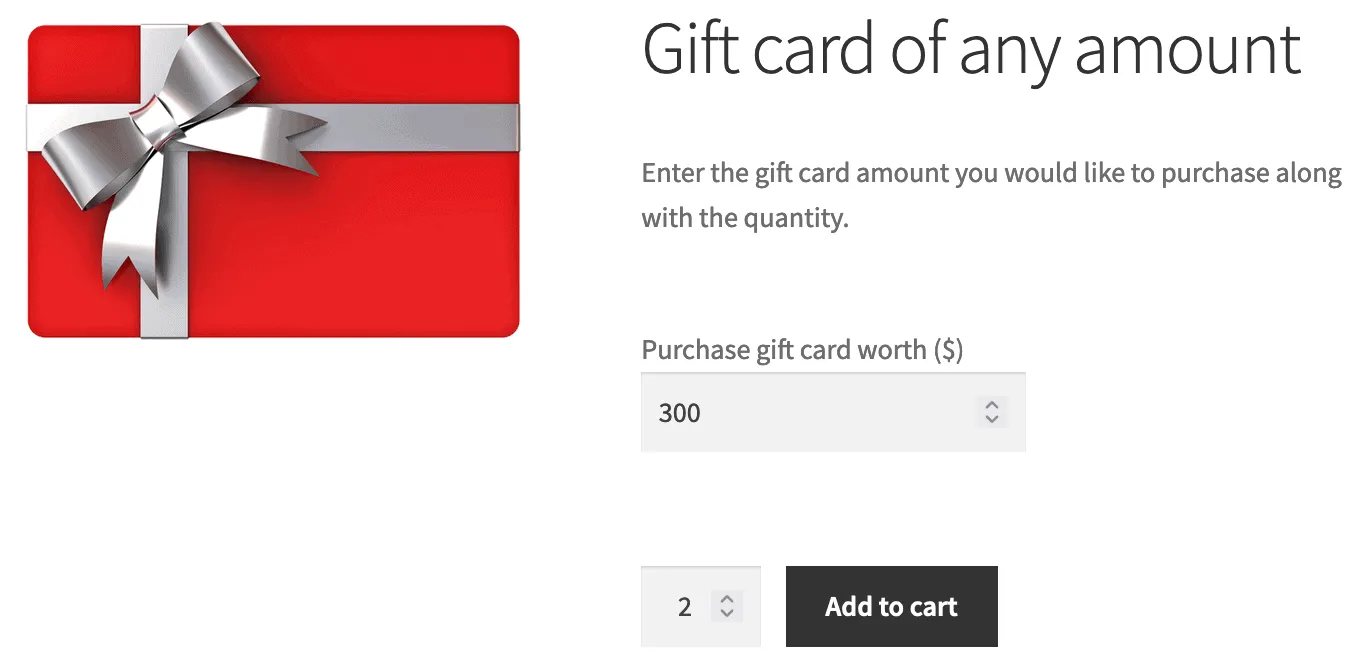
When shoppers visit this product page, they see an open text input where they can enter any custom value (such as $300 in the example below) and select their quantity before adding the voucher to their cart.
How to create fixed denomination gift cards
Fixed denominations ($5, $10, $20, $50, $100, $200, $500) guide customer spending choices and reduce decision fatigue.
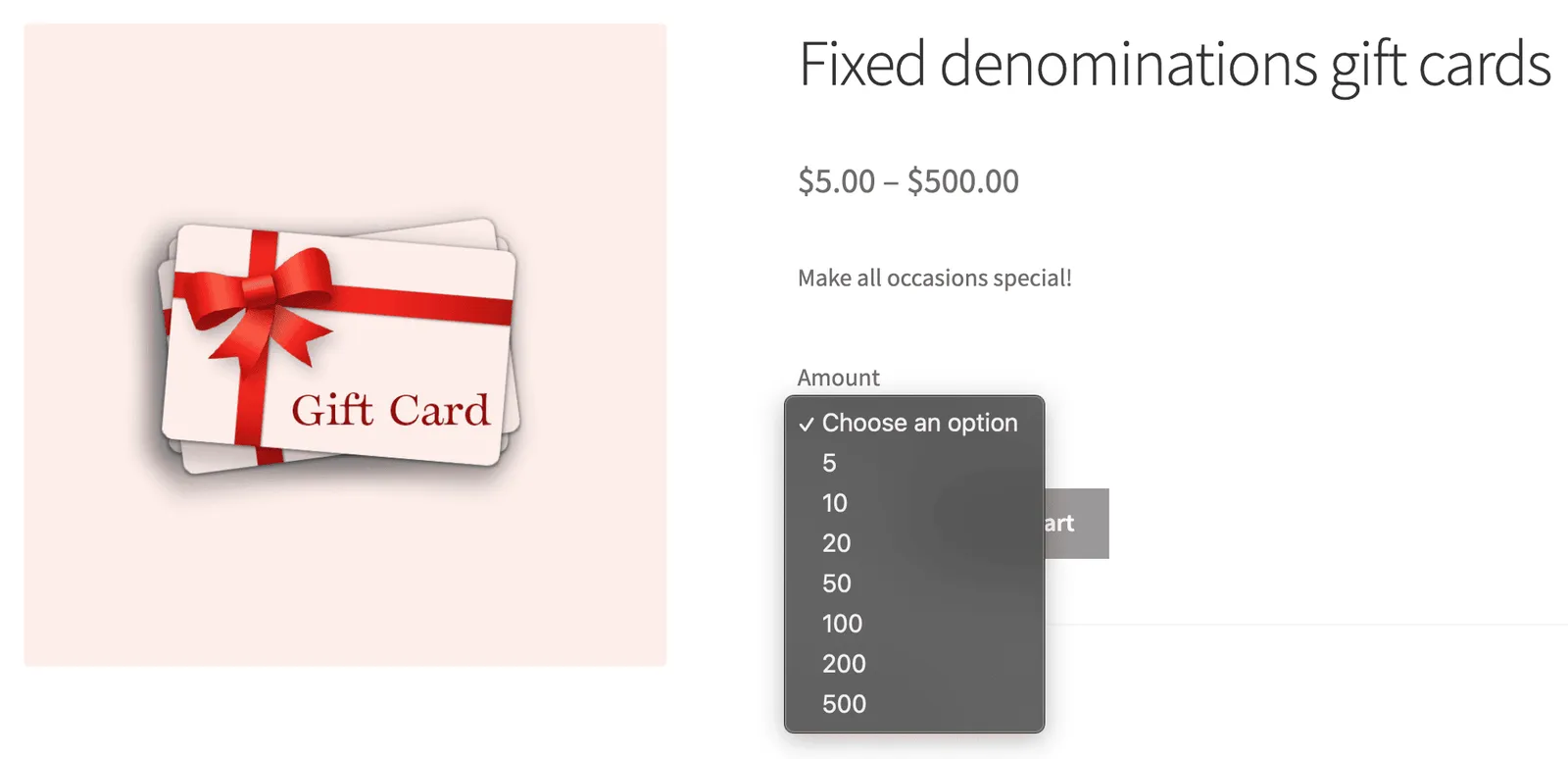
Here is how to set up fixed denominations using a variable product:
-
Create a master store credit coupon with
Coupon Value Same as Product’s Priceenabled, exactly as done in the variable setup above. -
Go to
Products -> Add Newand selectVariable product. -
Check the
Virtualbox under General settings. -
Under the
Attributestab, clickAdd custom attributeand name itAmount. -
In the Value(s) box, enter your price tiers separated by a pipe character:
5 | 10 | 20 | 50 | 100 | 200 | 500. -
Check
Used for variationsand clickSave attributes. -
Under the
Variationstab, selectGenerate variationsfrom the dropdown. -
For each generated variation, set the matching
Regular price(for example, enter 20 for the $20 tier as shown below) and mark itVirtual. -
Link your master coupon in the product’s
Couponsfield and clickPublish.
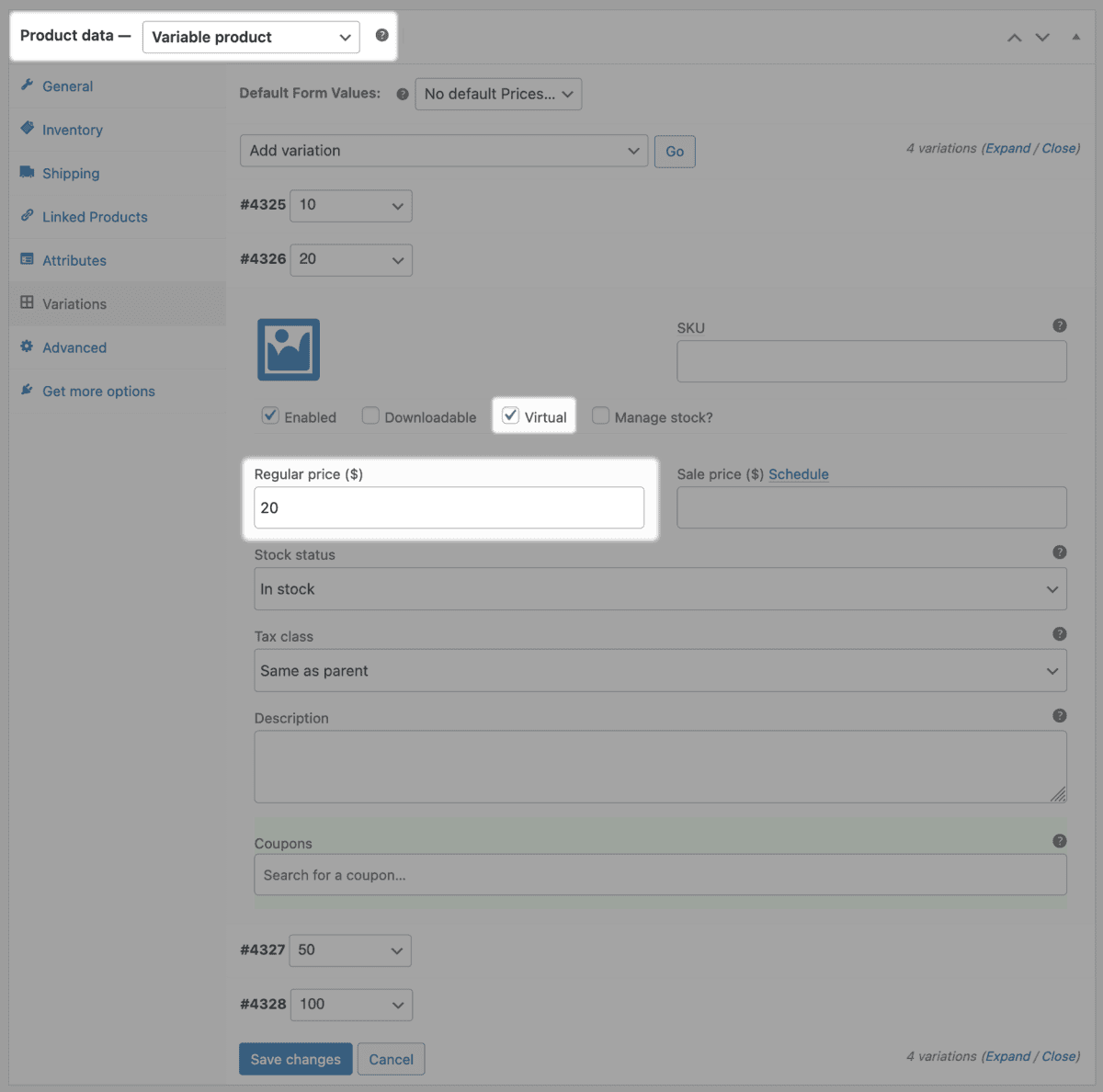
Shoppers can now select their desired denomination via clean dropdown or radio button selectors on the frontend product page.
How to sell a fixed amount gift card
If you only want to offer standalone, dedicated cards (such as a single $20 gift voucher product), use a simple product configuration:
-
Create a store credit coupon named
fixed_credit. -
Go to
Products -> Add Newand chooseSimple product. -
Check
Virtual. -
In the
Regular pricefield, enter your fixed value (for example,20). -
In the
Couponsfield, selectfixed_credit. -
Publish the product.
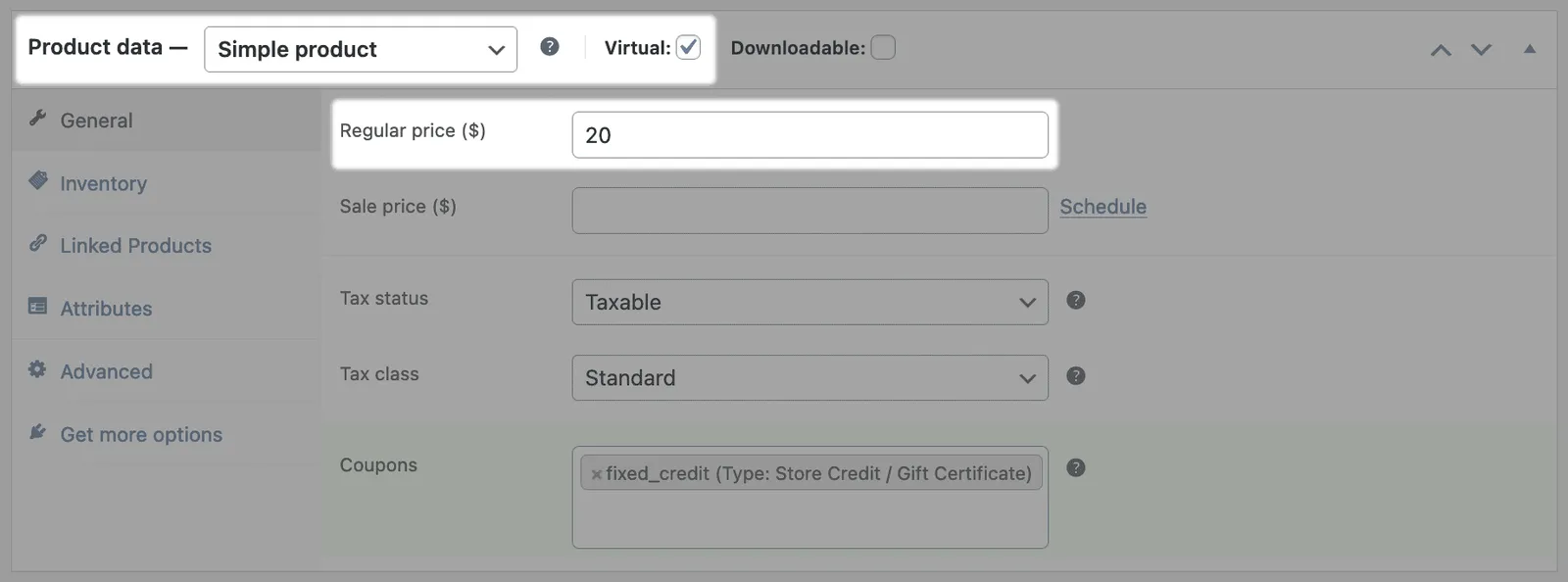
This approach is best when featuring seasonal gift cards directly on category pages or as add-ons in marketing funnels.
How to sell discounted gift cards
Selling gift cards at a discount is an effective cash-generation strategy before holiday shopping waves. A common promotion is offering a $500 gift card for $400.
To enable discounted gift vouchers:
-
In your WordPress dashboard, navigate to
WooCommerce -> Settings -> Smart Coupons. -
Locate the setting labeled
Sell store credit at less price?and check the box to enable it. Save your changes. -
Open or create your gift card product.
-
Under Product Data, enter the actual redeemable stored value in
Regular price(500). -
Enter the discounted purchase price in
Sale price(400). -
Update the product.

The buyer pays only $400 at checkout, but the recipient receives a voucher loaded with the full $500 balance.
How to issue printable physical gift cards
For in-person gifting, countertop retail, or packaging into greeting cards, customers and store administrators can print available gift card vouchers directly from WooCommerce:
-
Navigate to the coupons dashboard (
My Account -> Couponsfor customers, or the store coupons view). -
Review your available store credits and gift card balances.
-
Click the
Print couponsbutton. -
WooCommerce formats the selected voucher codes into a printable grid complete with coupon amounts and expiration dates.
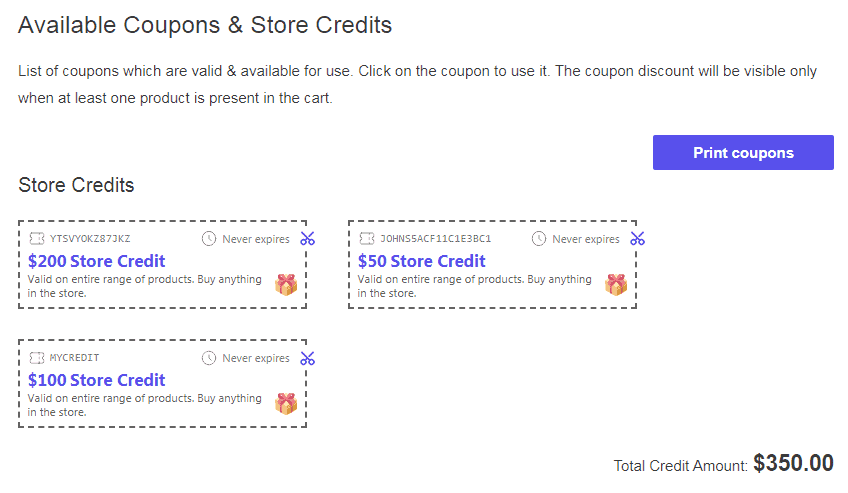
You can paste these codes into your brand stationery, print them on custom cardstock, or affix scratch-off stickers over the codes for secure physical distribution.
Multi-use and reloadable gift cards: how balance carryover works
The biggest operational friction with gift cards is handling partial redemption.
Consider a shopper holding a $100 gift card. If they buy an item for $42, the system must debit $42 and save the remaining $58 for later. If you force shoppers to spend everything in one transaction, cart abandonment climbs.
Smart Coupons handles balance carryover automatically in the database:
-
When the order reaches
ProcessingorCompleted, the plugin calculates the deduction against the coupon record. -
The coupon code retains its original name. Its stored credit metadata updates to reflect the remaining balance ($58).
-
If a customer creates an account, their available balance appears directly within their
My Account -> Couponsdashboard. -
When the balance reaches 0.00, WooCommerce automatically marks the coupon as expired or exhausts its usage limit.
This automated cycle ensures your store never has to reissue replacement codes manually.
6 strategic ways to use gift cards to boost revenue
Gift cards perform best when integrated directly into your marketing and retention workflows rather than sitting quietly on an unlinked catalog page.
BOGO bonus gift card promotions
Offer bonus store credit during shopping holidays to lift average order value. A proven campaign is: “Buy a $100 gift card for someone else, and get a bonus $15 credit for yourself.”
This rewards the buyer immediately. It also guarantees two separate visits to your store.
Corporate bulk gifting for B2B revenue
Corporate clients buy gift cards in bulk for employee appreciation and sales milestones. Handling these orders manually creates unnecessary administrative work.
Use our guide on corporate gift cards in bulk to learn how to import CSV lists, send bulk distributions, and manage invoices.
Seasonal campaigns for holidays and events
Do not limit gift cards to December holidays. Gifting campaigns perform reliably for Mother’s Day, graduation season, and unexpected product stock-outs.
Explore our curated list of gift card promotion ideas for practical campaign setups.
Bookable services and appointments
Gift cards are ideal for service businesses like salons, consulting practices, and equipment rentals. They let customers gift an experience without picking a rigid time slot.
See how to configure gift cards for bookings and appointments across service catalogs.
Store credit for returns and refunds
Cash refunds permanently remove money from your business and incur non-refundable payment processing fees.
By offering customers the option to issue store credit for refunds, you preserve cash flow inside your store while giving dissatisfied shoppers a painless way to select an alternative product.
Subscriptions and shipping fee coverage
Allow recipients to apply their gift card credit toward recurring membership renewals using WooCommerce Subscriptions gift cards.
You can also eliminate checkout payment friction by enabling customers to apply gift cards on shipping cost and taxes.
Troubleshooting common WooCommerce gift card checkout issues
Gift card configurations interact with carts, tax calculation hooks, and payment gateways. When issues arise, they typically stem from one of three areas:
Payment gateways ignoring applied gift card discounts
Certain external gateways read the raw order subtotal instead of the discounted checkout total. This leads to charging customers full price despite applied credits.
The Fix: In Smart Coupons settings, configure coupon deduction hooks to debit orders before compiling external gateway payloads. Verify that woocommerce_smart_coupons_deduct_before_tax is active. Alternatively, configure your checkout to capture payments only after calculating line-item discounts.
Custom theme AJAX scripts resetting card prices to zero
Some WooCommerce themes use custom AJAX add-to-cart scripts. These often fail to serialize custom amount input fields on variable gift card products. When the item lands in the cart, the price drops to 0.00.
The Fix: Test your gift card product using a default WooCommerce theme like Storefront. If the zero-price error only occurs on your active theme, disable custom AJAX add-to-cart for virtual products. You can also adjust your theme script to serialize all input fields inside .cart form wrappers.
Square POS sync authentication scope errors
Merchants attempting to sync physical Square gift card balances with online checkouts often run into invalid code errors.
The Fix: Square gift cards operate on closed-loop proprietary APIs. Online WooCommerce checkouts cannot debit Square cards directly unless your integration explicitly includes GIFTCARDS_READ and GIFTCARDS_WRITE permission scopes. For pure WooCommerce stores, issuing gift certificates natively inside Smart Coupons avoids third-party POS API rate limits.
Accounting and compliance: tax rules, breakage, and expiration
Because gift cards represent stored value rather than discounted merchandise, they carry distinct financial and tax reporting rules.
Sales tax timing: issuance vs. redemption
A gift card is not taxable merchandise. Under US sales tax law and EU VAT directives, issuing a gift card is a cash-equivalent transaction:
-
At Issuance: Charge 0% sales tax. The shopper is trading cash for stored purchasing value. No tangible goods have moved.
-
At Redemption: Calculate and collect sales tax based on the actual items in the cart and the recipient’s shipping location. The gift card balance is a payment method, not a tax exemption.
Managing gift card breakage income
Breakage refers to the percentage of gift card balances that customers buy but never redeem. Across the US retail sector, approximately $23 billion in gift cards remains unspent.
From an accounting standpoint:
-
When a customer buys a gift card, record the revenue on your balance sheet as a current liability (deferred revenue). Do not record it as earned income.
-
When the customer redeems the card, convert that liability into recognized product sales revenue.
-
If a card remains unspent past its statutory period, US GAAP and IFRS standards allow businesses to recognize breakage income proportionally based on historical redemption rates.
Expiration dates and state escheatment laws
Review your local consumer protection laws before adding expiration dates or dormancy fees to your gift cards:
-
In the United States, the federal Credit CARD Act prohibits gift cards from expiring within five years of issuance. Many states (including California, Florida, and New York) ban expiration dates and maintenance fees entirely.
-
Unclaimed balances in certain states fall under escheatment rules. These laws require unredeemed funds to be remitted to the state’s unclaimed property division.
For most online stores, the safest and most customer-friendly policy is to issue non-expiring gift certificates.
Launch your WooCommerce gift card program
Gift cards convert one-time visitors into repeat customers, secure interest-free working capital, and expand checkout baskets by an average of $59 above face value.
Start by configuring a single gift card product, either a variable custom amount or popular fixed denominations like $25, $50, or $100. Run a test order in your staging store to verify automated delivery emails and ensure partial redemptions carry over cleanly at checkout.
Frequently asked questions
Can I sell gift cards on WooCommerce for free?
Core WooCommerce does not support gift cards for free out of the box. While you can create standard promotional coupons natively, tracking stored-value balances, customer account balances, and automated email gift card delivery requires an extension like Smart Coupons.
Do WooCommerce gift cards expire automatically?
You can choose whether gift cards expire. In the coupon settings, you can leave the expiry date field blank for non-expiring cards or set a specific calendar duration (such as 365 days). Always verify your regional regulations before setting expiration dates.
Can customers use a gift card multiple times?
Yes. When a customer uses a gift card on an order that totals less than the card’s available balance, WooCommerce automatically retains the remaining balance on the same code for their next purchase.
Can I refund a WooCommerce order to a gift card?
Yes. Instead of issuing a cash refund through your payment processor, you can issue store credit for the exact refund amount. This keeps revenue inside your business while giving the customer immediate store balance to choose an alternative item.
Topics

Do you want to boost sales and customer loyalty? Discover the simple ways and hacks to give free gifts to your customers without hurting sales.
Let customers share unforgettable experiences! Learn how they can send gift cards that their loved ones can redeem on your services booked - salons, home cleaning, etc.
Looking for a reliable solution to distribute corporate gift cards? Smart Coupons is your answer. Our plugin offers efficient creation, flexible customization, and a seamless integration with your WooCommerce store.

Do you offer physical services online? Discover how to create gift certificates that customers can redeem for the services like spas, home cleaning and more.



Marry Walker
It's really informative articles for woocommerce business. After getting this blog, I read the whole article and I like these ideas on this topic. Thanks for sharing this article!