


Discounts can either drive profitable customer acquisition or steadily erode your operating margins. For most store owners, configuring WooCommerce coupons begins as a simple way to reward shoppers with 10% off, but quickly scales into a complex promotional web of multi-tier discounts, BOGO deals, and coupon fraud prevention.
WooCommerce includes a capable native coupon system out of the box. However, high-volume stores frequently struggle with core limitations around discount sequencing, automatic application, cart restrictions, and checkout database bottlenecks.
This guide covers everything you need to know about WooCommerce coupons: how to configure core discounts, how discount calculation and tax logic work under the hood, how to resolve common checkout errors, and how to scale into advanced promotional strategies that protect your margins.
Does WooCommerce have native coupons?
Yes, WooCommerce includes a built-in coupon management system enabled by default in all standard installations. Store administrators create, configure, and manage promotional discount codes directly inside the WordPress dashboard without requiring third-party extensions.
If the coupon menus do not appear in your admin navigation, verify that coupons are activated in your store settings:
- Go to WooCommerce → Settings → General.
- Scroll to the Enable coupons section.
- Check the box labeled Enable the use of coupon codes.
- (Optional) Check Calculate coupon discounts sequentially if you want secondary percentage discounts applied to the reduced subtotal rather than the original item price.
- Click Save changes.
Once enabled, WooCommerce displays your coupon administrative dashboard under Marketing → Coupons. In older WooCommerce versions (prior to version 4.0), this screen lived under WooCommerce → Coupons. If you are setting up your very first coupon, review our step-by-step walkthrough on how to add a coupon code in WooCommerce.
How to create a coupon in WooCommerce (step by step)?
Creating a native WooCommerce coupon requires configuring three distinct tabs: General, Usage restriction, and Usage limits. Each tab defines how the discount calculates, who qualifies to use it, and how many times it can be redeemed.
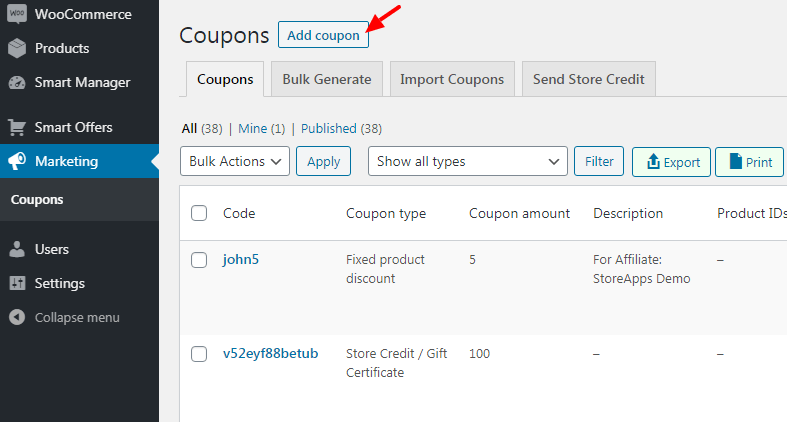
To start, navigate to Marketing → Coupons and click the Add coupon button at the top of the screen.
1. Code, description and general settings
The General tab establishes the baseline discount value and promotional lifespan:
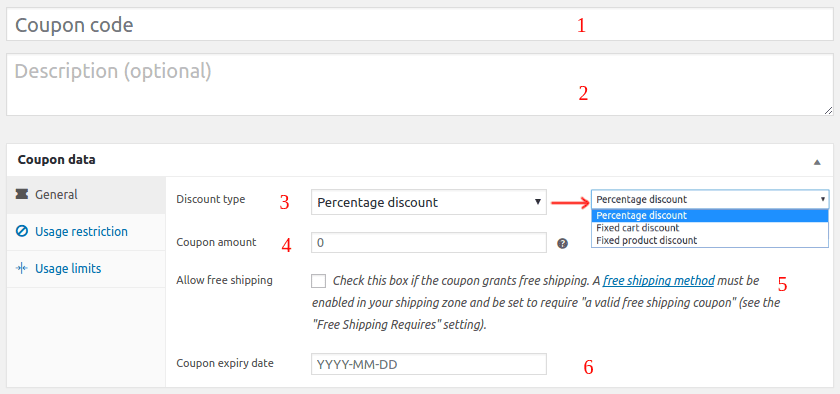
- Coupon code: Enter the exact code customers must type at checkout (e.g.,
SUMMER20). You can also click Generate coupon code to create an 8-character random string. - Description: Add internal notes explaining the promotional purpose (e.g., “Q3 Email Welcome Series - 15% Off”). Customers do not see this field.
- Discount type: Choose one of the three core discount models:
- Percentage discount: Deducts a set percentage from eligible items in the cart.
- Fixed cart discount: Deducts a flat currency amount from the total cart subtotal.
- Fixed product discount: Deducts a flat currency amount from each qualifying product line item.
- Coupon amount: Enter the numeric discount value without currency symbols or percent signs (e.g., enter
20for 20% or $20). - Allow free shipping: Check this box if the coupon grants free shipping. Note that your shipping zone settings must have a Free Shipping method configured with the requirement set to “A valid free shipping coupon”.
- Coupon expiry date: Select a future date to automatically deactivate the coupon at 00:00:00 store time on that day. For precise timing or recurring campaigns, see our guide on how to schedule WooCommerce coupons.
2. Configure coupon usage restrictions
The Usage restriction tab safeguards your margins by determining which carts, products, and customer accounts qualify for the coupon code.
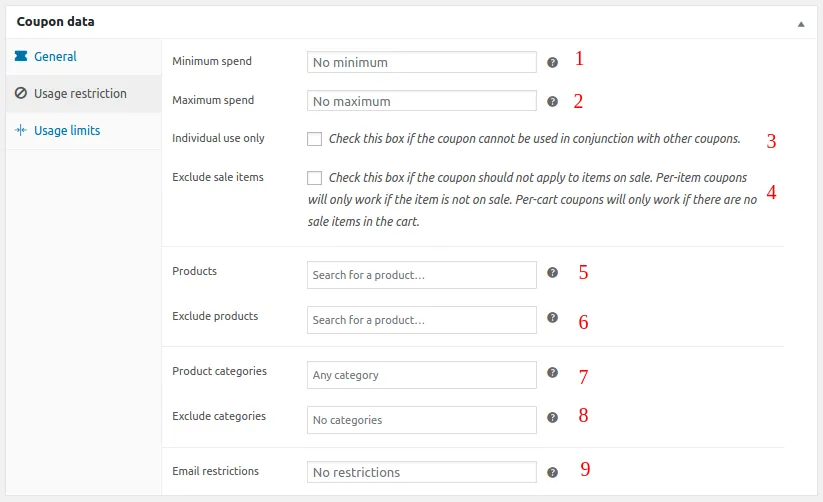
- Minimum spend & Maximum spend: Set the subtotal thresholds required to redeem the coupon. Under WooCommerce core rules, your minimum spend must never exceed your maximum spend; entering conflicting values prevents coupon application.
- Individual use only: Prevents this coupon from being combined with other promotional codes. If a customer attempts to apply a second code, WooCommerce displays an error notice. For deep-dive stacking rules, review how to configure individual use coupons.
- Exclude sale items: Prevents the discount from applying to products that already carry a discounted sale price.
- Products & Exclude products: Whitelist or blacklist specific products. A fixed product coupon will only discount items selected in the Products field.
- Product categories & Exclude categories: Limit discounts to entire taxonomies (e.g., Apparel only, excluding Electronics). Learn how to set this up in our guide to restricting coupons by category.
- Allowed emails: Enter comma-separated customer email addresses to restrict redemption to specific accounts. WooCommerce checks this field against the customer’s billing email entered at checkout.
3. Set coupon usage limits
The Usage limits tab controls the maximum redemption volume across your store:
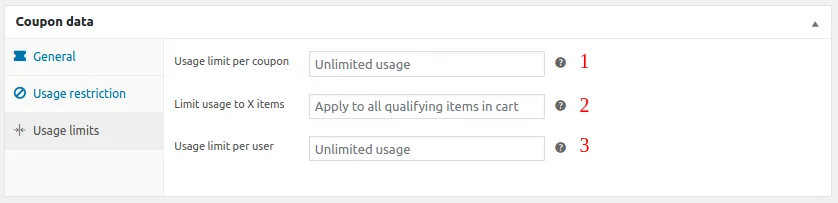
- Usage limit per coupon: The total number of times this coupon code can be redeemed across all customers before it automatically expires.
- Limit usage to X items: Governs fixed product discounts by capping how many eligible products in a single cart receive the deduction.
- Usage limit per user: The maximum number of times a single customer can redeem the coupon. For logged-in users, WooCommerce tracks this against user ID; for guest checkouts, it tracks against the customer’s billing email.
Click Publish to make your coupon live.
How do WooCommerce discount types and calculations work?
WooCommerce calculates discounts differently depending on whether you select percentage, fixed cart, or fixed product discounts. Understanding how the core WC_Discounts class evaluates these deductions prevents unintended revenue leakage and tax reporting discrepancies.
1. Percentage discount math
A percentage coupon applies directly to the line-item subtotal of all eligible products:
$$\text{Discount} = \text{Eligible Item Subtotal} \times \left(\frac{\text{Coupon Amount}}{100}\right)$$
If a customer has two eligible items priced at $40 and $60 (total $100) and applies a 20% coupon, WooCommerce deducts $8 from the first item and $12 from the second item.
2. Fixed cart discount math
A fixed cart discount deducts a flat dollar amount from the eligible cart total. Rather than applying to the overall order summary as a lump sum, WooCommerce prorates the discount across eligible items proportionally based on their subtotal contribution:
$$\text{Item Discount} = \text{Fixed Cart Amount} \times \left(\frac{\text{Item Price}}{\text{Eligible Cart Subtotal}}\right)$$
For example, on a $100 cart consisting of a $25 item (25%) and a $75 item (75%), a $20 fixed cart discount allocates $5 of discount to Item 1 and $15 to Item 2. This proportional distribution ensures that refund calculations and line-item sales taxes remain mathematically accurate.
3. Fixed product discount math
A fixed product discount deducts a set amount from every qualifying item in the cart. If you set a $10 fixed product discount and the customer adds 4 qualifying shirts to their cart, WooCommerce deducts $10 from each shirt, yielding a total discount of $40. To avoid giving away products for free or over-discounting large orders, always combine fixed product discounts with the Limit usage to X items setting.
How WooCommerce handles taxes on coupons
Taxes are always calculated on the discounted net price, not the pre-coupon retail price. If an item costs $100 with a 10% tax rate ($10 tax) and the customer applies a $20 coupon, the new taxable base is $80, resulting in $8 in tax. If your store prices are entered inclusive of tax, WooCommerce backs out the discount proportionally between the item price and the tax component.
How does WooCommerce sequence and stack multiple coupons?
When multiple coupons are applied to a single cart, WooCommerce processes them sequentially in the exact order they were entered by the customer. The calculation behavior depends on whether the sequential calculation setting is active in your store.
The two coupon stacking behaviors function as follows:
- Standard Calculation (Default): All percentage coupons calculate against the original retail price of the items. If a customer applies a 10% coupon and a 20% coupon to a $100 item, both calculate against $100, resulting in $10 + $20 = $30 total discount (final price $70).
- Sequential Calculation: Subsequent percentage discounts calculate against the remaining balance after preceding coupons have been deducted. In the same scenario, the 10% coupon reduces the item to $90; the second 20% coupon then takes 20% of $90 ($18), resulting in a $28 total discount (final price $72).
To prevent customers from stacking multiple high-value coupons, always check the Individual use only box on major promotional campaigns. For advanced multi-coupon rules, explore our complete guide on how to stack coupons in WooCommerce.
Native WooCommerce coupons vs. advanced store needs
A native coupon system gives you a basic toolbox, but high-volume stores need a complete promotional operating system. While core WooCommerce coupons handle basic discounts cleanly, growing stores quickly run into structural limitations when building modern, conversion-focused promotional funnels.
| Feature / capability | Native WooCommerce core | With Smart Coupons plugin |
|---|---|---|
| Core discount types | Percentage, fixed cart, fixed product | All core types + store credit, gift cards, BOGO |
| Coupon application | Manual entry at checkout | One-click auto-apply, shareable URL links |
| Bulk generation | Manual (1 code at a time) | Thousands of unique codes via CSV or email |
| Digital gift certificates | Not supported | Full digital gift card system with email scheduling |
| Cart auto-apply rules | Not supported | Automatic application based on cart rules and totals |
| Usage restrictions | Products, categories, min/max spend, emails | + User roles, locations, payment methods |
| First-order discounts | Complex email workarounds | Native one-click new user restriction |
| Free product (BOGO) | Not supported | Native Buy 1 Get 1, Buy X Get Y giveaway logic |
| Store credit and refunds | Not supported | Issue store credit balances to retain cash flow |
| Coupon fraud defense | No rate limiting; predictable codes | Cryptographic code generator and rate limiting |
Creating smart and advanced WooCommerce coupons
Smart Coupons provides the promotional infrastructure high-growth stores need to run high-converting campaigns. Below are step-by-step guides and videos for the most effective coupon strategies you can implement.
Create different gift card types
With the Smart Coupons plugin, store owners can let customers purchase and send gift cards of any amount, which is perfect for holidays, birthdays, referrals or refunds.
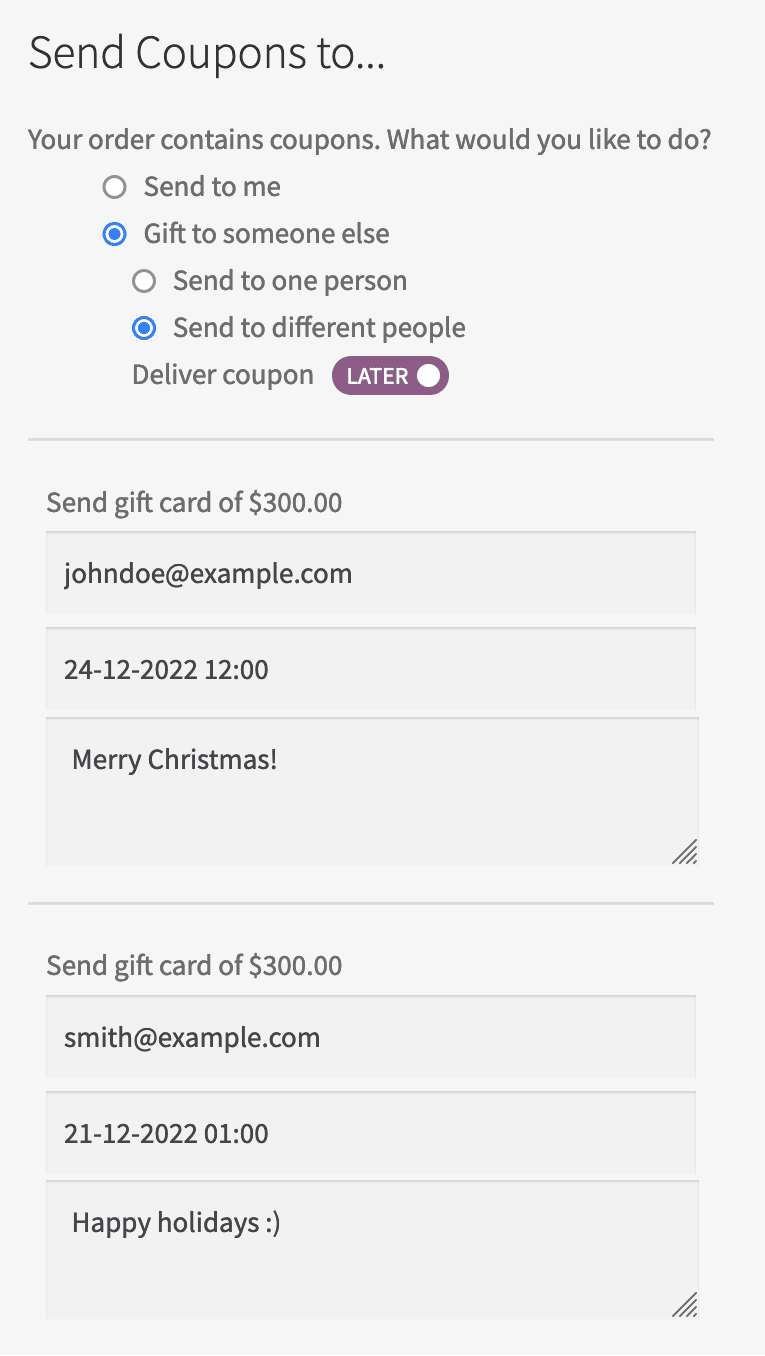
Smart Coupons lets users create and send gift cards to anyone via email. Customers can also schedule gift cards to be delivered on any future date.
Here is a step-by-step guide to creating WooCommerce coupons as gift cards:
- Go to WordPress Admin panel → Marketing → Coupons → Add coupon.
- Give it a name, say Gift Card.
- Go to the General tab → Discount type, select Store Credit / Gift Certificate.
- Leave the coupon amount blank, as this gift card will be the same as the product price.
- Enable the Coupon Value Same as Product’s Price option.
- Configure standard usage restrictions and limits for the coupon.
- Click Publish to save the coupon.
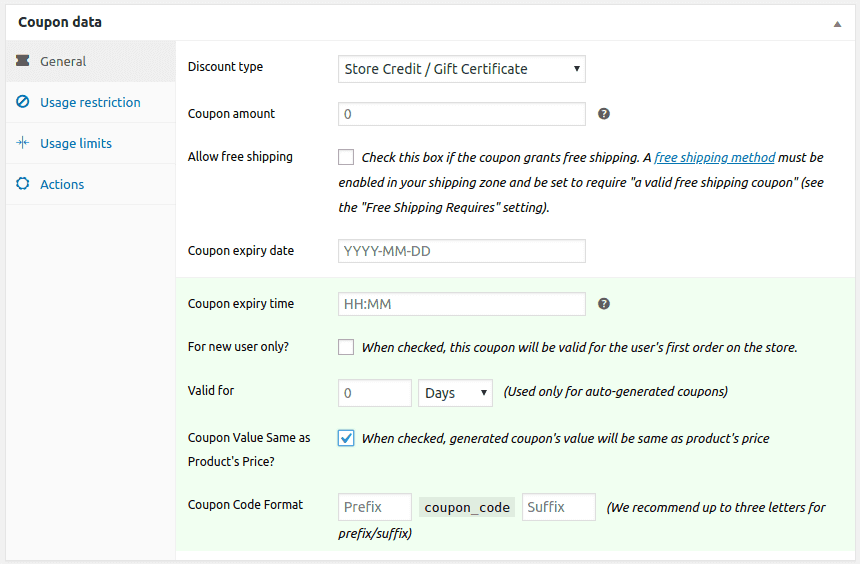
After publishing the coupon, create a gift card as a product:
- Go to Products → Add New, and create a simple and virtual product.
- Name it (e.g., “Gift Card”) and leave the price fields blank. Mark the product as Virtual to remove shipping charges.
- In the Coupons field (under Product data), link the coupon you created above.
- Click Publish.
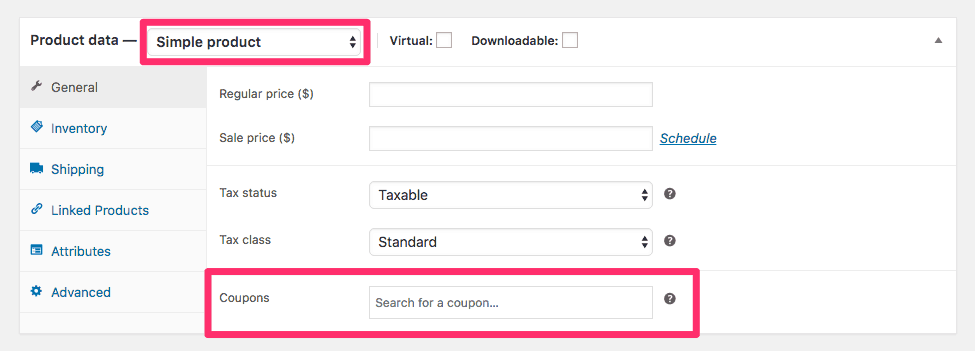
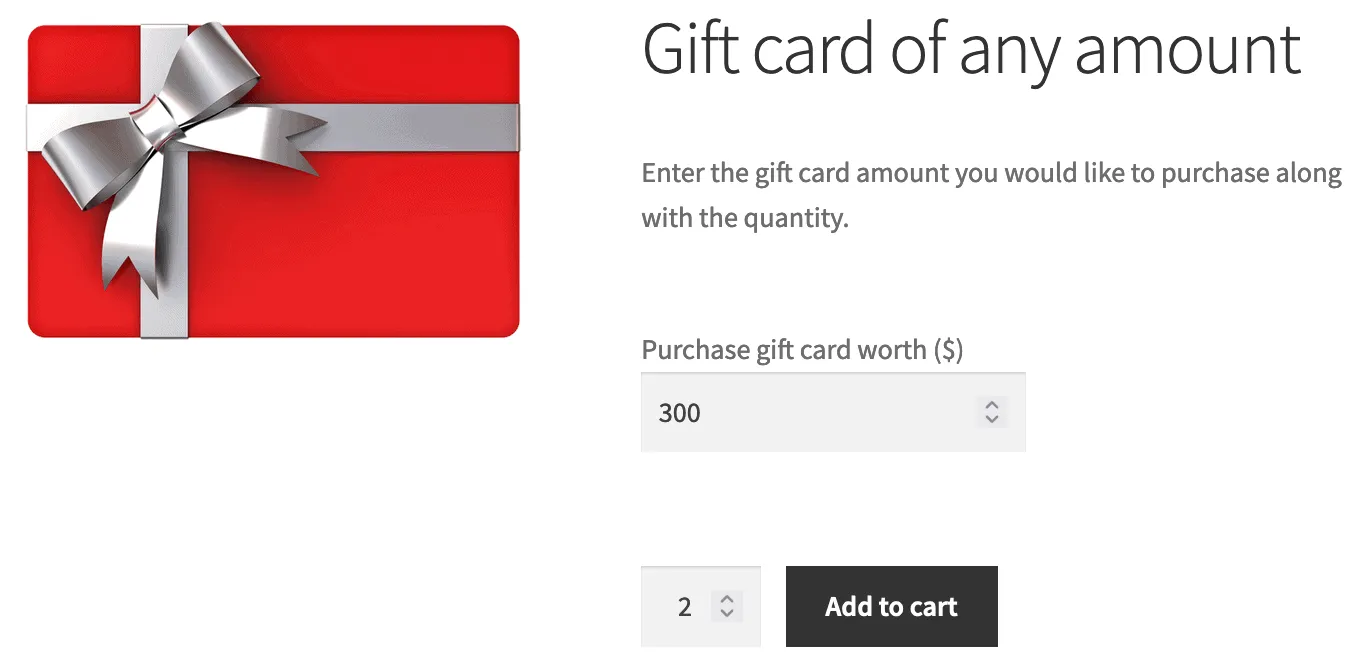
For advanced gift card configurations like fixed denominations, physical gift vouchers, or discounted cards, read our complete guide on WooCommerce gift cards.
Create BOGO coupon
A BOGO deal allows customers to buy one product and get another free or at a reduced price. It is an effective way to clear surplus inventory while maintaining perceived product value.
By default, WooCommerce does not allow store owners to create BOGO coupons natively. With Smart Coupons, you can configure automatic BOGO promotions in minutes:
- Activate the Smart Coupons plugin and go to WordPress Admin → Marketing → Coupons → Add Coupon.
- In the General tab, select Fixed cart discount and set the Coupon amount to 0 (to avoid discounting the main product).
- In the Usage restriction tab, under Products, select the product for the BOGO offer (e.g., Large Red T-shirt).
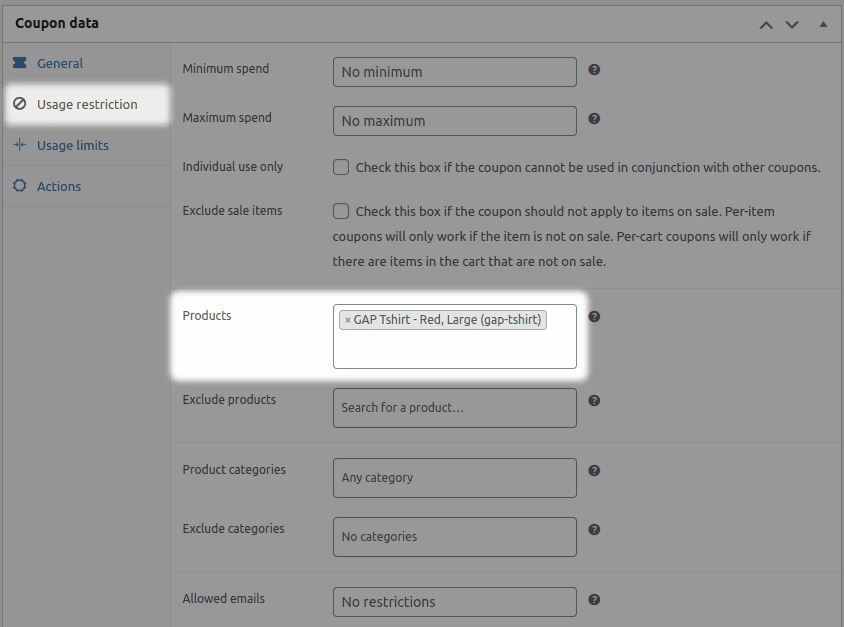
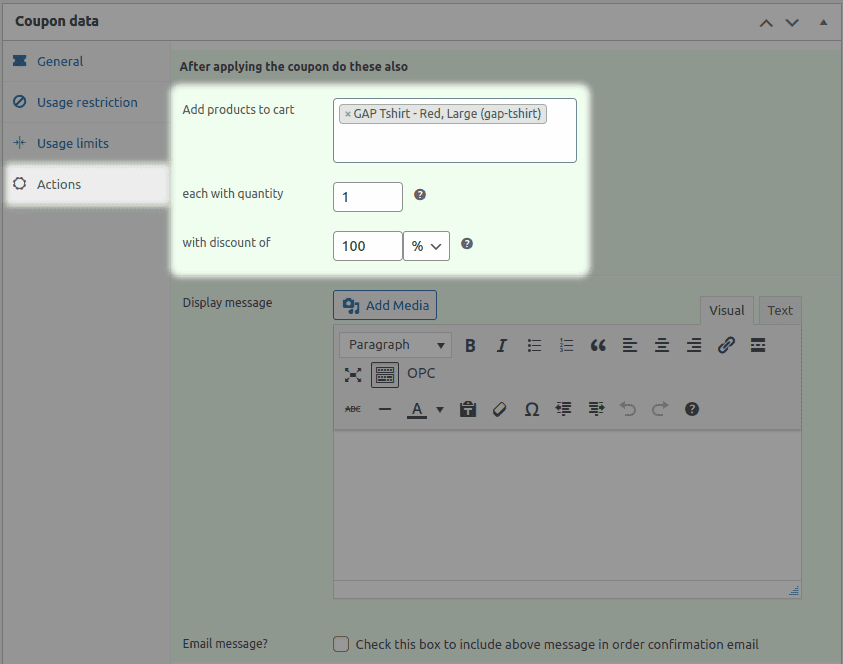
- In the Actions tab, under Add products to cart, choose the qualifying free or discounted product.
- Set Quantity to 1 and Discount to 100% for a free product (or 50% for half-price).
- Click Publish.
For variations like Buy 2 Get 1 or tiered free gifts, see our complete tutorial on how to create a WooCommerce BOGO coupon.
Creating store credits
Store credit is a strategic alternative to cash refunds. Offering store credit encourages repeat purchases, boosts customer loyalty, and retains cash flow within your business.
Instead of issuing cash back, Smart Coupons lets you issue store credit balances that customers can spend across multiple future orders:
- Go to WordPress Admin panel → Marketing → Coupons → Add coupon.
- Enter a code or click the code generator.
- In the General tab → Discount type, select Store Credit / Gift Certificate.
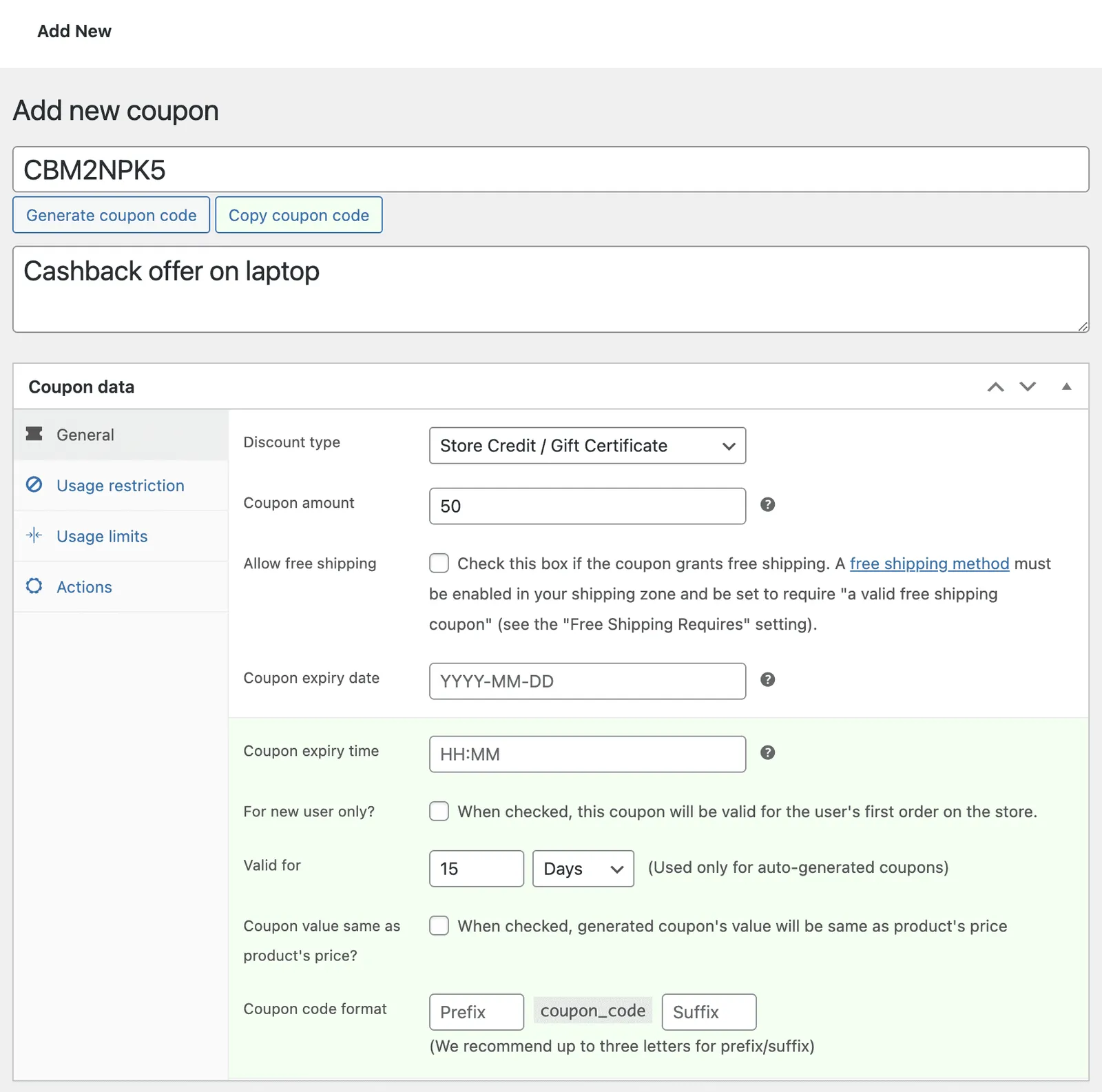
- Leave the coupon amount blank.
- Enable the Coupon Value Same as Product’s Price option.
- Configure usage restrictions and limits if needed.
- Click Publish to save the coupon.
Now link the store credit to a product:
- Go to Products → Add New (or edit an existing product).
- Choose a clear title like “Store Credit Voucher”.
- Leave the Regular Price and Sale Price fields blank.
- Mark the product as Virtual if it does not require shipping.
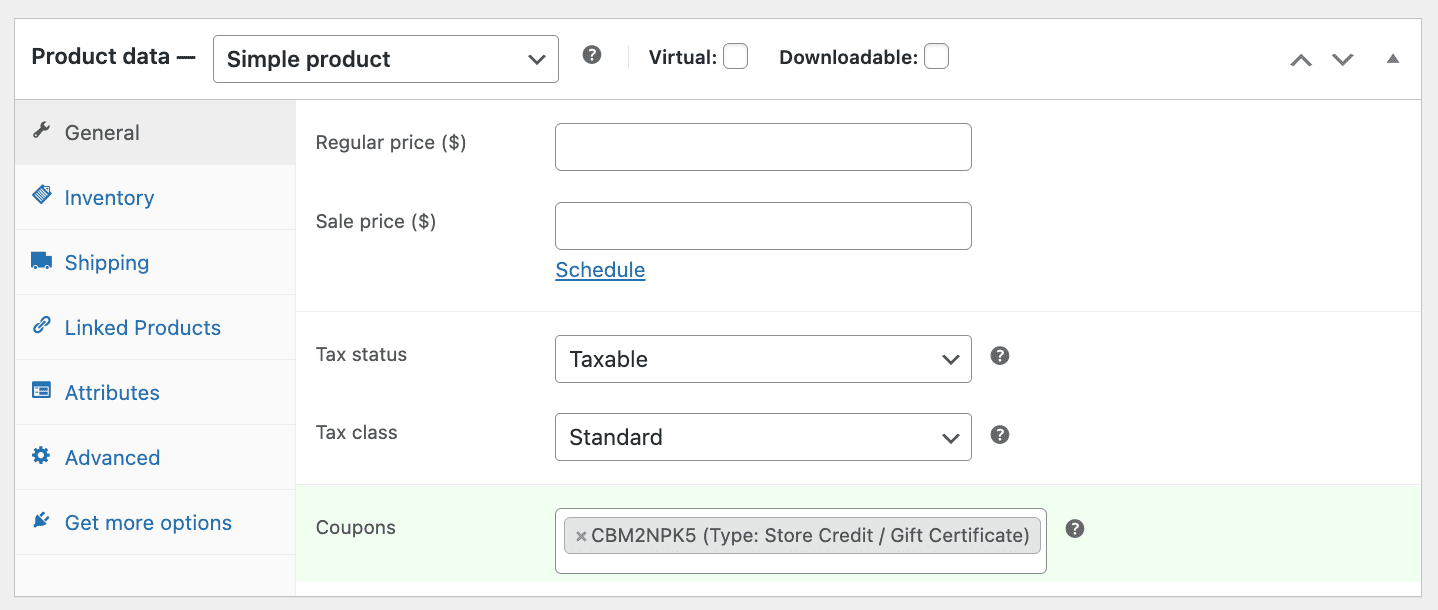
- In the Coupons section, search for and select the coupon created above.
- Click Publish.
To learn more about issuing credit balances, see our in-depth guide on WooCommerce store credit.
Bulk generate coupons
Manually creating hundreds of coupons takes hours and introduces human error. Smart Coupons allows store owners to generate thousands of unique, single-use codes in under a minute.
This capability automates welcome series discounts, customer retention campaigns, and gift certificate generation while preventing code leakage:
To bulk generate coupons:
- Go to WordPress Admin panel → Marketing → Coupons.
- Click on the Bulk Generate tab.
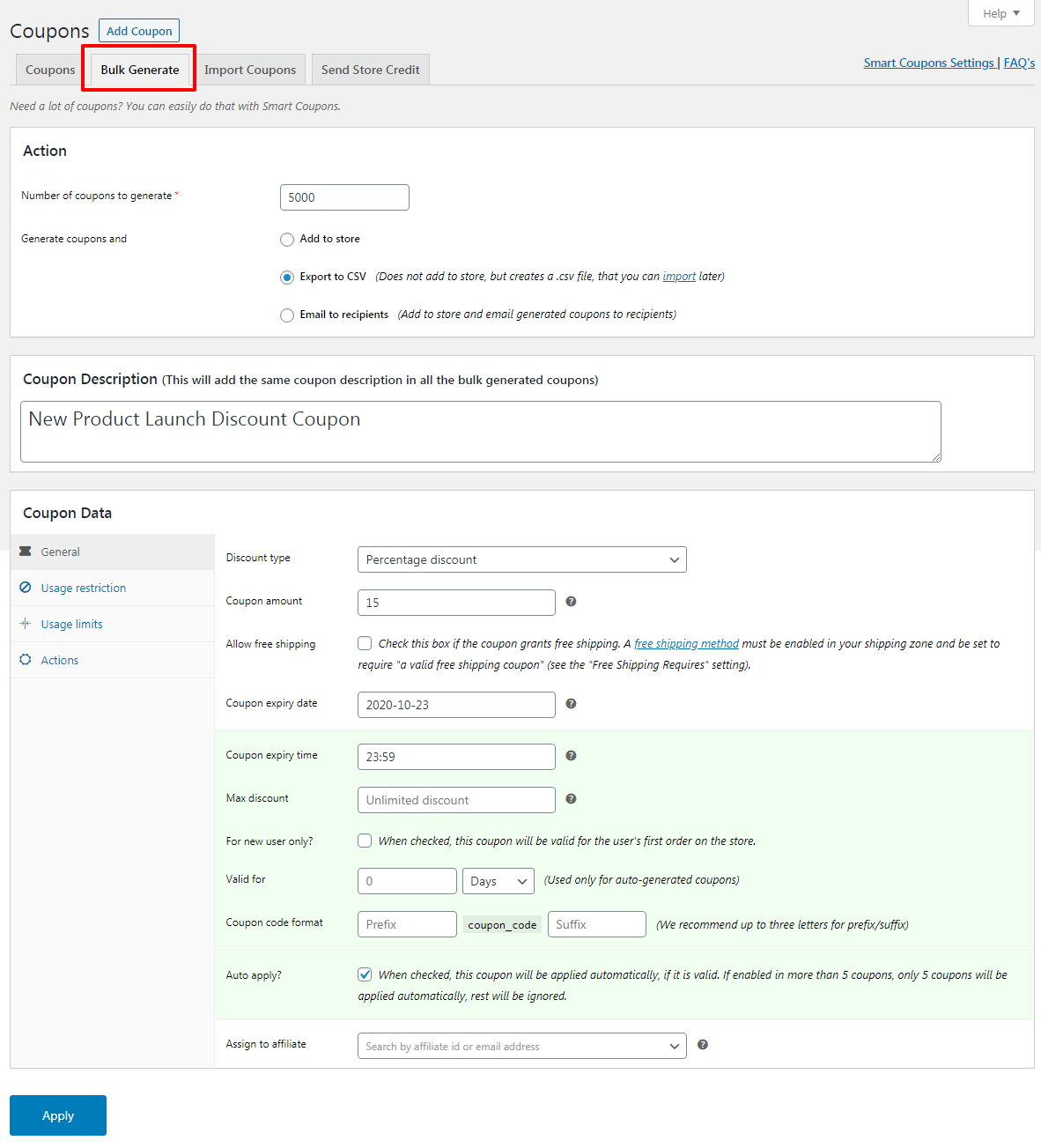
- Choose whether to:
- Add generated coupons directly to the store database.
- Export coupons to a CSV file (for import into email platforms).
- Email the generated coupons directly to recipients.
- Configure usage restrictions and limits.
- Click Apply.
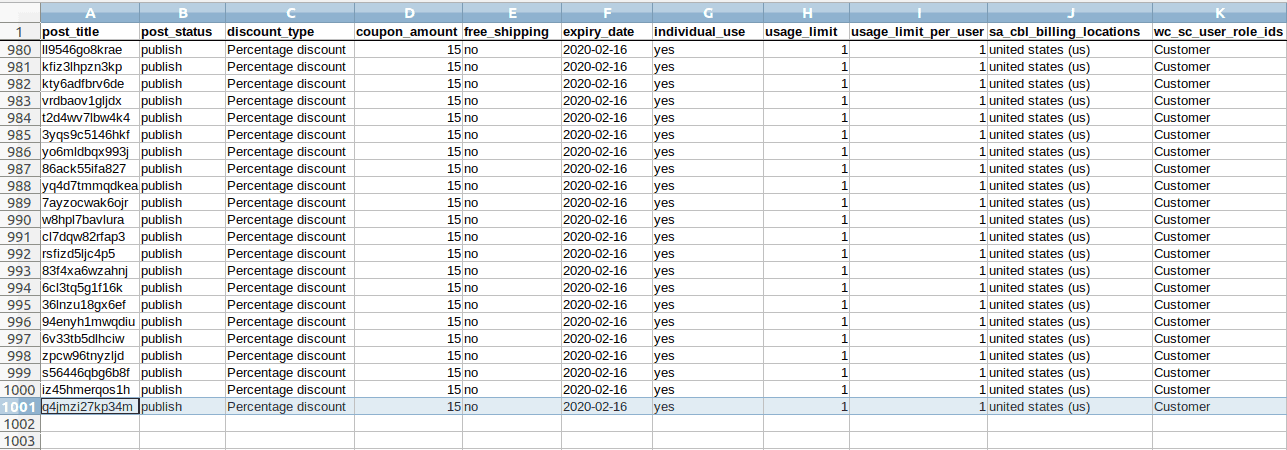
For an operational walkthrough, read our guide on how to bulk generate WooCommerce coupons.
Auto apply coupons
One standout feature of Smart Coupons is enabling automatic discounts that fire as soon as a customer meets your pre-set conditions.
Automatic discounts eliminate checkout friction by removing the need for customers to copy, paste, or memorize complex promotional codes:
- Go to Marketing → Coupons → Add coupon.
- Set your discount type and amount.
- Check the Auto apply? box in the coupon settings.
- Click Publish.
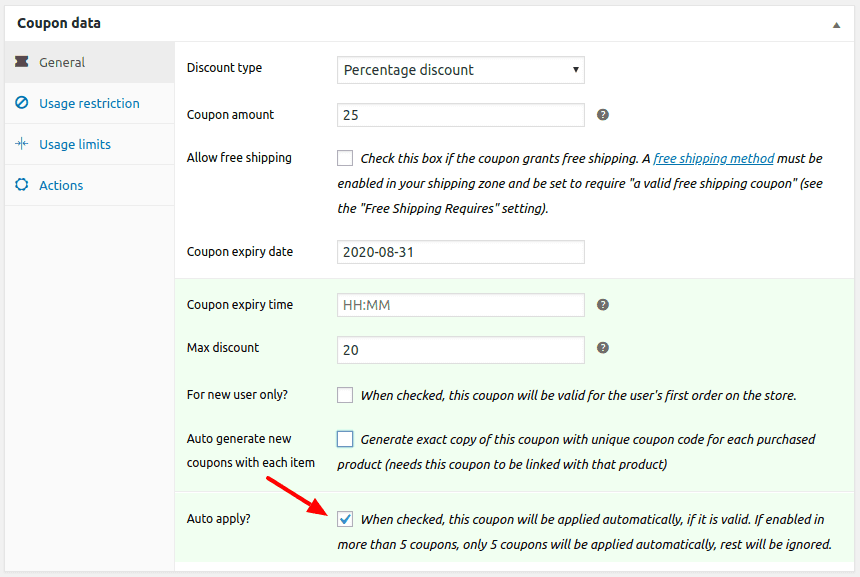
When a shopper adds eligible items to their cart, WooCommerce applies the discount automatically. For advanced triggers, see our guide on auto-applying coupons in WooCommerce.
Cashback coupons
Instant cashback coupons delivered as store credit with a short validity period (such as 14 or 30 days) create urgency and drive fast repeat purchases.
Thousands of WooCommerce store owners use Smart Coupons to set up automated cashback offers:
- Go to WordPress Admin → Marketing → Coupons → Add coupon.
- Enter a code or click Generate coupon code.
- Select Store Credit / Gift Certificate as the discount type.
- Set the cashback amount (e.g., $50 on a laptop purchase).
- Under Expiry, set a short validity window (e.g., 15 days).
- Click Publish.
Then link the cashback coupon to your qualifying product:
- Go to Products and edit the target product.
- In the General tab, locate the Coupons section.
- Search and select the cashback coupon you created.
- Click Update to save.
Upon purchase, the customer automatically receives the credit code via email. Read our complete guide on WooCommerce instant cashback coupons.
Set up URL coupons
WooCommerce URL coupons simplify discount redemption by auto-applying promotional codes through clickable links. These links streamline campaigns across emails, social media, and paid advertisements.
URL coupons embed the code directly into the URL (e.g., https://yourstore.com/?coupon-code=SEASONSALE15). When a customer clicks the link, the discount applies immediately:
- Go to WordPress Admin → Marketing → Coupons → Add Coupon.
- Specify the coupon code and discount type.
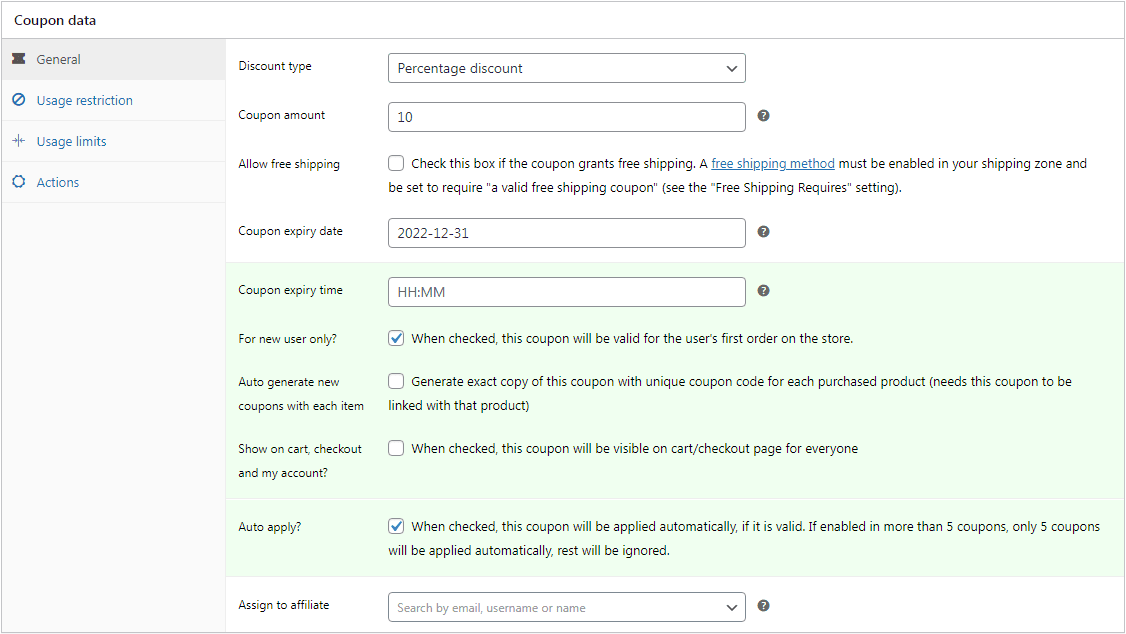
- Configure the discount amount, usage restrictions, and expiration date.
- Check the Auto-apply? box in the coupon settings.
- Click Publish.
After publishing, the shareable coupon URL appears in the right sidebar:
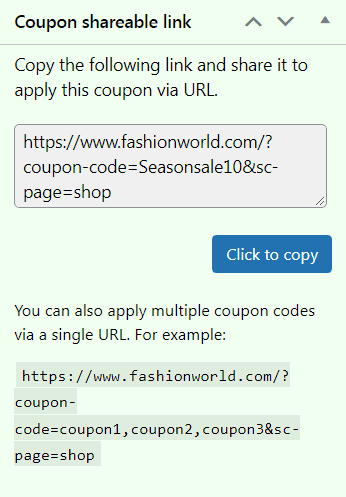
Customers who click the link have the code automatically applied to their cart. Explore all URL options in our guide to WooCommerce URL coupons.
Coupon based on previous purchase
Targeting promotions based on purchase history encourages repeat sales without offering blanket discounts to everyone.
To deliver personalized purchase-history coupons:
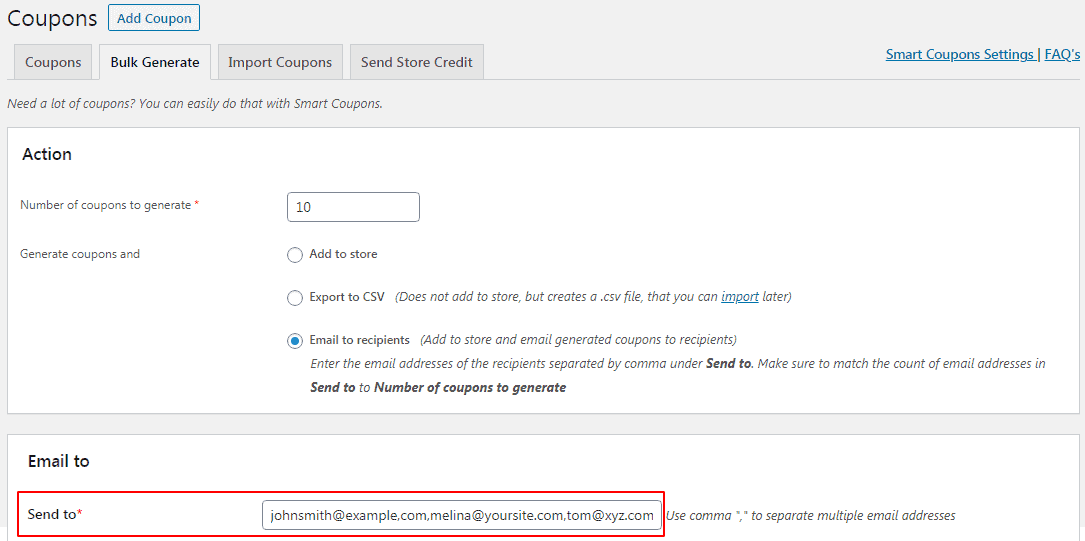
- Go to Marketing → Coupons → Bulk Generate.
- Enter the quantity of coupons to create.
- Choose Email to recipients and enter the customer email addresses.
- Set the discount type and amount.
- Set a short validity window to encourage prompt action.
- Configure usage restrictions (e.g., qualifying product categories).
- Click Apply to generate and dispatch the codes.
Customers receive the coupon by email and can also view their available credits directly within their My Account → Coupons section.
Free shipping coupon
Free shipping promotions remain one of the most effective incentives to close sales and reduce cart abandonment.
To configure a dedicated free shipping coupon:
First, configure your shipping zone settings in WooCommerce core:
- Go to WooCommerce → Settings → Shipping.
- Select your target Shipping zone and click Add shipping method.
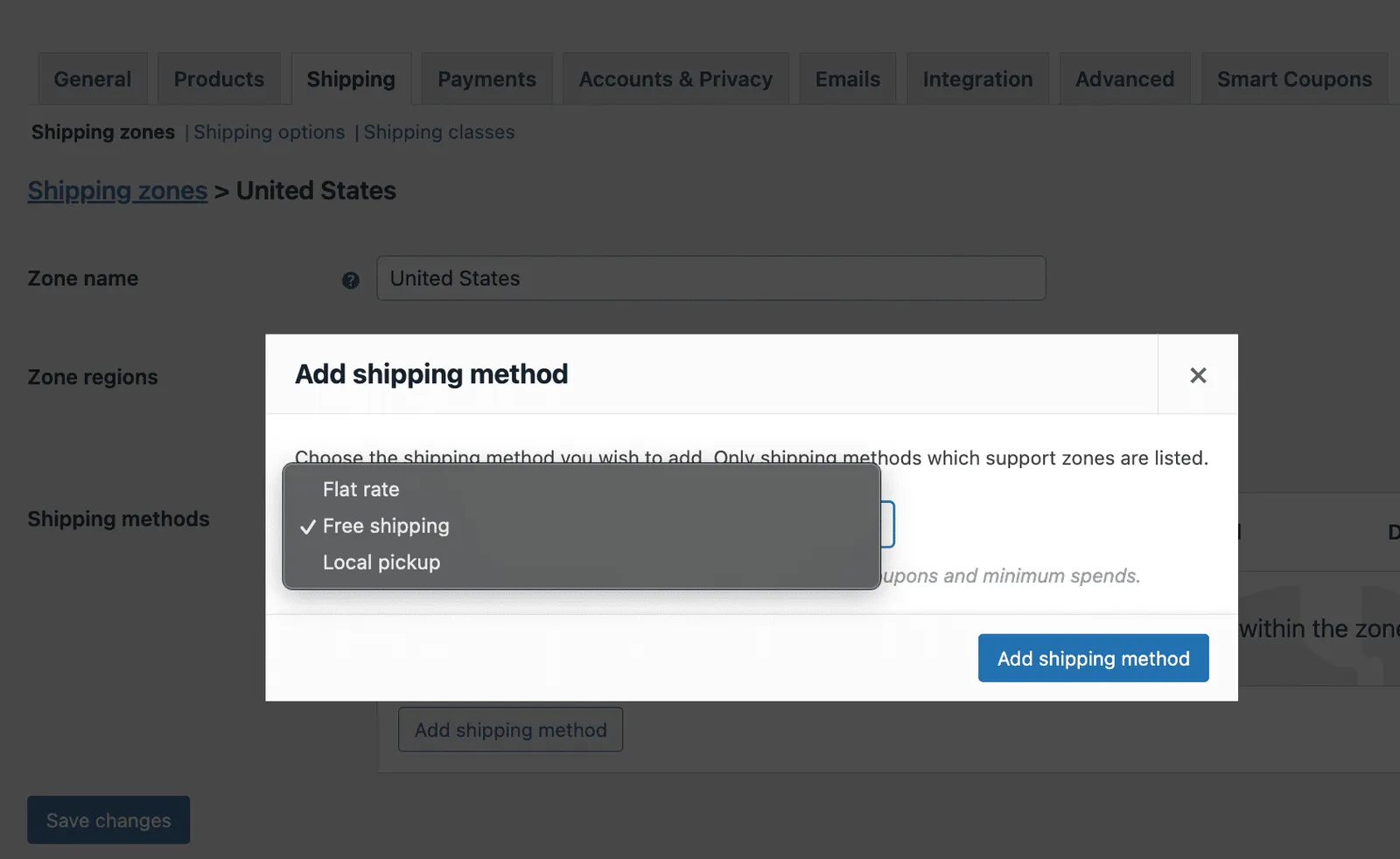
- Add the Free shipping method and click Edit.
- In the Free shipping requires dropdown, select A valid free shipping coupon.
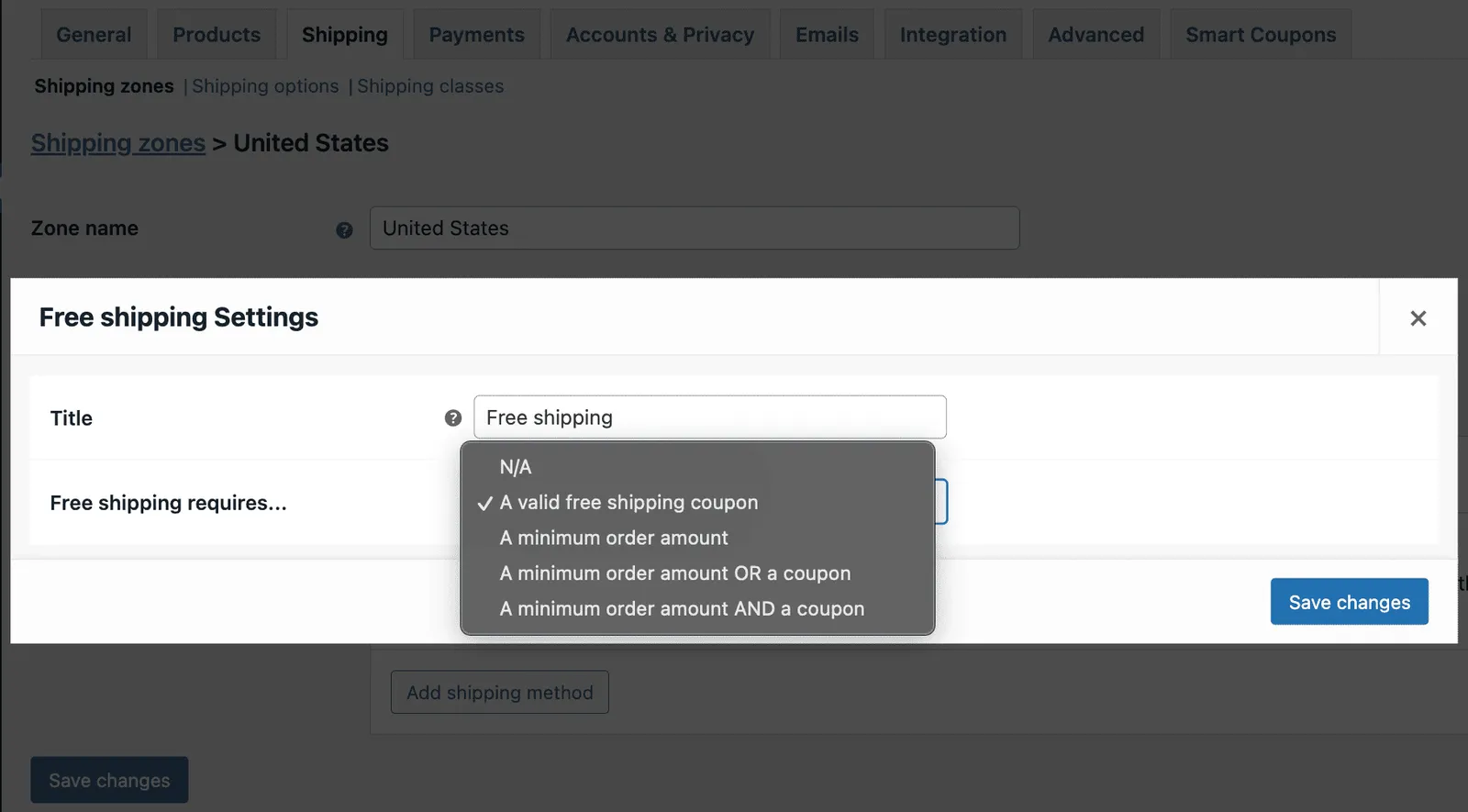
- Save changes.
Now create the free shipping coupon in Smart Coupons:
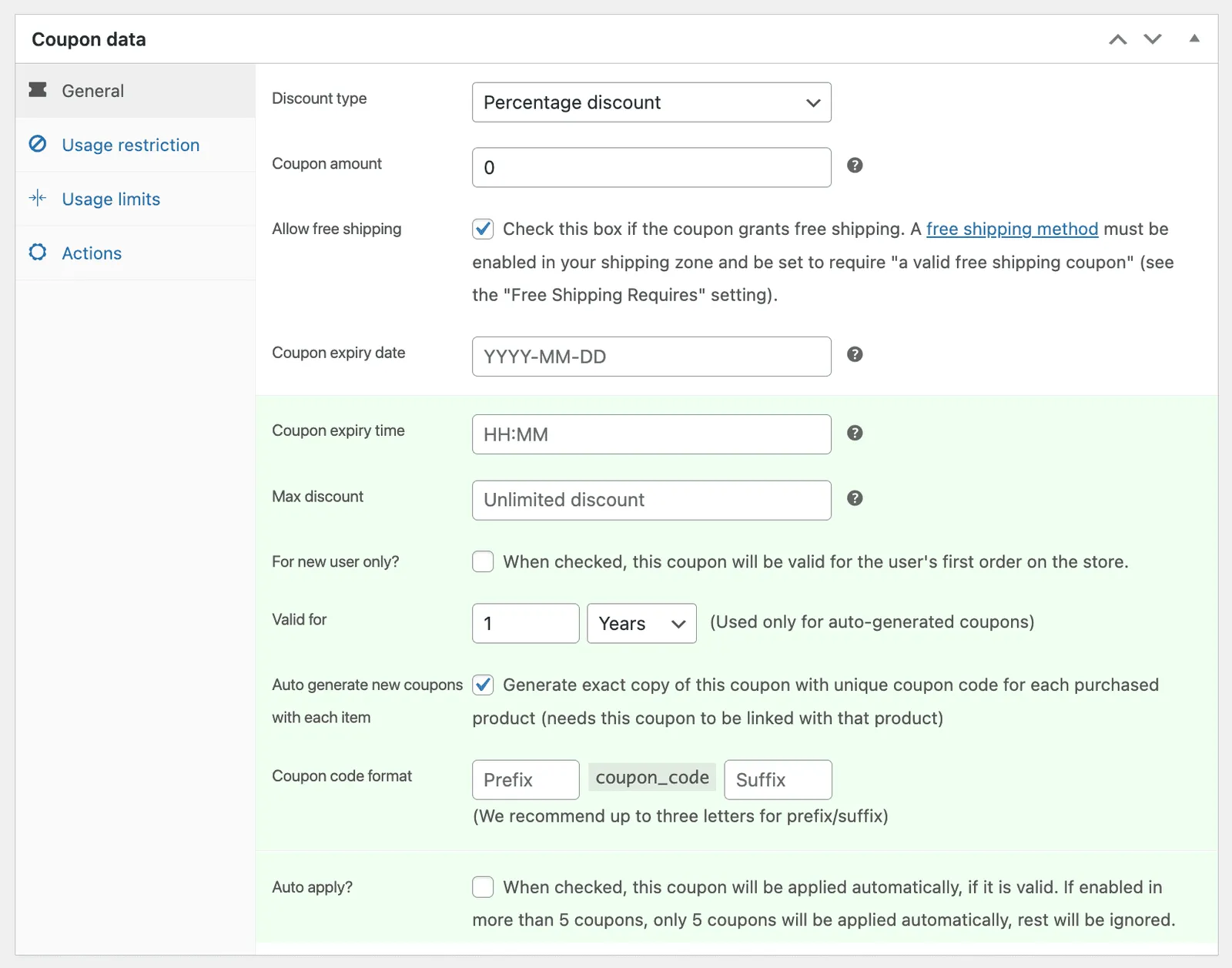
- Go to Marketing → Coupons → Add coupon.
- Enter your coupon code.
- Check the Allow free shipping box.
- Click Publish.
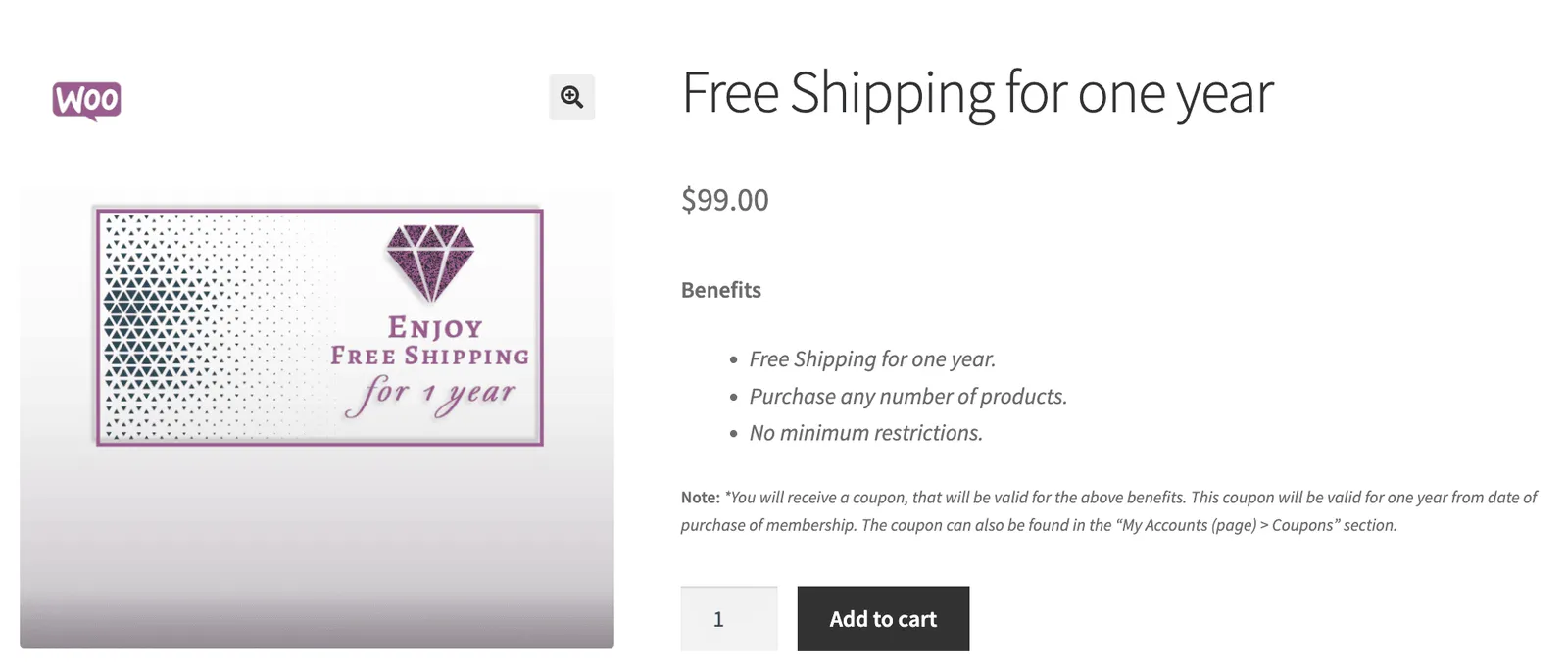
To sell annual shipping memberships (similar to Amazon Prime) where purchasing a product automatically grants the customer a free shipping coupon:
- Go to Products → Add new. Name the product (e.g., “Free Shipping for One Year”), set it as a Simple product, and check Virtual. In the Smart Coupons tab, select the free shipping coupon created above.
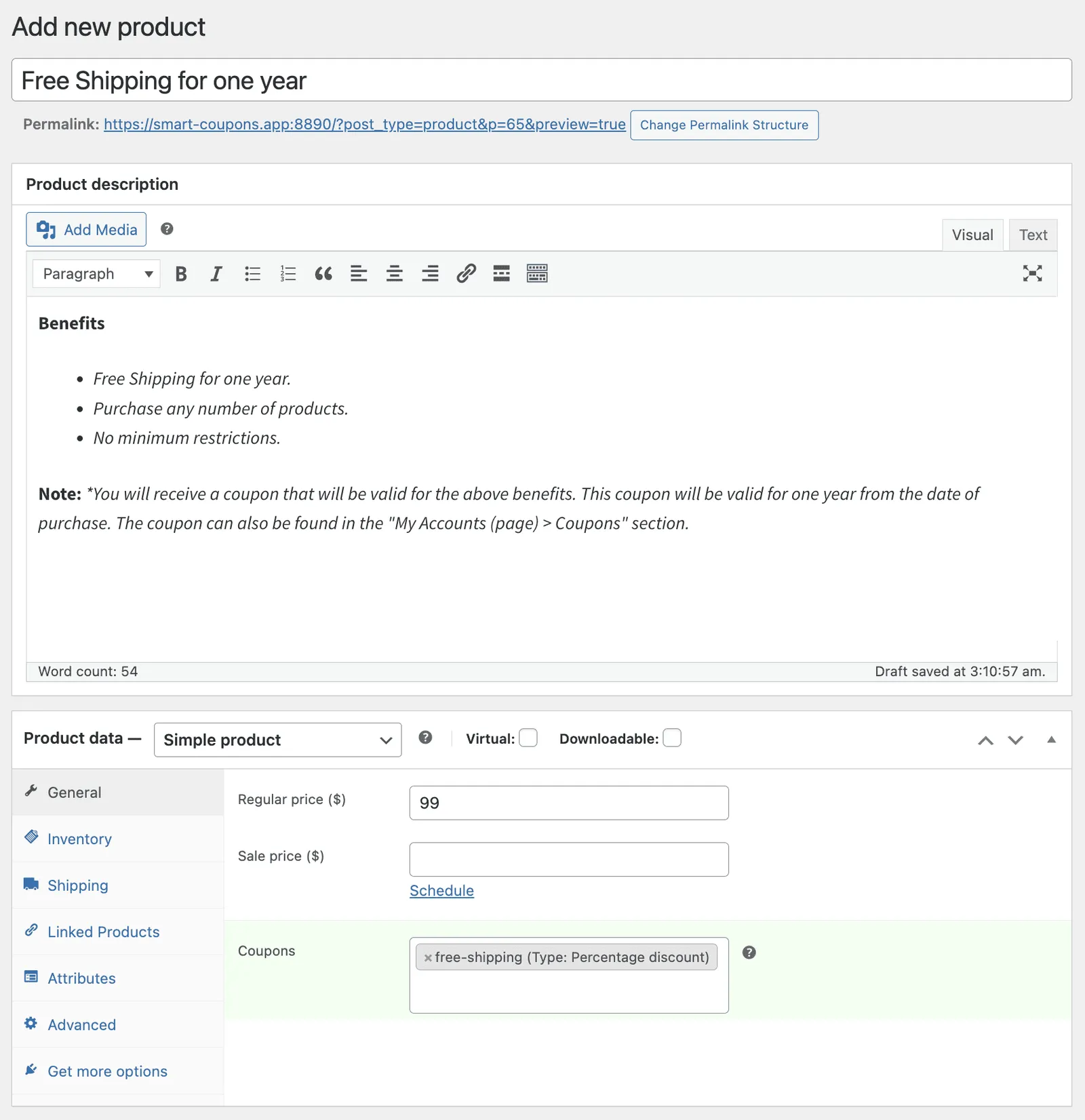
- Click Publish. When customers purchase this product, the free shipping coupon is automatically associated with their account.
Next order coupon
Next order coupons incentivize customers to return by issuing an automatic discount upon order completion. They appear automatically inside the customer’s account, eliminating the need to remember codes:
- Go to Products and edit the qualifying product.
- In the General tab, locate the Coupons field.
- Search for and select the coupon code you want issued upon purchase.
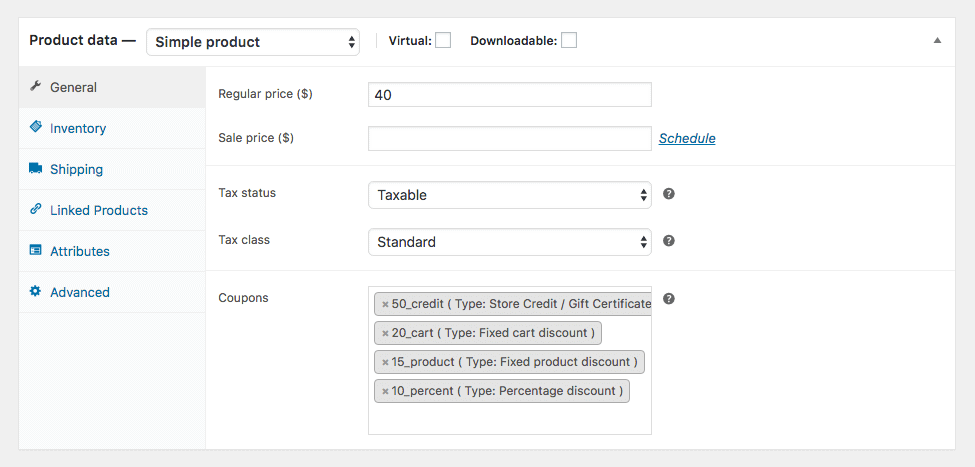
- Click Update to save.
When a customer purchases the item, WooCommerce generates a unique coupon code and displays it on their order received page and account dashboard.
Create restriction-based coupons
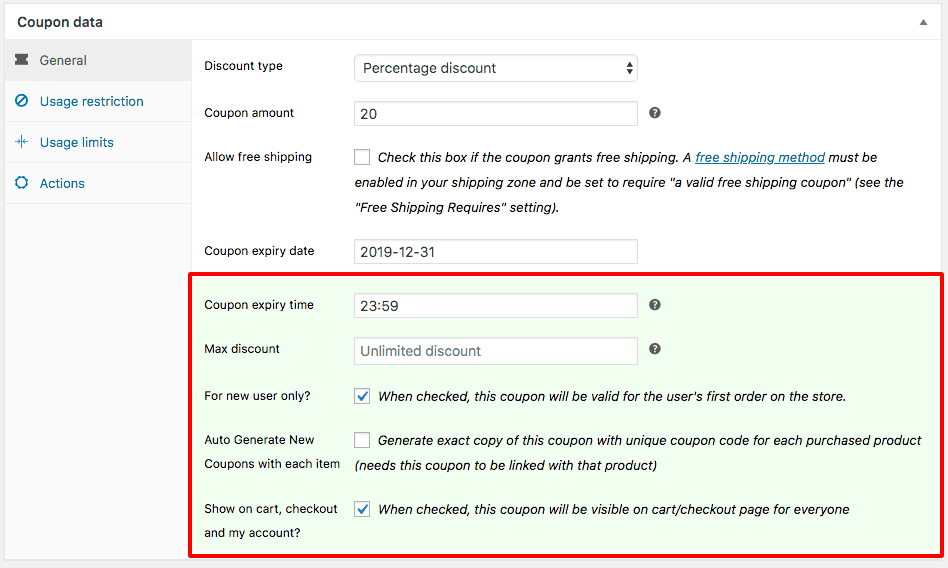
Native WooCommerce coupons offer nine basic restrictions. Smart Coupons extends this with ten additional parameters to give store managers complete promotional control:
- Go to Marketing → Coupons → Add Coupon.
- In the General tab, configure options like New user only, maximum discount amount, or precise expiry timestamps.
- In the Usage restriction tab, configure advanced restrictions by customer location, payment gateway, shipping method, or user role.
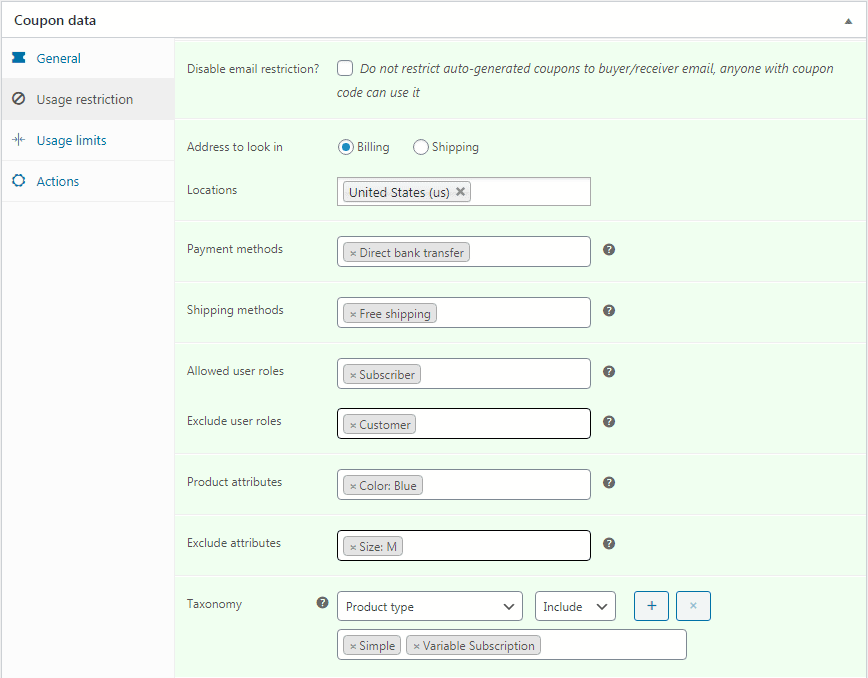
- Save and publish the coupon.
For complete restriction strategies, read our guide on advanced WooCommerce coupon restrictions.
Catchy promo coupon code ideas
Using recognizable, memorable promotional codes improves campaign recall across marketing channels:
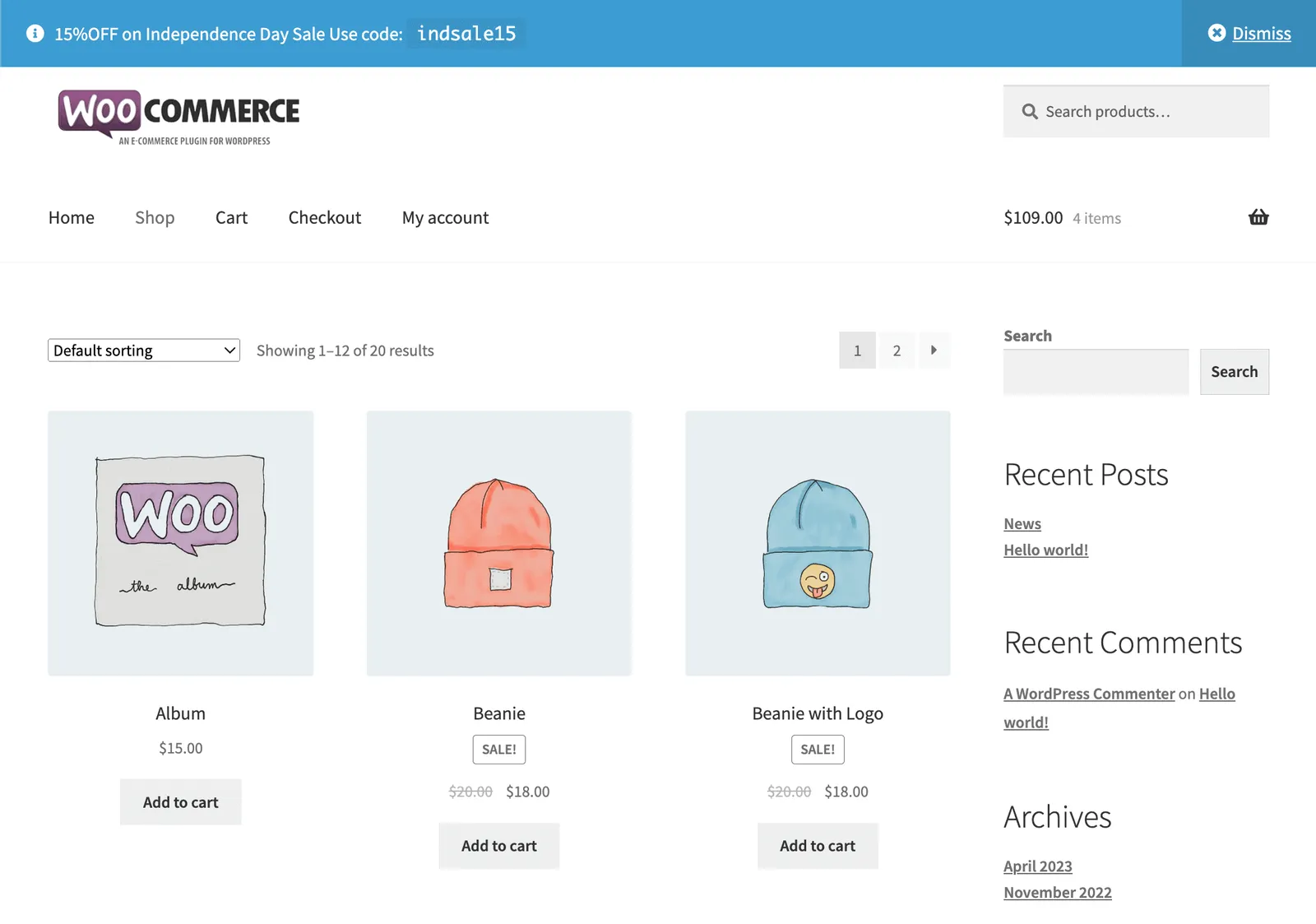
Popular naming conventions include:
- Welcome offers:
WELCOME10,NEWFRIEND,HELLO20 - Seasonal sales:
SUMMERVIBES,HOLIDAY25,SPRINGCLEAN - Holiday campaigns:
BLACKFRIDAY30,CYBERMONDAY,BOXINGDAY - Urgent promotions:
FLASH24,LASTCHANCE,WEEKENDONLY
Browse dozens of campaign examples in our guide to coupon promo code ideas.
Flash sale coupon
Running time-limited flash sales creates urgency that accelerates purchasing decisions:
- Go to Marketing → Coupons → Add Coupon.
- Name the coupon (e.g.,
MIDNIGHT20) and set your percentage discount. - Specify the precise expiry date and time.
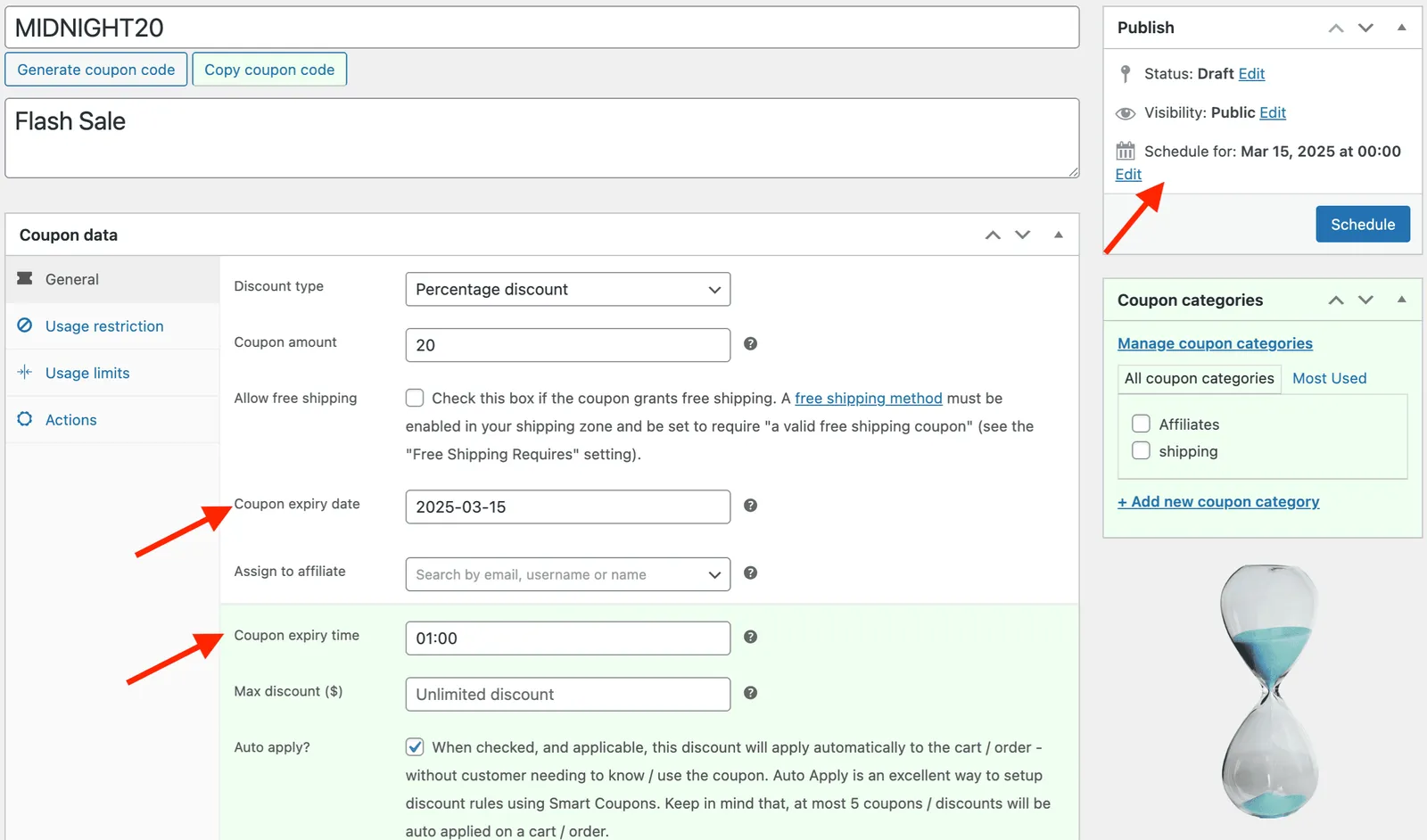
- (Optional) Enable Auto-apply for frictionless application at checkout.
- In the Publish box, schedule the start date and time.
- Click Schedule.
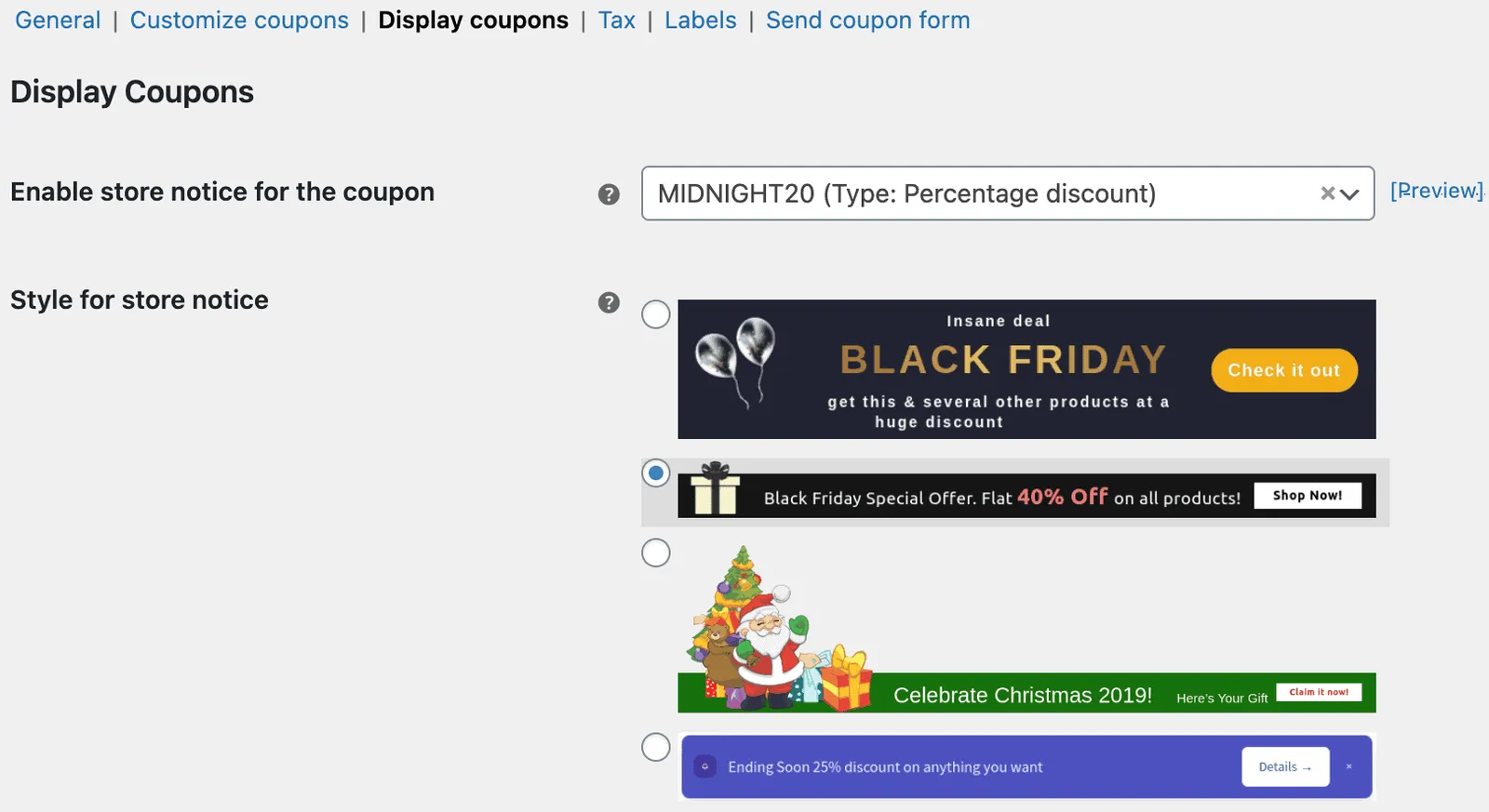
- To display a store-wide banner, navigate to Marketing → Coupons → Smart Coupons Settings → Display coupons.
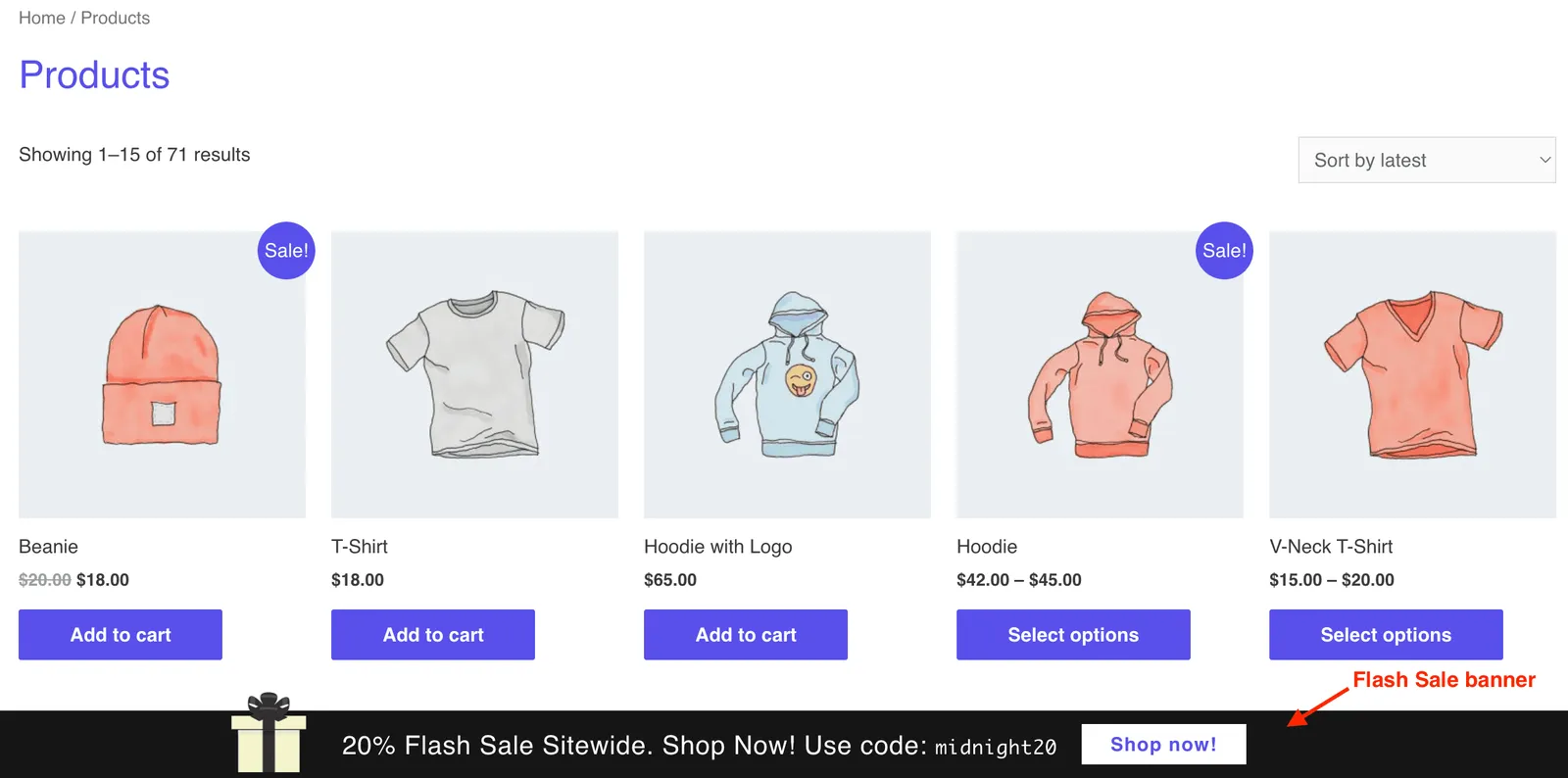
- Select your coupon under Enable store notice for the coupon and save changes.
Learn how to plan high-converting seasonal campaigns in our guide on WooCommerce flash sales.
Types of coupons any general eCommerce store can offer
Beyond standard percentage cuts, high-growth WooCommerce stores deploy specialized promotional incentives tailored to customer behavior:
- Percentage discount: Flat percentage off cart or line items (e.g.,
DISC20for 20% off). - Fixed cart discount: Set dollar deduction off total order value (e.g.,
$15OFFfor $15 off cart). - Fixed product discount: Set dollar deduction off specific qualifying items.
- Auto-apply coupons: Discounts applied instantly without typing codes.
- Gift cards: Digital store currency purchased for self-use or gifting.
- BOGO coupons: Buy one, get one free or discounted offers.
- Store credits: Refund balances and customer service compensation credits.
- Instant cashback: Cash value returned to customer store wallet after purchase.
- Free shipping coupons: Waive carrier delivery fees across orders.
- Bulk purchase / Quantity discount: Tiered discounts based on unit volumes (e.g., buy 5+, get 10% off).
- Maximum discount limit: Percentage discounts with hard dollar caps (e.g., 50% off up to $30 max).
- Subscription coupons: First-order discounts or recurring renewal discounts.
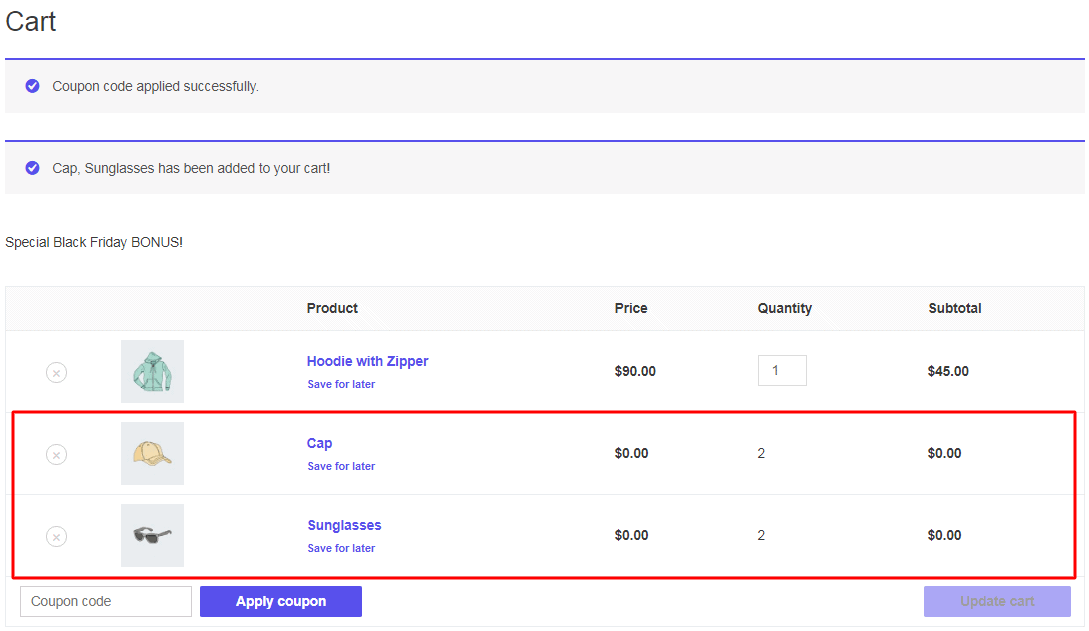
- Free gift with purchase: Automatic free inventory items added at checkout.
- Location-based coupon: Geotargeted discounts restricted to specific countries or states.
- Payment method coupon: Discounts tied to gateways like PayPal, Stripe, or direct bank transfer.
- User role-based coupon: Exclusive perks for wholesale, VIP, or subscriber tiers.
- Affiliate coupons: Unique tracking codes tied to partner commission programs.
- URL coupons: Clickable links from emails and ads that auto-populate the basket.
- Next order coupons: Coupons printed on receipts or order emails for subsequent purchases.
- Cart abandonment coupons: Win-back codes sent to shoppers who abandoned their carts.
- Scheduled coupons: Automated promotional codes timed for holidays and sales events.
- Time-sensitive / Flash sales coupons: Countdowns with hard start and stop timestamps.
- Welcome discounts: Exclusive first-time buyer codes restricted to new accounts.
- Multiple-use / Stacked coupons: Allowing combined promotions when margin rules permit.
Show coupon on checkout and other pages
By default, WooCommerce limits coupon visibility to the cart and checkout pages. Displaying available discounts across product pages, category hubs, or My Account encourages shoppers to complete their purchase:
- Go to Marketing → Coupons → Smart Coupons Settings → Display coupons.
- Check the box labeled Enable store notice for the coupon.
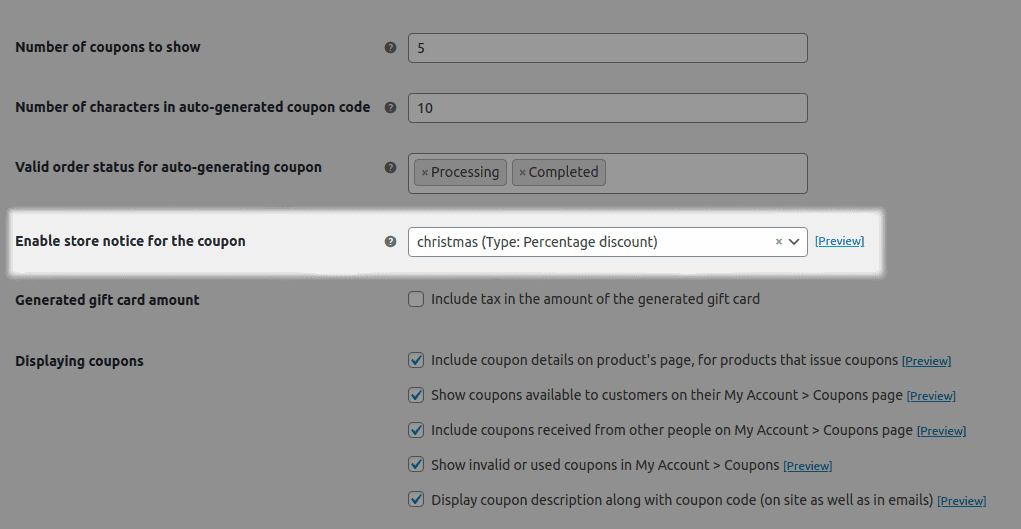
- Select your coupon from the dropdown menu and save changes.
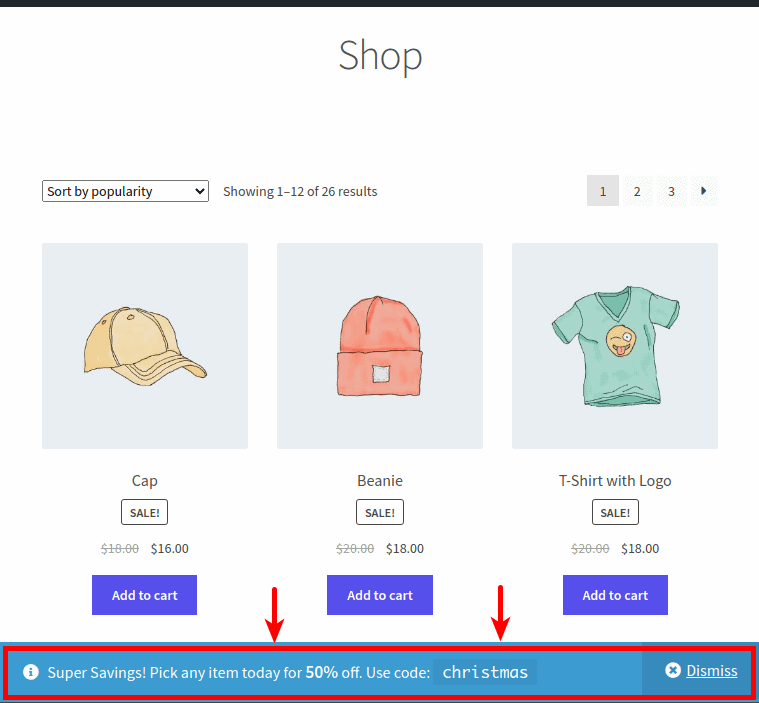
You can also display available coupons inside page content using the shortcode [[wc_sc_available_coupons title="Available Coupons (Click to Apply)"]]. Learn more in our tutorial on displaying coupons on checkout and shop pages.
Why is my WooCommerce coupon not working? (Troubleshooting checklist)
When coupons fail at checkout, customers quickly abandon their carts. Use this diagnostic checklist to troubleshoot and resolve the four most common WooCommerce coupon errors.
1. “Coupon does not exist” notice on a valid code
- Cause A (Post Status Misconfiguration): In WordPress, marking a coupon post as Private causes WooCommerce to fail validation. The core code explicitly queries
post_status === 'publish'. If a coupon is marked Private, WooCommerce returns “Coupon does not exist” even if the code matches perfectly. - Cause B (Hidden Whitespace and HTML Formatting): Non-breaking spaces (
) copied from email marketing templates or PDF receipts fail standard PHPtrim()sanitization. Ensure codes are pasted as plain text. - Cause C (Case Sensitivity in Database Lookups): While WooCommerce normalizes codes via
strtolower(), custom database collations can cause lookup failures on binary-matched strings.
2. Coupon applies with a $0.00 discount
- Cause A (Sale Item Conflicts): If the cart consists solely of sale products and the coupon has Exclude sale items enabled, the coupon will apply successfully but calculate a zero deduction.
- Cause B (Product Assignment Mismatch): Fixed product discounts only deduct from items explicitly selected in the Products restriction tab. If those specific items are not in the cart, the discount evaluates to zero.
3. Free shipping coupon does not reveal free shipping method
- Cause: Checking Allow free shipping on a coupon is only half of the setup. You must also navigate to WooCommerce → Settings → Shipping → Shipping Zones, edit the applicable zone’s Free Shipping method, and set Free shipping requires to “A valid free shipping coupon”. If the method is set to a minimum spend only, the coupon will not trigger free shipping.
4. Coupon errors on modern WooCommerce block checkout
- Cause: The modern WooCommerce Cart and Checkout Blocks utilize REST API endpoints (
/wp-json/wc/store/v1/cart/apply-coupon) rather than legacy admin-ajax. Object caching plugins or aggressive edge-caching on checkout API routes can return stale cart fragments, causing coupons to fail until the page hard-refreshes. Always exclude WooCommerce cart and checkout endpoints from page caching.
For an exhaustive troubleshooting manual, see our dedicated guide on fixing WooCommerce coupons that are not working.
How to prevent coupon abuse and protect store margins
Unprotected coupon codes invite automated testing bots that quietly drain your profit margins. Coupon leaks and automated scraping tools can decimate your profit margins by distributing private affiliate and welcome codes across the web.
Protect your store using the following four security practices:
- Deploy Transient Rate Limiting on Coupon Endpoints: WooCommerce core provides no built-in rate-limiting on coupon entry fields. Malicious bots can execute automated dictionary attacks testing thousands of alphanumeric combinations against your store. Implement WAF rate-limiting at the Cloudflare level, or use a custom PHP transient hook on
woocommerce_coupon_errorto lock out sessions after 5 failed attempts in 10 minutes. - Abandon Guessable Dictionary Codes: Never use predictable coupon codes like
WELCOME10,SAVE20, orFALL2026. These are cataloged by automated scrapers within hours of publishing. Instead, use tools like Smart Coupons to generate 12-character cryptographically random codes (e.g.,WCM-8K92-NX74). - Bind Codes to Customer Email Addresses: Always populate the Allowed emails field on high-value promotions. When a code is bound to
customer@example.com, unauthorized shoppers who find the code online cannot redeem it at checkout. - Prevent Postmeta Database Bloat: In WooCommerce, every coupon is stored as a
shop_couponpost type inwp_posts, generating 15-20 rows inwp_postmeta. Stores that generate tens of thousands of welcome codes without automated expiration cleanup experience significant database lag during checkout validation. Regularly audit and bulk-delete expired promotional campaigns using Smart Manager. For technical details, review our guide on how to prevent coupon abuse.
Frequently asked questions
Where did WooCommerce coupons move in the WordPress dashboard?
In WooCommerce versions 4.0 and newer, coupons are located under Marketing → Coupons. In older legacy versions, coupons were located under WooCommerce → Coupons. If the menu is missing entirely, navigate to WooCommerce → Settings → General and ensure the Enable the use of coupon codes checkbox is enabled.
Can you auto-apply coupons in WooCommerce without a plugin?
Native WooCommerce core cannot automatically apply coupons to a customer’s cart. Enabling automatic application based on cart subtotals, product quantities, or clickable links requires custom PHP snippets hooked into woocommerce_before_calculate_totals or an extension like Smart Coupons.
How does WooCommerce handle coupon codes with capital letters?
WooCommerce coupon codes are case-insensitive by default. Core WooCommerce uses the wc_format_coupon_code() function to sanitize all entered codes to lowercase via strtolower() before running database queries. Entering SUMMER10 or summer10 evaluates to the exact same coupon.
Can you restrict a WooCommerce coupon to subscription renewal cycles?
Native WooCommerce core and WooCommerce Subscriptions only support recurring discounts that apply to all renewal cycles indefinitely or to the initial signup fee only. To restrict discounts to a specific number of renewal payments (e.g., 20% off the first 2 renewal cycles), you must use Smart Coupons or a custom hook on woocommerce_subscription_payment_complete.
Conclusion
WooCommerce coupons provide a powerful mechanism to attract new buyers, recover abandoned carts, and reward loyal customers. While core WooCommerce handles basic percentage and fixed discounts reliably, mastering discount sequencing, tax allocation, and usage restrictions is essential to avoid margin erosion.
When your promotional strategy outgrows core capabilities, implement automated tools like Smart Coupons to deploy friction-free URL coupons, digital gift cards, and automated BOGO offers that drive sustainable revenue growth.
Topics

Thinking about WebToffee Smart Coupons for your WooCommerce store? This review covers its features, BOGO deals, auto-apply coupons, free vs Pro differences, pricing, and the key things to check before you buy.
Want customers to buy more without running endless storewide sales? Here’s how WooCommerce stores use quantity deals, BOGO offers, and free gifts to increase cart value without discounting the entire store.
When your discount codes leak to coupon sites, your revenue takes the hit. Stop the profit leaks and learn how to prevent coupon abuse.
Tired of customers sharing your WooCommerce coupon codes everywhere? Learn how to create secure single use coupons that reduce abuse.




Exporting products, orders, or customers from WooCommerce often leaves you with messy CSVs and missing data. In this guide, learn the smarter way to get clean, filtered, advanced exports for everything in your store.
Abandoned carts, lost sales and missed revenue. What if you could turn every ‘maybe’ into a ‘yes’? Discover 6 game-changing WooCommerce strategies, complete with email templates and smart plugin hacks.



Ditch those boring affiliate codes! Vanity coupon codes are your secret weapon. Let's turn promoters into brand fanatics!
Want to keep your discounts in check and still boost customer loyalty? Learn how WooCommerce individual use coupon work and how to bypass them to allow desired users to apply multiple coupons.





From welcome discount to bulk coupon codes, know the top hacks to acquire new members and nudge existing members to upgrade to higher plans.
Discover the steps of generating immediate WooCommerce cashback coupons using the Smart Coupons plugin, designed to foster rapid repeat purchases and drive sales growth.





This article lists the easy steps to create a perfect WooCommerce giveaway offer. Be it for visitors or existing customers, this article is worth the read.
In this post, you'll learn the easy way to bulk generate WooCommerce coupons and manage them in bulk. You'll also learn some best applications of bulk generated coupons.


These five new WooCommerce extended coupon features from the Smart Coupons are a great addition to boost your sales and delight more customers.
Alex Dow
When creating a new coupon, is there a way to keep this option selected by default: "Check this box if the coupon cannot be used in conjunction with other coupons.”?
Ratnakar
In WooCommerce, there's no such setting. It can be done using custom code
Manny
Are there any restrictions made to the Smart Coupon, like it can be applied only to selected products and only one product out of several in the cart qyalifies for the coupon? If not why Woocommerce have not implemented it as they are charging exhorbitant price for ... subscriptions which is the worst sales model for a consumer.
Ratnakar
Smart Coupons does provide you a field where you can set products on which Smart Coupons will apply.
WooCommerce also provide same field where you can set on which product the discount should apply.
Melkiades
How can we create a simple Buy 2 get 1 free coupon? It doesn't seem possible with Smart Coupons or the basic WooCommerce Coupon system.
Ratnakar
Buy 2 Get 1 Free doesn't seem to be possible with Smart Coupons or WooCommerce core coupon system but we have another product Smart Offers which can help you in that. See this article to know how you can configure it using Smart Offers
You can setup Buy 2 Get 1 Free offers using Smart Offers. Not only that it can help you in setting up many such offers with multiple conditions.
Benjamin
Do you have a solution to have coupons applicable between certain times (i.e. 17:00 & 20:00 daily) ?
Ratnakar
No, currently it's not possible. We may consider adding this in Smart Coupons in future.
pallavi
how to do when two product ourches then only get discount
Ratnakar
There's one setting in WooCommerce coupons which restricts the discount to be applied on a specified number of items. The setting is "Limit usage to X items" which is located under "Usage limits" tab of coupon. But this doesn't seem to perfectly match with your requirement.
From the above-mentioned plugin, "WooCommerce Extended Coupon Features" seems to have this feature.