
How to Create, Apply, and Delete Saved Advanced Searches
Smart Manager’s Advanced Search lets you filter data precisely using multiple conditions. However, entering the same conditions repeatedly can be time-consuming.
To save time, you can save your advanced search conditions and reuse them anytime with just a click – instantly accessing your filtered results.
Steps to Create Saved Advanced Searches
- Go to the Smart Manager dashboard. Using the top navigation bar, search for and select a dashboard from the dropdown menu. For example, select the
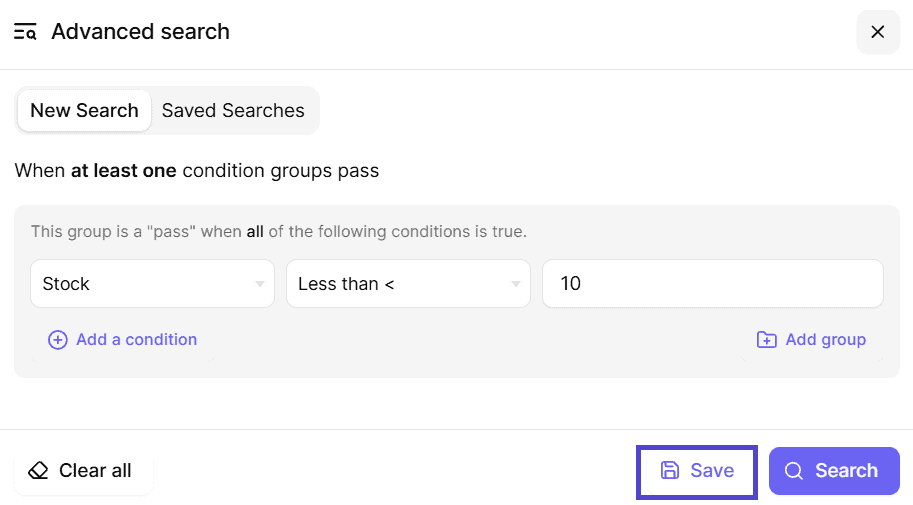
Productsdashboard. - Click the ‘Advanced Search’ toggle to open the panel and enter criteria to filter specific records – for example, WooCommerce products with stock levels below 10.
- Apply your desired search conditions, then click on
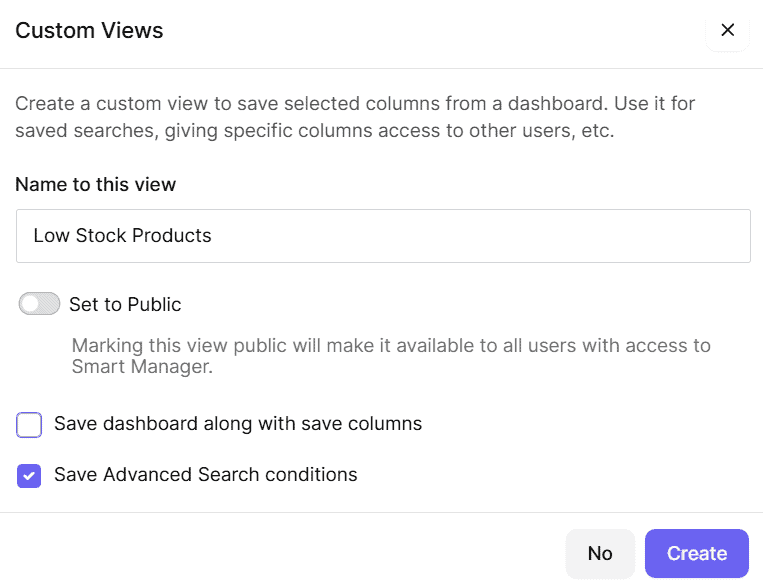
Saveto store the filter for future use. - Clicking on ‘Save’ opens a ‘Custom Views’ create modal where you can enter the following details:
- Enter a name for the saved search.
- Check the
Save Advanced Search conditionsbox. - Toggle the ‘Public’ option if you want other Smart Manager users to access this saved search.
- Click ‘Create’ to save it.
That’s it! Your Saved Search is created and ready to use.
Repeat the steps anytime to create more Saved Searches based on your needs.
Steps to Access and Apply Saved Advanced Searches
- Go to the Smart Manager dashboard and open the Advanced Search panel.
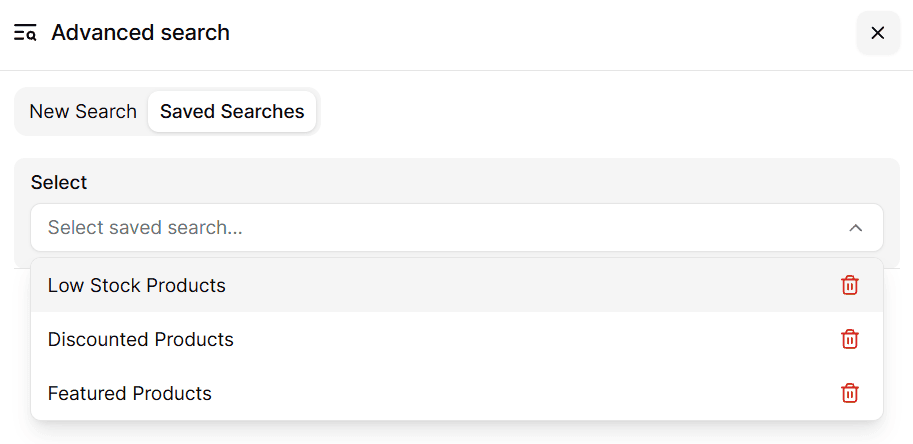
- Click on the ‘Saved Searches’ tab within the Advanced Search panel.
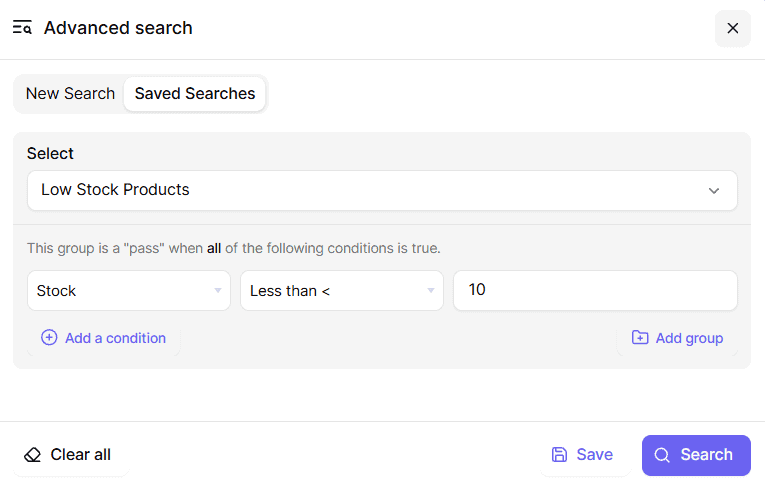
- Select the saved search you want to apply from the list. This will automatically render the saved fields and conditions.
- Click ‘Search’ to apply the saved conditions and view the filtered results.
You can export the entire Saved Search results or just the selected records using the Export CSV functionality.
Steps to Delete Saved Advanced Searches
- Go to the Smart Manager dashboard and open the Advanced Search panel.
- Click on the ‘Saved Searches’ tab within the Advanced Search panel.
- Click the delete icon next to the Saved Search name you want to remove.
- When the confirmation modal appears, click ‘Yes’ to permanently delete the Saved Search.
Note(s):
- Saved Advanced Searches and Export CSV functionalities are available only in the Pro version.