
How to Increase Prices for All WooCommerce Products Containing a Specific Attribute
Manually updating prices for WooCommerce products with specific attributes, like increasing prices for all ‘Large’ sized products or all ‘Red’ colored products, can be tedious and time-consuming when you have hundreds of products in your store.
With Smart Manager, you can filter products by specific attributes and increase their prices in bulk with just a few simple clicks, whether you want to apply a fixed amount or a percentage increase.
Steps to Increase Prices for All WooCommerce Products with Specific Attributes
-
Go to the Smart Manager dashboard. Using the top navigation bar, search for and select
Productsdashboard from the dropdown menu. -
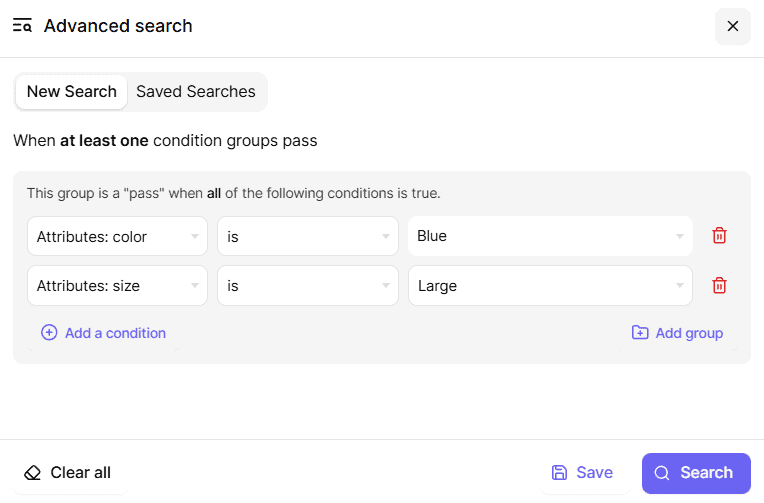
Use Advanced Search to filter products by the specific attribute:
- From the Field dropdown, select the attribute field (e.g., ‘Attributes: size’, ‘Attributes: color’, etc.).
- From the Value dropdown, select the specific attribute value (e.g., ‘Small’, ‘Large’, ‘Red’, ‘Cotton’).
- Click Search to display all products with that attribute.
-
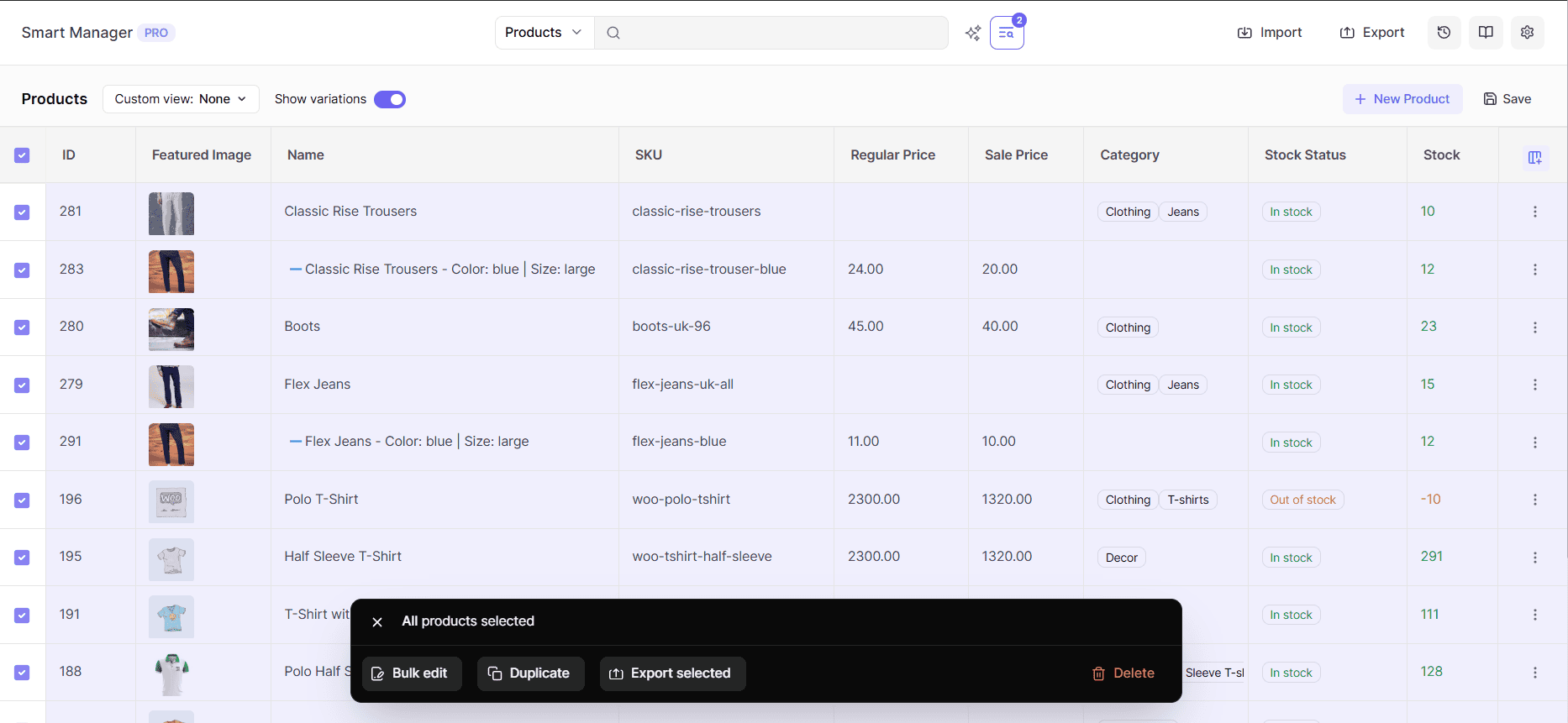
Select the filtered products:
- To select all filtered products, tick the header checkbox.
- To select specific products, tick individual checkboxes for each product.
- Click on the Bulk Edit button (in the bottom menu that appears on row selection). This will open a slide-over panel.
-
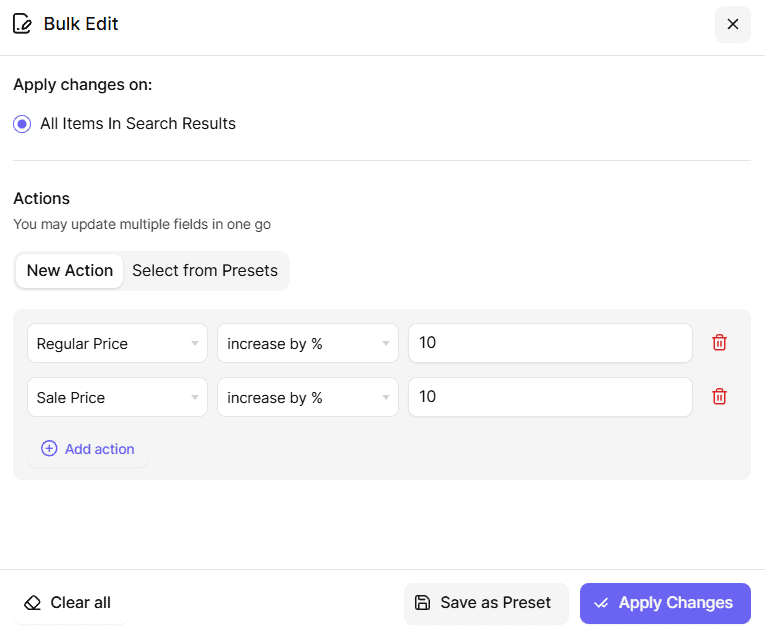
In the Bulk Edit panel:
- From the Field dropdown, select ‘Regular Price’ (or ‘Sale Price’ if you want to update sale prices)
- From the Action dropdown, select:
- increase by % to increase prices by a percentage (e.g., 10% increase).
- increase by number to increase prices by a fixed amount (e.g., $5 increase).
- Similarly, to decrease the price use:
- decrease by % to decrease prices by a percentage (e.g., 10% decrease).
- decrease by number to decrease prices by a fixed amount (e.g., $5 decrease).
- In the Value field, enter the percentage or amount you want to increase.
- Click on the Apply Changes button.
- A modal will appear where you can name your bulk edit operation and optionally schedule it for a specific date and time by selecting ‘Schedule this bulk edit’ option.
- Once you’ve selected your preferred option, click Ok to start the Bulk Edit process.
That’s it. Happy managing!
Note(s):