
WooCommerce makes it easy to sell products and accept payments online. But when it comes to recurring payments, there’s one important limitation.
By default, WooCommerce does not support automatic recurring billing.
This means if you want to charge customers monthly for memberships, subscriptions, digital content, or services, you’ll need additional tools to enable it.
The good news is that adding Woocommerce recurring payments is straightforward once you understand the components involved.
In this guide, you’ll learn how recurring payments work, what you need to enable them in WooCommerce, and how to set them up step by step.
What are recurring payments?
Recurring payments are automatic charges that happen on a fixed schedule.
Instead of customers making a payment every time they want access to something, they subscribe once and the system charges them automatically at each billing cycle.
For example:
- a membership site charging $10 every month
- a creator newsletter billed yearly
- a coffee subscription delivering beans every month
For store owners, recurring payments help create predictable recurring revenue instead of relying only on one-time purchases.
Businesses that use recurring payments
Recurring payments power many types of online businesses.
Instead of one-time transactions, customers pay regularly to continue receiving access, services, or products.
Here are some common examples:
- Streaming platforms: Services like Netflix and Spotify charge users every month for continued access to movies, shows, and music.
- Creator memberships: Platforms like Patreon allow creators to receive recurring support from subscribers in exchange for exclusive content or community access.
- Software subscriptions: Tools such as Adobe Creative Cloud or Notion charge users monthly or yearly for continued access.
- Product subscriptions: Ecommerce businesses selling coffee, supplements, or pet food often offer recurring delivery plans.
These models work well because customers receive ongoing value while businesses benefit from predictable recurring revenue.
What you need to set up recurring payments in WooCommerce
To enable Woocommerce recurring payments, you need three components to work together.
WooCommerce store
This is your ecommerce platform where customers subscribe, manage their accounts, and make payments.
Subscription plugin
WooCommerce doesn’t support recurring billing by default. A subscription plugin manages things like billing cycles, renewals, and subscription status.
Payment gateway with recurring billing support
A gateway like Stripe securely stores payment methods and automatically charges customers at each billing period.
Once these three pieces are in place, your WooCommerce store can start accepting recurring payments.
Managing recurring payments in WooCommerce
Since WooCommerce does not support recurring billing by default, you need a subscription plugin to enable it.
A subscription plugin lets you create subscription products, define billing cycles, and automatically charge customers at each renewal period.
However, if you’re just starting, the WooCommerce Subscriptions plugin or other large subscription plugins can feel overwhelming.
You may prefer a simpler solution that allows you to set up recurring payments without complex configuration or high costs.
One such solution is Smart Subscriptions for WooCommerce.
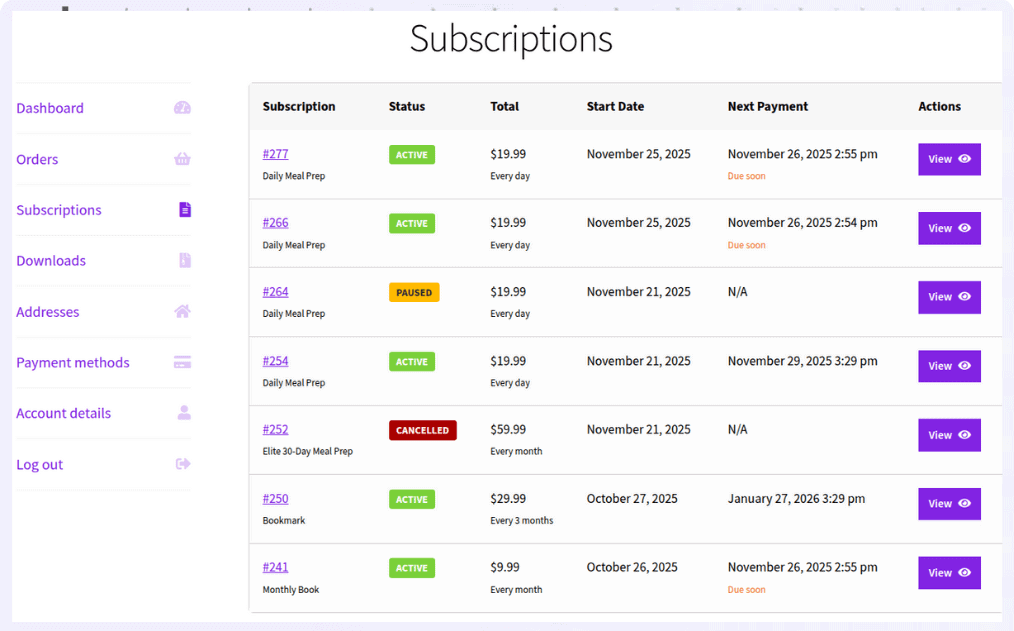
With this plugin, you can:
- create subscription products using a Simple Subscription product type
- set flexible billing cycles such as weekly, monthly, or yearly
- process automatic recurring payments through Stripe
- automatically retry failed payments
- allow customers to pause, resume, or cancel subscriptions
The plugin is lightweight and affordable, making it a practical option for small stores and creators starting with subscriptions.
How to set up recurring payments in WooCommerce?
Once Smart Subscriptions is installed, here’s how you can create a subscription product.
Let’s say you want to offer a monthly membership for $10 per month.
Here’s how to set it up:
- Connect Stripe as your payment gateway.
- Go to
WordPress Admin > Products > Add New. - Enter the product name,
Monthly Membership. - In
Product Data, selectSimple Subscription. - Set the
Subscription Price(example: $10). - Set the
Billing Interval(example: 1). - Select the
Billing Period(example: Month). - (Optional) configure a free trial period.
- Click
Publish.
Your subscription product is now live.
Customers can subscribe once, and WooCommerce will automatically charge them based on the billing cycle you configured.
Start accepting recurring payments in WooCommerce
Recurring payments help WooCommerce stores generate consistent revenue instead of relying only on one-time purchases.
Whether you’re offering memberships, digital content, services, or subscription products, recurring billing allows customers to subscribe once while payments renew automatically.
Although WooCommerce doesn’t support recurring billing by default, it’s easy to enable with the right tools.
By combining WooCommerce with Smart Subscriptions and a recurring payment gateway like Stripe, you can automate billing, manage subscriptions, and build predictable recurring revenue for your store.
Get Smart Subscriptions for WooCommerce
Faqs
Can WooCommerce handle recurring payments without a plugin?
No. WooCommerce supports one-time payments by default. To enable recurring billing for subscriptions or memberships, you need a subscription plugin that adds automatic renewal functionality.
Can I sell both one-time products and subscriptions in WooCommerce?
Yes. WooCommerce allows you to sell regular products alongside subscription products in the same store. Customers can choose whether to make a one-time purchase or subscribe.
Can customers cancel or pause subscriptions in WooCommerce?
Yes. Most WooCommerce subscription plugins allow customers to manage their subscriptions from their account dashboard, including pausing, resuming, or canceling plans.
Do recurring payments work for digital products in WooCommerce?
Yes. Recurring billing can be used for digital products such as memberships, premium newsletters, online courses, and software access.