

Every WooCommerce store accumulates dead weight over time — fake signups, test accounts, inactive users, and spam registrations that quietly bloat your database and skew your reports.
If you’ve noticed your store slowing down or your customer list looking suspiciously padded, it’s probably time to delete WooCommerce customers you no longer need.
This guide covers exactly how to do it — manually for a few accounts, in bulk for hundreds, and safely so you don’t accidentally wipe data you actually need.
You can delete WooCommerce customer accounts from WordPress Dashboard → Users → All Users, then selecting a user and clicking Delete.
For bulk deletion, use filters or a plugin like Smart Manager to remove inactive, spam, or test users efficiently.
Which WooCommerce user accounts you should delete (and why it matters)?
Test accounts, spam signups, zero-order users, duplicate accounts, and temporary logins are the main types you should delete. Over time, these accounts bloat your database, skew your reports, and create security risks without adding any business value.
- Test accounts: Created during setup by you, your team, or a developer. Once testing is done, delete them. Keep one reusable admin account and remove the rest.
- Temporary accounts: Shoppers who never completed checkout, or developers and freelancers given short-term access. You might use tools like Temporary Login Without Password for one-time, self-expiring logins — but once the work is done, the account should go too.
- Zero-order users: Signed up, browsed, never bought. If there’s been no activity for 12+ months, they’re not coming back.
- Duplicate accounts: Same person, slightly different email. These confuse your stats and break personalized campaigns — merge or delete the extras.
- Fake or spam accounts: Bots and bad actors that slipped past your CAPTCHA. Usually empty, always a risk.
- GDPR deletion requests: Under GDPR, customers have the right to be forgotten. If they request it, you’re legally required to remove their data.
- Security hygiene: Regular audits reduce breach risk, keep your database lean, and make store management easier.
When should you delete WooCommerce customers?
Most store owners wait too long. Here’s a practical framework:
| Situation | Action |
|---|---|
| Test accounts after launch | Delete immediately |
| Zero-order users inactive 12+ months | Delete quarterly |
| Spam or fake email signups | Delete as identified |
| GDPR / right-to-be-forgotten request | Delete within 30 days |
| Duplicate accounts | Merge or delete extras |
| Temporary developer/freelancer logins | Delete after project ends |
How to delete WooCommerce customer accounts manually?
WooCommerce has no direct delete button for customers. But since WooCommerce customers are basically WordPress users (with the role Customer), you can manage them through the WordPress admin panel.
- Log in to your WordPress dashboard.
- Go to
Users > All Users. Here, you’ll see a list of all users including customers, admins, editors and shop managers.. - Find the user you want to delete
- Hover over their name and click Delete. It will get moved to the Trash.
- To delete multiple customer accounts at once, select their checkboxes, choose
Bulk Actions > Delete, and apply. - Once confirmed, the customer account will be deleted from your store.
What happens to orders and subscriptions when a customer account is deleted?
Orders are not deleted, they stay in your database but get reassigned to Guest, losing the customer profile link permanently. Subscriptions work differently: they are permanently deleted along with the account, including active ones. Always check for active subscriptions before deleting any customer.
Orders remain, but get reassigned to “Guest”
Orders are not deleted when a customer account is removed. These orders lose the link to the customer and are now shown as placed by a Guest. No name, email, or profile info will remain in the order (except billing/shipping fields, which may still show some data unless anonymized).
Say you delete a customer named Jack Robin, his orders stay, but now show up as placed by a Guest. His profile info is wiped, and only billing/shipping details may remain. This messes up reporting and makes it harder to track purchases.
Subscriptions get permanently deleted
Subscriptions are tied directly to the customer account. Deleting the customer will also delete all their subscriptions – active, paused, or canceled.
This can lead to data loss and affect your subscription reports and tracking history.
Where does default WooCommerce fall short for customer cleanup?
The default WooCommerce + WordPress setup has no filters for order count, last login, or email pattern — making it impossible to bulk delete specific user types like zero-order users or spam accounts without a plugin. Here’s exactly what you’ll run into when you try.
No filter options
You can’t filter customers by order count, last login, activity, or role. You’re left scrolling through your entire user list and guessing which accounts are safe to remove.
No conditional bulk delete
You can’t say: “Show me all users who never placed an order, registered before 2025, and have a fake-looking email.” Default WooCommerce doesn’t support that kind of logic — every bulk action applies blindly to whatever you’ve manually selected.
No export before deletion
Need to back up user data before removing it — for compliance or internal records? Not possible without extra plugins or manual exports.
If you’re managing more than a handful of customers, this quickly becomes frustrating and risky. That’s why store owners turn to a plugin like Smart Manager, which fills these gaps and simplifies the entire process.
Manual vs plugin: which method should you use to delete WooCommerce customers?
The right method depends on how many accounts you need to remove and how precisely you need to target them. Here’s a full breakdown:
| Method | Best For | What You Can Filter By | Bulk Delete? | Undo Option? | Limitation |
|---|---|---|---|---|---|
| WordPress Default | Removing 1–10 specific accounts | Username, email, role | Basic (no filters) | Trash only | No order count, date, or activity filters. Slow for large cleanups. |
| Smart Manager | Bulk cleanup of inactive, spam, or test accounts | Order count, registration date, last order date, billing email, role, and more | Yes — hundreds at once | Trash or permanent | Requires plugin installation |
For removing one or two known accounts, the WordPress default works fine — no setup needed. But if you’re cleaning up zero-order users, post-launch test accounts, or a wave of spam signups, the default method gives you no way to filter or target them precisely. You’d be scrolling, guessing, and clicking one by one.
Smart Manager solves exactly that: set your filters, preview the results, and delete in one action. The extra column it gives you — order count, registration date, billing email pattern — is what turns a two-hour manual job into a two-minute cleanup.
How to bulk delete WooCommerce customers using Smart Manager
Managing customers in WooCommerce the default way is painfully slow — no filters, no bulk targeting, just endless one-by-one clicks. Smart Manager fixes that with a spreadsheet-style dashboard where you can filter, select, and delete hundreds of accounts in one go.
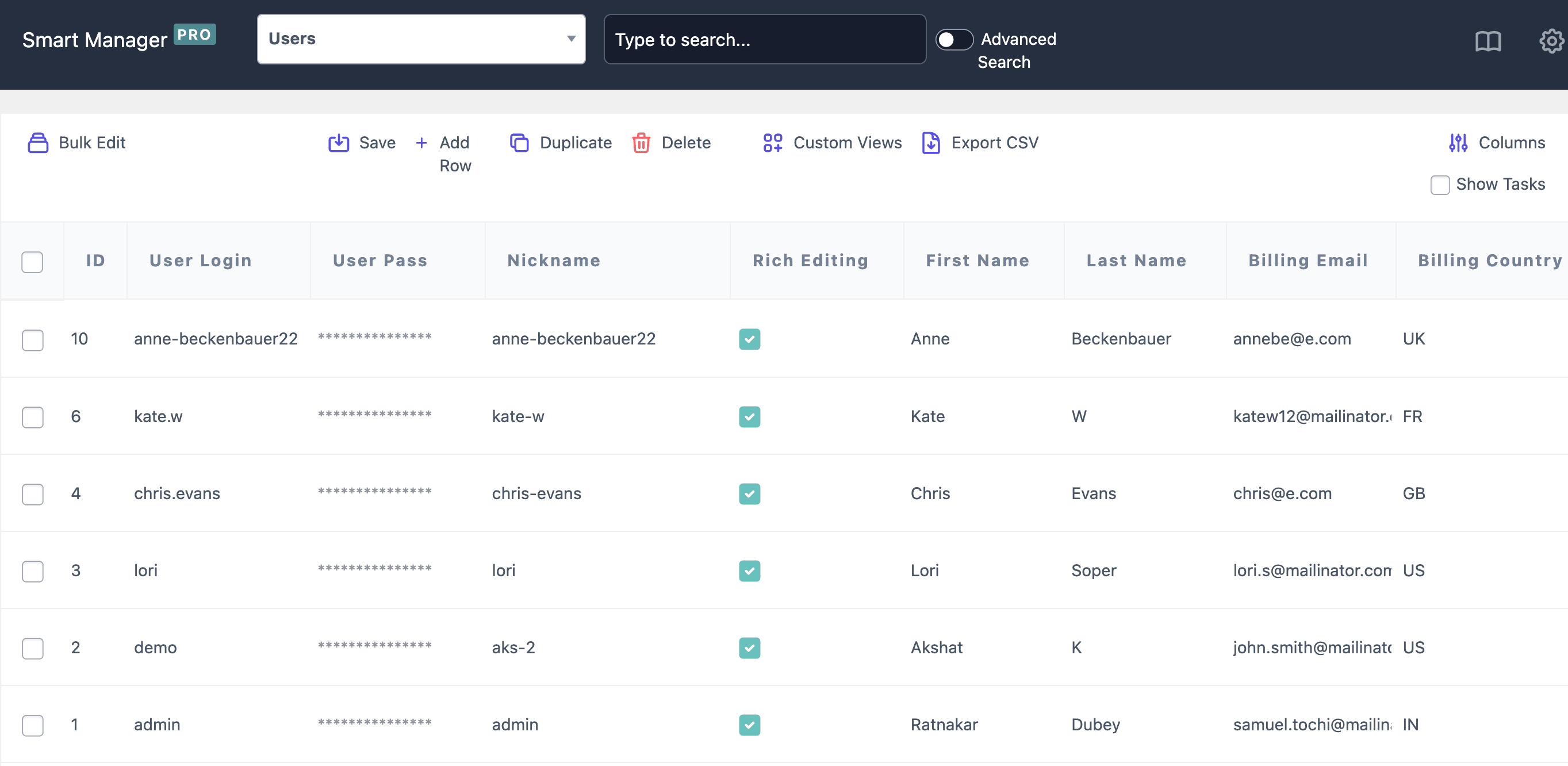
Here’s how to do it:
- From the Smart Manager dropdown, select
Users. - To delete all visible users, check the
header checkboxto select all rows. - To target specific accounts, click
Advanced Searchand set your filters:Order Count = 0— catches zero-order users- Email contains
@test.com— catches test signups - Registered before
2024— catches old inactive accounts
- Click
Searchto see matching accounts. - Check the top checkbox to select all filtered results.
- Hover over the
Deletebutton and choose:Move to Trash— recoverable, good if you’re unsureDelete Permanently— irreversible, use after you’re confident
That’s it. What used to take hours of manual clicking takes minutes with the right filters in place.
What are the best practices for safely deleting WooCommerce users?
Always back up your database first, use Trash before permanently deleting, and check for active subscriptions before removing any account. Here’s the full checklist for doing it safely:
- Always back up first: Take a full database backup before making any changes. This is crucial if you’re doing a bulk cleanup or using a plugin for deletion. Backups let you restore everything if something goes wrong.
- Test your steps on a staging site: Try your deletion process on a staging or test version of your site. That way, you can avoid accidentally removing admin users, recent customers, or important data.
- Use filters wisely: Have a clear definition of what “inactive” means to your store — like no login in two years or no order ever placed. Use filtering tools or plugins to preview and export a list of users before actually deleting them.
- Preserve important data: Orders are part of your store’s history. If you’re cleaning up inactive users but want to keep order records, it’s better to anonymize the user or reassign their order to a guest. If you’re fulfilling a GDPR request, anonymization may be better than full deletion.
- Update your privacy policy: Let your customers know how long you keep their data. Be clear about how you handle deletion requests and what your process is for regular account cleanup.
- Keep a record: Whether you’re responding to a GDPR request or doing manual deletions, always log what you’ve deleted. This helps for compliance, audits, and peace of mind.
Conclusion
Cleaning up user accounts in WooCommerce isn’t just about saving space — it’s about keeping your store fast, secure, and compliant. Whether you’re removing fake signups, inactive users, or fulfilling GDPR requests, a thoughtful, well-filtered approach is key.
With tools like Smart Manager, managing and deleting user data becomes easier, faster, and safer. Always back up, double-check filters, and keep your records clear and your store (and your customers) will thank you for it.
FAQs
Can WooCommerce automatically delete customer accounts?
Not natively. WooCommerce has no built-in automation for deleting inactive or spam accounts on a schedule. You’d need a plugin or custom code to set up automatic cleanup rules, for example, deleting accounts with zero orders after 12 months of inactivity.
Does deleting a WooCommerce customer affect sales reports?
Yes. Once a customer account is deleted, their purchase history gets reassigned to Guest in your WooCommerce reports. This breaks customer-level reporting, lifetime value, repeat purchase rate, and segmentation by customer all become inaccurate for those records.
Can I delete a WooCommerce customer who has an active subscription?
You can, but you shouldn’t without cancelling the subscription first. Deleting a customer with an active subscription permanently removes the subscription record, there’s no recovery. Cancel or pause the subscription first, then handle the account deletion separately.
Is there a way to anonymize a WooCommerce customer instead of deleting them?
Yes — and for GDPR requests, it’s often the better option. WooCommerce has a built-in anonymization tool under WooCommerce → Status → Tools. It strips personal data from the customer and their orders without deleting the order records, preserving your financial history while complying with erasure requests.
Will deleting a WooCommerce customer log them out immediately?
Yes. Once the account is deleted, any active session tied to that user is invalidated. If the customer is logged in at the moment of deletion, they’ll be logged out instantly and won’t be able to log back in since the account no longer exists.
What role should I check before bulk deleting WooCommerce users?
Filter by the Customer role only before selecting any records for deletion. Bulk actions in WordPress apply to every checked user regardless of role, so without filtering first you risk accidentally deleting Admin, Shop Manager, or Editor accounts. Smart Manager lets you filter by role before bulk selecting.