

WooCommerce makes it easy to sell products and accept payments. But when it comes to recurring payments, there’s one important limitation.
By default, WooCommerce doesn’t support automatic recurring billing. So if you want to charge customers monthly for memberships, subscriptions, or ongoing services, you’ll need an additional setup.
This guide explains how WooCommerce recurring payments work, what you need to set them up, and the simplest way to get started.
What are recurring payments?
Recurring payments are automatic charges that happen on a fixed schedule.
Instead of customers making a payment every time they want access to something, they subscribe once and the system charges them automatically at each billing cycle.
For example:
- a membership site charging $10 every month
- a creator newsletter billed yearly
- a coffee subscription delivering beans every month
For store owners, recurring payments help create predictable recurring revenue instead of relying only on one-time purchases.
Businesses that use recurring payments
Recurring payments power many types of online businesses.
Instead of one-time transactions, customers pay regularly to continue receiving access, services, or products.
Here are some common examples:
- Streaming platforms: Services like Netflix and Spotify charge users every month for continued access to movies, shows, and music.
- Creator memberships: Platforms like Patreon allow creators to receive recurring support from subscribers in exchange for exclusive content or community access.
- Software subscriptions: Tools such as Adobe Creative Cloud or Notion charge users monthly or yearly for continued access.
- Product subscriptions: Ecommerce businesses selling coffee, supplements, or pet food often offer recurring delivery plans.
These models work well because customers receive ongoing value while businesses benefit from predictable recurring revenue.
What you need to set up recurring payments in WooCommerce
To enable Woocommerce recurring payments with Stripe, you need three components to work together.
WooCommerce store
This is your ecommerce platform where customers subscribe, manage their accounts, and make payments.
Subscription plugin
WooCommerce doesn’t support recurring billing by default. A subscription plugin manages things like billing cycles, renewals, and subscription status.
Payment gateway
A gateway like Stripe securely stores payment methods and automatically charges customers at each billing period.
Once these three pieces are in place, your WooCommerce store can start accepting recurring payments.
Managing WooCommerce recurring payments with Stripe
Since WooCommerce doesn’t handle recurring billing on its own, a subscription plugin manages everything behind the scenes.
It allows you to:
- create subscription products
- define billing cycles
- automate renewals
- manage active subscriptions
While some plugins offer advanced features, they can also feel complex if you’re just getting started.
For simpler use cases, a lightweight option like Smart Subscriptions for WooCommerce can help you set up recurring payments without unnecessary complexity.
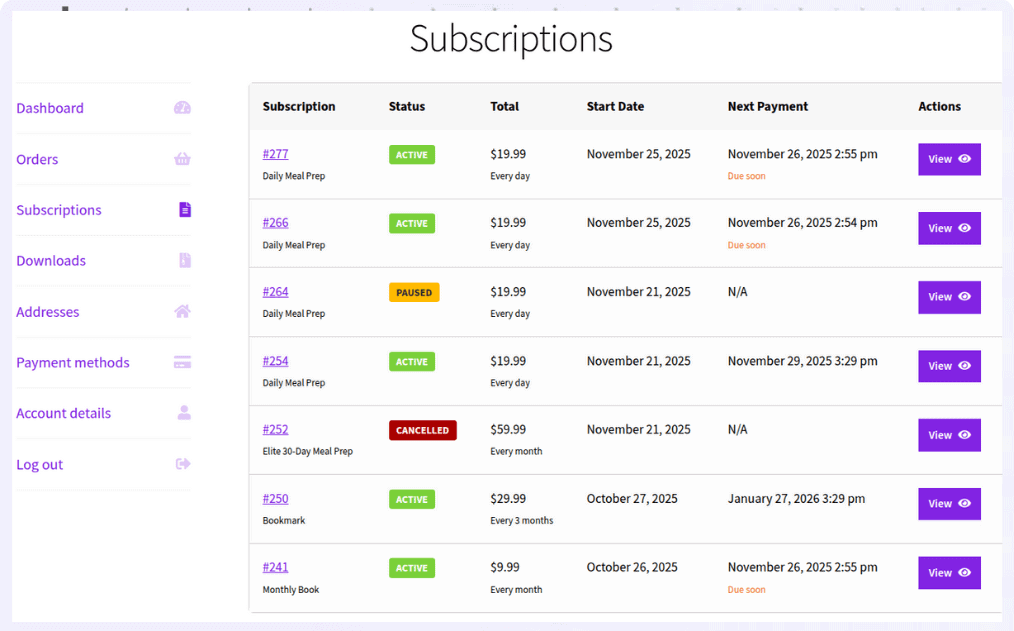
With it, you can:
- create subscription products using a simple setup
- set flexible billing cycles (weekly, monthly, yearly)
- accept automatic recurring payments
- retry failed payments automatically
- let customers pause, resume, or cancel subscriptions
However, if you’re just starting, the WooCommerce Subscriptions plugin or other large subscription plugins can feel overwhelming.
You may prefer a simpler solution that allows you to set up recurring payments without complex configuration or high costs. One such solution is Smart Subscriptions for WooCommerce.
How to set up recurring payments in WooCommerce?
Once you have a subscription plugin installed and a payment gateway connected, setting up recurring payments in WooCommerce is straightforward.
In most cases, it comes down to four simple steps:
- create a product in WooCommerce
- choose a subscription product type
- set the price and billing cycle (weekly, monthly, or yearly)
- publish the product
That’s it. Customers can subscribe once, and payments are charged automatically based on the billing schedule.
If you’re using Stripe and want a step-by-step walkthrough, follow this WooCommerce recurring payments with Stripe setup guide.
Common issues with recurring payments in WooCommerce
Even with the right setup, recurring payments can run into issues if a few key areas are overlooked.
Failed renewals due to card issues
Expired cards, insufficient funds, or bank declines are the most common reasons subscriptions fail. Without retry logic, these payments are lost immediately.
Subscriptions not renewing on time
This is often caused by WordPress cron issues or misconfigured schedules. If background processes don’t run reliably, renewals can be delayed or skipped.
Incorrect billing intervals
Small mistakes in interval settings (like choosing the wrong billing period) can lead to unexpected charges or gaps in renewals.
Payment gateway limitations
Not all gateways handle recurring billing the same way. Some don’t support proper tokenization or automatic retries, leading to failed payments.
Lack of customer communication
If customers aren’t informed about renewals or failed payments, it increases cancellations, disputes, and support requests.
Best practices for recurring payments in WooCommerce
To run recurring billing smoothly, treat it as an ongoing system, not a one-time setup.
Enable automatic retries for failed payments
Many failed payments can be recovered within a few days. Retry logic helps you recover revenue
without manual effort.
Keep billing cycles simple
Monthly or yearly plans are easier for customers to understand and reduce confusion.
Test the full subscription flow before launch
Check not just checkout, but renewals, failed payments, and cancellations.
Make billing terms clear
Clearly show pricing, billing frequency, and cancellation terms on product pages to avoid disputes.
Monitor subscription performance
Track failed payments, cancellations, and active subscriptions regularly to catch issues early.
Avoid overcomplicating your setup
Start simple. Add complexity only when your business actually needs it.
Start accepting recurring payments in WooCommerce
Recurring payments can transform how your WooCommerce store grows, from one-time purchases to predictable, ongoing revenue.
While WooCommerce doesn’t support recurring billing by default, the setup becomes simple once you understand how the system works and use the right combination of tools.
Start with a setup that fits your current needs. Keep it simple, test it properly, and improve it as your store grows.
Get Smart Subscriptions for WooCommerce
Faqs
How do I choose the right billing cycle for my subscription?
Choose a billing cycle based on how frequently customers receive value. Monthly plans work well for ongoing access, while yearly plans are better for long-term commitments and improving retention.
Can I offer both one-time purchases and subscriptions in the same store?
Yes. WooCommerce allows you to sell regular products alongside subscription products, giving customers the option to buy once or subscribe.
How can I reduce failed payments in WooCommerce subscriptions?
You can reduce failed payments by enabling automatic retries, sending payment reminders, and using a reliable payment gateway that supports saved payment methods.
Can I offer free trials or sign-up fees with subscriptions?
Yes. Most subscription plugins allow you to add free trials or charge an upfront fee before starting recurring billing.
What happens if a customer’s payment fails during renewal?
If a payment fails, the subscription may be put on hold or canceled depending on your settings. Many setups allow automatic retries before marking the subscription as failed.
Can I change subscription pricing after customers sign up?
Existing subscriptions usually continue at the original price, while new customers see the updated pricing. Some plugins allow controlled price changes for active subscribers.