

If your WooCommerce store has been running for months or years, your order list can quickly become crowded with old, failed, cancelled, refunded, and test orders.
While WooCommerce lets you delete individual orders, removing hundreds or thousands of records manually can take hours.
The right approach depends on what you want to remove — a single order, old orders, test transactions, or specific orders based on status or date.
In this guide, you’ll learn how to delete WooCommerce orders safely, bulk delete orders, remove test orders, and clean your store database without unnecessary risks.
Why delete WooCommerce orders?
WooCommerce stores every order as database data. Over time, your store may contain thousands of unnecessary records including test purchases, failed payment attempts, cancelled orders, duplicate orders, spam transactions, and old records you no longer need.
Removing unnecessary orders helps you:
- Keep your dashboard organized: A cleaner order list makes it easier to manage real customer purchases.
- Free up database space: Old, unwanted orders bloat your database, impacting performance — especially on shared hosting. Deleting them results in faster backups and potentially lower storage costs.
- Improve store performance: A large database slows down data retrieval, leading to slower loading times. Deleting old orders speeds up database queries and improves overall store responsiveness.
- Create cleaner reports: Including old test data in reports can skew data and obscure current trends. Removing irrelevant records keeps sales reports more accurate.
- Maintain better data practices: Some stores remove old customer records as part of their data retention process (e.g., GDPR, CCPA’s “right to be forgotten”). Before deleting any order data for privacy reasons, consider removing identifying information instead of deleting it completely.
WooCommerce delete orders: which method should you use?
Before deleting anything, choose the right approach based on your situation:
| Situation | Best option |
|---|---|
| Delete 1–5 orders manually | WooCommerce default deletion |
| Delete old completed orders | Smart Manager bulk delete |
| Remove test orders | Smart Manager advanced filters |
| Delete refunded or cancelled orders | Smart Manager advanced filters |
| Need recovery option | Move orders to Trash |
| Need permanent cleanup | Delete permanently |
How to delete WooCommerce orders without a plugin?
If you are wondering if you can I delete orders in bulk natively? Then, answer is yes — WooCommerce lets you delete orders one at a time from the Orders screen.
To delete a single WooCommerce order:
- Log in to your WordPress admin dashboard.
- Go to
WooCommerce > Orders. - Locate the order you want to delete.
- Click on it. In the
Order actionsbox on the right, clickMove to Trash.”
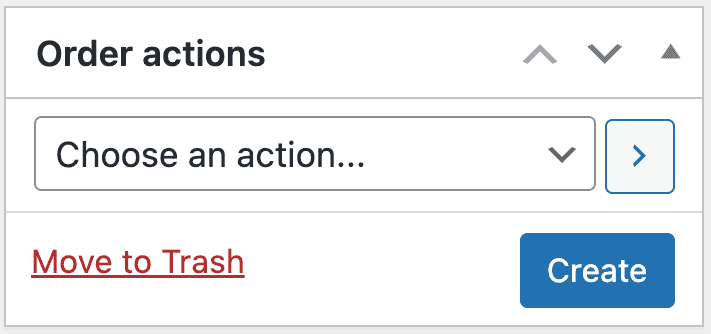
This moves the order to Trash. To permanently delete it:
- Go to
WooCommerce > Orders. Click on the Trash option. - Check the box next to the order you want to delete. Choose
Delete Permanentlyfrom the “Bulk actions” dropdown. Click “Apply.” This action cannot be undone.
For reference, see the official WooCommerce order management documentation.
How to bulk delete WooCommerce orders
WooCommerce’s default bulk action lets you move multiple orders to Trash, but it offers no advanced filtering — you can’t delete by status, date range, or customer without opening records manually.
For large-scale order cleanup, Smart Manager gives you a spreadsheet-style dashboard where you can filter, select, and delete hundreds of orders at once.
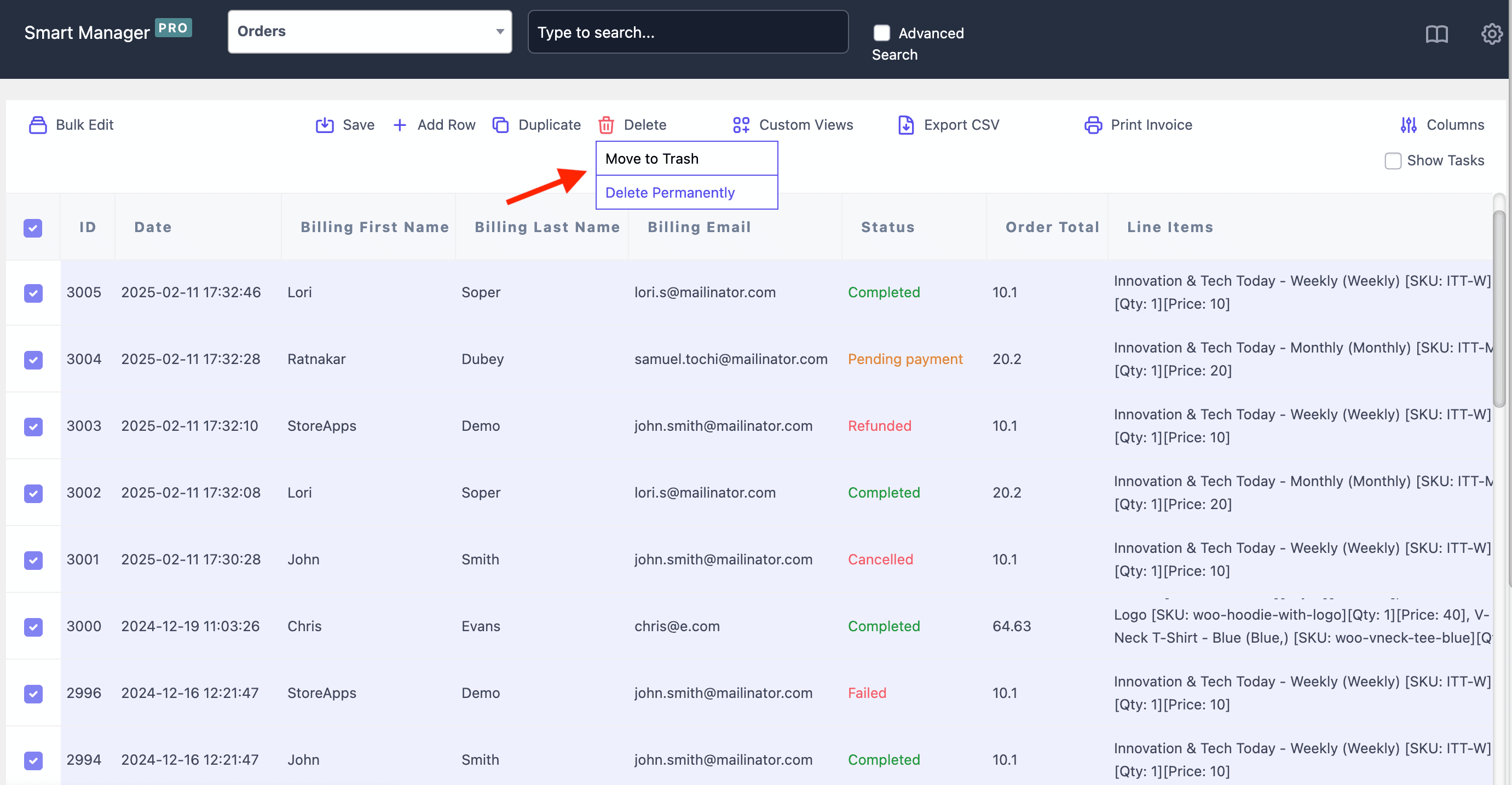
Key features for bulk order deletion:
-
Advanced filtering: Easily select orders based on a wide range of filters, including:
- Date range (e.g., all orders from the past year)
- Order status (e.g., completed, cancelled, refunded)
- Customer (e.g., all orders from a specific customer)
- Product purchased
- And many more!
- Direct deletion or trashing: Choose to either permanently delete selected orders directly from the interface or move them to the trash for later review and removal. This gives you greater control over the deletion process.
- Intuitive interface: Smart Manager presents your order data in a spreadsheet-like grid, making it easy to navigate, select multiple orders, and perform bulk actions with just a few clicks. This streamlined interface eliminates the need to navigate through multiple pages of orders.
How to bulk delete WooCommerce orders using Smart Manager
You can also delete orders based on any special filters as well, which is known as the advanced search. For example, let’s say you want to delete refunded orders.
- Choose dashboard: Select the Orders dashboard from the dropdown menu in Smart Manager.
- Select rows: Select the rows you wish to delete. Click the header checkbox to select all.
- Delete (basic): Hover over the
Deletebutton. ChooseMove to Trashfor recoverable deletion orDelete Permanentlyfor irreversible removal. - Advanced search (Optional): To target specific records, click the “Advanced Search” toggle.
- Filter field: Enter “Status” (or similar field name).
- Operator: Choose the “is” option.
- Value: Enter “Refunded” as the value. (No need for additional conditions or groups.)
- Search: Click “Search.” Smart Manager will display all refunded orders.
- Select filtered rows: Check the box at the top of the order grid to select all displayed (refunded) orders.
- Delete (advanced): Hover over the “Delete” button and choose either “Move to Trash” or “Delete Permanently.”
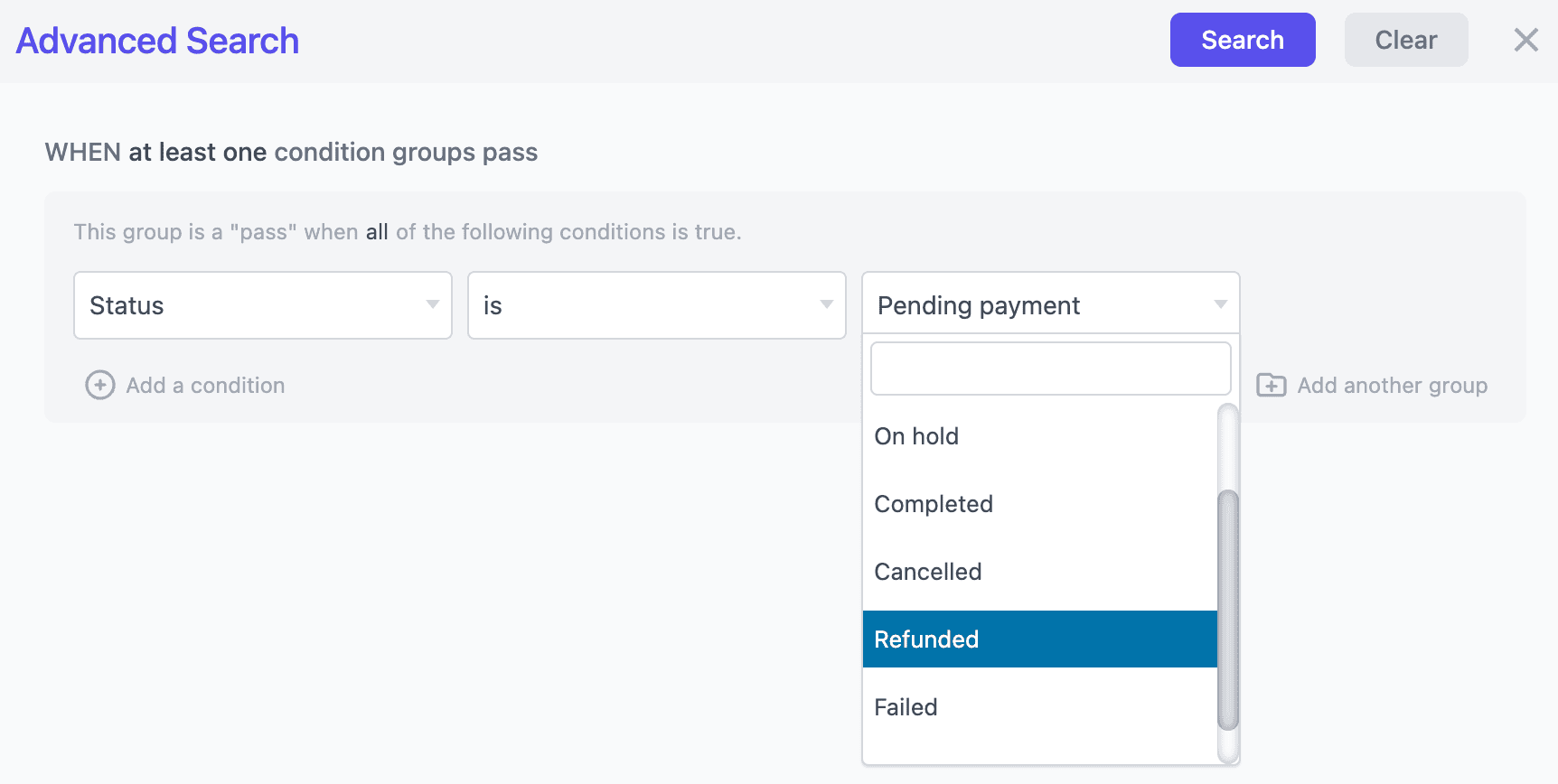
Smart Manager unlocks the ability to trash or permanently delete numerous records at once. Not just orders, you can also delete all products, posts and pages, coupons and other WordPress post types.
How to delete test orders in WooCommerce (a special customer request)
Before any major launch or new update goes live, test orders are usually placed to ensure everything runs smoothly for real customers. But once the testing is done, these fake orders clutter up your order list.
Here’s how to clean them out using Smart Manager—fast and in bulk:
- From your WordPress dashboard, go to Smart Manager.
- Choose
Ordersfrom the dropdown: - Use
Advanced Searchto find test orders. - If you used your name or email while testing, just set the field to Billing Email or Billing First Name, and type what you used—like
John Testortest@example.com. - Hit
Search. - Select the filtered orders:
- Click the checkbox at the top-left of the grid to select all test orders.
- Hover over the Delete button.
- Choose
Move to Trash(if you may want to restore later) or - Choose
Delete Permanentlyto remove them for good.
How often should you clean up WooCommerce orders?
The right cleanup frequency depends on your store’s order volume. Here’s a general guide:
| Store Size | Recommended Cleanup Frequency |
|---|---|
| Small (under 100 orders/month) | Annually |
| Medium (100–500 orders/month) | Quarterly |
| Large (500+ orders/month) | Monthly |
| Post-launch (test orders) | Immediately after go-live |
Precautions and considerations for WooCommerce delete orders
Deleting orders, especially in bulk, is a powerful action that should be approached with caution. Before you proceed with any order deletion, it’s crucial to understand the potential consequences and take the necessary precautions.
- Backup your data (essential): Always create a full database backup before any deletion. Regularly scheduled backups are ideal, but a fresh backup before bulk deletion is non-negotiable. Test your backups regularly to ensure they can be restored.
- Trash vs. permanent delete: “Trash” is a soft delete (recoverable), while “Permanently Delete” is irreversible. Use “Trash” for review before permanent removal.
- Tax & legal implications: Deleting order data can have legal and tax consequences. Consult a professional (accountant or lawyer) to understand local data retention requirements (e.g., for audits).
- Archiving: If concerned about legal/tax implications but need to free up space, consider archiving. You can export data as CSV files or use database archiving solutions to move old data to a separate archive.
Conclusion
Deleting WooCommerce orders is straightforward for a handful of records, but safely removing old, failed, cancelled, or test orders at scale requires the right workflow.
Use WooCommerce’s default method for removing one or two orders. For anything larger — bulk deletion by status, date, or customer — Smart Manager gives you the filtering and control to clean your order database without opening records one by one.
Simplify WooCommerce order management
FAQ
Does deleting WooCommerce orders affect inventory stock?
No. Deleting a WooCommerce order does not automatically restore stock levels. If you want inventory adjusted after deletion, you need to manually update stock or use a plugin that handles stock restoration on order removal.
Does deleting WooCommerce orders affect revenue reports?
Yes. WooCommerce analytics pulls data from existing orders. Deleting orders — including test or cancelled ones — will change your reported revenue, conversion rates, and average order value. Always review your reports after a bulk cleanup.
Can I delete WooCommerce orders from the database directly?
Technically yes, but it is not recommended. WooCommerce stores order data across multiple database tables. Deleting rows directly via phpMyAdmin or SQL without removing all related records can corrupt your store data. Always use WooCommerce or a trusted plugin instead.
What is the difference between trashing and permanently deleting a WooCommerce order?
Trashing moves the order to the Trash folder where it can be restored. Permanently deleting removes it from the database entirely with no recovery option unless you have a database backup.
Can customers still see their order details after you delete an order?
No. Once an order is permanently deleted, customers can no longer view it in their My Account → Orders page. The order history disappears from their account entirely.
Does WooCommerce notify customers when their order is deleted?
No. WooCommerce does not send any notification to customers when an order is deleted by the store admin. If the customer needs to be informed, you must contact them manually.
Is there a way to archive WooCommerce orders instead of deleting them?
WooCommerce does not have a built-in archive feature. The closest options are exporting orders as a CSV before deletion, using a custom order status as an archive label, or moving orders to a separate database archive using a third-party solution.