


WooCommerce bookings turn a standard product catalog into an automated reservation engine for appointments, equipment rentals, and group events. Setting up bookable products allows customers to check real-time availability, select duration blocks, and pay upfront directly through the WooCommerce checkout.
Online stores often obsess over total booking impressions while ignoring slot utilization and calendar contention rates. High traffic means little when overlapping checkout sessions cause double-bookings, inventory stock desyncs, and manual customer service headaches.
A boat tour operator learned this lesson running excursion packages on a 10-person vessel. Two customers booked sunset tickets. The system kept the remaining seats open for a morning fishing tour at that exact hour. Choosing the right booking architecture and configuring global resource locks prevents these scheduling collisions before they damage your reputation.
What are the 3 core types of WooCommerce bookings?
WooCommerce bookings split into three operational models: time-slot appointments, physical inventory rentals, and group events. Forcing all three into a generic calendar plugin causes broken checkouts and inventory errors. Customers abandon carts when booking workflows feel clunky.
Understanding which operational discipline your store runs determines how you configure time units, availability rules, and checkout forms.
Service appointments and consultations (time-slot driven)
Appointment bookings center entirely on staff time, practitioner availability, and location schedules. Typical businesses include hair salons, medical clinics, legal practices, and business consultants.
These setups require short, granular time intervals (such as 15, 30, or 60 minutes) alongside automated buffer intervals between clients. Two-way synchronization with external tools like Google Calendar is essential so staff members do not get booked when personal appointments arise. For dedicated appointment workflows, evaluate tools tailored for staff rosters in our roundup of best WordPress booking plugins.
Equipment and inventory rentals (span and stock driven)
Physical equipment rentals track serialized physical assets across hourly, daily, or multi-week periods. Common examples include camera gear, party tents, construction tools, and rental fleets.
Unlike appointments, equipment rentals must manage physical inventory stock counts rather than staff calendars. You need turnaround maintenance buffers to inspect returned items, plus refundable security deposits collected at checkout. Explore our complete guide to WooCommerce rental stores, as well as niche setups for party equipment rentals on WooCommerce and vehicle rentals on WooCommerce.
Group events and workshops (capacity driven)
Group events and classes operate on fixed start times with shared attendee capacity thresholds. Examples include cooking workshops, guided city tours, fitness bootcamps, and wine tastings.
The booking engine must track ticket quantities per time slot until the cap is reached, automatically closing registration once sold out. Organizers need cut-off deadlines (such as closing ticket sales 24 hours prior to the event) to prepare supplies and manage guest rosters.
How to set up bookings in WooCommerce (step by step)
Setting up bookings in WooCommerce requires configuring a bookable product with specific duration blocks, availability rules, and pricing layers. Following a structured setup flow ensures your front-end calendar displays open slots accurately without triggering scheduling collisions.
Before clicking into your WordPress dashboard, let us clarify the fundamental concept of a booking period.
What is a booking period?
A booking period is the designated window of time during which a customer reserves, uses, or attends your service or rental item. It defines both how long an individual reservation lasts and how far in advance customers can place orders.
Consider how booking periods vary across common business models:
- Hotel stays: Guests book rooms months ahead (e.g., reserving a December holiday in August), with stays spanning multiple consecutive nights.
- Event tickets: Organizers sell seats weeks in advance, but enforce a strict registration cut-off 24 hours before the event starts.
- Rental vehicles: Customers reserve cars for custom day or week intervals, needing pickup and return dates clearly blocked out.
- Salon appointments: Clients schedule 30-minute or 60-minute time slots only a few days or hours before the session.
Understanding your booking period shapes your product duration and calendar availability rules.
Step 1: Install and activate your booking plugin
To add booking capabilities to WooCommerce, install your chosen booking extension:
- Navigate to your WordPress dashboard.
- Go to
Plugins → Add New. - Click
Upload Pluginand choose your plugin.zipfile. - Click
Install Nowand selectActivate.
Once activated, you will see a new Bookings panel in your WordPress admin menu.
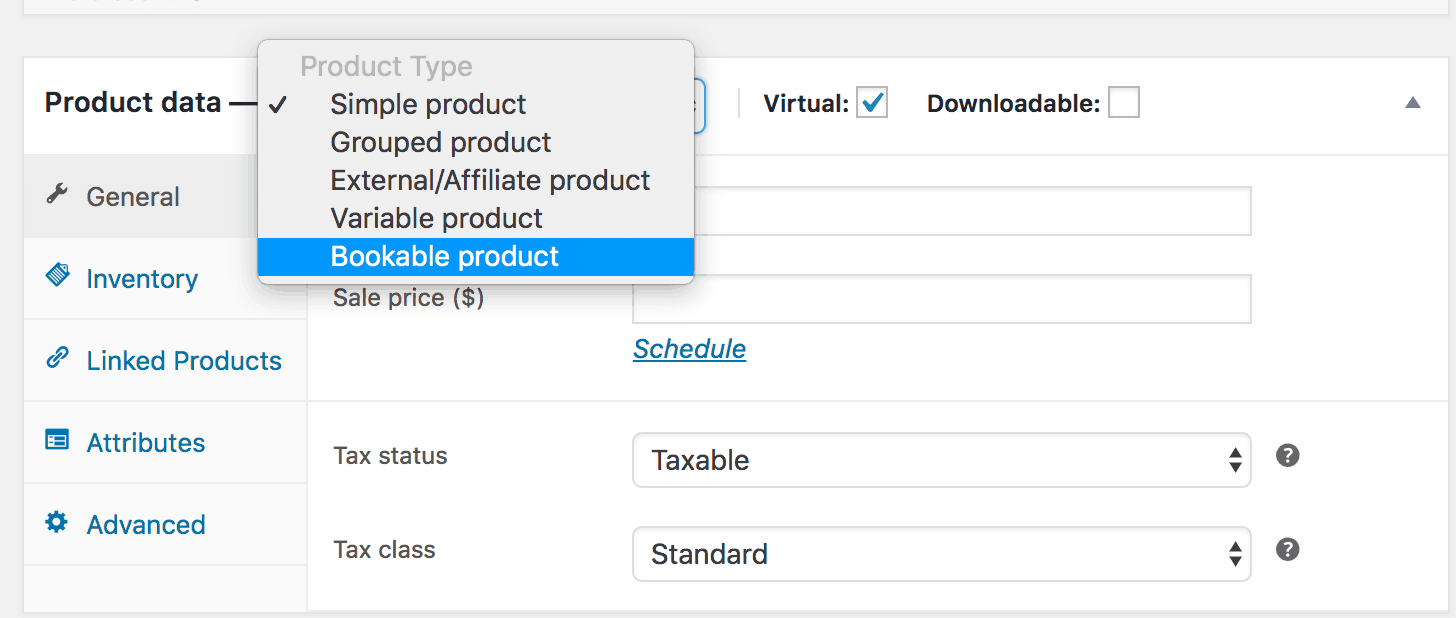
Step 2: Create your bookable product
Creating a bookable product follows the standard WooCommerce catalog workflow with several custom settings:
- Go to
Products → Add New. - Enter a clear product title and detailed service description.
- Locate the
Product databox beneath the editor and selectBookable productfrom the dropdown. - Check the
Virtualbox if your offering is an in-person appointment or digital service that does not require shipping.
Next, configure the core product parameters:
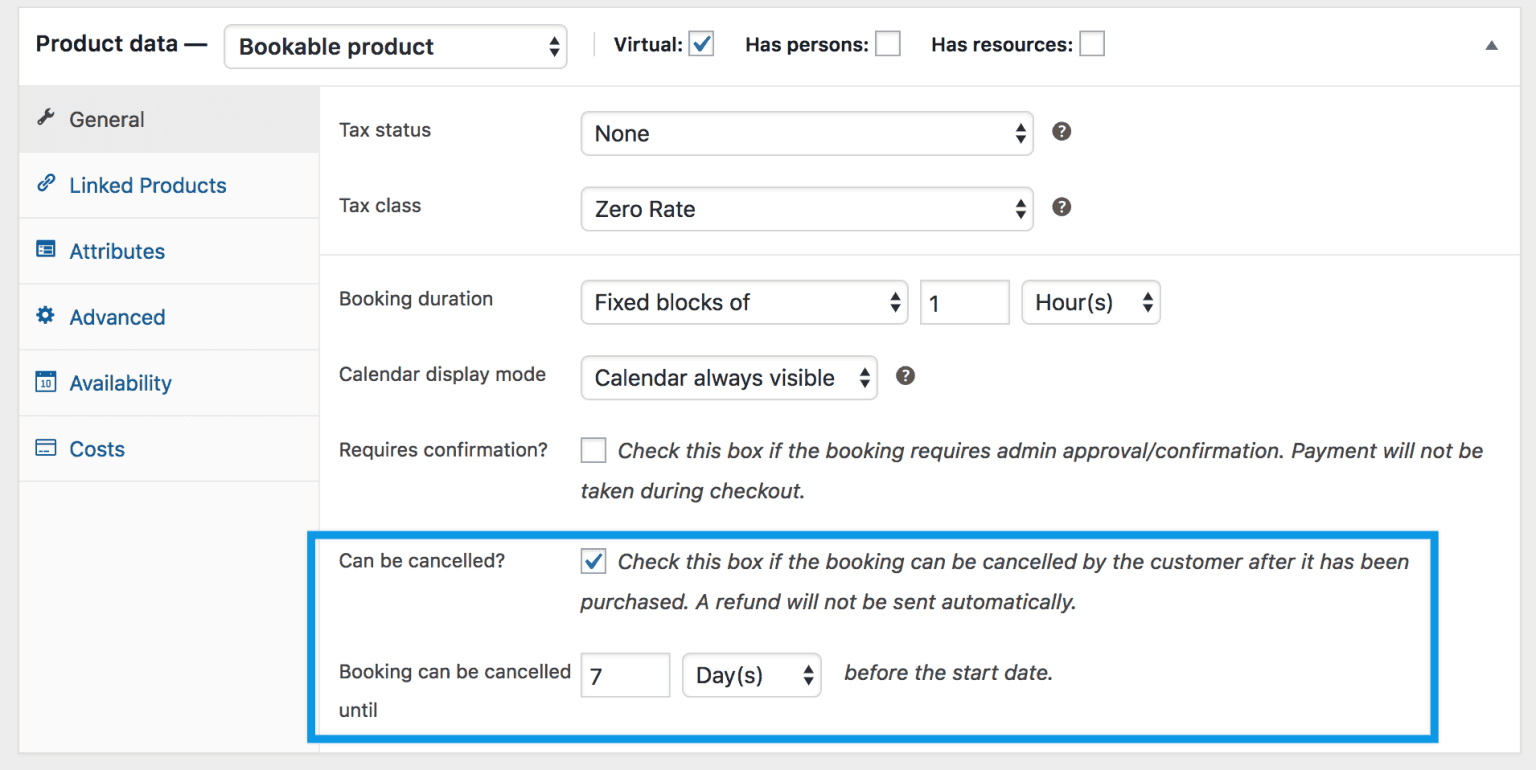
Taxes
Select whether to charge sales tax for your booking. Assign the appropriate tax class and tax status based on your local business regulations.
Booking duration
This determines how long a reservation lasts. You can measure durations in minutes, hours, days, weeks, or months.
The booking duration is of two types: Admin defined (Fixed blocks) and Customer-defined blocks.
- Admin defined (Fixed blocks): You set a rigid duration (e.g., exactly 45 minutes or 1 day), and customers can book only one block per transaction. This structure fits oil changes, escape rooms, or dental checkups where service durations are standardized.
- Customer-defined blocks: You set the base block unit, like 1 hour or 1 day. Shoppers then choose how many consecutive blocks they need with a duration picker. This workflow suits coworking hot desks, recording studio sessions, or tool rentals where the client dictates the timeline.
Calendar display mode
Choose whether the calendar appears embedded directly on the product page (Calendar always visible) or opens only when a customer clicks a button (Display calendar on click). The calendar is set to always visible by default for faster checkout conversions.
Requiring confirmation
Certain high-value services require staff vetting before taking payment. Tick the Requires confirmation checkbox. Customers will be notified when you approve, and only then they can proceed to payment.
When enabled, the customer submits their reservation inquiry without entering credit card details. After you review and approve the booking in your dashboard, WooCommerce emails an invoice with a direct payment link.
Allowing booking cancellation
Unplanned customer cancellations drain revenue unless boundaries are strictly enforced. Enable cancellations and set a deadline - say, 24 hours or 3 days before the start date.
Setting a clear cancellation window gives your team enough lead time to refill the open slot. You can pair cancellation cutoff rules with store credit policies to retain customer funds on-site rather than issuing cash refunds.
Step 3: Configure booking availability rules
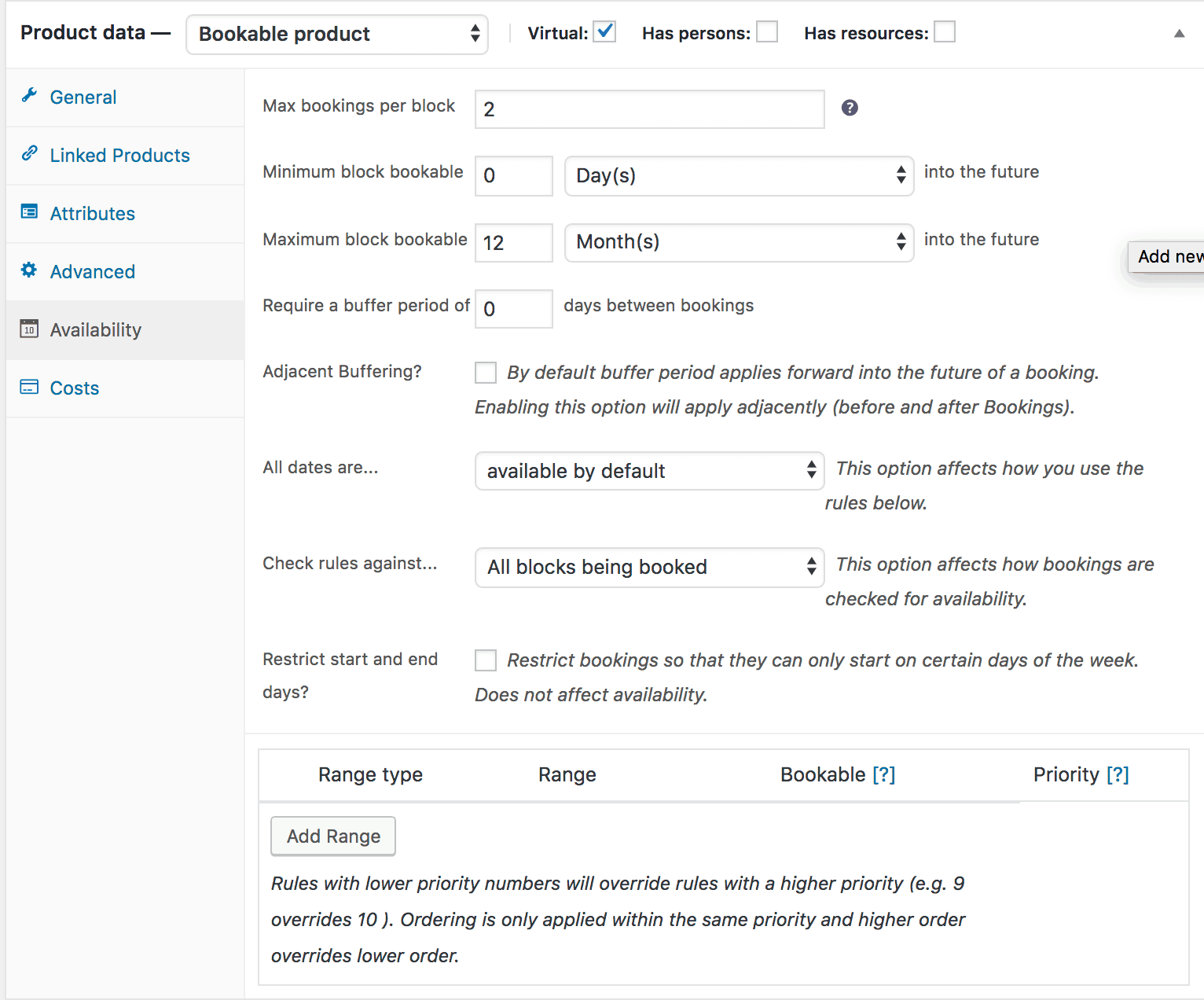
Availability rules define exactly when customers can reserve time slots on your calendar. All availability settings live under the Availability tab in your Product data panel.
With this option, you can specify if all the dates will be available or unavailable by default. You can specifically turn some dates on and off with rules.
Max bookings per block
This setting controls concurrent capacity for a given time slot. Setting a 1-day block with a maximum of 2 bookings allows your store to accept two separate customer reservations on the same date.
Minimum and maximum booking windows
Setting booking lead times prevents two major logistical headaches: last-minute bookings that catch staff unprepared, and reservations placed too far into the future.
- Minimum block bookable into the future: Enforces lead time (such as 24 hours or 2 days). If set to 24 hours, a customer browsing on Tuesday morning cannot book a slot earlier than Wednesday morning.
- Maximum block bookable into the future: Restricts booking horizons (such as 60 or 90 days ahead). This protects your store from seasonal price swings or unpredictable staff roster changes months in advance.
Require a buffer period between bookings
Back-to-back bookings sound efficient on paper, but real-world operations require breathing room. Equipment rental stores regularly receive returned gear that requires cleaning, inspection, and battery recharging before the next rental starts.
Buffer periods solve this by automatically blocking out time before or after each appointment. For instance, Smart Rental and Booking provides an automated 2-hour turnaround buffer that blocks out maintenance windows on the availability calendar without requiring manual intervention.
Adjacent buffering
If you prefer to add a buffer before and after your appointments, tick the Adjacent Buffering checkbox. This option adds the specified block both before and after each booking.
Check rules against
Choose how WooCommerce evaluates availability rules across multi-block bookings:
- All blocks being booked: The system checks availability across the entire reserved span. If a customer books 3 consecutive days, all 3 days must be open.
- Starting block only: Only the initial block is checked. This setting suits longer rental reservations where return dates offer greater flexibility.
Restrict start and end days
If you rent event equipment weekly but require all rentals to begin on Fridays, enable start-day restrictions. You can also enforce specific return days to standardize pickup logistics.
Custom availability ranges
Click Add range to specify custom operational rules. For example, if your salon closes for holiday maintenance during the first week of January, add a date range marking those days unavailable.
Step 4: Set the product cost and dynamic pricing rules
Booking pricing calculates total checkout amounts dynamically based on flat setup fees, duration multipliers, seasonal date rules, and attendee headcounts.
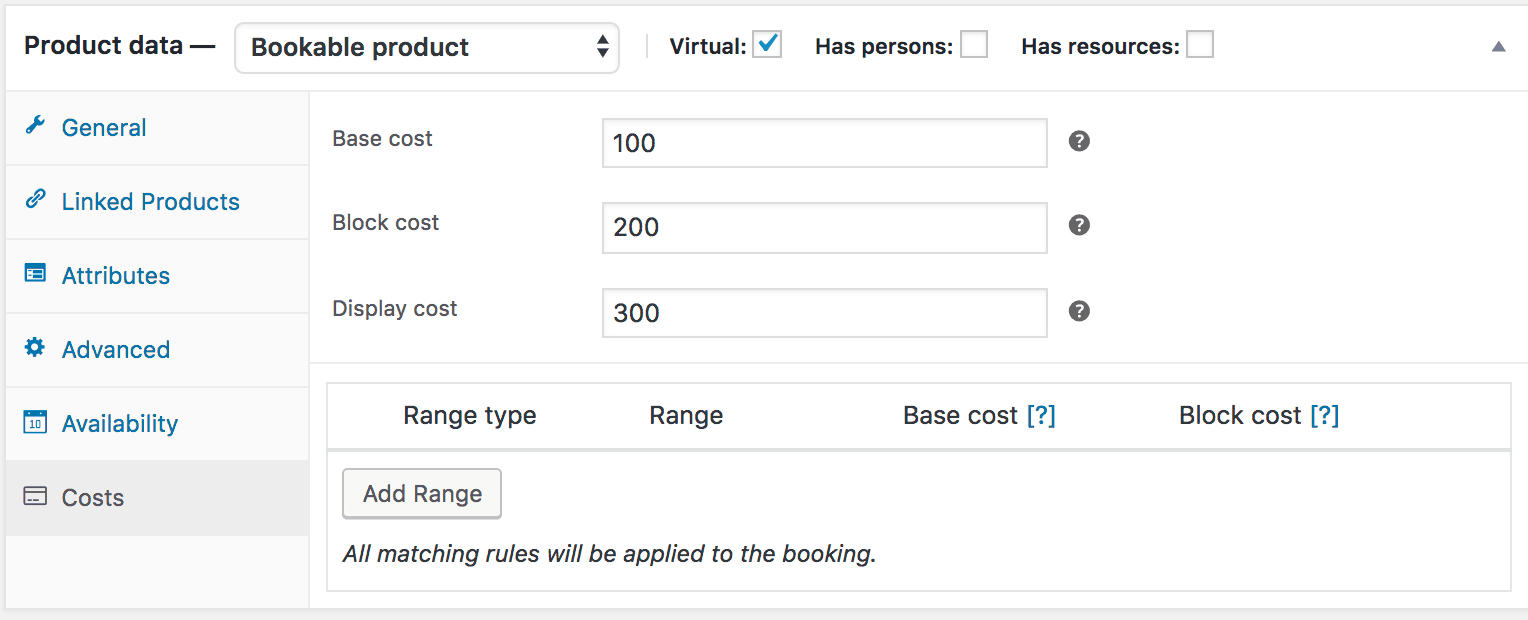
Configure these cost layers under the Costs tab:
- Base cost: This is the flat fee added to every booking - no matter what the customer selects. Use base costs for fixed expenses like cleaning fees, room prep, or intake paperwork.
- Block cost: Cost per block that was assigned under the General tab. If a customer books four 1-hour blocks at $25 per block, the block cost calculates to $100.
- Display cost: This is what shows up on the frontend booking form. You can leave it blank, and WooCommerce will automatically calculate it. If pricing varies by date or duration, the frontend displays the lowest rate prefixed with a “From:” label.
Adding extra cost ranges
Click Add Range under the Costs tab to create dynamic pricing adjustments:
- Weekend surcharges: Add $15 to the base cost for Saturday and Sunday appointments.
- Peak season rates: Multiply block costs by 1.25 during peak summer rental months.
- Volume discounts: Reduce block costs for multi-day rentals, encouraging customers to book 7-day vacations over single-day trips.
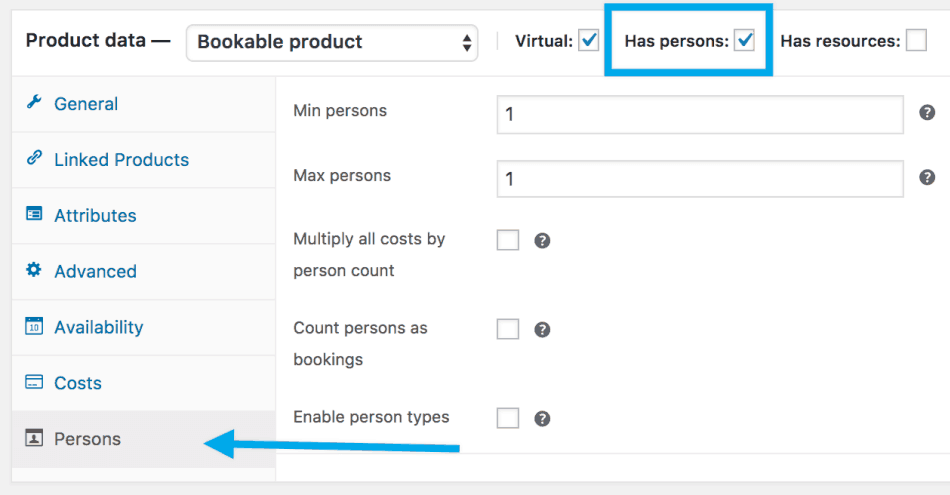
Step 5: Configure person types and group attendee rules
For group reservations, tours, and conferences, headcounts directly impact cost and capacity. Tick Has persons, and a new Persons tab appears. The Persons tab also allows you to define different prices depending on the person type.
To set up different person types, tick the Enable Persons types checkbox in your Persons Tab.
Enabling person types lets you define custom pricing tiers:
- Adults vs Children: Charge $50 for adults and $25 for children under 12.
- Group minimums and maximums: Restrict bookings so a workshop requires at least 4 attendees to run, capping capacity at 20.
- Multiply all costs by person count: Choose whether base fees apply per booking or get multiplied by total attendee headcount.
Step 6: Configure resources and staff assignment
Resources represent the physical assets or staff members required to deliver a booking. When multiple products share a single practitioner or room, configuring resources properly prevents double-bookings.
Tick Has resources, and a Resources tab shows up. You can let WooCommerce auto-assign resources or allow customers to choose.
Consider how resource assignments solve real-world scheduling bottlenecks:
- Customer-selected resources: Let clients pick their preferred stylist or massage therapist from a dropdown menu.
- Auto-assigned resources: Automatically assign the first available consultation room to balance facility utilization.
- Shared resource pools: Connect a single consultant resource to multiple service offerings (e.g., in-person and Zoom meetings). Reserving a slot in one service instantly locks out that time slot across all linked products.
- Exclusive session locking: If a tour boat has a 10-person capacity, ensure the first booked ticket locks the excursion format (e.g., sunset cruise) so competing tour packages cannot be booked concurrently.
From setup to first booking: what happens next?
Once your bookable product is configured, complete this 5-step operational checklist before launching publicly:
- Preview your front-end booking form: Verify calendar display modes, duration pickers, and dynamic price calculations across different dates.
- Simulate a real customer checkout: Place a test booking using a staging payment gateway. Confirm that availability blocks update in real time.
- View and manage the reservation in your dashboard: Check your
WooCommerce → Bookingspanel. Test rescheduling, confirming, or cancelling the test booking. - Verify automated email notifications: Confirm that customer receipts and admin notifications arrive promptly with correct appointment dates and calendar invites.
- Start accepting live customer bookings: Once tested, publish your product and begin taking online reservations.
How to handle hybrid checkouts combining bookings and physical products?
A hybrid WooCommerce checkout occurs when a customer purchases physical merchandise alongside a bookable appointment or rental in a single cart session. For example, a culinary school customer might buy $80 worth of specialty cookware alongside a $150 weekend cooking class reservation.
Running hybrid carts requires configuring order fulfillment statuses and notification pipelines properly to prevent customer confusion.
Order status progression and mixed fulfillment
By default, WooCommerce sets virtual product orders directly to “Completed” once payment clears, while orders with physical items enter “Processing” until shippable goods are dispatched.
When a cart combines both:
- WooCommerce marks the entire parent order as “Processing” because physical items require warehouse fulfillment.
- The booking system registers the appointment slot as confirmed immediately upon payment receipt.
- Warehouse staff fulfill and ship the physical items, changing the master order to “Completed” without disrupting the scheduled booking date.
Passing reservation dates into order confirmation emails
Standard WooCommerce order confirmation emails display transaction dates and billing addresses, but omit the actual reservation date and time. This causes immediate panic for ticket buyers and consultation clients, who search receipts for their scheduled appointment time.
To resolve notification plumbing:
- Configure booking plugin email settings to append dynamic reservation tags (
{booking_start_date},{booking_start_time}) directly into order notification templates. - Enable automatic
.icscalendar file attachments so customers can add the session directly to Apple Calendar, Outlook, or Google Calendar from their email inbox. - For custom email designs, use dynamic subject filters so the booked event date appears in the customer’s email inbox preview.
Popular WooCommerce booking plugins compared
Selecting a booking plugin requires matching your operational model against software complexity, pricing schedules, and database overhead. Installing an oversized $249 extension for simple salon appointments adds unnecessary code bloat. Conversely, using a lightweight appointment tool for heavy equipment rentals fails due to missing inventory stock controls.
Here is how the leading WooCommerce booking plugins compare:
| Plugin | Primary Focus | Native Turnaround Buffers | Security Deposits Included | Starting Price | Best For |
|---|---|---|---|---|---|
| Smart Rental and Booking | Equipment & Vehicle Rentals | $49/year | Physical rentals wanting deposits and buffers without add-on bloat | ||
| Official WooCommerce Bookings | All-Purpose Bookings | $249/year | Developers needing core Automattic extension hooks | ||
| Booking & Appointment (Tyche) | Complex Catalog Bundles | $199/year | Stores linking bookings to variable and bundled WooCommerce products | ||
| WooCommerce Bookings & Appointments (PluginHive) | Service Appointments & Rentals | $99/year | Service providers needing flexible recurring booking rules | ||
| Amelia | Service Appointments & Events | $99/year | Medical practices and salons needing modern front-end appointment UI | ||
| Bookly Pro | Appointment Scheduling | $89 one-time | Service businesses wanting basic staff scheduling on a budget | ||
| Appointments for WooCommerce | Appointment Scheduling | $89/year | Stores wanting custom form fields and Google Calendar sync | ||
| BookingPress | Appointment Bookings | $89/year | Service companies wanting 60+ built-in appointment addons |
Let us examine the specific capabilities, strengths, and ideal use cases for each plugin.
Smart Rental and Booking for WooCommerce
Developed by StoreApps, Smart Rental and Booking for WooCommerce is a lightweight solution engineered specifically for equipment, vehicle, and property rental businesses. It handles hourly, daily, and custom date-range rentals natively without requiring expensive third-party add-ons.
- Native refundable security deposits added directly to line items at checkout
- Automated 2-hour turnaround buffer times to inspect and clean equipment between bookings
- Daily and hourly rental pickers with real-time calendar availability
- Minimum and maximum rental period restrictions to protect inventory schedules
- Fully compatible with High-Performance Order Storage (HPOS) and standard WooCommerce checkout blocks
Pricing: Starts from $49/year for a single-site license, making it the most cost-effective specialized rental tool on the market.
Best for: Equipment rental shops, party suppliers, AV gear rentals, and vehicle hire stores that require deposits and maintenance buffers out of the box.
WooCommerce Bookings (official Automattic extension)
The official WooCommerce Bookings extension is the most widely recognized tool in the WooCommerce ecosystem. It provides deep architectural integration with WooCommerce core order hooks and product schemas.

- Flexible booking durations by month, day, hour, or minute
- Advanced resource assignment with auto-allocation and customer selection
- Multi-person pricing tiers with custom min/max headcount constraints
- Direct two-way Google Calendar synchronization
- Broad third-party developer support and custom code snippet library
Pricing: $249/year.
Best for: Enterprise WooCommerce stores and agency developers building customized booking systems who require deep Automattic hook extensibility.
Booking & Appointment Plugin for WooCommerce (Tyche Softwares)
Tyche Softwares’ Booking & Appointment plugin is a feature-dense extension designed for complex WooCommerce catalogs. It allows store owners to convert virtually any existing product type into a bookable asset.
- Link bookings with variable, grouped, bundled, and composite WooCommerce products
- Real-time availability checking with searchable booking date widgets
- Customers can modify booking dates directly on cart and checkout pages
- Two-way iCal and Google Calendar synchronization across multiple feeds
- Full compatibility with WPML for multilingual booking sites
Pricing: Starts from $199/year.
Best for: Stores selling product bundles, experience packages, or hybrid catalog items that link bookings to physical inventory.
WooCommerce Bookings and Appointments (PluginHive)
PluginHive’s bookings extension is a popular, versatile solution that bridges the gap between appointment scheduling and multi-day rentals.
- Single-day, multi-day, and recurring booking options
- Supports non-adjacent date selections within a single transaction
- Google Calendar two-way synchronization with manual backend reservation entry
- Customizable buffer periods before and after appointments
- Booking window restrictions starting on specific days of the week
Pricing: Starts from $99/year.
Best for: Small to mid-size service providers and rental operators wanting balanced features at an accessible annual price point.
Bookly Pro
Bookly Pro is one of the top-rated appointment plugins in the WordPress ecosystem, sold via CodeCanyon. It combines a standalone booking engine with direct WooCommerce checkout integration.
- Step-by-step front-end booking form optimized for mobile devices
- Searchable and filterable booking list with one-click CSV export
- Automated email and SMS reminder templates for clients and staff
- Two-way synchronization between Bookly staff calendars and Google Calendar
- Built-in analytics tracking booking volume and revenue KPIs
Pricing: $89 one-time license fee.
Best for: Service solopreneurs and budget-conscious practitioners wanting a modern booking wizard interface.
Appointments for WooCommerce (BookingWP)
Appointments for WooCommerce is a clean, developer-friendly scheduling plugin built specifically for service appointments and staff management.
- Built-in custom add-on fields (checkboxes, color swatches, text inputs, file uploads) that adjust price and duration
- Assign multiple staff members to appointments with individual availability schedules
- Embed appointment booking forms anywhere using shortcodes or Gutenberg blocks
- Dynamic capacity controls to accept more clients during peak operating hours
- Automatic two-way Google Calendar synchronization
Pricing: Starts from $89/year.
Best for: Salons, consultants, and clinics that need customizable intake fields and staff calendar management.
Amelia (TMS)
Amelia is an enterprise-grade appointment and event booking plugin known for its polished, modern design and automated customer communication features.
- Multi-employee support with custom working hours, breaks, and days off
- Multiple business locations with individual service menus
- Automated SMS and WhatsApp customer notification triggers
- Interactive KPI dashboards displaying revenue and appointment volume trends
- Deep calendar sync supporting Google Calendar and Outlook Calendar
Pricing: Starts from $99/year.
Best for: High-end wellness spas, beauty clinics, and multi-location medical practices that prioritize customer communication and polished UI design.
BookingPress
Trusted by over 100,000 businesses, BookingPress is a full-featured appointment scheduling plugin that includes dozens of advanced tools without paid add-on upgrades.
- 60+ built-in add-ons included at zero extra cost
- Supports 21+ payment gateways alongside point-of-sale (POS) systems
- Advanced staff member assignment with dedicated employee portals
- Real-time two-way synchronization with Google, Apple, and Outlook calendars
- Flexible group and recurring appointment configuration rules
Pricing: Starts from $89/year.
Best for: Growing service companies wanting extensive payment gateway integrations and advanced appointment addons on a predictable budget.
Which booking tool fits your business?
- For equipment, party gear, and vehicle rentals: Choose Smart Rental and Booking for WooCommerce. It includes refundable security deposits, daily/hourly duration pickers, and automated 2-hour turnaround buffers natively at $49/year. For deeper evaluations, read our comprehensive roundup of best WooCommerce booking plugins.
- For salons, medical clinics, and professional consultations: Look at dedicated scheduling engines like Amelia or BookingPress. They provide polished multi-step booking forms, staff selection interfaces, and two-way Google Calendar synchronization designed for service appointments.
- For complex, multi-tier product bundles: If you need to link reservations to WooCommerce composite products, grouped items, or bundled packages, Tyche Softwares’ Booking & Appointment plugin provides deep catalog integration.
How to manage, reschedule, and refund bookings at scale
Setting up bookable products on your storefront is only half the battle. Real-world disruptions happen fast. Storm cancellations, equipment breakdowns, or staff illnesses can strike without warning. Editing hundreds of bookings one by one through standard WordPress post screens is an operational nightmare.
Managing high-volume booking stores requires dedicated bulk-editing, retention credit, and revenue optimization tools.
Bulk editing bookings in seconds
Smart Manager lets you edit thousands of bookings in bulk in no time. From changing booking prices to canceling, rescheduling or fixing monthly rental prices, you can do it all with Smart Manager in no time.
Instead of clicking into 50 individual reservation records:
- Filter all bookings scheduled for a specific date range or staff member.
- Batch-update statuses from “Confirmed” to “Rescheduled” or “Cancelled” in a single click.
- Inline-edit customer phone numbers, booking notes, and custom metadata directly inside an Excel-like grid.
- Export filtered booking rosters to CSV for on-site event check-in staff.
To streamline administrative workflows, read our detailed guide on how to bulk manage WooCommerce bookings.
Offering store credit instead of cash refunds
When weather or emergencies force booking cancellations, issuing direct cash refunds drains merchant bank balances and forfeits payment processing fees.
A smarter approach is offering store credit through Smart Coupons. Providing a 110% store credit voucher gives customers immediate spending power to rebook their session at a future date while retaining cash inside your business. Learn step-by-step how to issue store credit on WooCommerce booking cancellations.
Growing booking revenue with upsells and referrals
Maximize average order values (AOV) on booking checkouts using targeted operational add-ons:
- In-checkout upsells: Offer equipment insurance, premium seating, or VIP concierge service right before payment using Smart Offers.
- Affiliate and referral tracking: Partner with local hotels, event planners, and travel bloggers. Launch a dedicated partner program with our guide to creating a WooCommerce bookings affiliate program.
Where should you start?
Launching a successful WooCommerce booking system comes down to execution discipline rather than installing every plugin available.
The 3 steps to launch your booking store are:
- Map your core booking discipline: Decide whether your store runs on time-slot appointments, physical inventory rentals, or capacity-capped events. Do not purchase software until you know if you need staff calendars or equipment stock controls.
- Configure buffers and test resource locking on staging: Build a test bookable product on a staging site. Place concurrent test orders across shared resources and verify that automated turnaround buffer times block out maintenance windows accurately.
- Establish clear cancellation and refund policies: Configure cutoff windows to prevent last-minute cancellations. Implement store credit alternatives using Smart Coupons to protect merchant cash flow during schedule disruptions.
For equipment, party gear, and vehicle rentals, start with Smart Rental and Booking to get live availability, security deposits, and turnaround buffers natively without bloated fees. When order volume grows, connect Smart Manager to manage thousands of reservations from a single spreadsheet dashboard.
Frequently asked questions
Does WooCommerce have a built-in booking system?
WooCommerce core does not include native booking or appointment functionality. Standard WooCommerce supports physical, digital, and downloadable products. To accept reservations, configure time slots, and manage calendar availability, you need a dedicated booking plugin. Options include Smart Rental and Booking or the official WooCommerce Bookings extension.
What is the difference between WooCommerce Bookings and WooCommerce Appointments?
WooCommerce Bookings extensions generally focus on flexible calendar slots, equipment rentals, and accommodation dates, often calculating prices across days or hours. Dedicated appointment extensions focus on service appointments, staff member assignments, client reminders, and two-way synchronization with personal calendars like Google Calendar or Outlook.
Can customers book multiple days or hours in a single order?
Yes. When bookable products use customer-defined blocks, shoppers choose their own start date and end date or specify the exact number of hours needed. The system calculates availability across the entire span and applies block cost multipliers automatically at checkout.
How do I sync WooCommerce bookings with Google Calendar?
Most modern WooCommerce booking plugins support two-way Google Calendar synchronization through Google API credentials or iCal feeds. When a customer places a booking on your site, the event is automatically added to your Google Calendar. Conversely, personal appointments added to your Google Calendar will block out those slots on your store’s availability calendar.
Can I sell physical products and bookings in the same checkout?
Yes. WooCommerce supports mixed shopping carts containing both bookable products and physical catalog merchandise. The system processes the payment in a single transaction, marking the booking as confirmed while setting the order to processing status until the physical items are shipped.