
Bringing customers to your WooCommerce store takes a lot of effort. You work on marketing, paid ads or SEO just to get them there.
So when a customer is ready to buy, you don’t want them to leave with just the cheapest option.
Most customers don’t know there’s a better or more useful version of the product unless you show it to them.
If you don’t, they buy the basic item and move on — and you miss an easy chance to earn more from the same order. This is where upselling can come in handy.
In fact, upselling can increase revenue by 10–30%, without spending more money on getting new customers.
In this article, you’ll learn what upselling is and why it matters for WooCommerce stores. You’ll also learn how to add upsells using default WooCommerce settings and using the Smart Offers plugin.
Why use upselling in your WooCommerce stores
Here are some reasons why store owners upsell products in WooCommerce.
- Increases average order value (AOV): Customers choose higher-value products, so you earn more per order without extra marketing spend.
- Improves customer experience: Relevant upsells feel helpful, not pushy and help customers make better buying decisions.
- Reduces acquisition costs: You earn more from existing visitors instead of spending more to attract new ones.
- Clears premium inventory faster: Upselling helps sell higher-margin or premium products more efficiently from the inventory.
What is a pre-purchase upsell and a post-purchase upsell?
If you want to master your WooCommerce upsell strategy, you need to understand the two main stages of the buyer’s journey where these offers live:
Pre-purchase upsells: These appear on the Product Page or the Cart Page. They aim to influence the customer’s choice before they commit to the transaction.
For example, offering an upgrade to a better hotel room on the cart page before the customer proceeds to checkout. Plugins like Smart Offers allow you to decide where you want to show your upsells. It can be individual product pages, home page, cart pages and more.
Post-purchase upsells: These occur after the customer has entered their payment details and clicked “Place Order,” but before they see the Thank You page.
This is the home of the WooCommerce one click upsell, where the customer can add an item to their order with a single click without re-entering credit card info.
For example: A “One-time offer: Add an extended 2-year warranty for 50% off” shown immediately after payment.
How to add upsells in WooCommerce (the default way)
WooCommerce comes with a basic built-in feature to handle upsells. Here is how you use it:
- Go to your
WordPress Dashboard > Products. - Select the product you want to edit.
- Scroll down to the Product Data box and click the
Linked Productstab. - In the
Upsellsfield, search for the more expensive products you want to recommend. - Click
Update.
These products (the upselling products) will now appear at the bottom of the single product page under a heading like “You may also like.”
In the same Linked Products section, WooCommerce also lets you add cross-sells (shown on the cart page) and related products (which are automatically generated).
Note that WooCommerce automatically generates related products based on shared categories and tags. Store owners cannot manually choose which related products appear without custom code or plugins.
Why WooCommerce’s default upsells don’t convert well
- The default Linked Products feature is a good starting point, but it’s too passive for a serious WooCommerce upsell strategy. WooCommerce upsell plugins help eliminate this.
- Default upsells are static and generic. Every customer sees the same offer, regardless of what’s in their cart or their buying behavior.
- The upsell process is high-friction. Customers must visit another page, add the product to the cart and go through checkout again — often leading to cart abandonment.
- Standard WooCommerce does not support post-purchase one-click upsells, which are proven to convert better.
- There are no smart rules or triggers. You can’t show upsells based on cart value, coupons used, specific products or other conditions.
This is why thousands of stores rely on the Smart Offers plugin. This WooCommerce upsell plugin transforms a static recommendation into a dynamic, smart sales funnel.
Smart Offers helps WooCommerce store owners run targeted upsells, cross-sells, BOGO deals and one-click post-purchase offers.
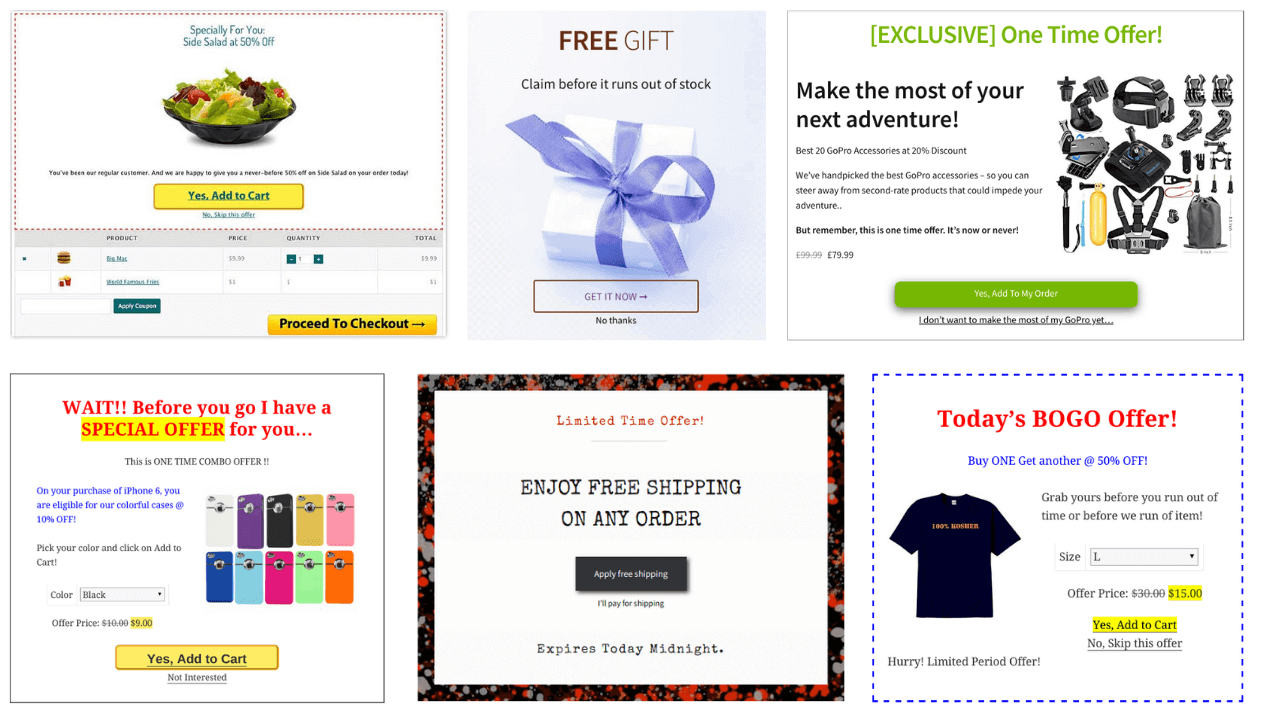
It integrates well with popular WordPress page builder plugins, WPML and Smart Coupons.
Smart Offers also helps with:
- Showing order bumps
- One-time offers
- Enabling dynamic discounts
- Set up unlimited offers in the sales funnel
- Direct checkout with Buy Now links
The plugin helps you increase conversions at every stage of the sales funnel.
Even if customers skip your pre-purchase upsells, Smart Offers lets you show post-purchase offers based on flexible rules — like cart contents, user role or user purchase history.
How to Upsell in WooCommerce (set up simple and advanced upsells using the Smart Offers plugin)?
With Smart Offers, you can set up both simple upsells (quick upgrades) and advanced upsells (rule-based, behavior-driven offers).
Simple upsells focus on offering a better or premium version of the same product with minimal conditions.
For example, a customer views a GoPro HERO Standard edition. You offer an upgrade to the GoPro HERO Pro edition with more storage and advanced features at a small discount.
How to set up a simple upsell offer:
- Install and activate Smart Offers on your WooCommerce store. Now, configure your payment gateways for 1-click upsells. Smart Offers supports WooCommerce PayPal Standard, WooCommerce Stripe, Authorize.Net, WooCommerce PayPal Powered by Braintree, Cash on Delivery, Cheque Payments and Direct Bank Transfer.
- Go to the Smart Offers dashboard and create a new offer.
- Under
What to offer, select the upgraded product (GoPro Pro edition) and set a special upsell price (add the discounted offer). - Under the
Offer rules, set a simple condition like cart/order contains the GoPro Standard edition. - Under the
Show offer on page, choose where the upsell should appear: product page or cart page or checkout page. - Choose how the offer is displayed — inline or pop-up.
- Under
Accept actions, define what happens when the offer is accepted. In this case, choose “Add offered product to cart” and enable “One-click checkout with Buy Now”. - Under
Skip actions, decide what happens if the offer is rejected. For example, show another offer, redirect, etc. - Click
Publishto publish the upsell.
How to do advanced upsell products in WooCommerce?
Want to perform advanced upsells from your store?
Advanced upsells in the Smart Offers plugin use smart rules, conditions and actions to show highly relevant offers based on customer behavior, cart value or purchase context.
For example, a customer buys a GoPro camera worth $300. After completing the payment, you show a one-click upsell to upgrade to a GoPro accessory bundle (extra batteries + mount kit) at 30% off — without re-entering payment details.
Here are the steps to show a targeted one-click upsell offer:
Install and activate the Smart Offers plugin. Then, configure the payment gateways for 1-click upsells.
- Create a new offer from the Smart Offers dashboard.
- Under
What to offer, select the premium upgrade or add-on product and set a discounted price, like GoPro accessory bundle at 30% discount. - Under the
Offer rules, add advanced conditions such as: Cart contains a GoPro camera, cart total is above $300, quantity is 1 or more. - Under the
Show offer on page, select the WooCommerce Order Complete (Thank You) page for a one-click post-purchase upsell. - Choose how the offer appears — inline or pop-up.
- Under
Accept actions, define what happens when the offer is accepted. In this case, choose “Add offered product to cart” and enable “One-click checkout with Buy Now”. - Under
Skip actions, decide what happens if the offer is rejected. For example, show another offer, redirect, etc. - Click
Publishto activate the upsell funnel.
Proven upsell use cases that you can use
Looking for WooCommerce product upsell examples? Here are a few high-converting upselling scenarios:
- A customer adds a “Basic Web Hosting” plan to their cart; you immediately show a pop-up for the “Pro Plan” with a 25% discount for the first year.
- When a user buys a piece of jewelry, show an upsell for a “Lifetime Cleaning & Repair Warranty.”
- Use a BOGO (Buy One Get One) offer. Offer a second identical item at a 50% discount once they reach the checkout.
- When a customer buys an electronic product, offer priority shipping, gift packaging or extended setup support as an upsell at checkout for a small additional fee.
- If a customer buys one bottle of supplements, offer a 3-pack or 6-pack at a significantly lower per-unit price.
- If a customer’s cart total is just below your free shipping limit, show an upsell like “Add this item for ₹299 and get free shipping on your order.
Get the smart way to upsell
Upselling in WooCommerce is most effective when it feels helpful, rather than pushy.
When you show the right upgrade or add-on or the right WooCommerce upsell product at the right moment, you help customers choose better while increasing your average order value.
The idea is to start with simple upsells, focus on relevance and keep the experience friction-free.
While the default WooCommerce upselling settings provide the foundation, a WooCommerce upsell plugin like Smart Offers allows you to create the high-converting WooCommerce upsell funnels that modern e-commerce store demands.
FAQs
What is upsell products in WooCommerce?
Upselling in WooCommerce means encouraging customers to buy a higher-value version, upgrade or add-on of the product they are already interested in, to increase the order value.
Can upselling hurt conversions or annoy customers?
Yes, if upsells are irrelevant, poorly timed or too aggressive. Upselling works best when the offer is closely related and appears at the right stage of the buying journey.
Does WooCommerce support upsells without a plugin?
Yes, WooCommerce allows you to add basic upsells using the built-in Linked Products feature. However, these upsells are static and limited compared to what a dedicated upsell plugin can offer.
Why should I use a WooCommerce upsell plugin like Smart Offers?
A WooCommerce upsell plugin like Smart Offers lets you create targeted, rule-based and one-click upsell funnels based on cart value, products and user behavior.
How many upsell offers should I show to a customer?
It’s best to show one or two highly relevant upsells at a time. Showing too many offers can overwhelm customers and reduce conversions.