

To increase WooCommerce prices by percentage, use native bulk actions for simple products on small catalogs. For variable products or store-wide updates, use Smart Manager. It filters records and batch updates regular and variation prices without server timeouts.
Applying a percentage price change across thousands of products balances speed with database stability. This is especially true when sudden supplier cost hikes threaten your margins.
The Backstory: Last year, an urgent pre-sales query landed in our StoreApps inbox on a Thursday afternoon. An operations manager for a high-volume pet supplies retailer had just received sudden notice from their primary wholesale distributor. An across-the-board 8% freight and warehousing surcharge was taking effect Monday morning across their entire catalog.
(We are keeping the brand anonymous for privacy purposes, but their technical challenges and database logs are 100% real.)
Their store generated $100,000 in monthly revenue with $65,000 in wholesale inventory. Eating that 8% hike meant losing $5,200 in monthly margin across 2,500 parent products and 7,500 variations.
Their internal team spent hours attempting default store tools on a staging clone. Native bulk editing crashed their server, while exporting CSV files risked overwriting active inventory. In a panic, the operations manager asked whether Smart Manager could handle 10,000 variable products without timing out.
Here is why those default methods broke down in testing. More importantly, here is the exact playbook we guided them through to complete the 8% price increase safely.

Why the 3 standard price update methods failed in testing
When you need to raise prices on 10,000 records, the obvious tools sit in your dashboard or desktop folders. Before contacting our pre-sales desk, the retailer’s technical team evaluated three standard WooCommerce approaches on staging. Every single one of them hit a hard ceiling.
Attempt 1: Native WooCommerce bulk actions crashed on pagination and skipped variations
Their first instinct was testing the built-in bulk editor under Products → All Products. For a few dozen simple products, it works well. Scaling it to 10,000 items exposed two fundamental limits.
First, native WooCommerce only displays 20 products per page by default. Updating 10,000 items requires clicking through 500 pagination screens. You must configure the bulk edit modal 500 times and wait for each save.
When their developer set Screen Options to 200 items on staging, clicking Apply crashed the server. Running PHP 8.2 with a 256MB memory limit, the process exhausted server memory and triggered an immediate 504 Gateway Timeout:
Fatal error: Allowed memory size of 268435456 bytes exhausted
Second, and far more dangerous, native bulk editing only touches parent product records. It skips underlying variation prices entirely. That means _price and _regular_price rows for individual sizes, colors, and bag weights stay unchanged.
In their catalog, a 30 lb dog food bag is a variation under a parent product. Native bulk actions left every variation price untouched. Product cards showed updated price ranges, but customer checkouts charged old wholesale prices.
If you enter an incorrect percentage, WooCommerce provides no undo button to restore original prices.
Finally, native edits write straight to live database rows with zero rollback mechanism. If you accidentally enter 80% instead of 8%, there is no undo button.
Attempt 2: Exporting to CSV created dangerous race conditions and truncated SKUs
Next, their operations team exported the catalog via WooCommerce’s native product exporter. A 10,000-product export generated a 40MB CSV file. Calculating =C2*1.08 in Excel took seconds. However, opening that CSV in spreadsheet software introduced severe operational hazards.
- Leading zero truncation: Excel automatically stripped leading zeros from vendor part numbers. SKU
00842-PETsilently changed into842-PET. Re-importing that file would have broken barcode scanner lookups in their warehouse. - Live inventory race conditions: The spreadsheet calculation and review took nearly two hours. During those two hours, customers on the live production site continued placing orders, decrementing stock quantities. Re-importing the 40MB CSV would have overwritten live stock counts with stale data from two hours earlier, causing severe overselling.
- Execution timeouts on import: Processing a 10,000-row CSV through the WordPress importer regularly timed out mid-file, leaving half the catalog updated and the other half untouched.
Attempt 3: Direct SQL queries bypassed lookup tables and left stale transients
Their backend developer proposed a fast fallback: running a raw SQL query directly in phpMyAdmin.
UPDATE wp_postmeta SET meta_value = meta_value * 1.08 WHERE meta_key = '_regular_price';
Running this query takes less than 2 seconds. However, I explained to them why running raw SQL introduces three catastrophic failure modes in modern WooCommerce.
- Bypassing the wc_product_meta_lookup table: Starting in WooCommerce 3.6, core WooCommerce introduced
wc_product_meta_lookupto accelerate catalog sorting and filtering. Updatingwp_postmetadirectly leaves this lookup table untouched. As a result, product landing pages show the new price, but category filters and price sorting widgets (“Sort by price: low to high”) continue filtering by outdated numbers. - Stale variation price transients: WooCommerce caches variable product price ranges inside transient cache records (
_transient_wc_var_prices_*) for up to 24 hours (86,400 seconds). Standard update hooks flush these transients automatically. Direct SQL skips those hooks, leaving shoppers staring at stale price ranges until an admin manually purges transients underWooCommerce → Status → Tools. - Bypassing object caches and webhooks: Direct SQL queries skip
clean_post_cache()and WordPress action hooks, leaving Redis/Memcached object caches dirty and failing to alert third-party inventory sync tools.
The playbook: how to increase WooCommerce prices by percentage across 10,000 products
Hearing these architectural breakdowns convinced the operations manager to choose Smart Manager. The plugin bypasses memory limits, variation omissions, and CSV race conditions directly inside the WordPress dashboard. It displays catalog records in an Excel-like spreadsheet grid and processes updates in background asynchronous batches.
Here is the exact playbook we walked their team through to complete the update safely.
Pre-flight checklist: 2 precautions before touching live product records
Before modifying thousands of database rows on a production store, always run these two safety measures:
- Trigger an on-demand database snapshot: Even with background batching, human errors happen (such as typing 80% instead of 8%). Trigger a fast snapshot in your hosting dashboard so you can restore within 60 seconds if needed.
- Run a test on staging or a single test product: Verify your percentage formula on staging or a single product to confirm how the new price displays on product pages and at checkout.
Step 1: Filter by category, brand, or custom attribute
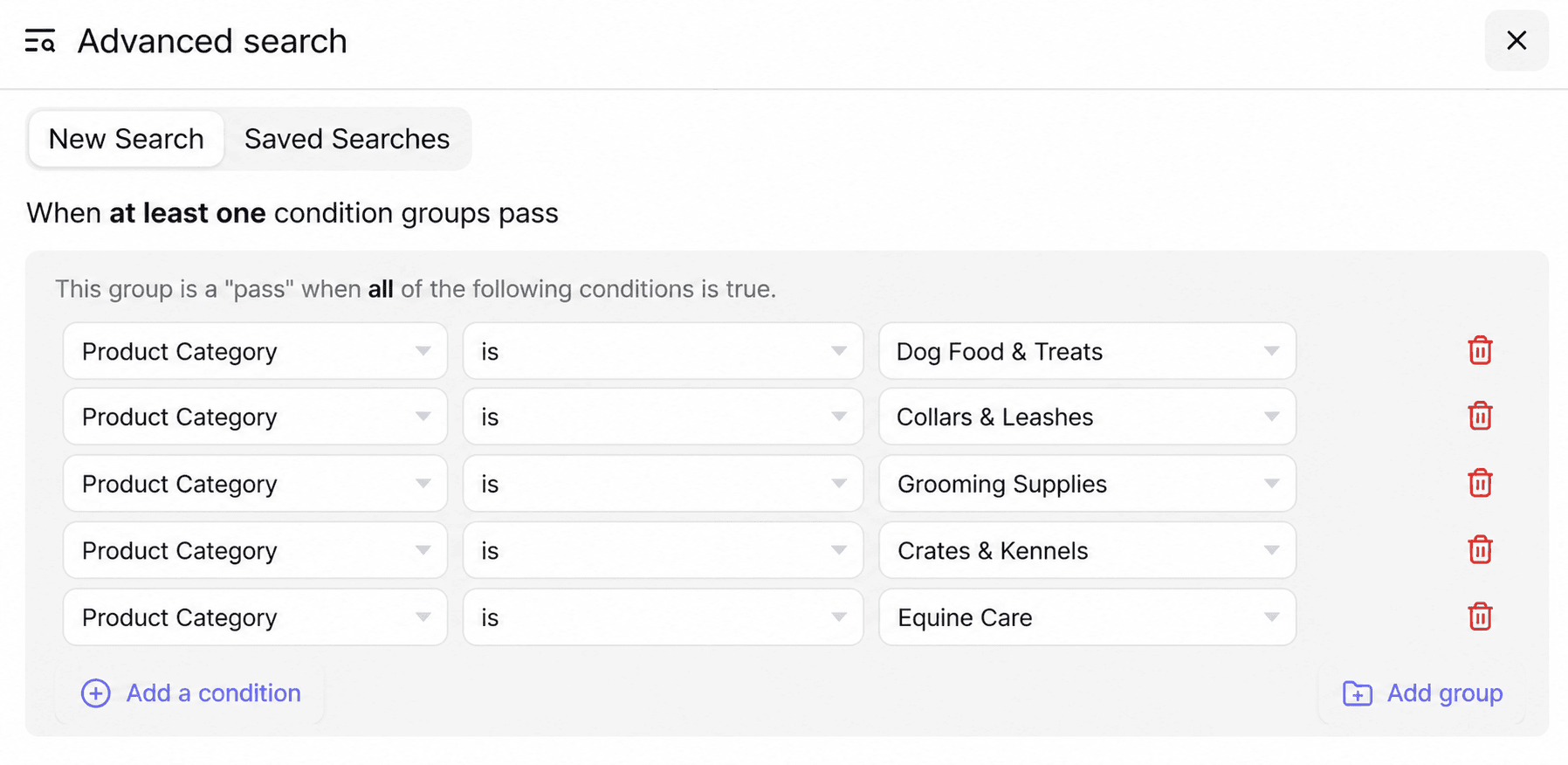
Open WordPress Admin → Smart Manager to view your store catalog in a live spreadsheet grid. Use the advanced search bar at the top to isolate the specific products requiring price adjustments.
In their scenario, the distributor surcharge applied across 14 specific pet care categories. We set the advanced search rule to Product Category IN [Dog Food & Treats, Collars & Leashes, Grooming Supplies, Crates & Kennels, Equine Care]. If your price adjustment applies to specific supplier brands or attributes, you can filter by those parameters instead.
Step 2: Select all matching products and include variations
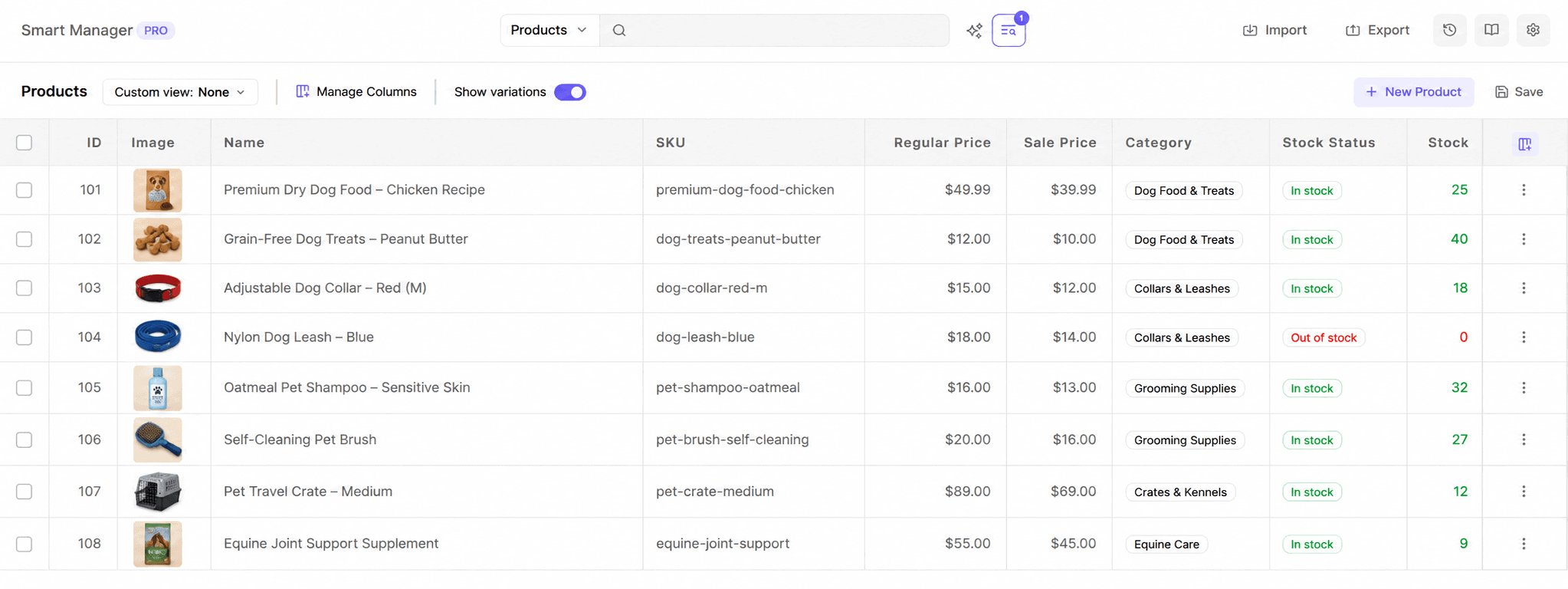
Unlike native WooCommerce which restricts selections to the current screen, Smart Manager lets you select your entire filtered dataset across all pages simultaneously.
Click the master checkbox in the header row to select all items. Then, enable the Show Variations toggle in the toolbar. This loads every child variation (such as 5 lb bags, 30 lb bags, or collar lengths) into the active selection alongside parent variable products.
After clicking the header checkbox, click Bulk Edit in the floating action bar and select the option to apply changes to all filtered results.
Step 3: Increase the WooCommerce price by percentage
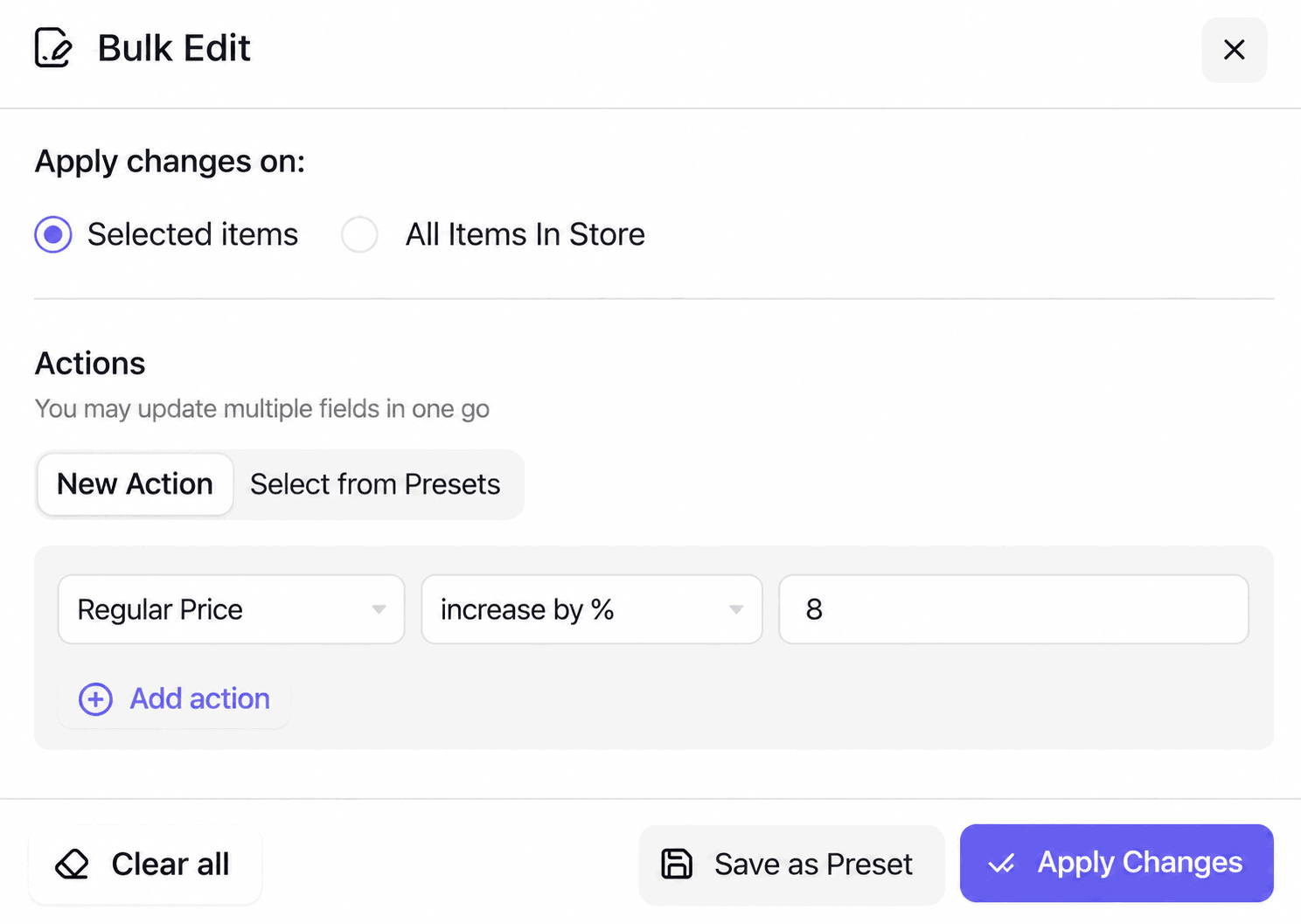
Click the Bulk Edit button in the top toolbar to launch the batch update modal. Set up your calculation parameters:
- Field: Select
Regular Price. - Action: Select
Increase by %. - Value: Enter
8.
If you run active promotions and want to preserve discount margins, add an optional secondary rule to increase Sale Price by 8% as well.
Step 4: Schedule the update or run it in background batches
Smart Manager gives you two execution paths:
- Schedule for later: If your supplier price hike takes effect at a specific hour (such as Monday at 00:01 AM), toggle Schedule this bulk edit, select your target date and time, and name the task. The plugin schedules the job automatically through Action Scheduler.
- Run immediately: Click Update to execute the batch right away.
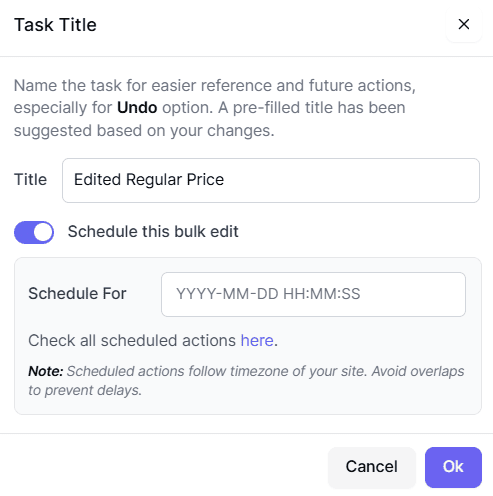
Because Monday was rapidly approaching, we clicked Update. Smart Manager processed all 10,000 records in 100 background chunks (100 products per request). Each batch finished in 1 to 2 seconds, staying well beneath web server max_execution_time thresholds. The entire catalog completed in 4 minutes and 18 seconds (258 seconds total) with zero disruption to active shoppers.
Step 5: Verify prices in the live grid and keep the 1-click undo ready
When the progress bar reached 100%, the spreadsheet grid refreshed with the new live values.
We sorted the price column to inspect high-ticket items. Expanding variable products confirmed child variations matched parent display prices. Finally, we verified live frontend cards.
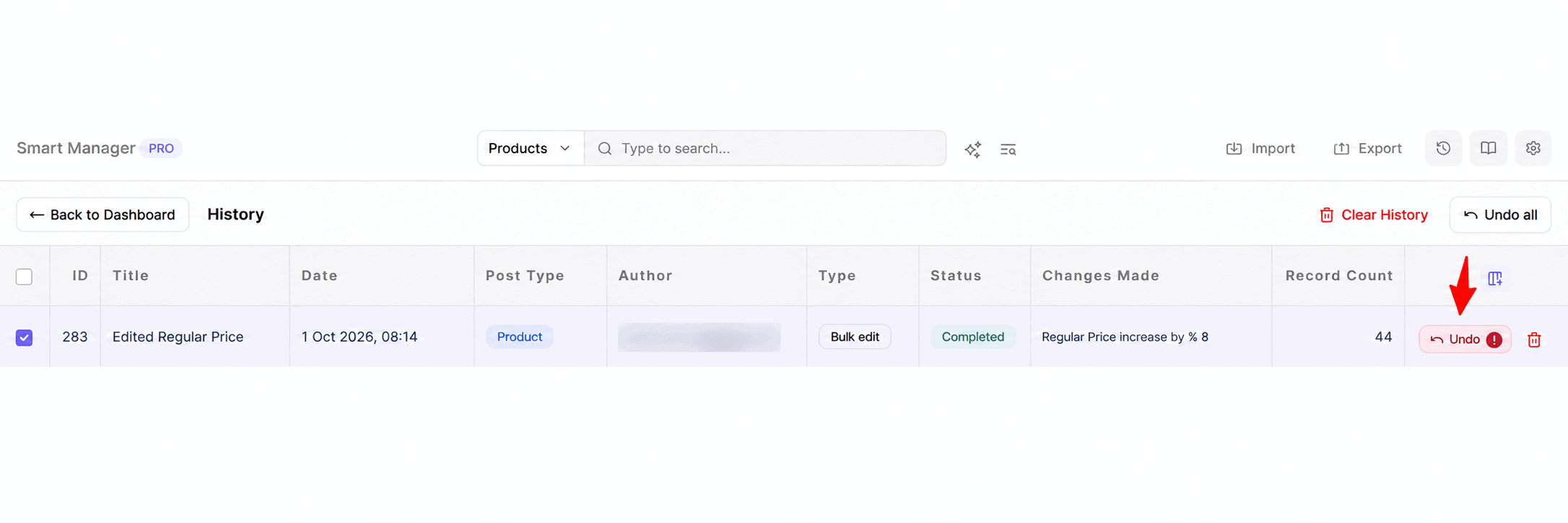
If you ever notice a typo or wrong category selection, Smart Manager includes a built-in Undo feature. Open the Task History log, select the completed bulk edit task, and click Undo to revert every modified record back to its previous state.
To review standard price editing workflows across simple and variable products, explore our guide on how to bulk edit WooCommerce prices.
What to check after a bulk price increase: the post-update checklist
Applying the database update is only the first stage of a price adjustment. Complete these four verification steps to ensure consistent pricing across your entire marketing stack.
Resync your Google Merchant Center product feed
If you run Google Shopping campaigns or free product listings, price discrepancies trigger automated item disapprovals. Most product feed plugins update on a 12-hour or 24-hour cron schedule. Trigger a manual feed regeneration immediately after your bulk update. This pushes new prices to Google Merchant Center without delay.
Purge page caches and edge CDNs
Varnish, WP Rocket, Cloudflare, and server caches serve static HTML to guest shoppers. Purge your site-wide page cache and CDN cache immediately. This ensures non-logged-in visitors see updated prices right away.
Review WooCommerce Subscriptions renewals
If your store sells subscription products, increasing regular prices only affects new checkouts. Under default WooCommerce Subscriptions architecture, existing subscribers retain their original renewal price. If your supplier hike requires adjusting renewal billing for active subscribers, you must update subscription line items separately.
Audit tax calculations and charm pricing
Verify whether your store displays prices inclusive or exclusive of tax under WooCommerce → Settings → Tax. Applying a flat 8% increase to a $19.99 product calculates to $21.5892 (displaying as $21.59). A $49.99 product calculates to $53.9892 (displaying as $53.99), and a $99.99 product adjusts to $107.9892 (displaying as $107.99).
If your brand relies on psychological charm pricing (such as .99 or .95 price points), inspect your highest-volume items. Many merchants use Smart Manager’s fixed-value bulk edit tools after percentage increases to align core anchor products back to standard price endings.
To manage your promotional calendar effectively alongside base price updates, explore how to manage WooCommerce sale prices.
When can you use native bulk actions instead?
While Smart Manager is essential for large catalogs and variable products, native bulk editing remains a practical solution for basic store maintenance.
When native bulk editing works well
If you run a boutique store with 20 to 50 simple products within a single category (such as updating 25 ceramic coffee mugs from $18.00 to $19.44), native bulk edit completes the task in seconds without extra plugins:
- Navigate to
WordPress Admin → Products → All Products. - Filter by category using the dropdown filter at the top.
- Check the products on the screen.
- Select Edit from the Bulk actions dropdown and click Apply.
- Set Regular price to
Increase existing price by (fixed amount or %). - Enter your percentage adjustment value (for example,
8or8%). - Click Update.
For simple catalogs on one page, native editing calculates current_price * (1 + rate) accurately and formats according to your store decimal rules.
Comparing price update methods for WooCommerce stores
Selecting the right price update method depends on whether you manage simple products or multi-attribute variations.
The following comparison illustrates how different price update methods perform across essential operational criteria:
| Method | Simple Products | Variable Products | Category & Attribute Scope | Scheduled Future Updates | 1-Click Undo |
|---|---|---|---|---|---|
| Native WooCommerce Bulk Edit | Supported | Not Supported | Active Page Only | No | No |
| CSV Export & Import | Supported | High Error Risk | Manual Spreadsheet | No | No (Manual Re-Import) |
| Direct SQL Queries | Supported | Skips Lookup Tables | Requires Complex Joins | Requires Cron | No |
| Smart Manager | Supported | Supported (All Variations) | Advanced Multi-Condition | Supported | Supported |
What should you do next?
If your store faces supplier cost adjustments or catalog-wide price restructuring, follow this implementation sequence:
- Audit affected categories: Identify exactly which supplier lines, categories, or attributes are changing before making catalog-wide adjustments (such as isolating an 8% freight hike on wholesale pet treats).
- Choose your update tool: Use native bulk actions for simple products on small catalogs (under 50 SKUs). Use Smart Manager when managing variable products, category filters, or scheduled launches across thousands of items.
- Execute pre-flight checks: Take a fresh database snapshot via your hosting cPanel or WP-CLI (
wp db export). Test your formula on a single staging product first. - Post-update verification: Regenerate your Google Merchant Center feed, purge CDN caches, and verify variable product price displays.
Managing catalog pricing should be an orderly, reproducible store operation rather than a source of database anxiety.
Try the Smart Manager live demo
Frequently asked questions
How do you increase WooCommerce prices by a percentage for a specific category?
Open Smart Manager and filter products by your target category using the Advanced Search bar. Select all matching records across all pages, then click Bulk Edit from the floating bar. Choose Regular Price, select Increase by %, enter your percentage value, and click Update to process the batch safely.
Can you bulk increase prices by percentage in WooCommerce without a plugin?
Yes. Navigate to Products → All Products, select your simple products, choose Edit from Bulk actions, and click Apply. Under Regular price, choose Increase existing price by (fixed amount or %), enter your percentage (such as 8%), and click Update.
How do you increase variation prices by percentage in WooCommerce?
Native WooCommerce bulk actions cannot update variation prices across multiple products. To update variation prices by percentage, use Smart Manager. Check the option to include variations in your search result, open Bulk Edit, and apply your percentage increase across all variation records (whether 50 or 7,500 variations).
Can you undo a bulk price increase in WooCommerce?
Native WooCommerce does not provide an undo option for bulk edits. Smart Manager includes a Task History log that records all batch updates. This allows administrators to click Undo and instantly revert price changes within 30 seconds if a formula mistake occurs.
How do you schedule a WooCommerce price increase for a future date?
Smart Manager allows you to schedule bulk price updates. In the Bulk Edit modal, configure your percentage increase formula, toggle ‘Schedule this bulk edit’, select your desired date and time, and save the task to run automatically in the background.