

Managing a WooCommerce store gets more time-consuming as your catalog grows. Prices change, stock is updated, products move between categories, and promotions need to be applied across multiple products.
Doing all of this one product at a time is slow and makes manual errors more likely. WooCommerce bulk editing lets you update multiple products or store records in a single operation, saving you from repeating the same task over and over.
But which method should you use? WooCommerce’s built-in editor works well for simple changes, CSV is useful for imports and migrations, and an advanced bulk-management tool such as Smart Manager gives you more control when your updates become larger or more complex.
Quick answer: How does WooCommerce bulk editing work?
WooCommerce bulk editing lets you select multiple products or store records and apply the same change in one operation.
For simple product updates, use WooCommerce’s built-in bulk editor. If you need to import, export, migrate, or restructure catalog data, use CSV.
For advanced filtering, large-scale updates, scheduling, undo, or managing products alongside orders, coupons, customers, and other WordPress data, an advanced WooCommerce bulk-editing tool such as Smart Manager is more suitable.
In short:
- Quick product changes: Use WooCommerce’s native bulk editor.
- Import, export, or migration: Use WooCommerce CSV import/export.
- Advanced bulk management: Use a tool such as Smart Manager for filtering, editing, scheduling, and managing larger datasets.
The most important rule: filter the records first, verify the selection, and then apply the bulk change. Bulk editing is only safe when you’re changing exactly the records you intended to change.
What is WooCommerce bulk editing?
WooCommerce bulk editing means changing the same field or setting for multiple products or store records in a single operation.
Instead of opening 150 products to increase their prices, for example, you can identify those products, select them, and apply the price change once.
Typical WooCommerce bulk-editing tasks include:
- Increase or decrease product prices
- Update regular or sale prices
- Change stock status or inventory settings
- Assign or remove product categories and tags
- Change product visibility or status
- Update product attributes and other product data
- Change order statuses
- Update coupon information
But here’s the part that matters when you’re working with a large catalog: the difficult part isn’t making the change. It’s making sure the change reaches exactly the records you intended.
That distinction becomes increasingly important as your catalog grows. A bulk editor isn’t useful simply because it can change hundreds of records at once. It’s useful when it helps you find the right records, make the right change, and do it consistently.
How can you bulk edit products in WooCommerce?
There isn’t one bulk-editing method that’s right for every WooCommerce task. The best option depends on what you’re changing and how you work with your store data.
| Method | Best for |
|---|---|
| WooCommerce bulk editor | Quick changes to common product fields |
| WooCommerce CSV import/export | Catalog imports, exports, migrations, and spreadsheet-based updates |
| Advanced bulk-editing tool | Complex filtering, broader field coverage, large-scale updates, scheduling, and managing different store data types |
For example, if you need to change the price of 10 products, WooCommerce’s built-in editor may be all you need. If you’re migrating a 5,000-product catalog to another store, CSV is usually the more appropriate workflow.
But suppose you need to increase the price of products in one category, above a certain price, and only when they’re in stock. Or you need to make similar changes across products, orders, coupons, and customers.
That’s where a dedicated bulk-management tool becomes more useful. Instead of treating every update as a separate manual task, you can use one workflow to search, filter, edit, and manage large sets of store data.
How to bulk edit WooCommerce products without a plugin
You don’t need a plugin for every bulk-editing task. WooCommerce includes a native product bulk editor that handles many common updates.
For example, let’s say you want to increase the regular price of several products by 10%.
- Go to
Products > All Products. - Select the products you want to update.
- Choose
Bulk actions > Editand clickApply. - Find the field you want to change, such as
Regular price. - Choose the relevant price action, such as
Increase existing price by (%). - Enter
10and clickUpdate.
WooCommerce’s native editor supports several common product-level changes:
| Product data | WooCommerce native bulk editor |
|---|---|
| Categories | Yes |
| Tags | Yes |
| Regular price | Yes |
| Sale price | Yes |
| Stock status / inventory | Yes |
| Backorders | Yes |
| Product status | Yes |
| Catalog visibility | Yes |
| Featured status | Yes |
| Shipping class | Yes |
| Comments / reviews | Yes |
So if you already know which products need changing and the fields you need are available, the native editor is often the fastest route.
You don’t need a bulk-editing plugin just because you’re making a bulk change. The question is whether WooCommerce’s native workflow gives you enough control for the job.
Where does WooCommerce’s default bulk editor fall short?
The native editor works well for straightforward updates. The limitations become more noticeable when you’re managing a large catalog or need more control over the records being changed.
Consider this example: you need to increase prices by 8%, but only for products that:
- belong to the Electronics category
- cost more than $100
- are currently in stock
The 8% price increase itself is easy. The real challenge is building an accurate selection before you apply it.
You may also need to:
- Filter products using multiple conditions
- Update attributes, variations, or custom fields
- Work with orders, coupons, customers, or other store data
- Schedule changes for a future date
- Review or undo supported bulk changes
At that point, the limitation isn’t the ability to edit products in bulk. It’s the amount of control you have over the entire workflow.
For a small store, that’s an inconvenience. For a large store, it’s an operational problem.
Bulk editing vs CSV import/export vs product duplication
These three workflows often get grouped together because they can all save you from editing products manually. But they’re meant for different jobs.
Use bulk editing when existing products need a change
Bulk editing is the right choice when the products already exist and you need to change one or more fields across a defined group.
For example:
Category = Running Shoes → Increase regular price by 10%
You’re not creating new products or moving data out of WooCommerce. You’re identifying an existing set of products and changing their data.
Use CSV import/export when you’re working with data outside WooCommerce
CSV is a better fit when your workflow involves importing, exporting, migrating, or preparing catalog data in a spreadsheet.
For example, you might export your catalog for analysis, update product data in a spreadsheet, and then import the revised file back into WooCommerce. CSV is also useful when moving a catalog between WooCommerce stores or other systems.
WooCommerce includes built-in CSV import and export functionality. If you need a detailed walkthrough, see our guide on WooCommerce product import and export.
Use product duplication when you’re creating similar products
Duplication solves a different problem: creating a new product from an existing product instead of starting from scratch.
Suppose you’re launching 20 products that share the same layout, attributes, shipping settings, and other product data. Rather than building each product from zero, you can duplicate a suitable product and change the fields that are different.
That’s much more efficient than using bulk editing for a task that is really about creating new records.
WooCommerce supports product duplication for individual products. If you need to duplicate products at scale or manage the resulting records in bulk, an advanced workflow can make that process easier.
Learn more about duplicating WooCommerce products.
Smart Manager – Your smart WooCommerce bulk editor
Once your WooCommerce store grows beyond a few hundred products, bulk editing is no longer just about saving clicks.
The real challenge is finding the right records, making the right change, and doing it without accidentally affecting products or orders that should remain untouched.
That’s where Smart Manager fits into the workflow.
Smart Manager gives you a spreadsheet-style interface for managing WooCommerce and WordPress data from one place. You can search and filter records, edit fields inline, apply bulk changes, export data, duplicate records, and manage different store data types without opening each record individually.
Think of it as a working layer between your WooCommerce database and the individual WordPress editing screens.
Filter and bulk edit products
The real advantage of Smart Manager isn’t simply that it can update hundreds of products at once. It’s being able to find the right products first, then apply the change to that exact selection.
For example, suppose you want to increase prices by 10% only for products that:
- belong to the
Running Shoescategory - are currently in stock
- have a regular price above $50
You can use Smart Manager’s search and filtering options to narrow the product list, review the results, and then apply the bulk price update.
And you don’t always have to build those filters manually. Smart Manager’s AI-powered Search lets you describe what you’re looking for in natural language.
For example, you can ask it to Show products without SKUs, Find out-of-stock T-shirts, or Show products missing the Color attribute. Smart Manager converts the request into search filters, which you can review before proceeding with the bulk edit.
So the workflow becomes:
- Search: Find the products you need using regular search, filters, or AI Search.
- Review: Check that the filtered results are the records you actually want to change.
- Bulk edit: Apply the required change to the selected products.
- Verify: Check the updated records and storefront where relevant.
That’s especially important for large catalogs. A 10% price increase applied to the right 200 products saves time. The same update applied accidentally to 2,000 products creates a problem you then have to fix.
Bulk edit WooCommerce products & catalog
Products are the heart of every WooCommerce store and also where bulk edits take up the most time. Pricing changes, stock updates, category fixes… they never stop.
For example, say you receive a new shipment of 300 products that were previously marked “Out of Stock.” Now you want to mark them all back to “In Stock” so they’re available for purchase.
Here’s how to do it with Smart Manager:
- Go to
Smart Manager > Products dashboard. - Search and select the products you want to update.
- Click
Bulk Edit. - Set the rule:
Stock Status > set to > In stock. - Click
Update.
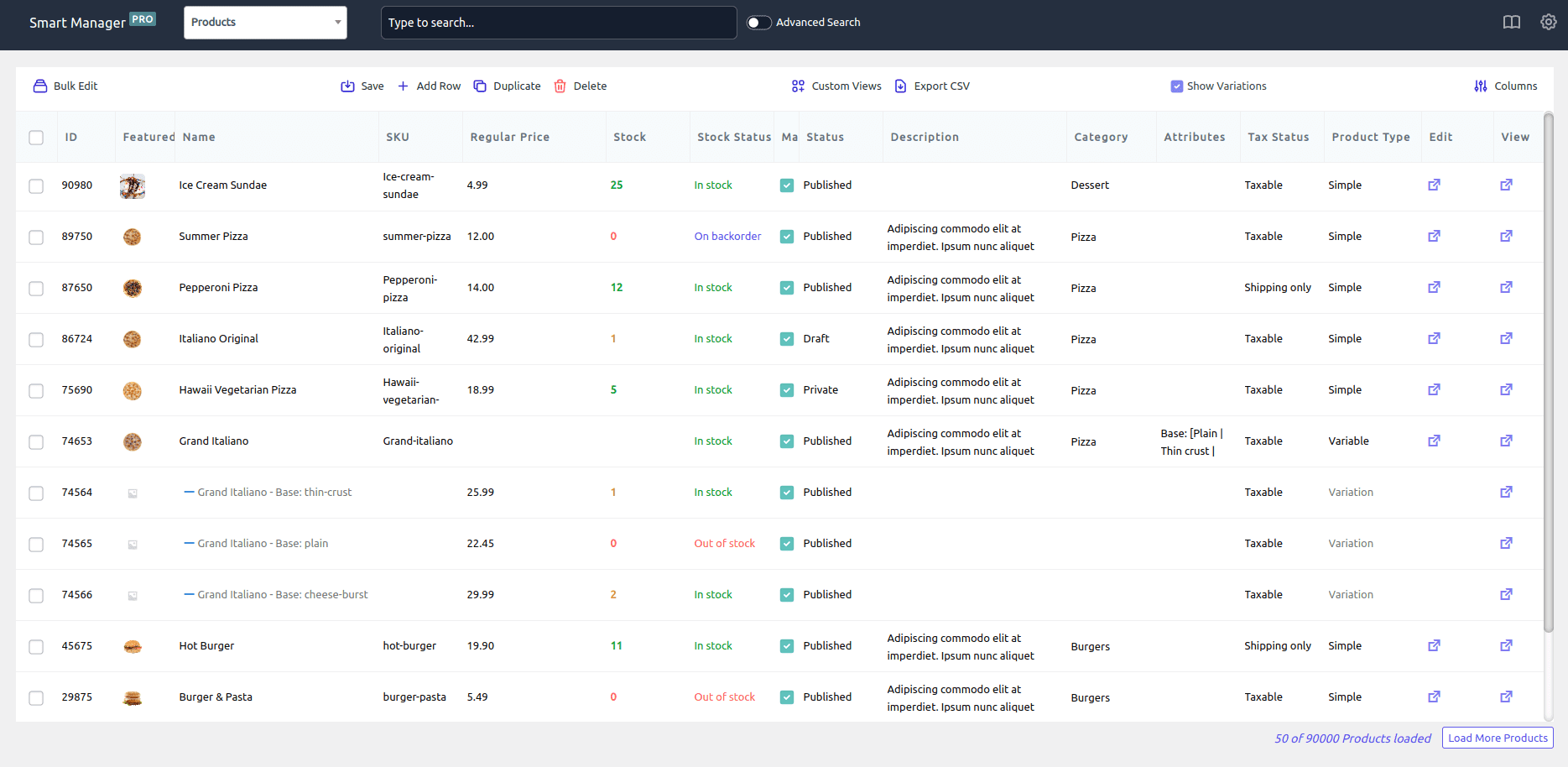
And you are done.
Note: With Smart Manager, you can fix inconsistent SKUs, names, or descriptions across multiple products in one go. Learn more about it here.
Bulk edit WooCommerce product categories
Over time, product catalogs get messy. Maybe you started with dozens of categories like Cookware, Kitchen Tools, Dining, Plates, Glassware… and now customers are confused because everything overlaps.
For example, say you want to merge “Cookware” and “Kitchen Tools” into a single category called “Kitchen Essentials” so shoppers find everything in one place.
Here’s how to set this up with Smart Manager:
- Go to
Smart Manager > Product dashboard. - Use
Advanced Searchto filter products under “Cookware” and “Kitchen Tools.” - Select all results and click
Bulk Edit. - Under
Actions, chooseCategory > set to > Kitchen Essentials - Click
Update.
In just a few clicks, your messy catalog becomes neat and easy to shop. Learn more about managing WooCommerce product categories.
Bulk edit WooCommerce product prices
Pricing changes happen often, maybe your supplier raised costs, or you’re running a seasonal sale.
Let’s say you want to adjust prices after your supplier increased costs on 120 products. Here’s how to do this with Smart Manager:
- Go to
Smart Manager > Product dashboard. - Click on
Bulk Edit. - Under
Actions, set the rules asRegular price > increase by number > required price. - You will get two options:
NoworSchedule for later. Choose any one, as per your requirement.
And you are done.
Bulk edit WooCommerce product attributes, variations, and more
Store updates usually don’t come one at a time. Maybe you’re running a seasonal promotion and need to move products into a new category, assign an attribute, and adjust prices all at once.
Let’s say you just stocked up on 10 blue T-shirts for the holiday season. Instead of editing each product one by one:
- Go to
WordPress Admin > Smart Manager. - From the dropdown, choose the
Products dashboard. - Select the T-shirts you want to update.
- Click on
Bulk Edit. - Under
Actions, chooseAttributes > add to > Color > Blue. - Click
Update.
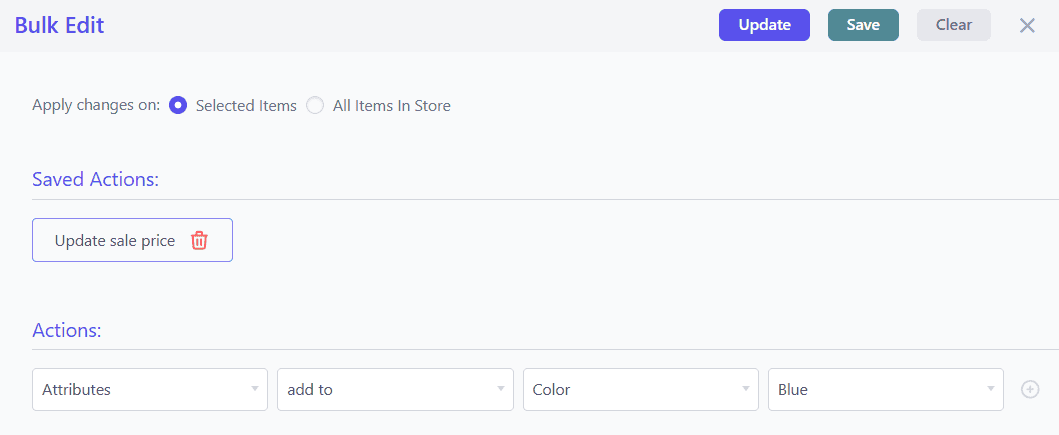
Now all 10 T-shirts are tagged with the “Blue” attribute.
Learn more about bulk edit attributes, products, and prices in WooCommerce.
Bulk edit WooCommerce orders
Managing orders in bulk is just as important as managing products. With Smart Manager, you can update hundreds of orders in a few clicks instead of wasting hours.
For example, you want to update 80 COD (Cash on Delivery) orders to “Complete” after payment is cleared. Here’s how you can do it:
- Go to
Smart Manager > Order dashboard. - Now click on
Bulk edit. - Under
Action, selectStatus > set to > CompletedandPayment Method > set to > Cash on Delivery. - Click on the
Updatebutton.
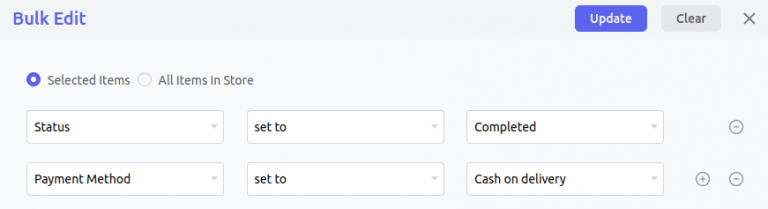
That’s it. All 80 orders are updated together, and your dashboard is clean.
Want to learn more about managing and bulk edit core and custom order statuses? Check out this guide on WooCommerce order status.
Other things you can bulk edit in the Orders dashboard:
- Edit billing and shipping details: Correct customer addresses, phone numbers, or company names across multiple orders without opening them one by one.
- Add notes or tracking IDs: Keep customers informed by bulk-adding delivery notes or shipment tracking numbers.
- Process refunds: Handle multiple refunds (full or partial) together instead of processing each order individually.
- Filter and manage faster: Narrow down orders by customer, product, payment method, or date and update them instantly.
Read more about WooCommerce order management.
Bulk edit WooCommerce coupons
Coupons are great for driving sales, but managing them in bulk during campaigns can get messy. Editing expiry dates, updating discounts, or enabling/disabling them one by one takes forever.
For example, you want to extend the expiry date of 50 Black Friday coupons by one week.
- Go to
Smart Manager > Coupons dashboard. - Now search for relevant coupons by typing the name or by category.
- Select them all and click on the
Bulk Editoption. - Under Action, set this condition:
Expiry Date > set date to > 2025-12-08. - Click on
Update.
That’s it.
Other things you can bulk edit in the Coupons dashboard:
- Change discount amounts: Increase or decrease values for multiple coupons at once.
- Adjust usage limits: Set how many times a coupon can be redeemed, either per user or overall.
- Enable or disable coupons: Activate seasonal codes or pause outdated ones in bulk.
- Restrict or allow conditions: Control which products, categories, or shipping methods a coupon applies to, or exclude sale items.
- Edit advanced rules: Update minimum or maximum spend amounts, toggle individual use only, or allow free shipping across coupons.
Learn more about bulk editing coupons with Smart Manager.
Bulk edit WordPress posts & pages
Search engines reward content that looks current and relevant.
Something as simple as updating the year in your post titles and descriptions can push rankings higher and improve click-throughs.
Say you need to refresh all your “Best WooCommerce Plugins 2024” posts to reflect “2025” as the new year rolls in.
Here’s how to do this with Smart Manager:
- Go to
Smart Manager > Posts dashboard. - Enable columns like Title and Content if they’re not visible.
- Use
Advanced Searchto filter titles containing “2024.” - Select everything and click on
Bulk Edit. - Now set the rules as
Post Title > search and replace "2024" with "2025". - Hit
Update.
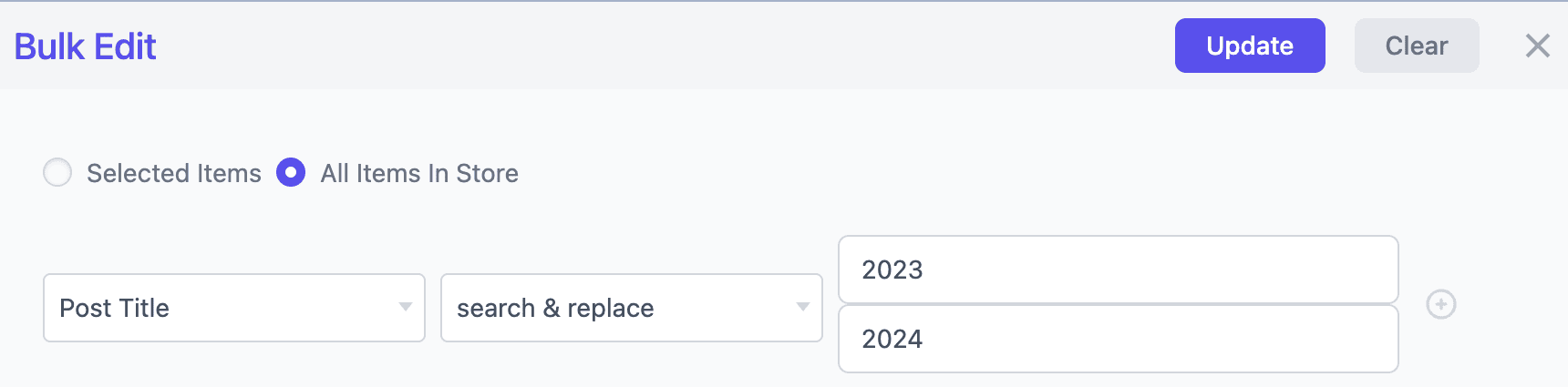
Now all your posts look fresh and relevant, giving you a quick SEO edge.
Other things you can bulk edit in the Posts & Pages dashboard:
- Update authors: Reassign posts or pages to a new writer without opening each one.
- Edit categories and tags: Reorganize blog content or product documentation for SEO or campaigns.
- Change publish status: Move multiple drafts to published, or unpublish outdated posts in one step.
- Bulk delete posts or pages: Quickly clear out outdated drafts or unnecessary content. Learn more about bulk delete pages and posts here.
- Modify excerpts or titles: Clean up inconsistent titles or add missing excerpts in bulk.
- Manage comments: Update comment status, enable or disable commenting across many posts.
- Reorder or restructure: Adjust menu order or parent-child relationships for multiple pages at once.
Learn how to do all this with this blog.
Bulk edit WooCommerce users & customers
Every store owner knows the pain: customers mistype their billing or shipping details, and suddenly you’re stuck with failed deliveries and wasted shipping costs.
Say 200 customers entered “California” as their billing state, but your courier system requires the two-letter code “CA.”
Here’s how to do this with Smart Manager:
- Go to
Smart Manager > Users dashboard. - Use
Advanced Searchto filterBilling State > California. - Select all results and click
Bulk Edit. - In the panel, choose
Billing State > set to > CA. - Hit
Update.
Now all records are corrected instantly, and shipping labels print without errors.
Other things you can bulk edit in the Users & Customers dashboard:
- Edit customer information: Update names, emails, addresses, and phone numbers across multiple accounts.
- Reassign roles and permissions: Switch customers between roles such as Subscriber, Wholesale, Shop Manager, or Admin.
- Segment by customer value: Filter users by order count, last purchase date, or lifetime value.
- Clean up inactive accounts: Delete or reassign dormant users without exporting data.
- Export user lists: Generate filtered customer lists for email marketing, loyalty campaigns, or reporting.
Bulk edit WooCommerce affiliates
Managing affiliates one by one is painful when your program starts growing. Tags, roles, and rewards need to stay consistent.
For example, you want to assign the tag “Silver” to 100 affiliates who have completed 50 orders.
Here’s how to do this with Smart Manager:
- Go to
Smart Manager > Users. - Open
Advanced Searchand add rules:Role > is > AffiliateOrder count > == > 50
- Hit the search button and select all filtered affiliates
- Next, click on
Bulk Edit. - Here look for
AFWC Affiliate tag > set to > Silver. - Click
Update
Done.
Note: This is only possible if you are using the Affiliate for WooCommerce plugin along with Smart Manager by StoreApps.
Learn more about it here.
Bulk manage WooCommerce subscriptions
Subscriptions bring steady revenue, but editing them one by one is a time drain. Whether it’s adjusting billing cycles or extending renewal dates, bulk edits help you avoid customer churn and billing errors.
For example, say you tried your best to recapture customers but they didn’t seem interested. You want to cancel/suspend subscriptions of these customers (say ten in number) who haven’t renewed it in the past four years.
Here’s how to do this with Smart Manager:
- Go to
Smart Manager > Subscriptions dashboard. - Set the filter to
Last Renewal Date > older than 4 years. - Select the 10 customers that show up.
- Click on
Bulk Editand then selectCancel Subscription. - Hit
Update.
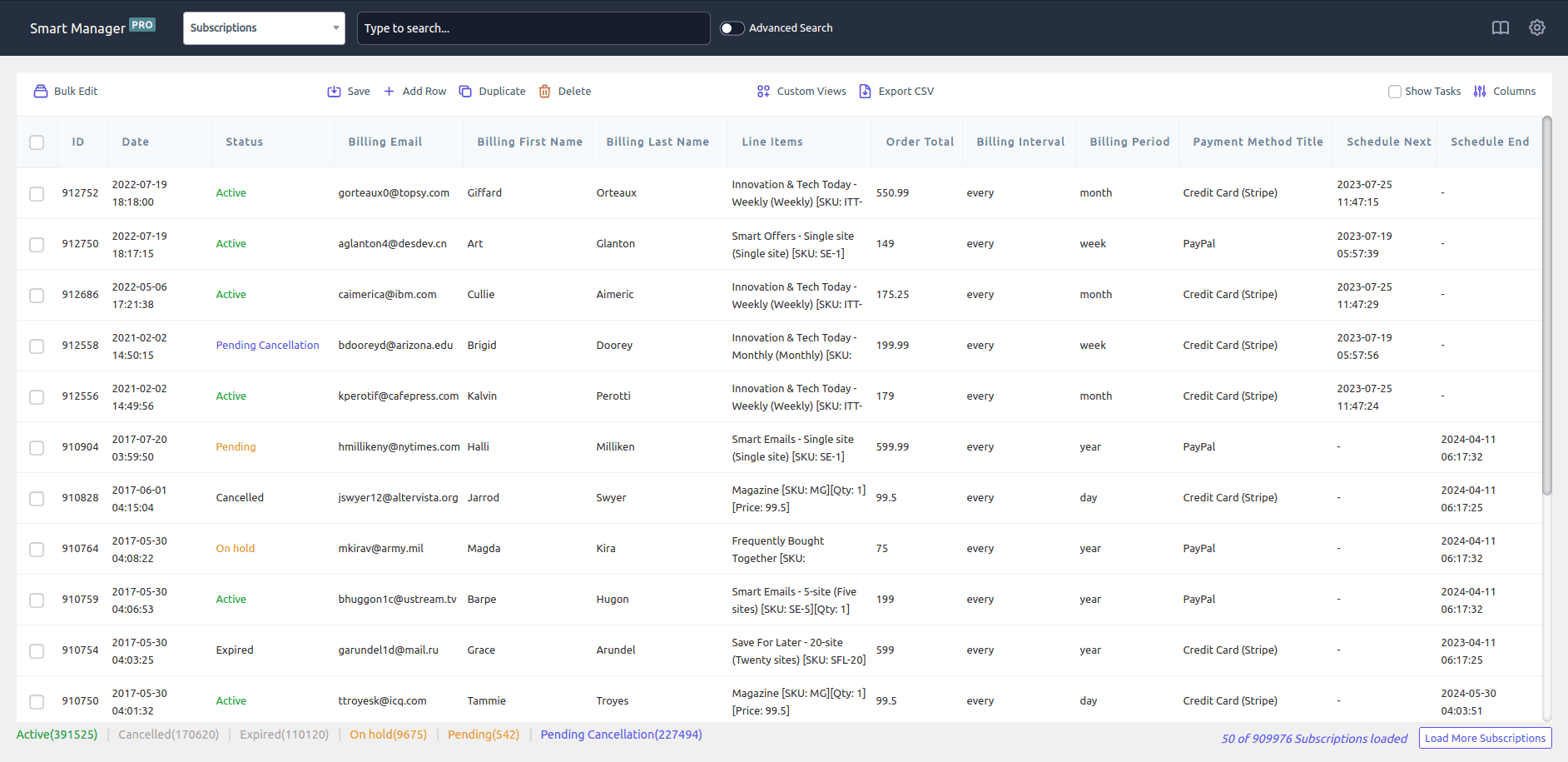
Done.
All outdated subscriptions are canceled instantly, and your system stays clean without hours of manual updates.
Learn more in our WooCommerce subscriptions management guide.
Bulk manage WooCommerce memberships
Memberships drive loyalty and recurring revenue, but updating expiry dates member by member is slow and error-prone.
With Smart Manager, you can extend or modify membership details for everyone at once.
For example, you want to extend the expiry date for all customers in your “Gold Membership” plan so they get another year of benefits.
Here’s how to do this with Smart Manager:
- Go to
Smart Manager > Memberships dashboard. - Use filters to select
Plan > Gold Membership. - Select all results.
- Click on
Bulk Edit. - Choose
Expiry Date > set to > new date (next year). - Hit
Update.
Done.
All Gold members now have their expiry dates extended in seconds.
Explore more in our WooCommerce memberships guide.
Bulk manage WooCommerce bookings
Managing bookings one by one can get messy, especially when schedules change at the last minute. Bulk edits make it easy to shift times, update availability, or adjust customer details together.
Imagine, you’re a doctor and need to reschedule all today’s appointments by 20 minutes.
Here’s how to do this with Smart Manager:
- Go to
Smart Manager > Bookings dashboard. - Use
Advanced Searchto filterBooking Date > today. - Select all today’s appointments.
- Click on
Bulk Edit. - From the panel, choose
Start Time > increase by > 20 minutes. - Hit
Update.
Learn how to manage WooCommerce bookings with Smart Manager.
Use Smart Manager for more than bulk editing
Bulk editing is the headline feature, but it isn’t the only reason an advanced store manager can be useful.
Depending on your setup, Smart Manager also provides:
- Inline editing: Change individual fields directly from the grid.
- Advanced Search: Find records using multiple conditions and supported custom fields.
- Saved searches: Save frequently used filters and reuse them later.
- Scheduling: Schedule supported bulk changes for a future date and time.
- Undo: Reverse supported bulk and inline changes when you need to correct an update.
- Export: Export selected or filtered store data to CSV.
- Duplicate: Create copies of supported records instead of building them from scratch.
- Delete: Remove selected records or records matching defined filters.
- Custom views: Show the columns and data you need for a particular management task.
These features turn Smart Manager from a simple WooCommerce bulk edit plugin into a broader store-management tool.
Prefer a lighter, products-only bulk editor?
If you only need to bulk edit WooCommerce products directly from the native Products screen, without a separate spreadsheet-style dashboard, Advanced Bulk Edit for WooCommerce is a simpler option, also built by StoreApps.
It adds bulk editing to the default Products > All Products screen and covers:
- 41+ built-in product fields: regular price, sale price, stock, backorders, SKUs, featured images, and more.
- All product types: simple products, variations, and bundles.
- Custom fields from third-party plugins: subscriptions, bookings, and memberships.
- Scheduled bulk edits: plan a change now and have it applied automatically at a set date and time.
The difference in short: Smart Manager manages products, orders, coupons, users, and other WordPress data together from one spreadsheet-style dashboard. Advanced Bulk Edit for WooCommerce focuses on products only, from WooCommerce’s own Products screen, for stores that don’t need the full multi-entity manager.
Explore Advanced Bulk Edit for WooCommerce
How should large WooCommerce stores approach bulk editing?
Once a WooCommerce store has thousands of products and multiple types of store data, bulk editing becomes less about saving a few clicks and more about having a repeatable way to manage the store.
At this scale, you don’t want every update to become a manual exercise of searching through pages, selecting records, and hoping nothing was missed. You want a workflow that makes large changes deliberate, predictable, and easy to verify.
A few principles make a significant difference:
- Let filters do the heavy lifting. Use meaningful conditions to identify records instead of manually scanning a large catalog. This is especially important when the same type of update needs to be repeated regularly.
- Choose the workflow based on the job. Use WooCommerce’s native editor for straightforward product changes, CSV for importing, exporting, or migrating catalog data, and an advanced bulk-management tool when you need more precise in-store filtering and editing.
- Break complex operations into logical groups. When appropriate, separate a large update by category, product type, stock status, or another meaningful condition. Smaller, well-defined operations are often easier to review and troubleshoot than one broad update.
- Separate planned changes from immediate changes. If a price change, promotion, or catalog update needs to happen at a specific time, use scheduling rather than relying on someone to remember to make the change manually.
- Keep a recovery path for high-impact updates. Backups are important for major store changes, while edit history or undo functionality can provide an additional layer of protection where supported.
- Verify the customer-facing result. A database update isn’t the end of the workflow. Prices, stock status, visibility, variations, and other customer-facing data should be checked on the storefront when the change affects what shoppers see or purchase.
And don’t fall into the trap of thinking that a larger batch is always a better batch. Very large operations can take longer and may put additional load on the server, depending on the number of records and the complexity of the data being changed.
The goal for a large WooCommerce store isn’t “bulk edit everything at once.” It’s to make large changes in a way that remains controlled, traceable, and easy to verify.
What does WooCommerce bulk editing look like in a real store?
Consider a store with thousands of products and variations. A change that takes a few seconds on one product can become a tedious administrative task when it has to be repeated hundreds of times.
Gold Coast Trading Cards manages around 45,000 WooCommerce products, many with multiple variations and images. Before using Smart Manager, the team relied on CSV files for some updates and the standard WooCommerce editor for others. Managing variations was particularly time-consuming, especially when old variations needed to be removed.
With Smart Manager, the team can work with products and variations in a spreadsheet-style view, filter the records they need, and make changes in bulk. One practical example is removing old, out-of-stock variations: instead of opening and deleting them individually, they can filter the relevant variations and remove them together.
Read the Gold Coast Trading Cards case study.
This is where bulk editing becomes more than a time-saving shortcut. It changes the workflow from repeating the same task record by record to working with a defined group of records at once.
Bulk edit WooCommerce products with less manual work
WooCommerce’s native bulk editor is a good choice for straightforward product updates. CSV works better when you’re importing, exporting, or migrating catalog data.
If you regularly need more advanced filtering, bulk updates, scheduling, or management across products and other store data, Smart Manager gives you a faster way to handle those tasks from one interface.
Choose the workflow that fits the job, test important changes carefully, and keep your bulk updates controlled as your store grows.
FAQs
How do I undo a bulk edit if I make a mistake?
By default, WooCommerce doesn’t have an undo button — once changes are applied, they’re permanent. That’s why filtering carefully and maintaining backups is essential.
But with Smart Manager, you do get an Undo option. If you make a mistake while bulk editing, you can roll back changes instantly.
How do I bulk edit variable products or specific product variations in WooCommerce?
Bulk editing product variations, like sizes or colors, cannot be done directly using WooCommerce’s default bulk edit. It requires either exporting/importing via CSV or using specialized plugins, such as Smart Manager.
Can I bulk edit WooCommerce custom fields?
No, the default editor can’t handle custom fields. If you need to update extra product data or user meta in bulk, you’ll need a plugin that supports it.
Can bulk edits (like future price changes) be scheduled in WooCommerce?
WooCommerce does not allow scheduling bulk edits by default. However, Smart Manager allows you to set a date/time to apply edits and automate your tasks, such as future product price updates or sale starts, easily.
What’s the difference between Smart Manager and Advanced Bulk Edit for WooCommerce?
Smart Manager is a spreadsheet-style dashboard for managing WooCommerce products, orders, coupons, users, and other WordPress data together, with search, filtering, scheduling, and undo. Advanced Bulk Edit for WooCommerce is a lighter plugin that adds bulk editing to the default WooCommerce Products screen only, for stores that don’t need a full multi-entity dashboard.
Hello,
Can I update orders line items using SM? I actually deliver milk. Some customer take milk day by day and some take more / less quantity than per-ordered. Ours is post payment system.
Srinivas
Currently, this is not possible with the Smart Manager. However, we do have plans to add this functionality in Smart Manager.
Your blog has become an indispensable resource for me. I’m always excited to see what new insights you have to offer. Thank you for consistently delivering top-notch content!