
WooCommerce makes it easy to add products. It does not make it easy to clean them up.
A rushed bulk deletion can quietly leave a mess behind that you won’t notice for weeks. This guide shows you how to bulk delete WooCommerce products safely, whether you want to delete all products or only specific ones.
You’ll also learn what actually happens behind the scenes when you delete a product, including the parts most tutorials skip.
Most store owners assume deleting a product just removes it from the catalog. In reality, product IDs are woven into your database, your sync channels, your search index, and your order history.
In 10+ years managing WooCommerce catalogs, I’ve handled this cleanup dozens of times for digital products. Fixing a bad import, clearing old products, or wiping out hundreds of test and duplicate products.
Deleting 10 products manually is simple. Deleting 5,000 the wrong way is where things get tedious. And one level extra stressful for physical products.
Before you delete anything, read this first
Bulk deleting products is not something to rush. In WooCommerce, products are connected to orders, reports, images, search indexes, and URLs. Deleting them carelessly creates problems you usually only notice after it’s too late. Go through this checklist first.
- Take a full backup. Back up both files and database. This sounds boring until the day you actually need it. A tested backup is your only guaranteed way to recover if a bulk operation goes wrong or times out halfway through.
- Export your product catalog to CSV. Even with a full backup, export your products to CSV first. If you accidentally delete the wrong batch, a CSV lets you re-import just those SKUs without restoring the entire database.
- Check if these products are used in orders or subscriptions. Products used in past orders stay in those orders, but the reference behind them changes once the product is gone. Products tied to active subscriptions need extra care — deleting one can break future renewals and recurring payments. If a product is part of an active subscription, unpublish it instead of deleting it.
- Decide: Move to Trash or delete permanently. Move to Trash is safer. You can restore products if something looks wrong. Delete permanently is final; only a backup brings it back. For big cleanups, move everything to Trash first, review it, and only then delete permanently. Think of Trash as your safety net.
- If product URLs had traffic, plan redirects first. A deleted product’s URL returns a 404. If that page had Google traffic or backlinks, set up a 301 redirect to a relevant category or replacement product before you delete. Else be ready to lose SEO value and create broken links across the site.
Three ways to delete WooCommerce products
Not all deletion methods are equal. Some are fine for a quick cleanup. Some are fast enough to wipe thousands of products at once but carry real risk. And one is built specifically for safe bulk operations on a live catalog.
Method 1: WooCommerce’s built-in bulk actions
If you only need to delete a small number of products, the default WordPress product screen gets the job done.
- Navigate to
WooCommerce > Products. - Use Screen Options (top-right) to increase the number of products shown per page.
- Select products manually or apply filters (category, stock status, product type, etc.).
- Choose
Bulk actions > Move to Trashand clickApply. - Go to the
Trashtab if you want to delete them permanently.
Method 2: WP-CLI and Direct SQL
For developers with SSH access on a staging or test site, command-line deletion is the fastest option available and it comes with the least room for error recovery.
WP-CLI is the safer of the two, because it runs through WordPress core functions and triggers the same cleanup hooks a normal deletion would, while still bypassing browser timeout limits:
Raw SQL is faster still, but it bypasses WordPress entirely — no hooks, no Trash, no undo. Only attempt this on a staging or test site, with a fresh backup in hand.
- Log in to
phpMyAdminfrom your hosting control panel. - Select the correct database that contains your WooCommerce store.
- Backup your database before making any changes!
- Select table
{prefix}_postsand run the SQL statement as shown. - Verify that the products have been deleted from your store.
DELETE relations.*, taxes.*, terms.*
FROM wp_term_relationships AS relations
INNER JOIN wp_term_taxonomy AS taxes
ON relations.term_taxonomy_id=taxes.term_taxonomy_id
INNER JOIN wp_terms AS terms
ON taxes.term_id=terms.term_id
WHERE object_id IN (SELECT ID FROM wp_posts WHERE post_type IN ('product','product_variation'));

DELETE FROM wp_postmeta WHERE post_id IN (SELECT ID FROM wp_posts WHERE post_type IN ('product','product_variation'));
DELETE FROM wp_posts WHERE post_type IN ('product','product_variation');
For real stores with real data, neither of these is something to rely on as your primary method.
Method 3: Smart Manager
For large, live catalogs, this is your trusted option. Smart Manager gives you a spreadsheet-like interface inside WordPress where you can bulk delete, edit, or update products, orders, coupons, users, and more post types.
Use advanced filters to find exactly the records you want, and get batch processing that avoids the timeouts native bulk actions run into on larger catalogs.
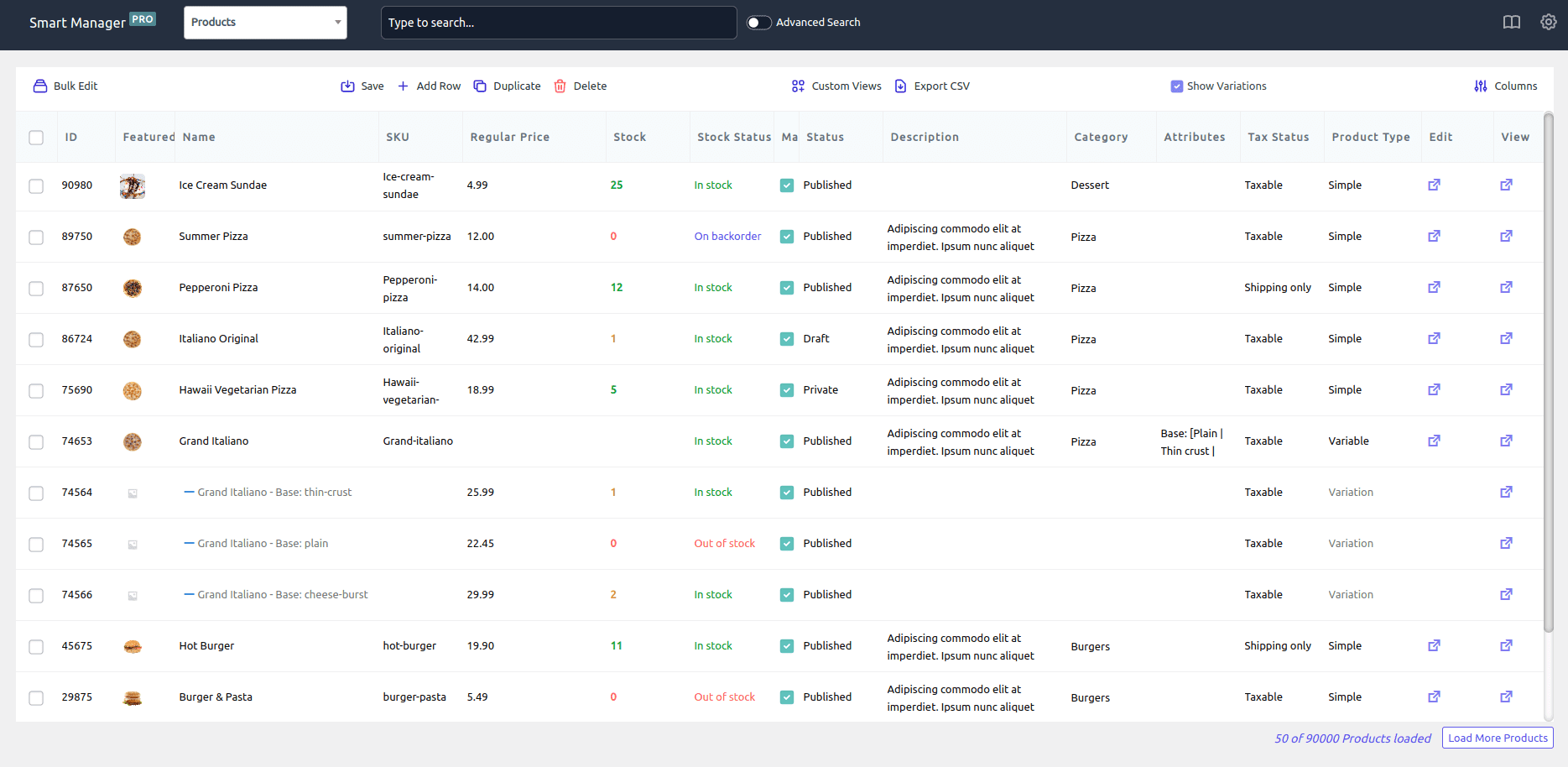
You can start with the free version and upgrade when needed.
- Download, install and activate the Smart Manager plugin just like any other WordPress plugin.
-
In your WordPress admin, go to Smart Manager. From the dropdown, select
Products(if it’s not selected by default). - Now, to delete all products, check the box at the top of the column header to select all. Or, select specific products manually.
- You can also use advanced search to quickly filter and find the products you want to remove.
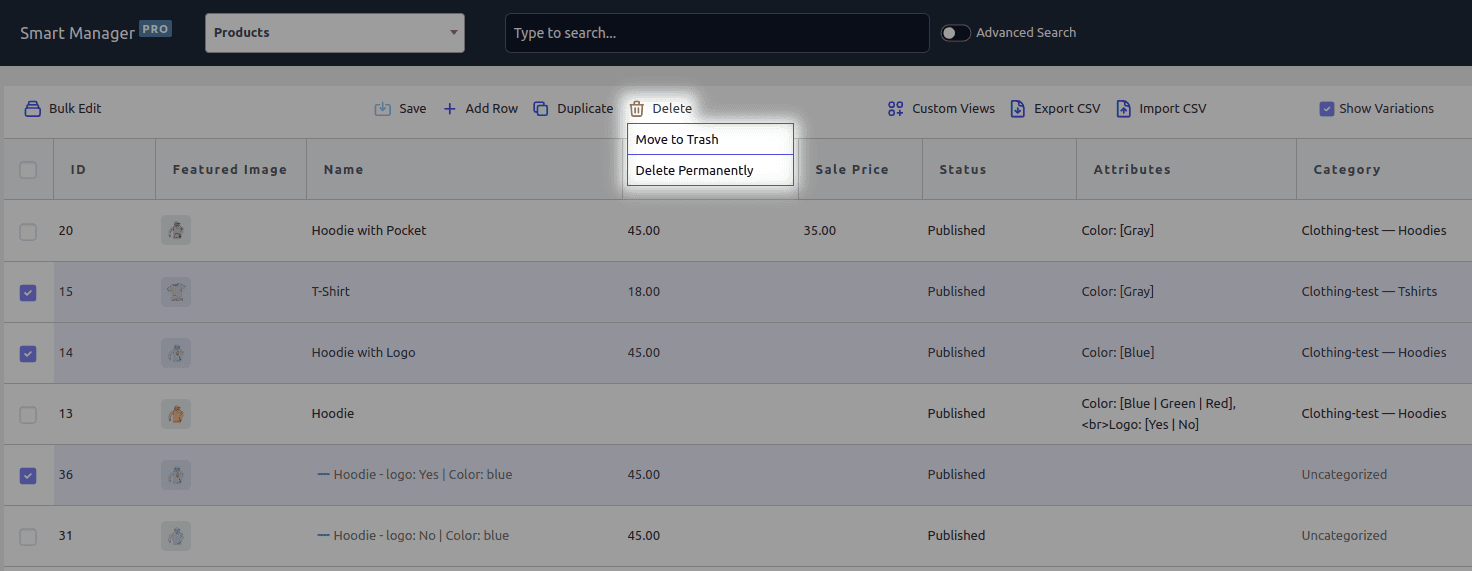
- Now, delete the selected products. Click on the
Deleteicon. -
You’ll get two options:
- Move to Trash – products go to trash and can be restored later.
- Delete permanently – products are removed completely and can’t be recovered.
What actually happens when you delete a product in WooCommerce
This is the part most guides skip past. Deleting a product removes it from your catalog but the ripple effects reach further than the product screen itself.
Orders and financial reports
Past orders are not affected. Line items, historical totals, and invoices stay intact. The one change: clicking the product title inside an old order will no longer open a live product page, since the product itself is gone.
Media library image bloat
Product images are not deleted along with the product. They stay in the Media Library and keep using storage space.
Delete a large batch of products with several gallery images each, and you can end up with a meaningful pile of orphaned image files sitting unused. Worth a separate cleanup pass with Smart Manager or WP-CLI’s wp media clean.
The product URL stops working
The old product link returns a 404. If that page had traffic or backlinks, set up a redirect to a relevant category or replacement product otherwise you lose the SEO value and create a broken link.
Trash vs. Delete permanently
Move to Trash and you can restore the product later. Delete permanently and it’s gone for good. Recovery only possible from a backup if taken.
Subscriptions
If the product was part of an active WooCommerce subscription, deleting it can break future renewals and recurring payments. Unpublish subscription products rather than deleting them.
Third-party sync and marketplace re-import loops
If your store syncs with Google Shopping, Amazon, an ERP, or a POS system, deleting a product in WooCommerce doesn’t touch that external system.
On its next sync cycle, the integration notices the missing SKU and can re-create the product as a fresh listing — undoing your cleanup without you realizing it. Pause or disable the sync channel before running a bulk deletion, and remove the SKU on the external system’s side too.
Silent webhook and integration failures
If you have webhooks or API integrations tied to specific product IDs — automated email tags, loyalty point triggers, custom automation workflows — deleting the product means those integrations start failing quietly in the background, with no error visible in your WordPress admin. Check WooCommerce > Settings > Advanced > Webhooks for anything tied to the products you’re about to delete.
Search index and Cache lag
If you’re running an external search tool or object caching (Redis, Memcached, Elasticsearch, or similar), a deleted product can keep showing up in search results or cached pages for a while after it’s gone from the database.
Flush your cache and trigger a re-index after a large cleanup so the storefront actually matches your catalog.
Compounding SEO and internal link decay
A single 404 is manageable. The bigger issue is internal links — blog posts, category banners, menu items that keep pointing to a product that no longer exists.
At scale, this adds up to real crawl-efficiency and link-equity loss. Run a broken-link scan after a large cleanup and update or remove those references.
Variable products, variations, and leftover taxonomy terms
Delete a parent variable product and its variations go with it. But if you delete variations individually and leave the parent behind, that parent can end up as an empty, unpurchasable listing.
Unused attribute terms (custom colors, sizes) can also linger in your taxonomy tables long after the products using them are gone.
Multi-vendor and franchise stock collateral
In multi-vendor or franchise setups sharing a master product database, deleting what looks like a “duplicate” can actually remove a product ID another vendor or location still depends on. Confirm vendor ownership before bulk-deleting anything that touches a shared catalog.
GDPR requests vs. Persistent order records
If you’re deleting a product specifically to satisfy a data removal request, know that the product’s name, SKU, and price still exist inside historical order records.
Deleting the product itself doesn’t scrub that from past purchase history or tax records. Overall: deleting a product removes it from your store, but it doesn’t automatically clean up everything connected to it.
Real-world ways to delete exactly the products you want
In real stores, you almost never want to delete everything. Most of the time you’re removing a specific group of products based on some condition — a category, a date, a vendor, a stock status, or a bad import.
Here’s how to handle the scenarios that come up most often, with the native approach first and where Smart Manager’s filtering saves real time.
Delete all products in a specific category
Say you ran a “Summer Sale” collection and now want to remove the entire category.
- Native: Filter the Products screen by category, select all, and move to Trash.
- Smart Manager: Open Advanced Search, set
Category is Summer Sale, apply, select all, and delete.
Only products in that category are removed.
Delete specific variations, keep the main product
Say you want to stop selling Size XXL across a whole product line, but keep the other sizes.
- Native: Open each variable product, expand Variations, and remove the XXL row manually; one product at a time.
- Smart Manager: Set filters
Product type is VariationandAttribute: size is XXL, review the results, select all, and delete in one pass.
Only the XXL variations are removed. The main products and other sizes stay untouched.
Delete all out-of-stock products
Filter by Stock status is Out of stock, review the list, select all, and delete — natively or in Smart Manager. Only out-of-stock products are removed.
Remove Test or Demo products
Filter by name containing “test” or “sample” (or a demo category/tag), review the matches, and delete. Your real products stay untouched.
Delete products added on a specific date
If a CSV import went wrong on a particular day, native WooCommerce only filters by month, not an exact date. You’d be reviewing a whole month’s worth of products to find the bad batch. Smart Manager lets you filter by exact post date, so only that day’s import is affected.
Find and delete duplicate products
When a sync issue creates duplicate products with the same SKU, filter or sort by SKU to find the duplicates, keep the original, and delete the extra copies.
Delete products from a specific brand or vendor
If you’ve stopped working with a brand and want their catalog gone, filter by brand or vendor, review the list, select all, and delete. Only that brand’s products are removed. This is possible if you are using any brand or vendor based plugin and Smart Manager supports them.
Delete products based on price or custom fields
Native WooCommerce can’t filter by a numeric price range. You’d be sorting and manually paging through results. Smart Manager lets you set a rule like Regular price is less than $10 and filter directly to the matching products.
Clean up your WooCommerce store the right way
Before any large cleanup: take a backup, review what you’re about to delete, and prefer Trash over permanent deletion until you’ve confirmed the results.
| Your Situation | Best Option | Why |
|---|---|---|
| Small store, few products | WooCommerce Admin | Simple and built-in |
| Staging/test site, developer | WP-CLI or SQL | Fast, but no safety net — staging only |
| Live store, large catalog | Smart Manager | Built for safe bulk actions at scale |
Frequently asked questions
Will deleting products affect my customers or their orders?
No. Customers and past orders remain unchanged. Only the product itself is removed.
Is it better to delete products or just hide them?
If you might need the product again, or it’s tied to reports or an active subscription, unpublish it instead of deleting.
Will my database get smaller if I delete products?
Yes, but only product records and metadata are removed. Images and some related data can still remain until cleaned up separately.
Does WooCommerce limit how many products I can delete at once?
Not by design, but the admin screen slows down or times out well before you reach a large batch. That’s why bulk tools exist for big catalogs.
Should I test this on staging first?
For large cleanups, yes. It’s always safer to test first.
Is there another way to delete products in bulk?
WP-CLI is the fastest option for developers with SSH access. It’s safer than raw SQL since it runs through WordPress’s own cleanup hooks, but it still permanently deletes items, so back up first. For most store owners, Smart Manager is the more practical, no-code choice.
What if my ERP or marketplace integration keeps re-creating deleted products?
Pause the sync channel and remove the SKU on the external system’s side before deleting the product in WooCommerce otherwise the next sync cycle brings it right back.
Thanks a lot works great!