

Updating WooCommerce sale prices shouldn’t take this much effort, but it always does.
Changing one product is fine. Changing dozens or variations? That’s where WooCommerce slows you down. No bulk updates, no clear scheduling, and too many chances to make a mistake.
If you’ve ever spent more time adjusting prices than running your sale, you’re not alone.
This guide walks you through how WooCommerce handles sale pricing, where the default method becomes a bottleneck, and the faster workflow most store owners use to update prices in minutes instead of hours.
How to set or edit sale price with default WooCommerce?
WooCommerce does let you add or change sale prices, and the process is simple when you’re working with a few products.
Here’s how it works:
- Go to
WordPress Admin > Products. - Add a new product or open an existing one to add the sale price and regular price.
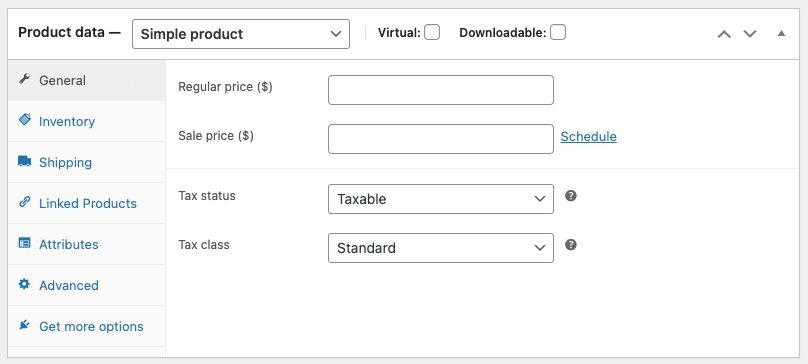
- Scroll down and go to the Product data panel.
- Select the
Simple productfrom the drop-down menu. For individual product variations, you need to create avariable productfirst, create product variations, and then set prices for each of them. - In the
Generaltab, add the prices under the Regular price and Sale price fields respectively.- Regular price: the standard, everyday price of an item.
- Sale price: a temporary, discounted price offered to attract customers and boost sales.
- Click on the
Updatebutton. - Repeat the same steps to set or modify prices for each product in your store.
That’s it.
WooCommerce can handle sale pricing, until your catalog grows. After that, the manual steps multiply, errors creep in, and routine updates start eating your entire day.
At that point, the real question is simple: how many products are you trying to update?
Your answer determines whether the default workflow is workable… or holding you back.
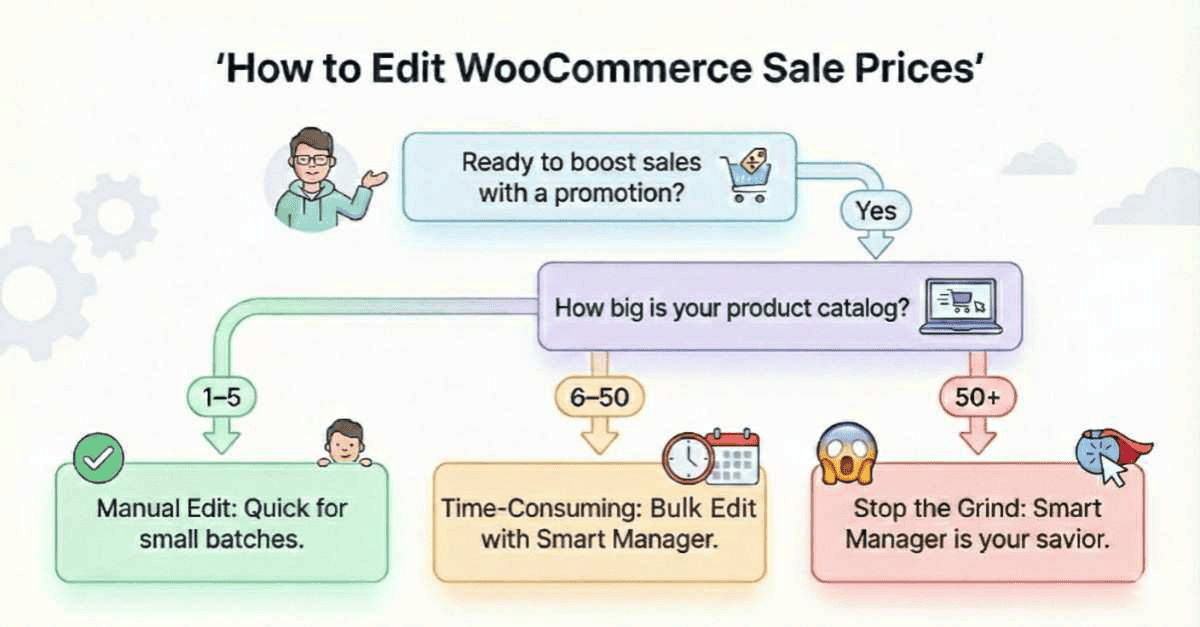
Once you see where you fall, the next step is clear.
If your store is past the “tiny catalog” stage, you need a faster, more scalable way to update prices without losing time or accuracy.
Bulk edit sale prices in WooCommerce (fastest method)
For anything beyond a handful of products, the quickest way to update sale prices is through Smart Manager.
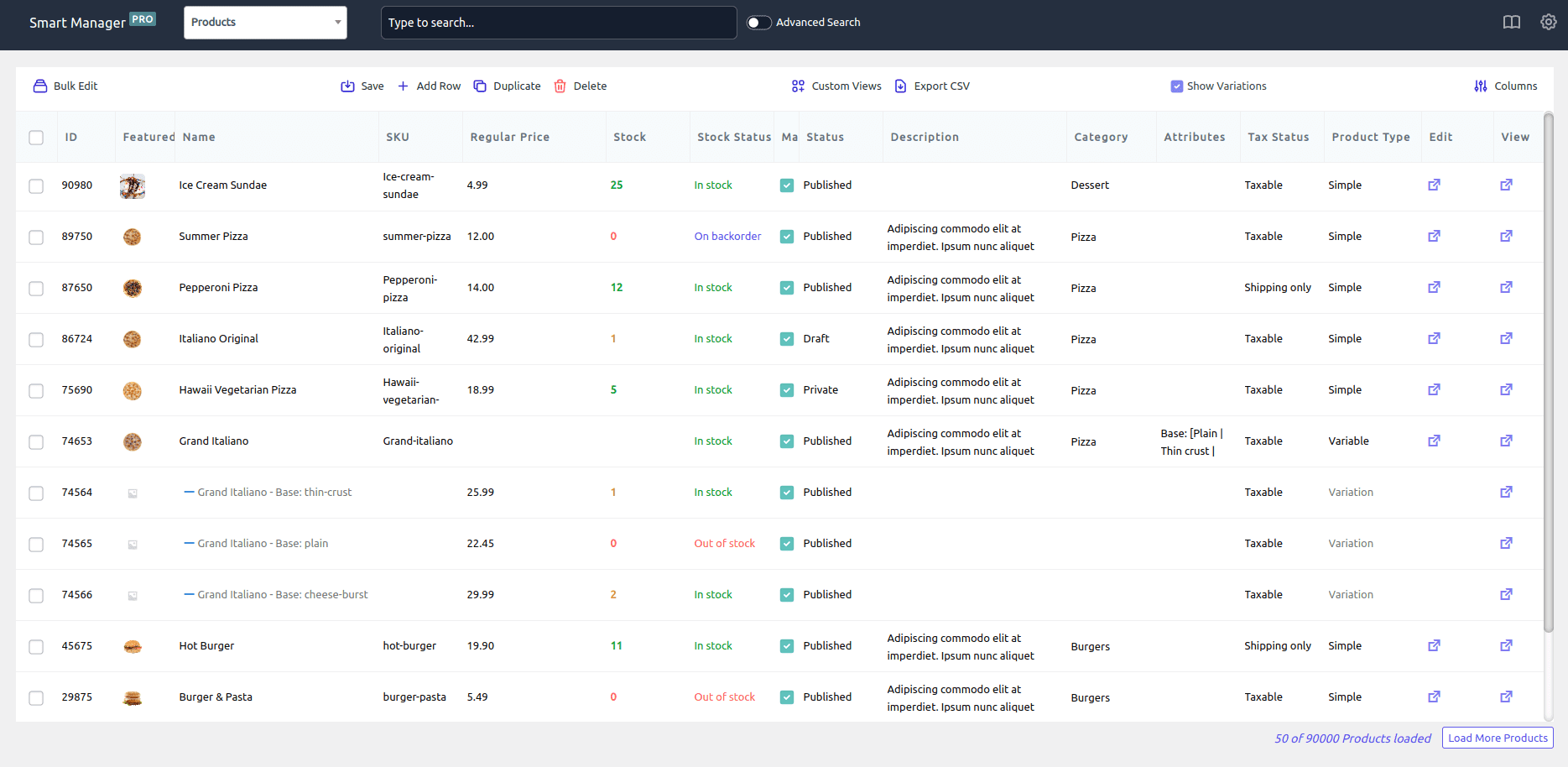
You get one clean, spreadsheet-like screen where you can select products, apply your pricing change, and update everything at once.
And the difference between WooCommerce’s default workflow and Smart Manager pretty much looks like this:

If you’ve ever tried updating sale prices across variations or entire categories, you know which side of that image feels real.
Whether you’re running a storewide sale or making last-minute adjustments, Smart Manager lets you do it in minutes instead of hours.
Let’s look at the pricing actions you can perform.
Set sale price to a specific value
You’re clearing out a batch of products that didn’t sell as expected, maybe last season’s mugs, planners, or accessories.
Instead of calculating different discounts for each item, you just want all of them to be $12 so the offer is simple and easy to promote.
Here’s how to do it:
- Open
Smart Manager > Products. - Click on the top header checkbox to select all items available in your store, or select the ones you want to set or edit prices for.
- Click
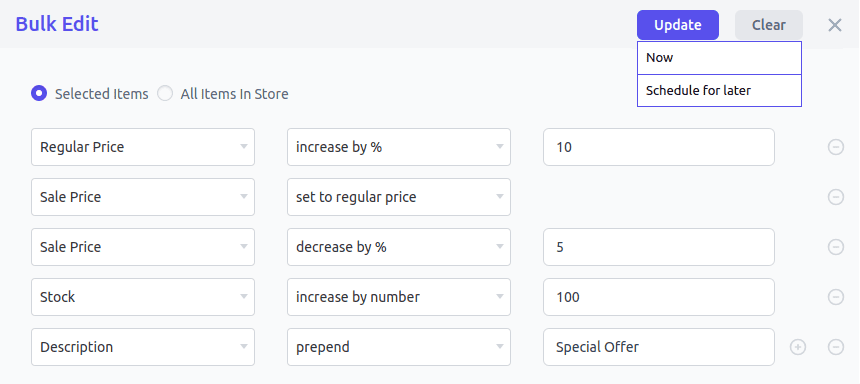
Bulk Edit. - Choose
Sale price > set to > enter the exact sale price you want ($12). - Click
Update(or schedule it for later).
Increase or decrease sale price by a percentage
You want to offer a 15% discount on all T-Shirts for the week without editing each product manually. Here’s how to do it:
- Go to
Smart Manager > Products. - Select the required products or variations.
- Click
Bulk Edit. - Choose
Sale price > decrease by %. - Enter the percentage.
- Click
Update.
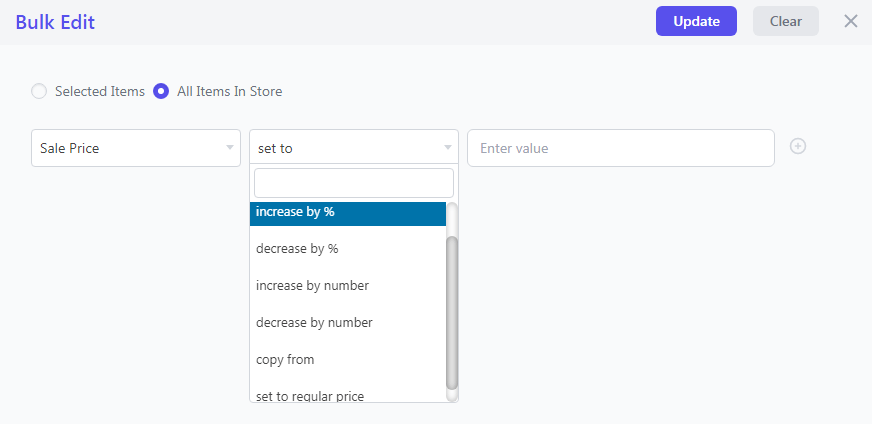
Great for seasonal sales, dynamic discounting, or quick market-driven adjustments.
Use AI-powered search to find the right products instantly
If you don’t want to build filters manually, you can use Smart Manager’s AI Search to pull up the exact products you need in seconds.
Just tell it what you’re looking for, no complex conditions required.
Example:
“Show products missing sale prices”
“Find out-of-stock jackets”
“Show T-shirts without SKUs”
How to use it:
- Go to
Smart Manager > Settings > General Settings. - Under
AI Integration, chooseCohere. - Enter your
Cohere API keyand save. - Open
Smart Manager > Products. - Click the
AI Search icon. - Type or speak your query.
- Hit
GO.
For more information on how to create the API key, refer to this documentation.
Smart Manager will build the filters for you automatically. Select the results and bulk edit like usual.
Start sale prices automatically on a specific date
You’re planning a Cyber Monday sale and want all selected products to start showing their sale prices exactly at 12:01 AM.
Instead of staying awake to update prices manually, you can schedule the “start date” for all products in one go.
- Open
Smart Manager > Products. - Select the products you want to schedule
- Click
Bulk Edit - From the field list, choose
Sale Price Date From. - In the action dropdown, select set to
- Enter the start date you want the sale to begin
- Click
Update - Pick
Schedule for later - Add a Title (example: “Cyber Monday Sale Start”)
- Set the
Date & Time - Click
OK
Smart Manager will automatically activate the sale prices on the exact date and time you set.
Similarly, you can set the “sale end date” for all relevant products in advance.
Increase or decrease sale price by a fixed number
You’re running a clearance on last year’s phone cases, and instead of applying a percentage discount, you just want to knock $5 off each item to bring them into a better price range for impulse buys.
- Open
Smart Manager > Products. - Select the products.
- Click
Bulk Edit. - Choose
Sale price. - Pick
increase by numberordecrease by number. - Enter the value ($5).
Update.
Stores use this for shifting cost changes, clearing odd pricing values, or making quick margin adjustments.
Update the sale or regular price for a single product
Let’s say you have added a new variant of a product and only need to adjust its sale price, inline editing is faster than bulk edit.
- In
Smart Manager > Products, find your product. - Click the price cell you want to change.
- Enter the new value.
- Hit
Save.
Done. No page loads, no extra tabs.
Edit the sale price based on product category
Say you want to update sale prices only for the Winter Jackets category, not the entire catalog.
Here’s how to do it:
- Open
Smart Manager > Products. - In Advanced Search, enter the category name (example: “Winter Wear”).
- Select all filtered products.
- Click
Bulk Edit. - Choose
Sale price > pick the action you want(set to, decrease %, etc.). - Click
Update.
You can do the same with tags, attributes, price ranges, or stock values.
Revert back to previous product prices
Let’s say you applied a discount to the wrong group of products and want to undo the change instantly.
Here’s how to do it:
- Open
Smart Manager Products dashboard. - Click the
Show Tasksat the top right corner near the Column button. All the tasks from the bulk edit and inline edit are visible for the current dashboard. - To undo changes, hover over the Undo icon in the top bar. A drop-down menu will appear with two options:
Selected TasksAll Tasks- You can choose either one based on your requirements. Once selected, an Attention modal dialog will appear.
- Click
Yes.
That’s it. The sale prices related to products in the tasks will revert to the original and changes will appear on the website.
Smart ways store owners use sale pricing
Once you start using Smart Manager for sale pricing, you realize it’s not just about discounts, it’s about running your store with less stress and a lot more control.
Here are some everyday situations where store owners say, “Smart Manager saved me hours:
Fixing inconsistent pricing across products
You added products over months, each priced differently, and now the store looks chaotic. Smart Manager helps you bring everything to a clean, consistent sale price across an entire line or category.
When you need quick cashflow
Sometimes sales dip, Amazon ads underperform, or a supplier bill comes early. Dropping prices across selected items fast helps generate a short-term spike, without spending a whole day editing products.
Clearing variations that don’t sell
Sizes like XS or 4XL, unpopular colors, odd bundles, variations can pile up. Instead of editing them individually, you filter those variations and apply a sale price only where stock is stuck.
When you need to react immediately to traffic
You get unexpected traffic from an influencer mention, a Reddit post, or a Google Shopping spike, and you want to add a quick sale price to convert more buyers before the moment passes.
Reducing prices for products that are about to expire or go out of season
Grocery, beauty, pet supplies, supplements, planners, many items have a shelf life. Smart Manager lets you drop prices on items nearing expiry or season end before they lose their entire value.
Resetting your catalog before a site redesign or relaunch
When you’re refreshing your store theme or reorganizing categories, you often need to normalize sale prices or prepare cleaner pricing groups. Smart Manager removes the manual mess.
Soft-launching a new pricing strategy
Before you commit to a permanent price change, you test how a product performs at a lower price. Smart Manager lets you adjust sale prices for a small batch, observe conversions, and revert instantly.
Clearing warehouse space before new inventory arrives
Suppliers deliver next week. Warehouse is full.
Discounting surplus SKUs in one move prevents storage overflow and frees up space without frantic edits.
Running predictable, scheduled promotions without babysitting
You want a sale to start Friday at midnight and end Sunday night, but you’re human. You won’t be at your laptop at those exact times. Smart Manager handles it cleanly with start/end date scheduling.
Smarter sale pricing starts with smarter tools
As your catalog grows, the difference between editing prices the default way and using a faster tool becomes impossible to ignore, the entire experience shifts.
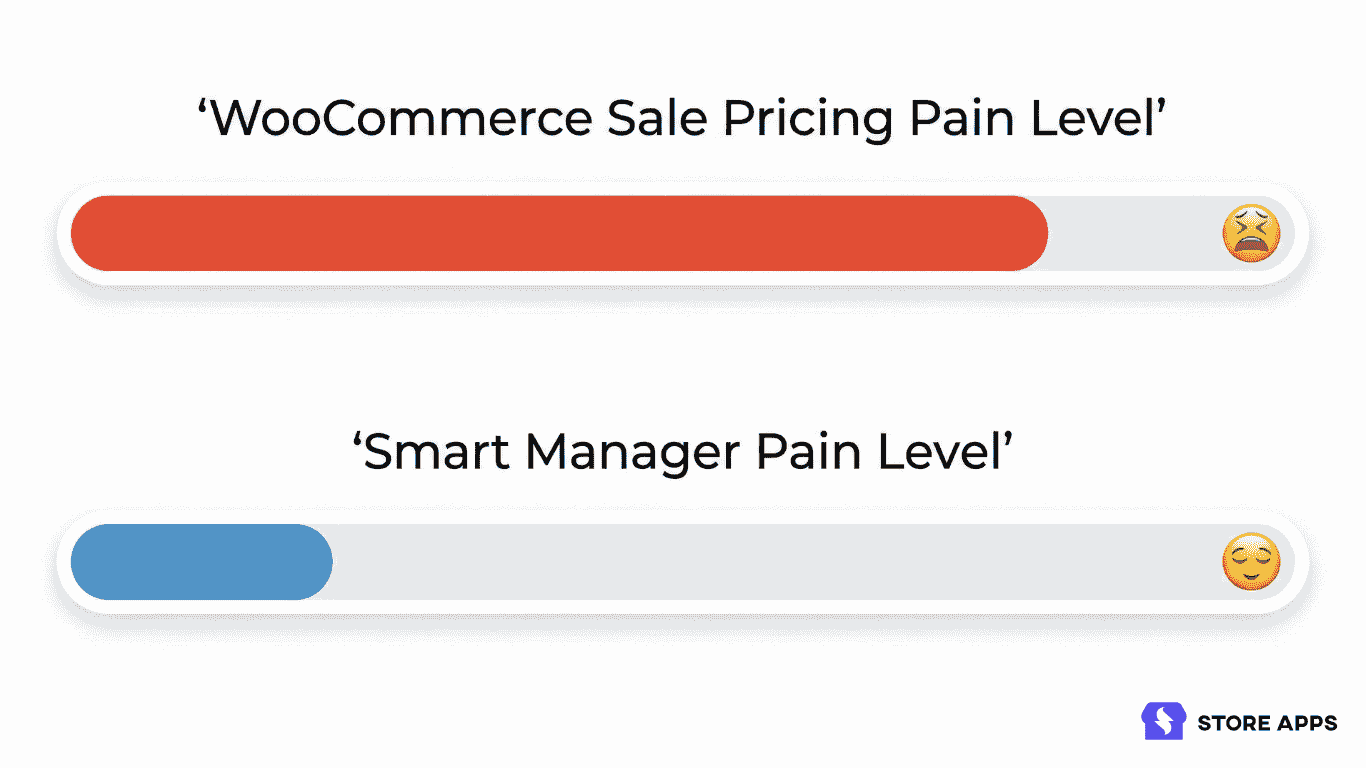
One workflow drains your time; the other gives it back.
Smart Manager keeps pricing simple: one dashboard, bulk actions that actually scale, and updates that take minutes instead of hours.
You spend less energy fixing prices and more time planning the promotions that matter.
If you want smoother sales and fewer last-minute headaches, this is the tool that makes WooCommerce feel manageable again.
FAQs
- Why is my WooCommerce sale price not showing on the product page or shop page?
This usually happens when the sale price date hasn’t started yet, the sale price is higher than the regular price, or product variations have mismatched prices.
Check your Sale Price Dates ensure the sale price is lower, and clear your cache or CDN.
- How do I undo WooCommerce sale prices after a discount campaign ends?
WooCommerce doesn’t have a built-in undo button, so you’d need to manually remove sale prices product by product.
If you’re using Smart Manager, you can open Show Tasks > Undo, and your previous prices are restored instantly.
- How do I show sale price badges or On Sale labels in WooCommerce?
WooCommerce automatically shows an On Sale badge when a product has a valid sale price.
If you don’t see it, check: your theme (some hide sale badges), caching, and variation pricing. You may need a theme setting or plugin to show custom sale badges.

About the Author – Deeksha Paswan
WooCommerce writer with 5+ years covering everything store owners actually deal with — products, inventory, offers, affiliates, and repeat sales. She turns complex plugin functionality into clear, actionable guidance that saves time and grows revenue. Off the clock, she’s either nurturing her garden or deep into an anime series.
Hi
that seems easy, but more important is to set the sale price based on the regular price.
– Copy regular price to sale price
– Decrease sale price by 20%
In the demo version it does not work, Any suggestions?
Hi Caspar,
We tried it in the Demo version and it’s working perfectly.
Before you proceed:
Try it out and share your views.
Btw…you can also create a new product and then try the same bulk edit operations. I hope this helps.