
Setting up a subscription product in WooCommerce is easy.
Running subscriptions without turning your store into an operational mess is the real challenge.
Some stores simply want to sell one product every month and let recurring payments run in the background.
Others run subscription businesses where customers upgrade, pause, cancel, switch plans, recover failed payments, or follow specific billing and shipping rules.
Both are WooCommerce subscription businesses. But they don’t need the same setup.
In this guide, we’ll show you how to set up WooCommerce subscriptions for both simple and advanced use cases, including how to create a subscription product, configure recurring payments, manage subscribers, and decide when you actually need an advanced subscription solution.
Before choosing either approach, understand what your subscription business actually needs.
How do WooCommerce subscriptions work?
When most store owners search for how to set up WooCommerce subscriptions, they’re usually not looking for another plugin list.
They want a system where a customer can subscribe once and the store can reliably handle the recurring billing afterward.
At a minimum, that means your setup needs to handle:
- creating a recurring subscription product
- setting the subscription price and billing interval
- collecting the customer’s payment information
- creating and scheduling renewals
- processing recurring payments
- managing active, canceled, and failed subscriptions
Once you add upgrades, downgrades, trials, coupons, proration, multiple gateways, or complicated billing rules, the operational requirements increase quickly.
That’s why there are two practical ways to approach subscriptions in WooCommerce:
- A simple subscription setup for straightforward recurring products and services.
- An advanced subscription setup for businesses that need more control over billing and subscriber management.
The right choice depends less on how many features a plugin has and more on what your subscription business actually needs.
How to set up simple WooCommerce subscriptions
For most small and growing WooCommerce stores, the goal isn’t to build a complex billing platform.
You want to sell coffee, skincare, memberships, boxes, digital products, or services on a recurring basis without creating a second business just to manage subscriptions.
This is where a lightweight subscription setup makes sense.
Smart Subscriptions for WooCommerce is designed for stores that want to launch straightforward recurring subscriptions without unnecessary configuration.
It supports simple subscription products, flexible billing cycles, automatic recurring payments through Stripe, failed-payment retries, and customer subscription management.
Let’s say you run a small yoga studio in Austin, Texas, and you want to sell online class access.
You want to offer: Unlimited online yoga classes for $29 per month.
No tiers. No complicated plans. Just one simple monthly membership.
Here’s how you set it up using Smart Subscriptions for WooCommerce:
- Install and activate Smart Subscriptions for WooCommerce.
- Note: It currently supports automatic renewals via Stripe, so make sure WooCommerce Stripe Gateway is installed and connected.
- Now configure the general setting. Go to
WooCommerce > Settings > Smart Subscriptionsand then follow these steps.
Now here’s how to add subscription product in WooCommerce:
- Go to
Products > Add Newand create a product named “Online Yoga Classes – Monthly Membership”. - In the
Product Datadropdown, select Simple Subscription. - Set:
Subscription priceto 29.Billing periodto Month.Billing intervalto 1.Trialto 0 (or add a trial if you want).
- Write a short product description clearly stating that this is a recurring monthly subscription, not a one-time purchase.
- Save and publish the product.
Do one test purchase in Stripe test mode to make sure:
- The order is created.
- The subscription appears in WooCommerce.
- The next renewal date is scheduled.
That’s it.

You now have a fully working subscription system that charges customers automatically every month and lets them manage their membership from their account page.
When do you need an advanced WooCommerce subscription setup?
Some WooCommerce businesses eventually outgrow a simple recurring-product setup.
This usually happens when:
- customers need to upgrade or downgrade plans
- you need multiple payment gateways
- you need proration when customers switch plans
- you offer complex subscription schedules
- you need sign-up fees or more advanced coupon rules
- you manage a large subscriber base
- subscriptions are central to your business model

At this point, subscriptions are no longer simply a recurring product. There are more billing scenarios, customer actions, payment methods, and edge cases to manage.
This is where WooCommerce Subscriptions becomes relevant.
WooCommerce Subscriptions is the official WooCommerce extension for creating and managing more advanced subscription businesses. It supports flexible billing intervals, automatic and manual renewals, failed payment recovery, plan switching, proration, trials, coupons, sign-up fees, and multiple payment gateways.
That flexibility is useful when your business genuinely needs it. But more functionality also means more configuration and more decisions to manage.
So, here’s how to set up an advanced subscription in WooCommerce?
Purchase and install WooCommerce Subscriptions plugin
- Go to the WooCommerce marketplace and purchase the above WooCommerce Subscriptions plugin.
- In your WordPress dashboard, navigate to:
Plugins → Add New → Upload Plugin - Upload the plugin
.zipfile, install, and activate it.
Configure subscription plugin settings
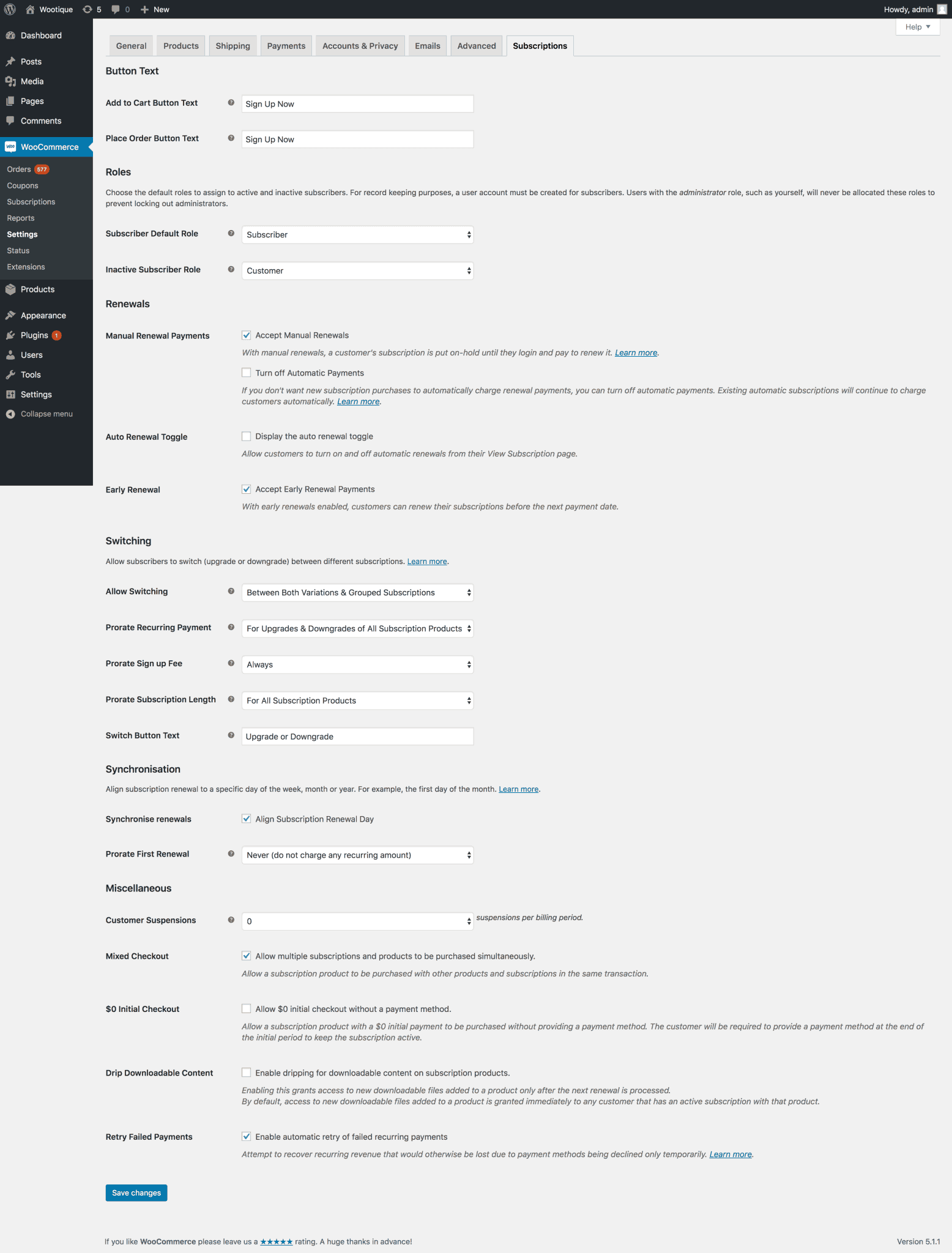
Go to: WooCommerce → Settings → Subscriptions
Here are some key options to configure:
- Button text – Customize Add to Cart / Place Order buttons.
- Roles – Assign user roles for new and inactive subscribers.
- Renewals – Choose between manual and automatic renewals.
- Switching – Allow customers to upgrade or downgrade subscriptions.
- Miscellaneous – Enable features like:
- Suspending subscriptions
- Mixed checkout (one-time + recurring)
- Free initial checkout
- Dripping downloadable content
- Auto-retry for failed payments
Refer to the official documentation for better settings.
Create a subscription product
Let’s create a simple subscription product:
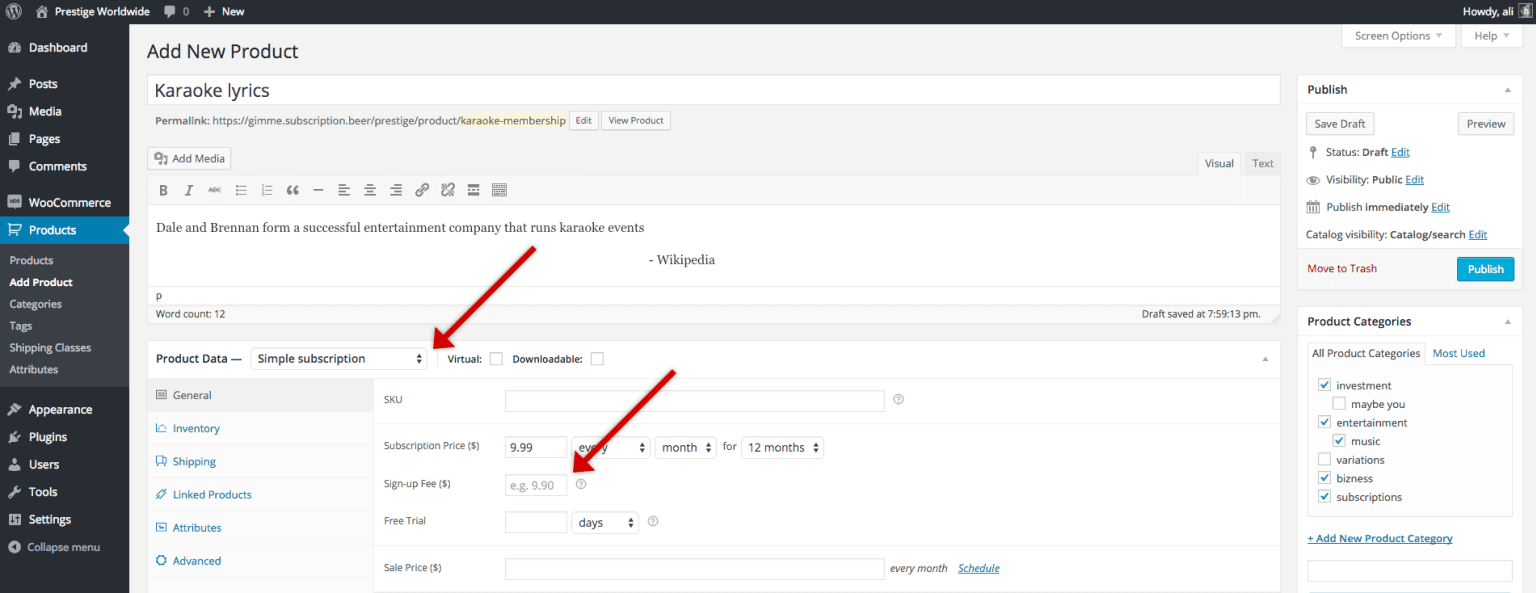
- Go to: WooCommerce → Products → Add Product
- Enter product title, description, and other details.
- In the Product Data section, choose:
- Simple subscription
- Fill in:
- Subscription Price: e.g., $10/month
- Billing Interval and Period: e.g., every 1 month
- Sign-Up Fee: optional
- Free Trial Period: optional
- Expiration: e.g., ends after 12 months
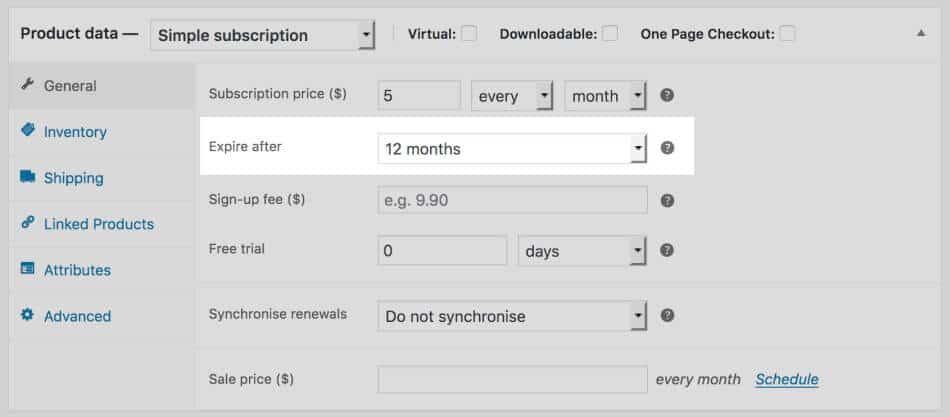
You can also:
- Set a sale price
- Limit the subscription to one per customer
- Add subscription coupons
Click Publish — and your subscription product is live.
Set up subscription payment gateways
WooCommerce Subscriptions supports both automatic and manual payments.
Not all gateways support recurring billing, so choose wisely.
Popular supported gateways:
- Stripe
- PayPal
- Square
- Amazon Pay
Note: Payment gateways that save customer details can handle automatic renewals.
Manage subscriptions easily
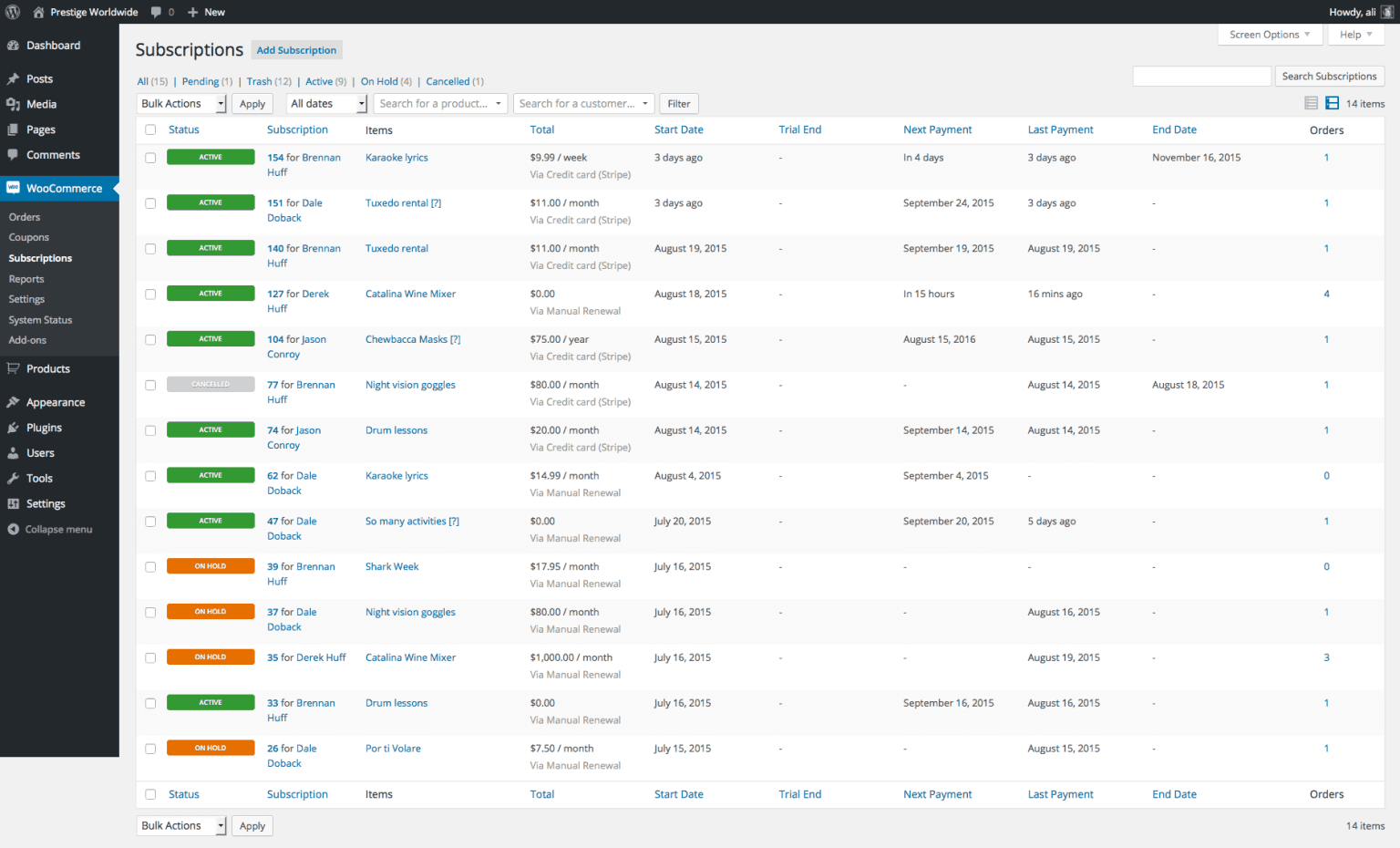
Go to: WooCommerce → Subscriptions
From here, you can:
- View all active/inactive subscriptions
- Edit individual subscriptions (pause, cancel, change plans, etc.)
- Track subscriber details, billing cycles, and payment status
Refer to WooCommerce Subscriptions plugin documentation for more details.
This works well if you’re managing a small number of subscriptions.
But what if you have 500+ subscribers?
Managing them one by one isn’t practical.
That’s where subscription management tools come in. These tools let you:
- Bulk edit subscription details
- View subscription data in a spreadsheet-like view
- Automate admin tasks and reduce operational workload
Simple vs Advanced WooCommerce subscription setup
At this point, the difference should be clear.
One approach is built for speed and simplicity. The other is built for power and control.
Both can work. Just not for the same job.
Here’s a simple comparison to make the trade-offs obvious:
| Area | Simple setup | Advanced setup |
|---|---|---|
| Core goal | Start subscriptions without operational complexity | Run subscriptions as a core business system |
| Time to launch | Same day or very fast | Takes more time due to configuration and testing |
| Learning required | Very little. Feels like normal WooCommerce | Moderate to high. More options and concepts to learn |
| Ongoing admin work | Low. Mostly runs in the background | Moderate to high, depending on business complexity |
| Risk of misconfiguration | Low. Fewer moving parts | Higher, because of more flexible settings |
| When something breaks | Easy to notice and fix | May require deeper investigation in complex setups |
| Flexibility | Limited on purpose | Extremely flexible and customizable |
| Best suited for | Small stores, first-time subscriptions, simple recurring products or access | Growing or large stores, complex plans, upgrades/downgrades, proration, mixed carts |
| Cost of complexity | Almost none | Investment in time, testing, and processes |
| Biggest risk | You may outgrow it later | Scales well as subscriptions become central to the business |
Important reality check:
- Most stores starting subscriptions don’t fail because features are missing.
- They fail because the setup is too complex to maintain.
- This is not a technical problem.
- It is an operational problem.
Which approach should you choose?
Once subscriptions are live, the real work becomes managing and scaling them.
That’s where the right tools help.
5 must-have WooCommerce subscription management tools
Here are five must-have tools that make running WooCommerce subscriptions simpler, faster, and more scalable.
Smart Manager- Bulk manage subscriptions and orders
Smart Manager gives you a spreadsheet-style view of your WooCommerce data, including subscriptions, orders, and customers.
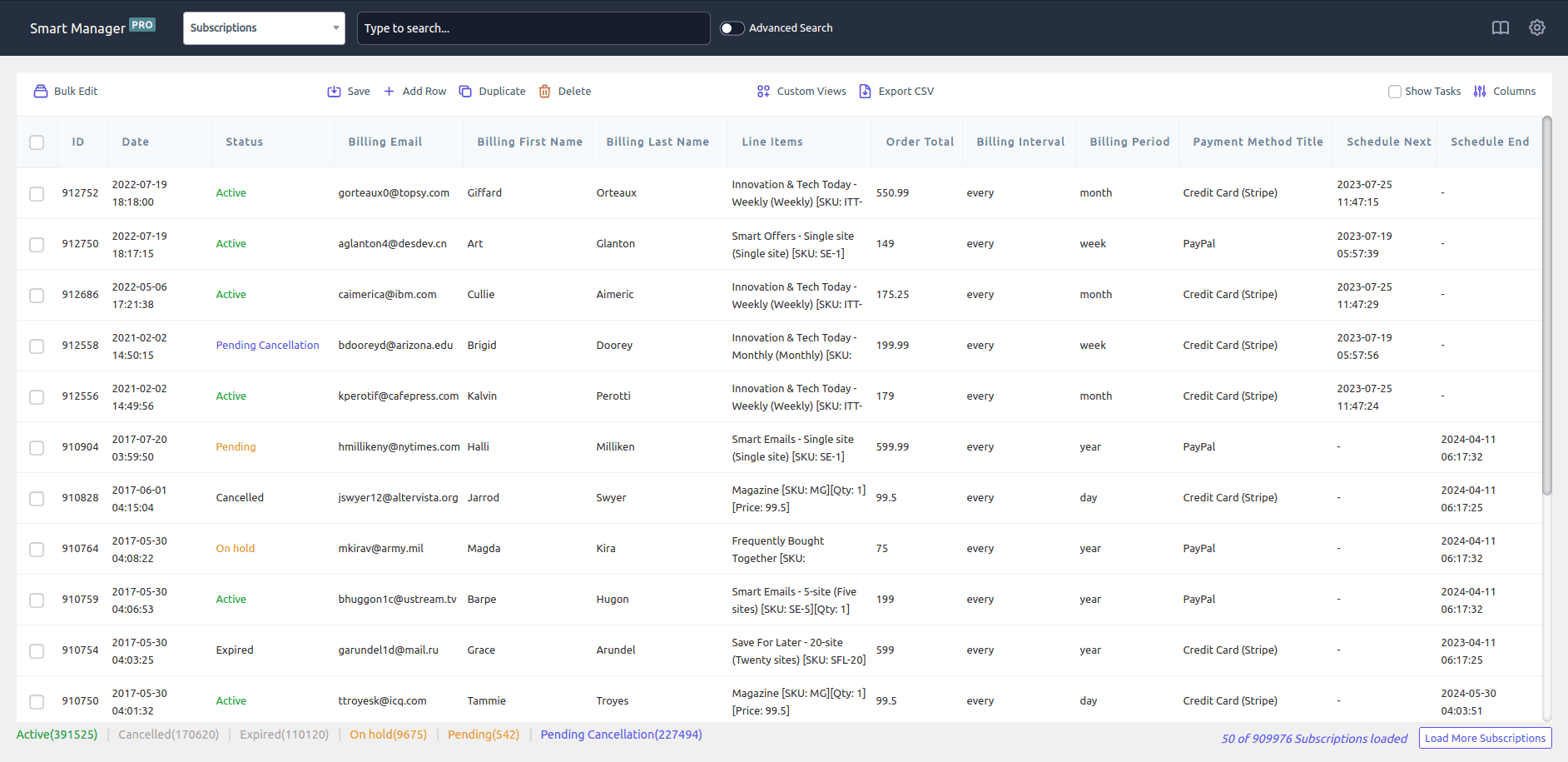
Think of it as Excel… but cooler and made just for managing and bulk editing WooCommerce subscriptions.
With it, you can:
- Edit many subscriptions at once
- Extend trials or change dates in bulk
- Cancel, pause, or reactivate subscriptions without opening them one by one
- Search, filter, and update large datasets quickly
If you ever find yourself thinking “this should be a bulk action”, Smart Manager is usually the right tool.
Putler – Your subscriptions’ crystal ball
Putler turns your WooCommerce data into a clean, easy-to-read dashboard.
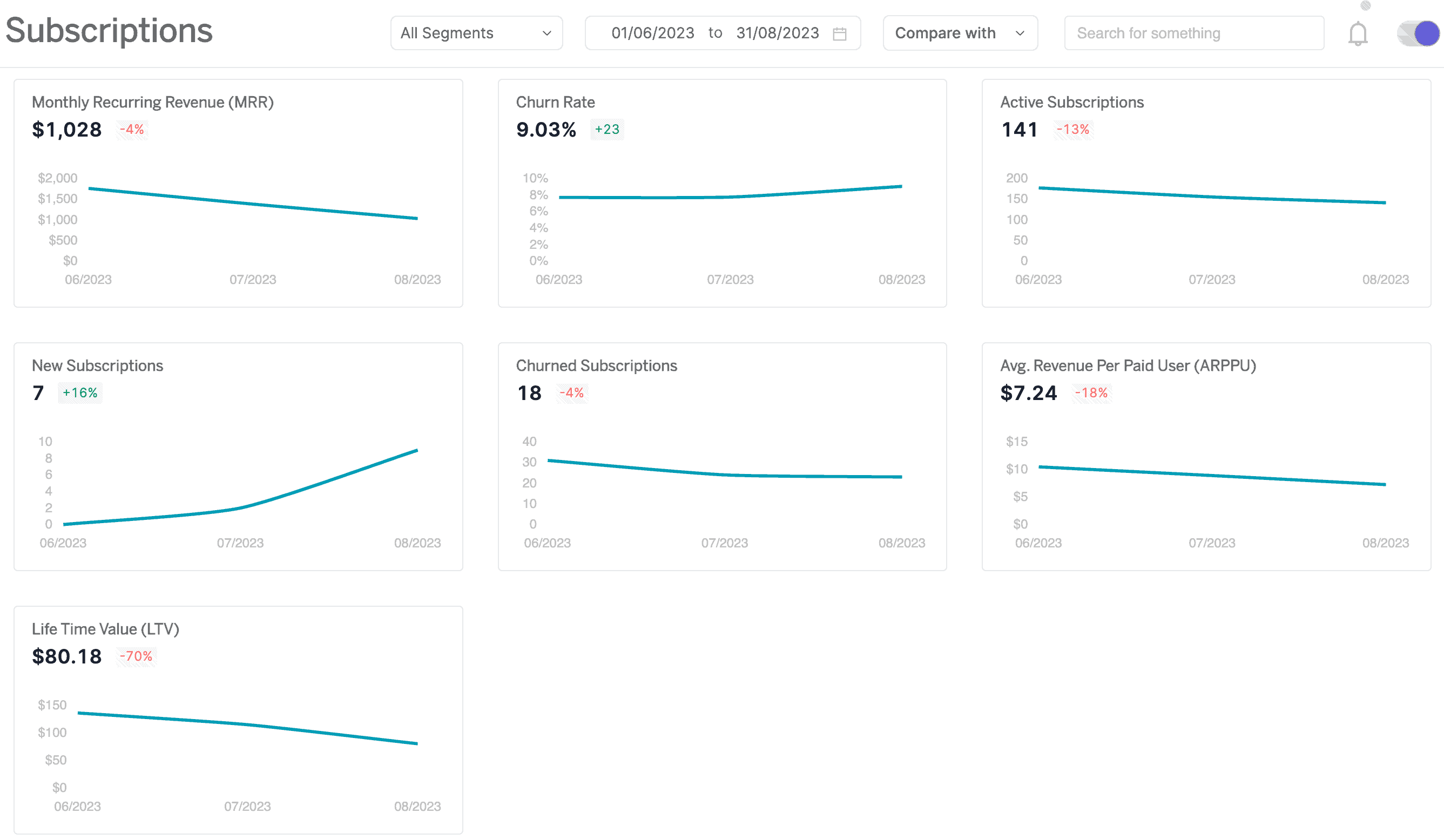
It helps you:
- Track recurring revenue, churn, and growth
- See which plans and customers matter most
- Monitor trends across time (and across stores, if you run more than one)
- Spot problems before they show up as support tickets
This is not for daily operations. It’s for making better decisions.
Smart Offers – Increase AOV per subscriber
Smart Offers helps you show relevant upsells and cross-sells at the right moment.

For example:
- Move customers to higher plans
- Offer add-ons during checkout or after purchase
- Show different offers to different types of customers
This is useful when subscriptions are already working and you want to increase revenue per customer, not just sign up more customers.
Affiliate for WooCommerce – Turn subscriptions into commission machines
Affiliate for WooCommerce is a total fan-favorite on the WooCommerce marketplace and for good reason.
When paired with WooCommerce Subscriptions, it lets your affiliates earn sweet recurring commissions like clockwork.

But wait, it gets better.
You can:
- Pay commission on sign-up and renewals (for example: 15% on sign-up, then 10% on the next 9 renewals)
- Set different rules per product, plan, or affiliate (for example: higher commission on annual plans, lower on monthly)
- Control how long commissions continue (for example: only for the first 12 months of a subscription)
Plus, you can set flexible commission rules by product, category, affiliate, user role, referral method, you name it.
This is useful when subscriptions become a long-term growth channel, not just a product feature.
More about Affiliate for WooCommerce
Smart Coupons — Control discounts, trials, and renewal incentives
Smart Coupons gives you more control over how discounts work with subscriptions.
You can:
- Create sign-up offers and renewal discounts
- Let customers pay renewals using store credit or gift cards
- Bulk-generate coupons for campaigns
This becomes useful once you start running real campaigns, not just occasional discounts.
A simple rule of thumb
If you have 10 subscribers, you probably don’t need any of this.
If you have 500+ subscribers, you will almost certainly need at least one or two.
Tools don’t grow your business.
They prevent growth from breaking your operations.
Final thoughts
WooCommerce supports both simple and advanced subscription models.
The real decision is not about choosing the most powerful system.
It’s about choosing the one that fits your current stage of business.
Many successful stores start with a simple setup, validate demand, learn how their customers behave, and only move to advanced subscription systems when complexity truly becomes necessary.
If you’re a small or growing store, starting simple often means you’ll launch faster and actually stick with subscriptions long enough for them to become a real growth channel.
That’s usually the part that matters most.
FAQs
How do I enable free shipping with WooCommerce subscriptions?
You can offer free shipping on subscriptions by using a free shipping method or a coupon that applies to renewal orders, not just the first purchase.
Always test one renewal to make sure customers don’t get surprised with shipping charges later.
How do I cancel a WooCommerce subscription?
Customers can cancel from their account page if you allow it. As a store owner, you can also cancel, pause, or restart any subscription directly from your WooCommerce dashboard.
How do I sell a subscription service with WooCommerce?
Instead of selling a one-time product, you create a subscription product.
WooCommerce then charges customers automatically every month (or year) and handles renewals for you.
How do WooCommerce subscriptions work in real stores?
Customers sign up once and save their payment method.
After that, WooCommerce creates renewal orders and charges them automatically in the background. You just manage things from your dashboard.
What happens if a renewal payment fails?A good setup will retry the payment automatically and notify the customer. This way, you don’t lose subscribers just because a card failed once.