


Managing default attributes for a handful of WooCommerce products is easy. Managing them across hundreds or thousands of variable products? That’s where things get tedious.
Without a default variation, customers may land on a product page without a variation selected, adding an unnecessary step before they can add the product to their cart. If you have a large catalog, updating these defaults one product at a time can quickly become a chore.
The good news: you can bulk-set default attributes for WooCommerce variable products instead of opening every product individually. Here’s how to do it with WooCommerce and, for larger catalogs, Smart Manager.
What are default attributes in WooCommerce?
Default attributes are the options WooCommerce preselects when a customer opens a variable product.
For example, suppose you sell a T-shirt with Color and Size attributes, with variations such as Blue/Small, Blue/Large, Red/Small and Red/Large. You can set Blue and Large as the default attributes.
When a customer opens the product page, WooCommerce will automatically select that combination instead of making them choose every option first.
Keep the distinction clear:
- Attributes are options such as Color, Size or Material.
- Variations are the actual combinations created from those attributes, such as Blue/Large.
- Default attributes are the options WooCommerce preselects when the product page loads.
For stores with many variable products, setting these defaults manually can quickly become repetitive. That’s where bulk editing becomes useful.
How to set default attributes for a WooCommerce product
For a single variable product, you can set its default attributes directly from WooCommerce.
- Go to WooCommerce > Products and open the variable product you want to edit.
- Scroll to the Product data section and select
Variable product. - Open the Variations tab.
- Under Default Form Values, choose the attribute values you want WooCommerce to preselect.
- Save or update the product.
The selected values will now appear as the defaults when customers visit that product page.
This works well when you’re updating one or a few products. But if you have hundreds or thousands of products to update, opening every product individually quickly becomes tedious.
Can WooCommerce set default attributes for multiple products?
WooCommerce’s standard product editor is designed primarily for editing products individually. It doesn’t provide a convenient spreadsheet-style interface for setting the same default attributes across a large number of existing products at once.
That’s the real challenge when managing a large catalog. You may have the correct attributes and variations already created, but still need to open product after product just to change their default selections.
For bulk updates, Smart Manager provides an Excel-like dashboard where you can find the required products and update their default attributes without opening each product page.
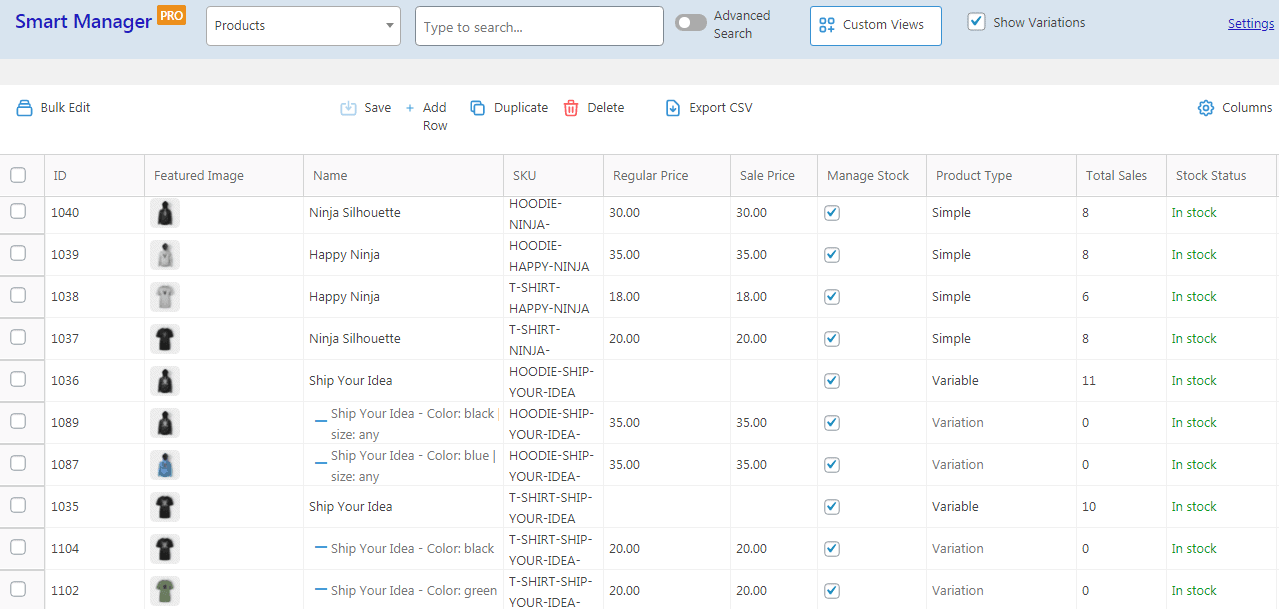
How to bulk set default attributes for WooCommerce products
Smart Manager lets you update default attributes directly from its Products dashboard. You can either edit an individual product or select multiple products and apply the same change in bulk.
Set default attributes using inline edit
If you only need to update a few products, inline editing is the quickest option.
- Go to WordPress Admin > Smart Manager > Products.
- Find the
Default Attributescolumn. If it isn’t visible, use the column management options to enable it. - Click the relevant cell in the
Default Attributescolumn. - Enter the default attribute values in the format required by WooCommerce.
- Save the change.
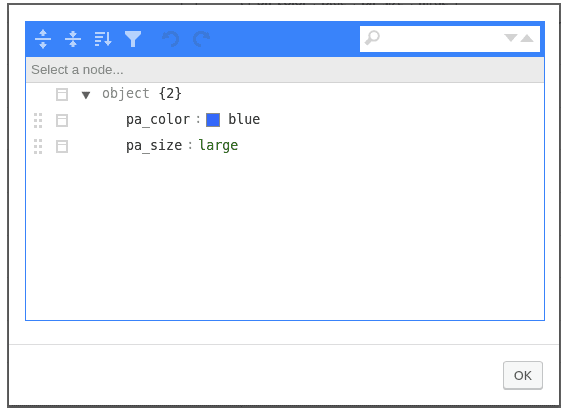
You can also use Advanced Search to find specific products before editing their default attributes.
Set default attributes for multiple products using bulk edit
Bulk edit is the better option when several products need the same default attribute values.
For example, imagine you have hundreds of T-shirts that all use the same Color and Size attributes, and you want Blue and Large to be the default selections. Instead of opening every product, you can select the relevant products and update them together.
- Go to WordPress Admin > Smart Manager > Products.
- Select the products you want to update, or use
Advanced Searchto filter the required products first. - Click
Bulk Edit. - Under
Actions, chooseDefault Attributes. - Select
set toas the action. - Enter the default attribute value in the required format.
For example:
a:2{s:8:"pa_color";s:4:"blue";s:7:"pa_size";s:5:"large";}- Click
Update.
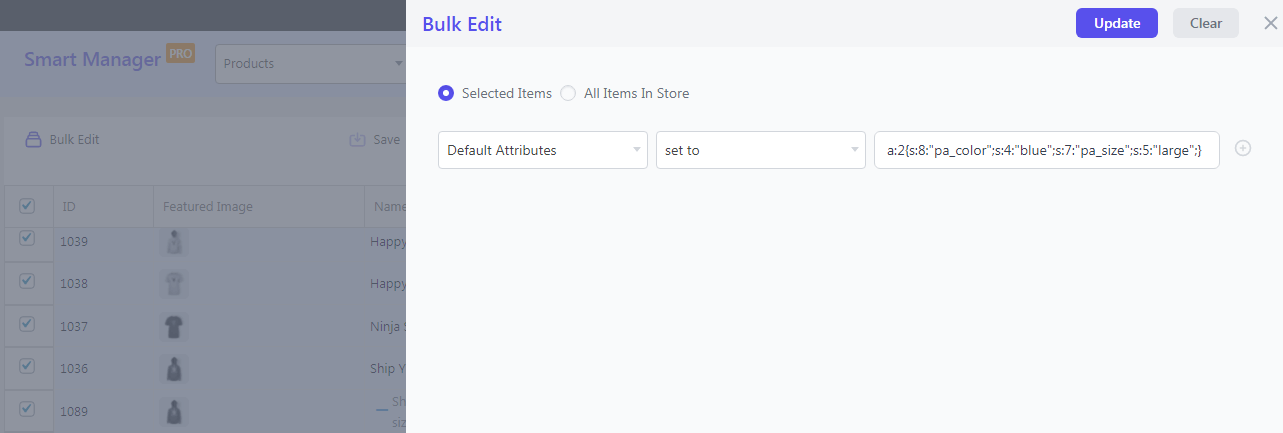
That’s it. The selected products will be updated without having to open each product individually.
If you face any difficulties while setting attributes, reach out to us here.
Common issues when setting WooCommerce default attributes
Setting a default attribute doesn’t create a new variation. The required attributes and variations must already exist for the selected combination to work correctly.
- The attribute doesn’t appear: Make sure the attribute has been added to the product and is enabled for variations.
- The selected combination doesn’t work: Check that a variation exists for the attribute combination you’re trying to use.
- Nothing is preselected: Confirm that default values have actually been saved for the variable product.
- Bulk updates affect the wrong products: Filter the products first and review the selected records before applying a bulk edit.
Why use Smart Manager for bulk default attributes?
Default attributes are just one of the many product fields you can manage from Smart Manager. Instead of switching between individual product-edit screens, you get a single dashboard for working with large amounts of WooCommerce data.
- Manage any WooCommerce and WordPress post type and custom fields – orders, coupons, pages, users, subscriptions, vendors, memberships, bookings, etc.
- Bulk edit and inline edit across supported post types.
- Export data as CSV based on your requirements – entire store or using date, search and column filters.
- Duplicate selected records or existing records for any post type.
- Add and delete data rows as required. You can also trash or bulk delete WooCommerce products and other post types.
- Column management: Sort data in ascending or descending order and show or hide the columns you need.
Conclusion
Setting default attributes is straightforward when you’re dealing with a few variable products. The problem starts when the same update needs to be applied across hundreds or thousands of products.
For individual products, WooCommerce’s standard editor is enough. For large catalogs, Smart Manager gives you a faster way to find products and bulk-update their default attributes from one dashboard.