

Need to bulk delete WordPress posts or pages?
WordPress lets you select multiple posts or pages and move them to the Trash using the built-in Bulk Actions menu. That works well for small cleanups, but it becomes tedious when you need to remove hundreds of posts or first filter them by author, category, tag, date, status, or other fields.
In this guide, you’ll learn how to bulk delete WordPress posts and pages with and without a plugin, how to permanently delete them, and what to check before removing content that may still have SEO value.
How to bulk delete WordPress posts without a plugin
WordPress lets you delete posts and pages without a plugin using its built-in Trash and Bulk Actions features. This works well when you’re cleaning up a small number of posts, pages, or drafts.
When you move content to the Trash, it is removed from your live site but can still be restored or permanently deleted later.
How to delete a WordPress post
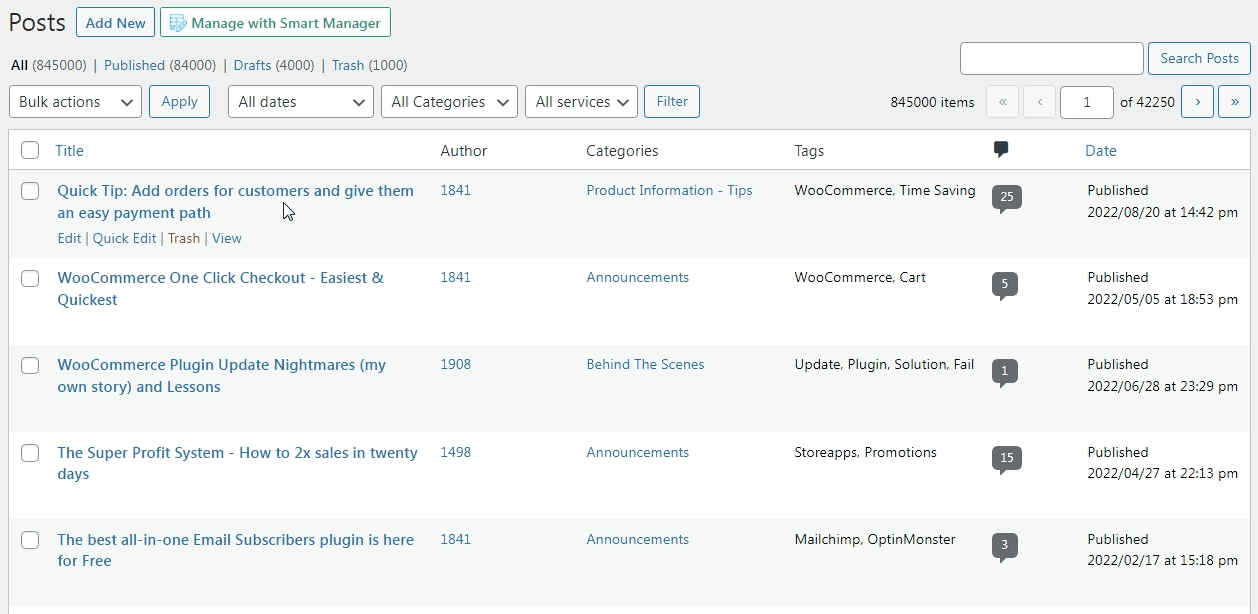
To delete an individual WordPress post:
- Log in to your WordPress dashboard.
- Go to
Posts > All Postsand hover over the post you want to delete. - Click
Trash.
The post is removed from your live website and moved to the Trash. You can restore it later or permanently delete it from the Trash.
How to delete a WordPress page
Deleting a page works the same way as deleting a post. Go to Pages > All Pages, hover over the page you want to remove, and click Trash.
This method is convenient when you only need to delete a few pages. But if you need to remove dozens or hundreds of posts or pages, deleting them individually can quickly become tedious. That’s where WordPress’s built-in bulk delete option comes in.
Bulk delete WordPress posts
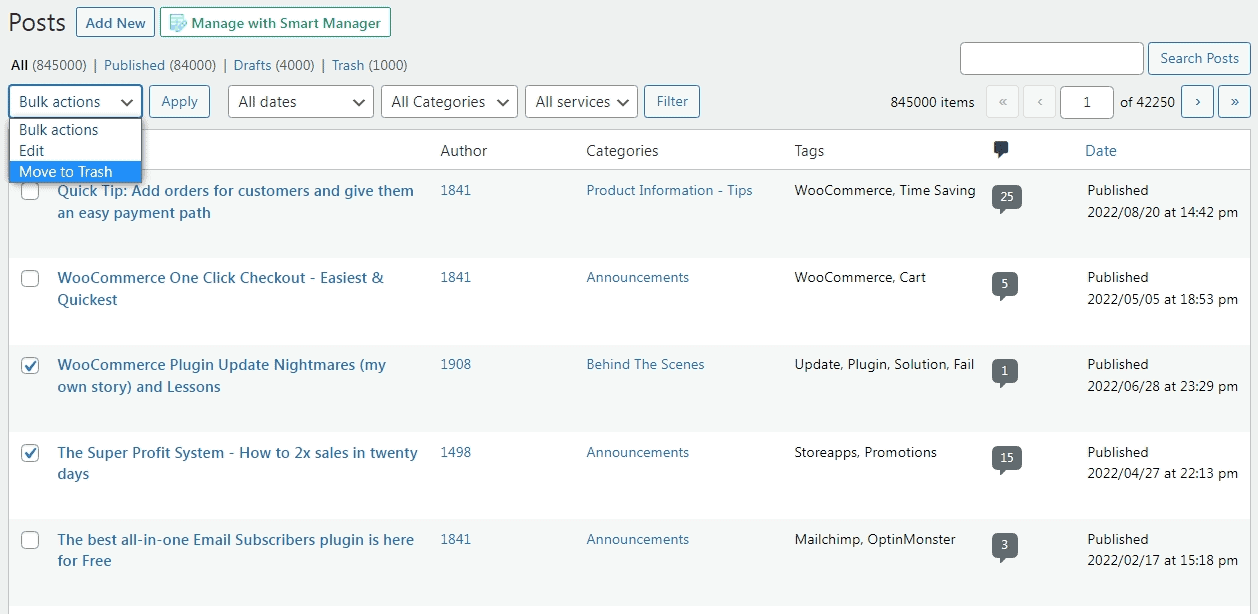
WordPress lets you select multiple posts and move them to the Trash at once. Here’s how:
- Go to
Posts > All Posts. - Select the posts you want to delete using the checkboxes.
- Open the
Bulk actionsdropdown. - Select
Move to Trash. - Click
Apply.
All selected posts are moved to the Trash. You can restore them later or permanently delete them from the Trash.
Bulk delete WordPress pages
You can bulk delete pages using the same process. Go to Pages > All Pages, select the pages you want to remove, choose Move to Trash from Bulk actions, and click Apply.
How to permanently delete WordPress posts in bulk
Moving posts to the Trash doesn’t delete them permanently. To remove them completely:
- Go to
Posts > Trash. - Select the posts you want to remove permanently.
- Choose
Delete Permanentlyfrom theBulk actionsdropdown. - Click
Apply.
You can permanently delete pages in the same way by going to Pages > Trash.
When WordPress bulk delete isn’t enough
WordPress’s native bulk actions work well for straightforward cleanup, but they become restrictive when you need to find specific content before deleting it.
- Advanced filtering: You can’t build detailed filters using multiple conditions such as author, category, date, tags, or custom fields.
- Large-scale deletion: Managing thousands of records page by page becomes slow and repetitive.
- Custom post types: WordPress doesn’t provide the same bulk-delete workflow for every custom post type.
- Reviewing large selections: It’s harder to inspect and manage a large filtered set before deleting it.
If your cleanup involves hundreds of records or specific filtering rules, a spreadsheet-style bulk editor is more practical.
How to bulk delete WordPress posts with Smart Manager
If you regularly manage hundreds or thousands of WordPress posts, pages, WooCommerce products, or other custom post types, the built-in bulk delete feature quickly becomes limiting. A spreadsheet-style editor lets you view, search, filter, edit, and delete content from one screen, making large-scale site cleanup faster and more accurate.
Instead of manually selecting posts page by page, you can filter exactly what you want to remove based on criteria like author, category, status, publish date, tags, custom fields, or keywords.
Smart Manager is one such spreadsheet editor that helps you bulk delete WordPress posts, pages, WooCommerce products, orders, coupons, users, and other post types safely.
With Smart Manager, you can:
- Bulk edit WordPress and WooCommerce data from one spreadsheet.
- View thousands of records on a single screen.
- Search and filter posts by author, category, status, title, date, tags, or custom fields.
- Select only the records you want to delete.
- Move items to Trash or permanently delete them in bulk.
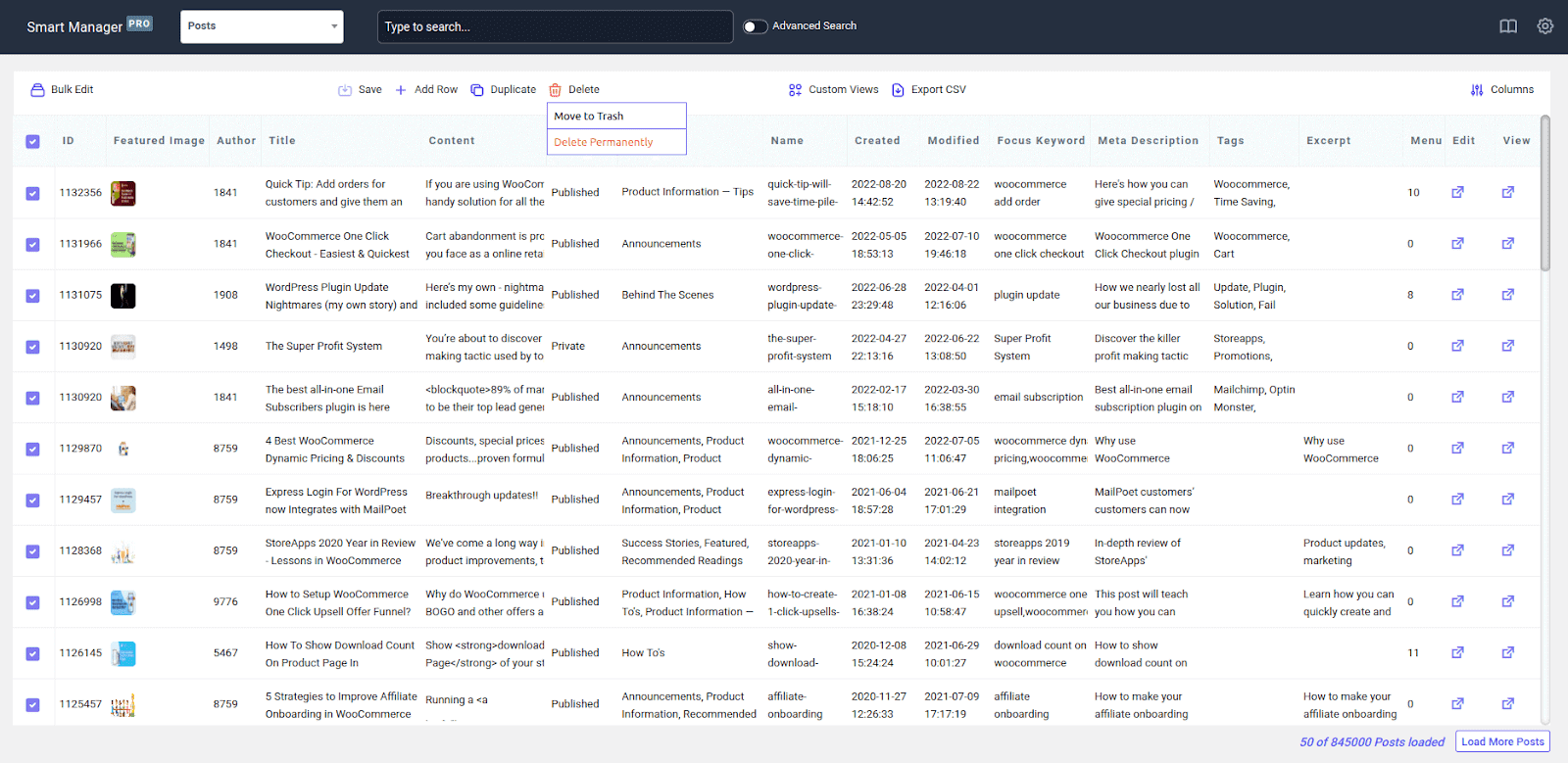
Because every matching record is displayed before you delete it, you can review your selection first and reduce the risk of accidentally removing important content.
How to bulk delete WordPress posts with Smart Manager?
To bulk delete WordPress posts using Smart Manager, select the post type you want to manage, filter the records, select the matching rows, and delete them in just a few clicks.
- Install and activate Smart Manager.
- Open Smart Manager from your WordPress dashboard.
- Select the dashboard you want to manage:
- Posts
- Pages
- WooCommerce Products
- Orders
- Coupons
- Users
- Or any supported custom post type.
- Use Search or Advanced Filters to find the records you want to remove.
- Select the matching rows.
- Click the
Deleteicon. - Choose either
Move to TrashorDelete Permanently. - Click
Saveto apply the changes.
Bulk delete smarter, not harder with Smart Manager
Deleting a few posts manually is easy. Deleting hundreds of blog posts, WooCommerce products, landing pages, expired promotions, or test content is another story.
Instead of manually searching through multiple pages of content, Smart Manager lets you filter records using one or more conditions, preview the results, and delete only the items that match your criteria.
You can filter by:
- Post title
- Post status
- Author
- Category
- Tags
- Publish date
- Stock status
- Custom fields
- And many other WordPress or WooCommerce fields.
Here are some practical examples.
Bulk delete draft posts by status and date
If you’ve accumulated hundreds of draft posts, test articles, or unpublished content, you can quickly remove them by combining status and date filters.
How to delete with Smart Manager:
- Select Posts dashboard.
- Click on
Bulk edit. - Now use these rules:
- Post Status > is > Draft.
- Post Date > 1 Jan 2025.
- Post Date > 31 Dec 2025.
- Click on
Search. You can now see all those posts. - Simply select them and click on the
Deleteicon. - It will show two options –
Move to TrashandDelete Permanently. Choose your desired option. - Click Save to apply the changes.
Review the matching posts, select them, click Delete, choose whether to move them to Trash or permanently delete them, and save your changes.
Bulk delete expired seasonal landing pages
Seasonal campaigns often leave behind outdated landing pages for events like Christmas, Valentine’s Day, Black Friday, or New Year promotions. Instead of deleting them individually, search by title or campaign keyword.
You can delete them using this filter: Post title > contains > Christmas (for example).
Repeat the filter for other campaign names such as Black Friday, Valentine’s Day, or Summer Sale to clean up outdated promotional pages in minutes.
If a freelancer, contributor, or vendor created content that is no longer needed, you can remove all their posts at once.
You can delete them using this filter: Author > == > vendor_john (or whatever username was used)
This is especially useful when retiring guest content, removing imported listings, or cleaning up vendor-generated products.
Bulk delete outdated test pages and draft content
Development sites often accumulate test pages, demo posts, placeholder content, and unpublished drafts. Removing them keeps your website organized.
Example filters:
Post Title > contains > TestPost Title > contains > DemoPost Status > equals > DraftPost Status > equals > Private
Review the filtered results before deleting to ensure only unwanted content is removed.
Bulk delete posts by tag
Tags are often used for temporary campaigns, seasonal promotions, product launches, or testing. Once the campaign ends, those tagged posts become unnecessary and can clutter your WordPress site.
Instead of deleting each post manually, filter all posts with the same tag and remove them in one go.
Use this filter in Smart Manager:
Post Tag > equals > clearance
You can repeat the same process for tags like sale, event, temporary, black-friday, or any custom tag you’ve used.
Bulk delete posts with empty content or placeholder text
If you’ve imported content, migrated websites, or created drafts for later editing, chances are your site contains empty posts or placeholder content such as “Lorem ipsum.” Removing these posts helps improve content quality and keeps your WordPress database organized.
Use these filters to clear the junk:
Post Content > is > emptyPost Content > contains > Lorem ipsum
This is ideal for cleaning up incomplete blog posts, abandoned drafts, imported placeholder pages, and unfinished content before publishing.
Bulk delete posts by category
If you’ve retired a product line, discontinued a service, or reorganized your blog, you may want to delete every post belonging to a specific category.
Instead of opening each post individually, simply filter the category and delete everything matching it.
Use this filter in Smart Manager:
Category > equals > Handmade cards
Hit Search, select the posts, and click Delete.
Review the filtered posts, select the records, and delete them in one action.
Bulk delete WooCommerce products, orders, users, coupons, and more
Smart Manager isn’t limited to blog posts and pages. You can bulk delete almost any WordPress or WooCommerce data using the same spreadsheet interface and advanced filters.
For example, you can quickly clean up:
- WooCommerce products: Delete discontinued, out-of-stock, or test products by category, stock status, SKU, or price.
- Orders: Remove test orders, cancelled orders, failed orders, or old orders based on status or date.
- Coupons: Delete expired, unused, or promotional coupons after a marketing campaign ends.
- Users: Remove spam registrations, inactive customers, subscribers, or unused user accounts.
- Media files: Clean up unused images, duplicate uploads, and outdated media files.
- Custom post types: Delete bookings, memberships, events, testimonials, portfolios, or any custom post type supported by your website.
Using filters before deleting allows you to review exactly which records match your criteria, helping prevent accidental deletions while making large-scale WordPress cleanup significantly faster.
Smart Manager: More than a bulk delete plugin
Smart Manager does much more than bulk deleting WordPress posts and pages. It gives you a spreadsheet-style interface to manage, edit, search, filter, duplicate, export, and update WordPress and WooCommerce data without opening individual edit screens.
Whether you’re managing a content-heavy WordPress website or a large WooCommerce store, Smart Manager helps you save hours on everyday administrative tasks.
- Use Inline Edit to update multiple fields directly from the spreadsheet.
- Create, update, duplicate, or delete hundreds of records in just a few clicks.
- Export unlimited CSV data using custom filters, search conditions, or selected columns.
- Create custom views to quickly access frequently managed data.
- Control dashboard access for specific user roles or individual users.
- Bulk update stock quantities, regular prices, sale prices, featured products, and inventory information.
- Manage bookings, subscriptions, memberships, product add-ons, and other custom post types from the same interface.
- Update featured images and product galleries directly from the spreadsheet without opening individual products.
- Perform advanced bulk editing, bulk deletion, duplication, and data management using powerful search filters.
Instead of spending hours opening individual posts or products, Smart Manager lets you manage thousands of WordPress records from a single screen—making it one of the fastest ways to clean up, organize, and maintain large WordPress and WooCommerce websites.
How to bulk delete WordPress posts without hurting SEO
Deleting posts can affect SEO if those URLs still receive organic traffic, have backlinks, or are linked internally. Before deleting a large batch, check whether the content still has search or referral value.
- Check traffic and backlinks: Keep or redirect URLs that still have meaningful traffic or external links.
- Set up 301 redirects: Redirect deleted URLs to the closest relevant page when an equivalent destination exists.
- Fix internal links: Remove or update links pointing to deleted posts.
- Update your sitemap: Make sure permanently deleted URLs are no longer included.
- Verify the changes: Monitor Google Search Console after a large deletion.
When should you bulk delete WordPress posts?
Bulk deletion makes sense when your WordPress site has accumulated content that no longer serves a useful purpose.
- Outdated test or demo posts
- Expired campaign or promotional pages
- Abandoned drafts and placeholder content
- Content created by retired contributors
- Duplicate or obsolete pages that have been properly redirected
- Posts that no longer have traffic, backlinks, or business value
Before deleting anything that has organic traffic or backlinks, review its SEO value and set up a relevant redirect where appropriate.
Bulk delete WordPress content with confidence
For a handful of posts or pages, WordPress’s built-in Bulk Actions are all you need. When you’re cleaning up hundreds of records or need to filter content by author, category, tag, date, status, or other fields, a bulk management tool makes the process much faster and easier to control.
Whatever method you use, review important URLs before deleting them and redirect valuable content when necessary.
Get Smart Manager plugin today
FAQ
How do I bulk delete WordPress posts?
Go to Posts → All Posts, check the boxes next to the posts you want to remove, select Move to Trash from the Bulk Actions dropdown, and click Apply. To permanently delete them, open the Trash tab and select Delete Permanently. For larger cleanups with advanced filtering, Smart Manager lets you filter by author, category, date, tag, or status before deleting.
Can I bulk delete WordPress posts without a plugin?
Yes. WordPress includes a built-in bulk delete feature under Posts → All Posts and Pages → All Pages. Select the items, choose Move to Trash from Bulk Actions, and click Apply. The limitation is that you can only delete items visible on the current screen, and filtering options are basic.
Can I undo a bulk delete in WordPress?
Yes, if you’ve moved items to Trash. Open the Trash tab under Posts or Pages and click Restore. Once you click Delete Permanently, the content is gone and cannot be recovered from the Trash, only from a database backup.
Can I bulk delete WordPress custom post types?
Not with WordPress’s built-in tools. Custom post types require a plugin. Smart Manager supports bulk deletion of any custom post type, including WooCommerce products, orders, coupons, bookings, memberships, and more, from the same spreadsheet interface.
How do I bulk delete WordPress posts by category?
WordPress’s default Bulk Actions don’t support filtering by category before deleting. With Smart Manager, you can filter posts using Category → equals → [category name], review the results, and delete all matching posts in one action.
Will bulk deleting posts affect my SEO?
It can. If the posts you’re deleting still receive organic traffic or have backlinks, removing them without setting up 301 redirects can hurt your search rankings. Always check Google Search Console and Google Analytics before bulk deleting, and redirect any URLs with traffic or backlinks to relevant pages.
What should I do after bulk deleting WordPress posts?
After bulk deleting, clear your site cache, clean your WordPress database, and submit an updated sitemap to Google Search Console. This ensures search engines stop crawling deleted URLs and that no broken internal links remain on your site.