

Learning how to edit categories in WordPress the right way starts with one distinction most guides skip: bulk editing and merging are not the same thing, and using the wrong one can quietly create broken URLs and diluted category pages.
If your WordPress categories or tags feel messy, you’re not alone. Over time, sites accumulate duplicate or overlapping terms that confuse readers and weaken SEO.
Bulk editing helps you reassign categories or tags across many posts without changing your structure.
Merging consolidates duplicate terms into a single, stronger category or tag.
This guide shows you how to do both safely, and what to check afterward to keep your site clean and search-friendly.
Before you bulk edit or merge anything, it helps to know which taxonomy you’re actually working with.
| Aspect | Categories | Tags |
|---|---|---|
| Purpose | Broad topic grouping | Specific, granular labels |
| Hierarchy | Can have parent/child structure | Flat, no hierarchy |
| Required on a post | Yes, defaults to Uncategorized | No, optional |
| Typical count per post | 1 to 2 | As many as relevant |
| Best for | Site navigation and structure | Cross-post topic connections |
Bulk edit or merge? Use this decision framework
Before you touch anything, ask one simple question: Am I fixing posts, or am I fixing categories themselves?
That answer decides everything.
| Your situation | What you need | Use this |
|---|---|---|
| Categories/tags are correct but applied wrongly across posts | Fix assignments at scale | Bulk edit |
| Same idea exists as multiple categories or tags | Consolidate into one | Merge |
| You want to add/remove a category from many posts | No structural change | Bulk edit |
| You want one strong archive instead of many weak ones | Structural cleanup | Merge |
| You’re cleaning usage, not taxonomy | Safe, reversible | Bulk edit |
| You’re removing duplication in taxonomy itself | URL + archive changes | Merge |
Quick rule to remember:
- If posts are messy > bulk edit.
- If categories or tags are messy > merge.
Once this is clear, the rest is just execution.
Note: If you’re unsure whether bulk editing or merging is the right move, step back for a moment and ask whether some of this content should simply be removed.
When the goal is a full cleanup, deleting might be a cleaner option than reorganizing what no longer needs to exist.
WordPress includes a basic bulk editor that works well for simple category and tag assignments.
It’s designed for situations where:
- Categories or tags already exist
- You just need to apply them to many posts at once.
Bulk edit categories in WordPress
You created a new category and want older posts included under it.
How to do it:
- Go to
Posts > All Posts - Select the posts you want to update
- Choose
Bulk actions > Edit - Click
Apply - In the bulk edit panel: choose the required Categories
- Click
Update
This works well when categories already exist and you’re just fixing assignments.
With tags, WordPress allows one simple action in bulk:
You can add a tag to multiple posts at once.
That’s useful for:
- Labeling existing content
- Grouping posts under a new tag
However, WordPress does not support bulk removal, replacement, or cleanup of tags.
Overall, the default WordPress bulk editor works well for adding categories and tags to multiple posts, but it stops there. It can’t:
- Replace one category or tag with another
- Remove a specific tag from many posts at once
- Merge duplicate categories or tags
- Standardize inconsistent naming across posts
- Clean up a messy taxonomy structure in bulk

And this is where you need a bulk management tool like Smart Manager.
When category or tag cleanup goes beyond fixing post assignments, a sheet-style editor like Smart Manager by StoreApps becomes useful.
See how Pacho Keys cut store management time by 90.27 percent using Smart Manager.
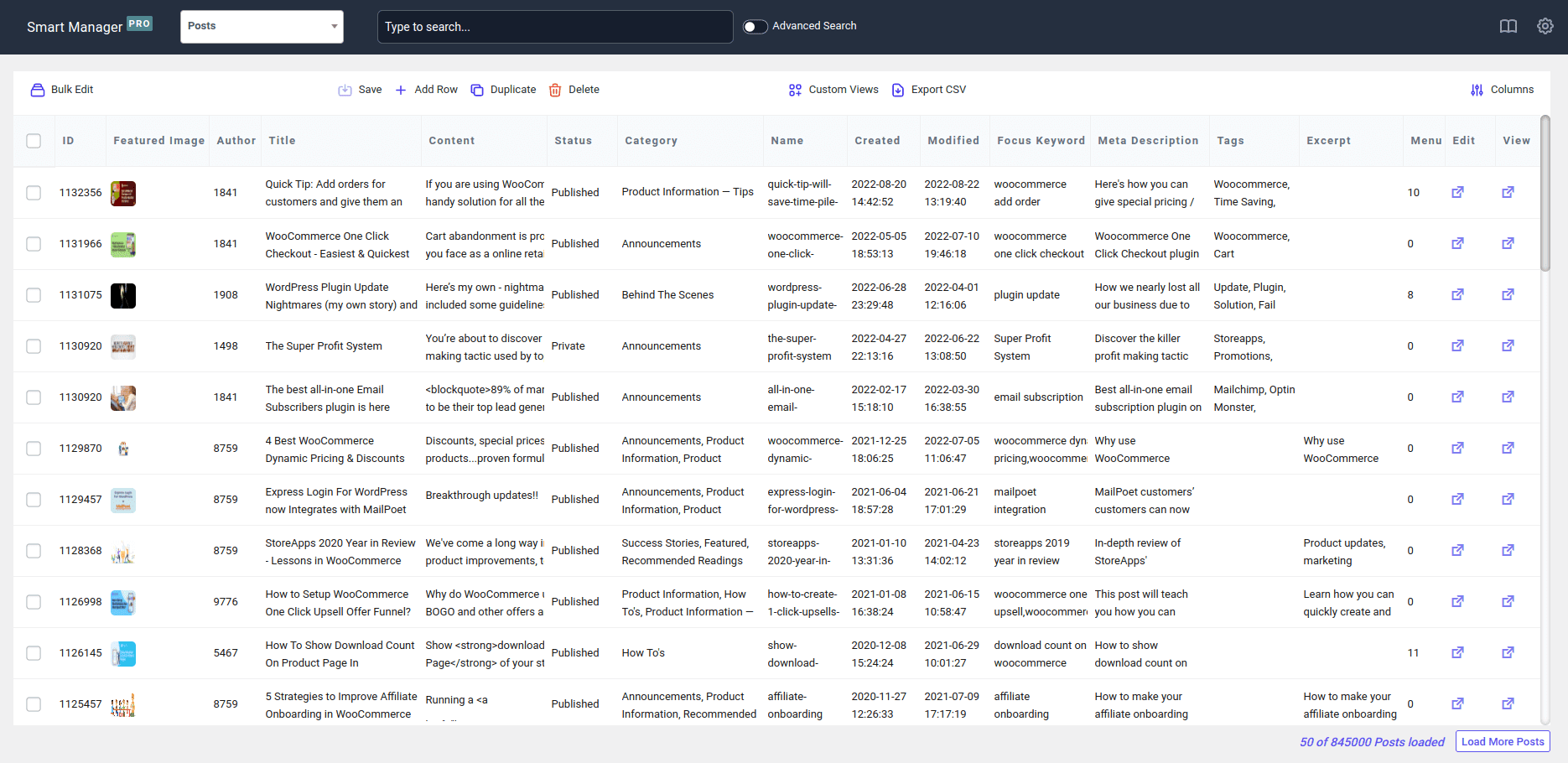
Instead of opening one category or tag at a time, you work with them the way you’d work in a spreadsheet, search, edit, and standardize in bulk.
Below are two common, very relatable scenarios.
Example 1: Bulk editing categories and post visibility
Let’s say you run a WooCommerce blog with buying guides and help content.
Over time, many posts were added under a broad “Guides” category.
Now you want to clean things up:
- Move these posts to “Buying Guides”
- Temporarily set them to
Draft(they need updates)
Here’s how to do it using Smart Manager:
- Open Smart Manager in your WordPress admin
- Select
Postsdashboard. - Use Advanced Search and filter:
Category > is > Guides - Review the filtered posts
- Select all the matching posts
- Click
Bulk Editand apply these actions:Category > remove from > GuidesCategory > add to > Buying GuidesPost Status > set to > Draft
- Click on
Save.
And you’re done.
Let’s say you run a WooCommerce store and your blog has dozens of posts tagged randomly over the years.
Now you notice one problem:
Some posts have a useless tag like “Apple” (added by mistake), and it’s creating a weak archive page that doesn’t help SEO.
Instead of opening posts one by one, you want to remove this tag everywhere.
Here’s how to do it using Smart Manager:
- Open Smart Manager in your WordPress admin
- Switch to the
Postsdashboard - Use
Advanced Searchand filter: Post Tag > is > Apple- Select all filtered posts
- Click
Bulk Edit - Set this action:
Post Tag > remove from > Apple
- Click
Updateand save changes - That’s it.
All selected posts will have the Apple tag removed instantly, without editing each post manually.
Some more use cases:
- Remove a specific category or tag from many posts without deleting the term itself
- Looking to bulk delete categories entirely instead of just removing them from posts? Check this dedicated guide.
- Replace one category or tag with another across posts while keeping other assignments intact
- Add a category or tag to many posts without overwriting existing ones
- Copy categories or tags from one well-structured post to similar posts
- Edit categories or tags while seeing post details like title, author, and date
- Combine category or tag changes with other post updates in one bulk action
- Undo recent bulk changes if something doesn’t look right
WordPress doesn’t have a built-in way to merge categories or tags.
To actually merge terms, you need a tool that can move all posts from one term into another in one step.
The simplest way to do this:
A solid free option: Term Management Tools, which adds Merge, Set Parent, and Change Taxonomy directly to the Bulk Actions dropdown on your Categories or Tags screen.
- Install the plugin above.
- Go to
Posts > Categories(or Tags). - Select the duplicate categories or tags you want to merge.
- Choose the destination term (the one you want to keep).
- Run the merge.
- All posts from the duplicate terms are reassigned to the destination term, and the extra terms are removed.
That’s it.
Get Smart Manager plugin today
SEO impact: bulk edit vs merge
Bulk editing categories or tags is usually SEO-safe. You’re only changing post assignments, not URLs.
Merging is different. It removes duplicate category or tag archives and consolidates them into one. That’s good for SEO only if old URLs are handled properly.
If you merge without redirects, search engines may hit 404s and lose context.
Conclusion
Category and tag cleanup isn’t a one-time task. It’s part of ongoing site maintenance especially as content grows, authors change, and topics evolve.
The key is restraint. Don’t rush to delete or merge just because things look messy.
Use bulk edits to bring order first. Only make structural changes when you’re confident they improve clarity for both users and search engines.
Handled patiently, taxonomy cleanup makes future publishing easier, navigation clearer, and SEO decisions simpler down the line.
That’s the real win.
FAQs
Is it risky to bulk edit categories on a live site?
Bulk editing is generally safe because it doesn’t change URLs or archives. Still, it’s best to start with a small batch to avoid mistakes.
What happens if I merge categories that don’t mean exactly the same thing?
You’ll mix unrelated posts into one archive, which can confuse users and weaken topical relevance for search engines.
Can I merge categories or tags without changing URLs?
No. Merging removes old term URLs and keeps only the destination archive.
Does WordPress automatically handle redirects after a merge?
No. Redirects must be added manually or handled with a plugin.