


If you run a WooCommerce store, there are two customer data tasks you’ll eventually run into: importing customers into your store and exporting them out.
Importing usually comes up when you’re migrating from another platform, restoring a backup, or syncing users from a CRM.
Exporting comes up when you need to analyze your audience, run targeted campaigns, or identify your best buyers.
WooCommerce handles both, but the default tools are limited. This guide covers what’s possible natively, and how to do more when the defaults aren’t enough.
How to Import WooCommerce Customers (WordPress Users)
If you need to import users into WordPress, WooCommerce doesn’t provide a built-in CSV importer for customers.
Since WooCommerce customers are stored as WordPress users, importing customer data usually requires a CSV import tool.
This can quickly become a problem if you need to bring customer data into your store, for example when you’re:
- migrating from another WooCommerce store
- moving customers from a CRM
- restoring customer data from a backup
In situations like this, store owners usually use a CSV importer plugin such as Customer/Order/Coupon CSV Import Suite for WooCommerce by SkyVerge.
This plugin lets you upload a CSV file containing your customer data and map each column, like email, billing address, or shipping details, to the correct WooCommerce fields during the import.
Importing customers from another store
Let’s say you’re moving your store to a new WooCommerce installation.
You export customers from the old store and prepare a CSV file like this:
| username | billing\_first\_name | billing\_last\_name | billing\_city | billing\_country | |
|---|---|---|---|---|---|
| johnsmith | john@email.com | John | Smith | New York | US |
| sarawilson | sara@email.com | Sara | Wilson | London | GB |
The email column is required, because WooCommerce uses the email address to identify each customer.
Other columns simply provide additional information such as billing details, shipping addresses, or login credentials.
Steps to import customers into WooCommerce
Here’s how you can import customers using the Customer/Order/Coupon CSV Import Suite plugin:
- Install and activate the
Customer/Order/Coupon CSV Import Suite plugin. - Prepare a CSV file containing your customer data.
- Upload the CSV file in the importer.
- Map the CSV columns (email, billing info, shipping info, etc.) to the correct WooCommerce customer fields.
- Run the import.
Once the import finishes, the customers will appear in WordPress → Users and will automatically be available in your WooCommerce store.
Once your customers are in, here’s how to get the right data back out.
How to Export Users from WordPress and WooCommerce?
WooCommerce does allow exporting data, but the default options are fairly limited.
WordPress has a basic export tool for users, and WooCommerce provides reports and analytics, but neither gives you much control when you want to export specific customer segments.
For example, with the default tools you can’t easily export things like:
- only paying customers
- customers from a specific country
- customers with the highest order value
- customers who registered recently
In most cases, you end up exporting all users and then manually filtering the data in a spreadsheet.
This is where tools like Smart Manager make the process much easier.
Instead of exporting everything and cleaning it later, it allows you to search, filter, and export exactly the customer data you need from one dashboard.
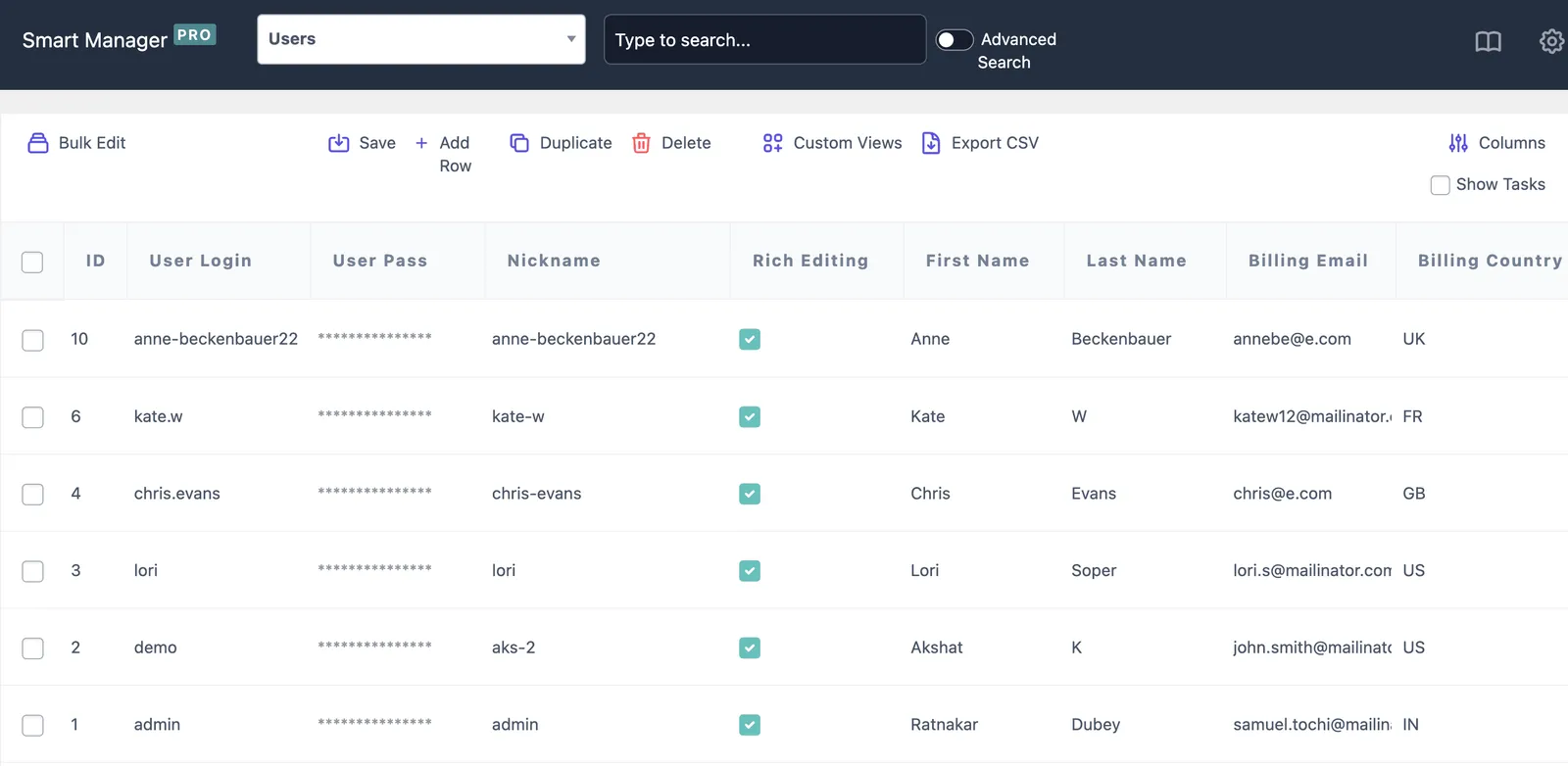
With this plugin, you can export customer data such as:
- email and username
- billing and shipping details
- order count
- total spend
- registration date
- custom user fields
And because everything works in a spreadsheet-style dashboard, you can filter the customers first and export only the records that match your criteria.
Now let’s look at some practical situations where exporting WooCommerce customers becomes useful.
Practical use cases for exporting WooCommerce customers
Once you can filter and export customer data, it becomes much easier to understand your customers and run targeted campaigns.
Here are some common situations where WooCommerce store owners export customer data.
Export all customers
Sometimes you simply need a complete list of customers, for example when migrating to another store, creating backups, or syncing data with a CRM.
With Smart Manager, you can export all customers in one go.
Steps:
- Go to
WordPress Admin → Smart Manager - Select
Users dashboard - Click the
Export CSVicon - Choose
Entire Store
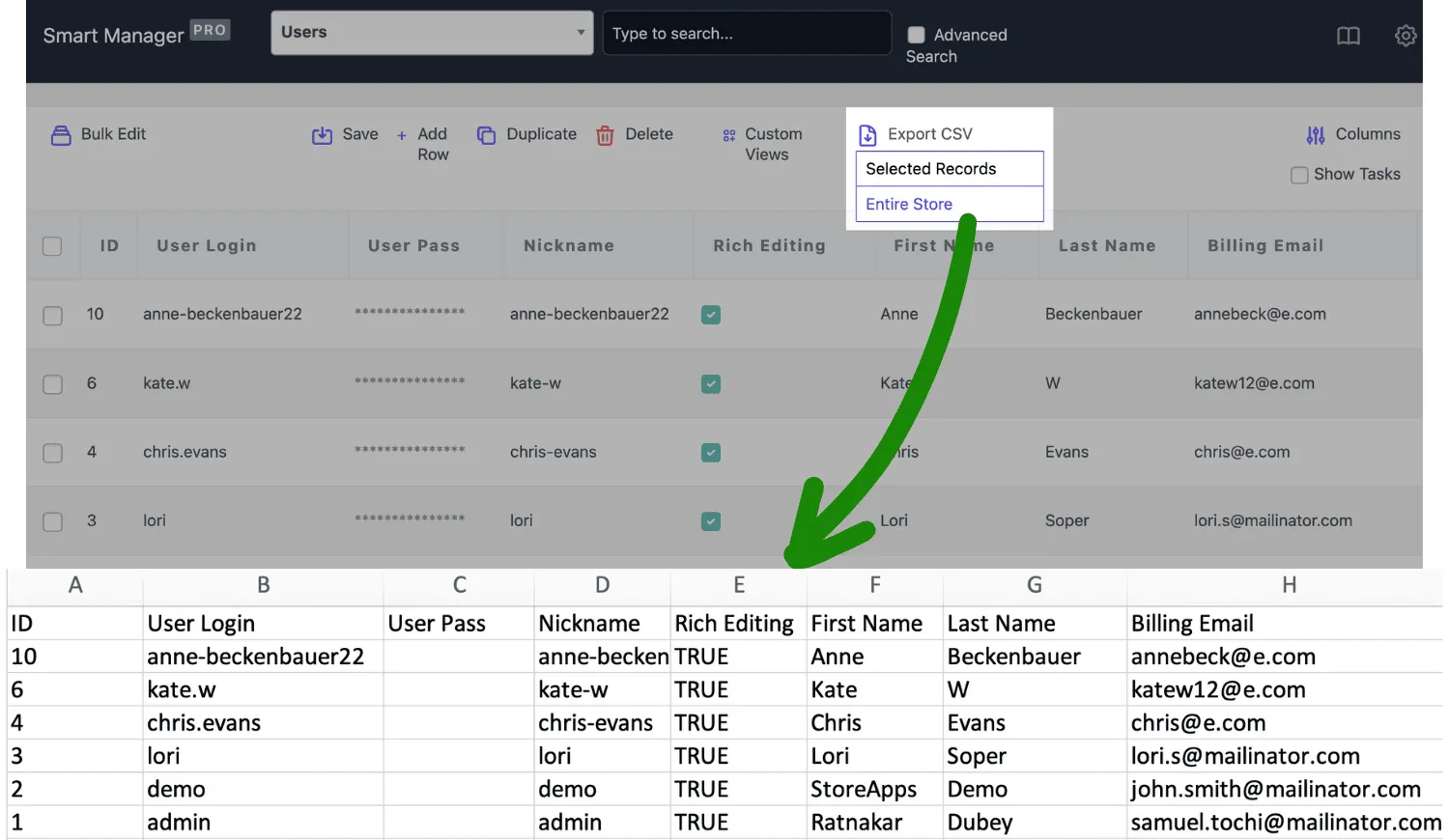
The CSV file will download with all customer records.
Export paying customers
If you’re planning a marketing campaign, you may want to focus only on customers who have actually placed orders.
Exporting paying customers helps you avoid sending campaigns to users who never purchased anything.
Steps:
- Go to
Smart Manager → Users dashboard - Click
Advanced Search - Set the condition:
Role → is → Customer
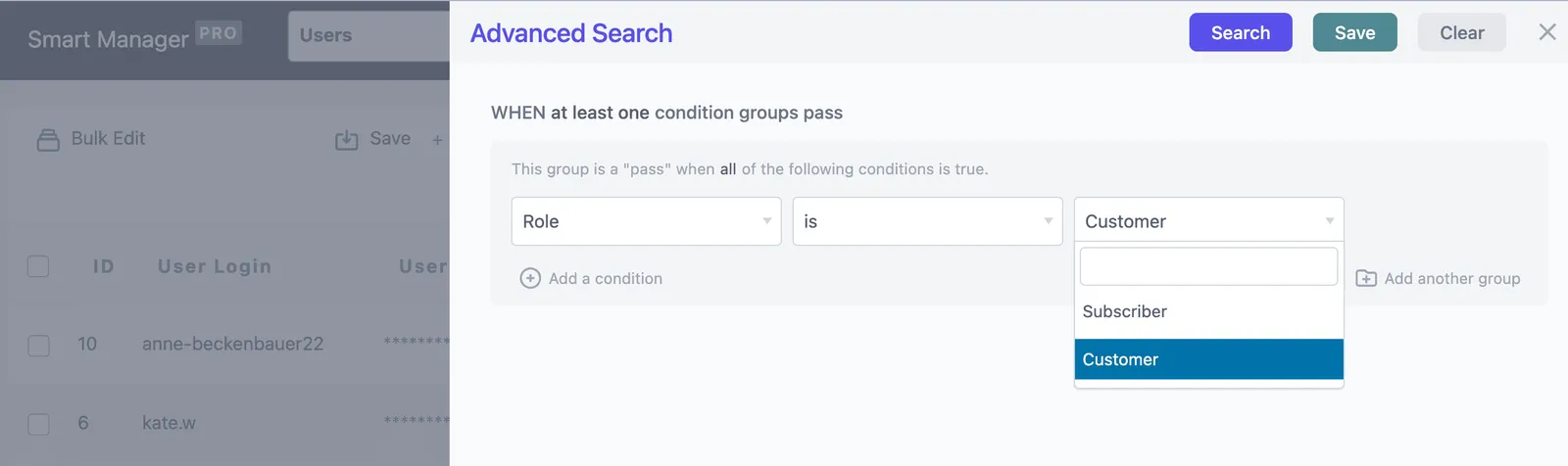
- Run the search
- Select the results and click
Export CSV
This will export only customers who have completed purchases.
Export top-spending customers
Identifying your highest-value customers is useful for loyalty rewards, VIP programs, or exclusive discounts.
Steps:
- Open
Smart Manager → Users dashboard - Sort the list using the
Orders Totalcolumn - Select the highest spenders
- Click
Export CSV
Now you have a list of your most valuable customers.
Export loyal customers
Loyal customers are those who purchase frequently.
You can identify them by filtering based on order count.
Steps:
- Go to
Smart Manager → Users dashboard - Click
Advanced Search - Set the condition:
Orders Count → greater than → 5 - Run the search
- Select the results and export them
This gives you a list of repeat buyers who may qualify for loyalty rewards.
Export recently registered customers
Sometimes you want to reach out to new users who recently signed up. This is useful for onboarding emails or welcome campaigns.
Steps:
- Open
Smart Manager → Users dashboard - Click
Advanced Search - Set the condition:
User Registered → after → specific date - Run the search and export the results
This gives you a list of newly registered customers.
Export customers by shipping method
Shipping data can reveal interesting patterns about how customers prefer to receive orders.
Steps:
- Open
Smart Manager → Users dashboard - Click
Advanced Search - Set the condition:
Shipping Method → contains → free_shipping - Export the results.
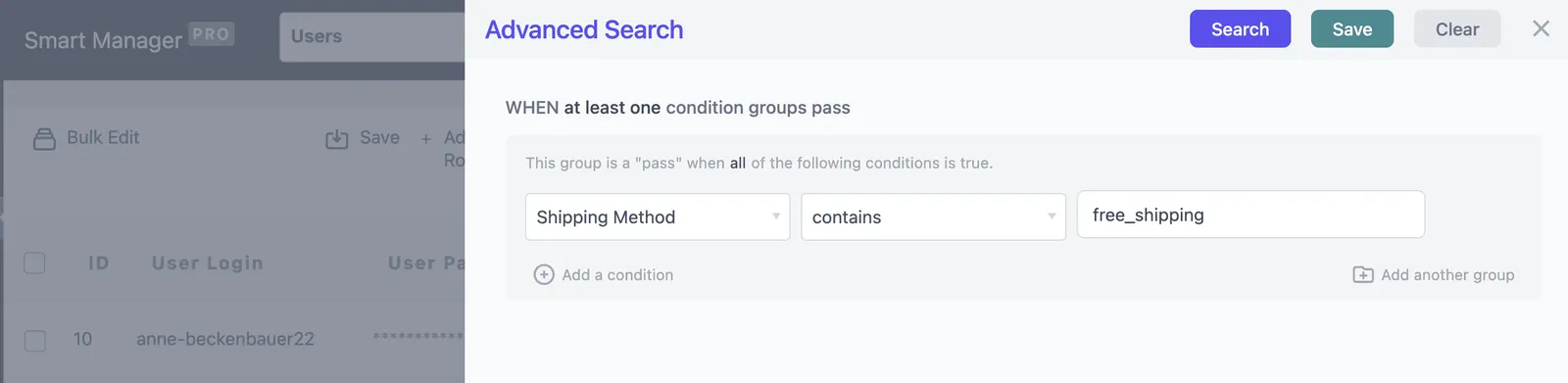
You can use this data to analyze delivery preferences or optimize shipping options.
Export customers by billing location
If your store runs promotions in specific regions, exporting customers based on billing location can be useful.
Steps:
- Go to
Smart Manager → Users dashboard - Click
Advanced Search - Set conditions such as:
Billing City → is → New YorkBilling Country → is → US
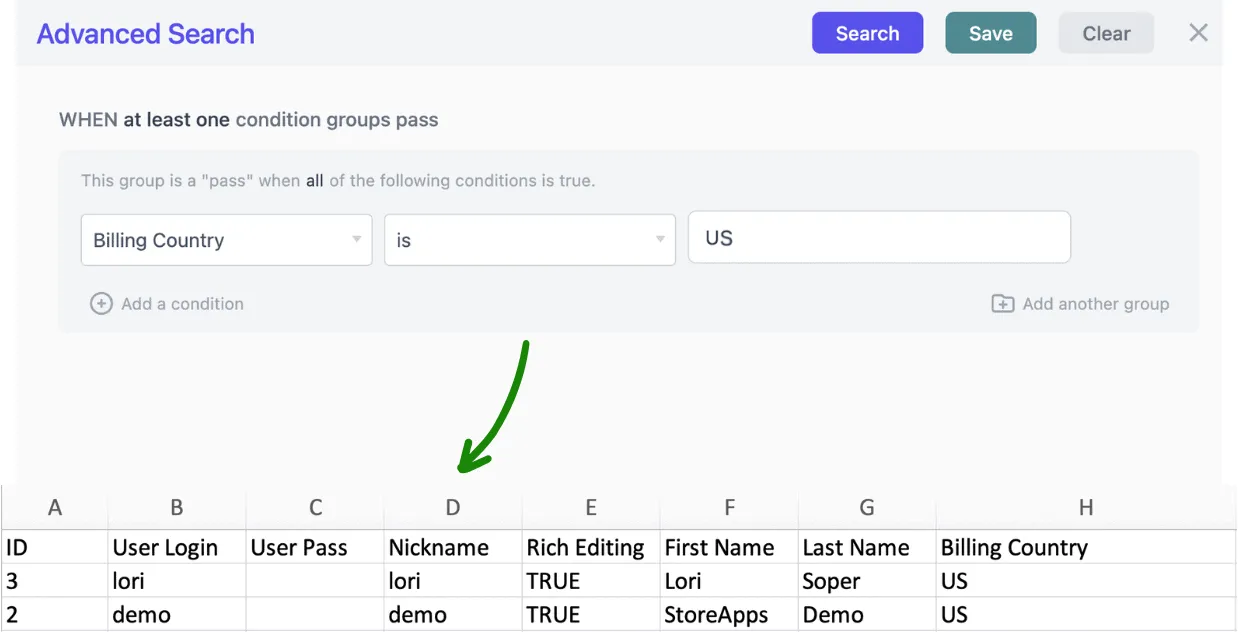
- Export the results.
This allows you to create region-specific customer lists.
Export customers by last order date
Sometimes you want to find customers who haven’t purchased recently so you can run re-engagement campaigns.
Steps:
- Open
Smart Manager → Users dashboard - Click
Advanced Search - Set the condition:
Last Order Date → before → specific date - Export the results.
This gives you a list of inactive customers you may want to re-engage.
Manage WooCommerce customer data without the chaos
WooCommerce stores customers as WordPress users, which works fine for day-to-day management. But the default tools don’t give you much control when you need to move data in bulk or export specific customer segments.
For importing, a plugin like Customer/Order/Coupon CSV Import Suite handles the heavy lifting, mapping your CSV columns to the right WooCommerce fields and avoiding duplicates in the process.
For exporting, Smart Manager lets you skip the “export everything and filter later” approach. Filter first, export only what you need, and get straight to the campaign or analysis you’re running.
FAQs
What happens if a customer already exists during import?
Most CSV import tools check for an existing customer using email, username, or user ID. If a match is found, the importer can update the existing customer instead of creating a duplicate account.
Can you import WooCommerce customers without passwords?
Yes. If a password is not provided in the CSV file, WooCommerce can create the account and send the user a password reset email so they can set their own password.
Can you export WooCommerce customers with custom fields?
Yes. If your store stores additional data as user meta fields, those custom fields can be exported along with standard customer data like email, billing details, and order history.
Can WooCommerce export customer order insights?
Yes. Customer exports can include fields like orders count, total spend, last order date, and average order value, depending on the export tool used.
Peter Netz Lassen
Hi Akshat, This is a SUPER great tool - Brilliant. Just what I was looking for. I've been using Smart Manager for a while now and this is so welcome.
Keep up the good work.
Netz