
WordPress content is never “done.”
Posts get updated.
Pages change ownership.
Titles, content, images, and metadata need revisions, often across many items at once.
At first, these changes are manageable. You edit a few posts, make quick fixes, and move on. But as content grows, the work changes.
Updates repeat. Patterns emerge. And editing pages one by one starts consuming more time than the change itself.
This is where bulk edit WordPress posts becomes less about convenience and more about workflow.
In this guide, we’ll look at how bulk editing can actually help when WordPress content updates become routine.
Here’s a quick side-by-side of what each method can and can’t touch:
| Field | Native WordPress | Smart Manager |
|---|---|---|
| Status, author, categories, tags | Yes | Yes |
| Post title | No | Yes |
| Post content | No | Yes |
| Featured image | No | Yes |
| SEO fields (Yoast/RankMath) | No | Yes |
| Custom fields / ACF | No | Lite: view only (up to 3) · Pro: bulk edit |
| Publish date | No | Yes |
What should ‘bulk edit’ feel like?
Bulk edit shouldn’t feel like a shortcut.
It should feel like clarity.
- You select related products or pages.
- You make one change.
- It applies everywhere it should.
No extra screens.
No guessing what’s already updated.
No breaking your focus mid-task.
At its best, bulk editing helps you work in groups instead of bouncing between individual items.
With that expectation in mind, let’s look at what WordPress’s default bulk edit actually offers.
Bulk edit using WordPress for free
WordPress includes a built-in bulk edit option for making the same basic change across multiple posts or pages.
It’s useful when you want to quickly organize content or apply simple updates without opening each item individually.
How to bulk edit posts or pages in WordPress?
If you’ve never used bulk edit before, here’s the simplest way to do it:
- Go to your
WordPress dashboard. - Navigate to
PostsorPagesfrom the left menu. - Select the checkboxes next to the items you want to edit.
- From the Bulk actions dropdown, choose
Edit. - Click
Apply.
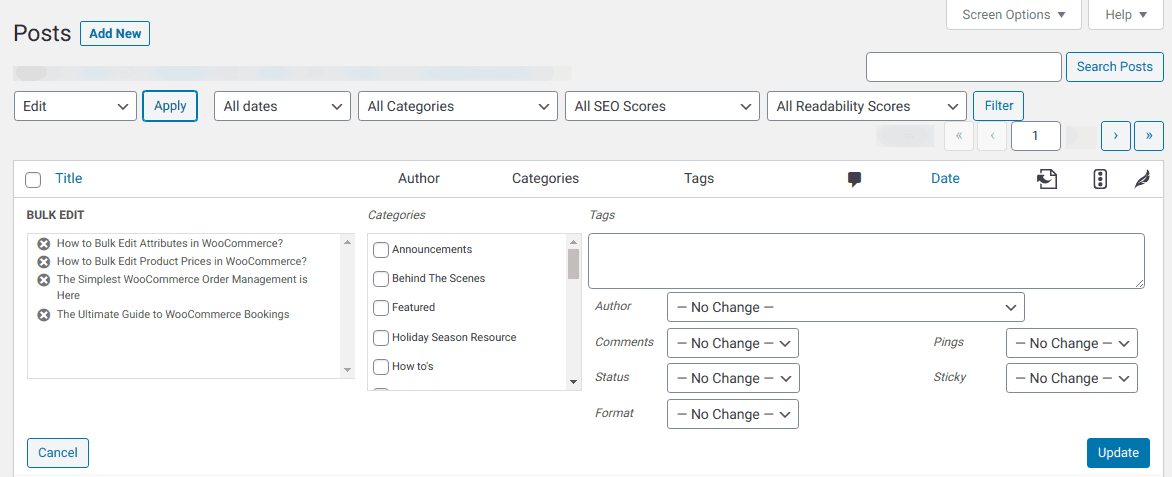
You’ll now see bulk editing options for all selected items.
What you can update in bulk for free?
For posts, WordPress allows you to bulk edit:
- Author
- Categories
- Tags
- Comments
- Post status (Draft, Published, Pending)
- Post format
- Pingbacks
- Sticky setting
For pages, you can bulk edit:
- Author
- Parent page
- Page template
- Comments
- Page status
Once you’ve made the changes, click Update to apply them to all selected items.
By default, WordPress shows 20 items per page in the Posts or Pages list. Under Screen Options (top right of the screen), you can raise this to up to 999 items per page. Very large selections can still slow down or time out on some hosting, so for large batches it’s worth testing on a smaller set first.
This works well for organizational updates, especially when you’re cleaning up content or making administrative changes.
Bulk delete posts or pages (optional cleanup)
WordPress also lets you remove multiple items at once:
Before running any bulk action that’s hard to reverse, like a mass search-and-replace or a large delete, take a full site backup or export the affected posts to CSV first. That way, if something doesn’t apply the way you expected, you can restore or re-import instead of fixing it post by post.
- Go to
PostsorPages. - Select the items you want to remove.
- Choose
Move to Trashfrom the Bulk actions dropdown. - Click
Apply.
Items moved to Trash stay there for 30 days before permanent deletion, unless you empty the trash manually.
If you’re planning a large cleanup or want to understand your options before deleting content in bulk, this guide breaks it down step by step: How to bulk delete WordPress posts and pages safely
If you’re comfortable with the command line, WP-CLI is another free, native option. Commands like wp post list and wp post update let developers query and batch-update posts by ID without installing a plugin. It requires server/SSH access and isn’t beginner-friendly, but it’s worth knowing about if you’re technical.
Where WordPress’s default bulk edit starts to fall short
Bulk edit WordPress posts works well for basic, administrative updates.
You can change authors, categories, status, or comment settings across multiple posts or pages.
For simple organization tasks, that’s usually enough.
But default bulk edit stops there.
- You can’t bulk edit post titles or post content.
- You can’t update featured images or publish dates.
- You can’t edit SEO fields like meta titles or descriptions.
So even when changes apply to many posts, most meaningful updates still require opening each item individually.
As the number of posts grows, this creates friction.

Not because the work is complicated, but because the same small edits have to be repeated across multiple screens, with no easy way to see everything together.
This is usually the point where WordPress bulk edit starts to feel limiting, and where tools like Smart Manager become relevant. If you’re managing more than just posts, Smart Manager can bulk edit WooCommerce products, orders, and coupons too.
Bulk editing WordPress posts and pages using a spreadsheet-style view
A spreadsheet-style bulk editing workflow treats posts and pages as rows of data instead of separate edit screens.
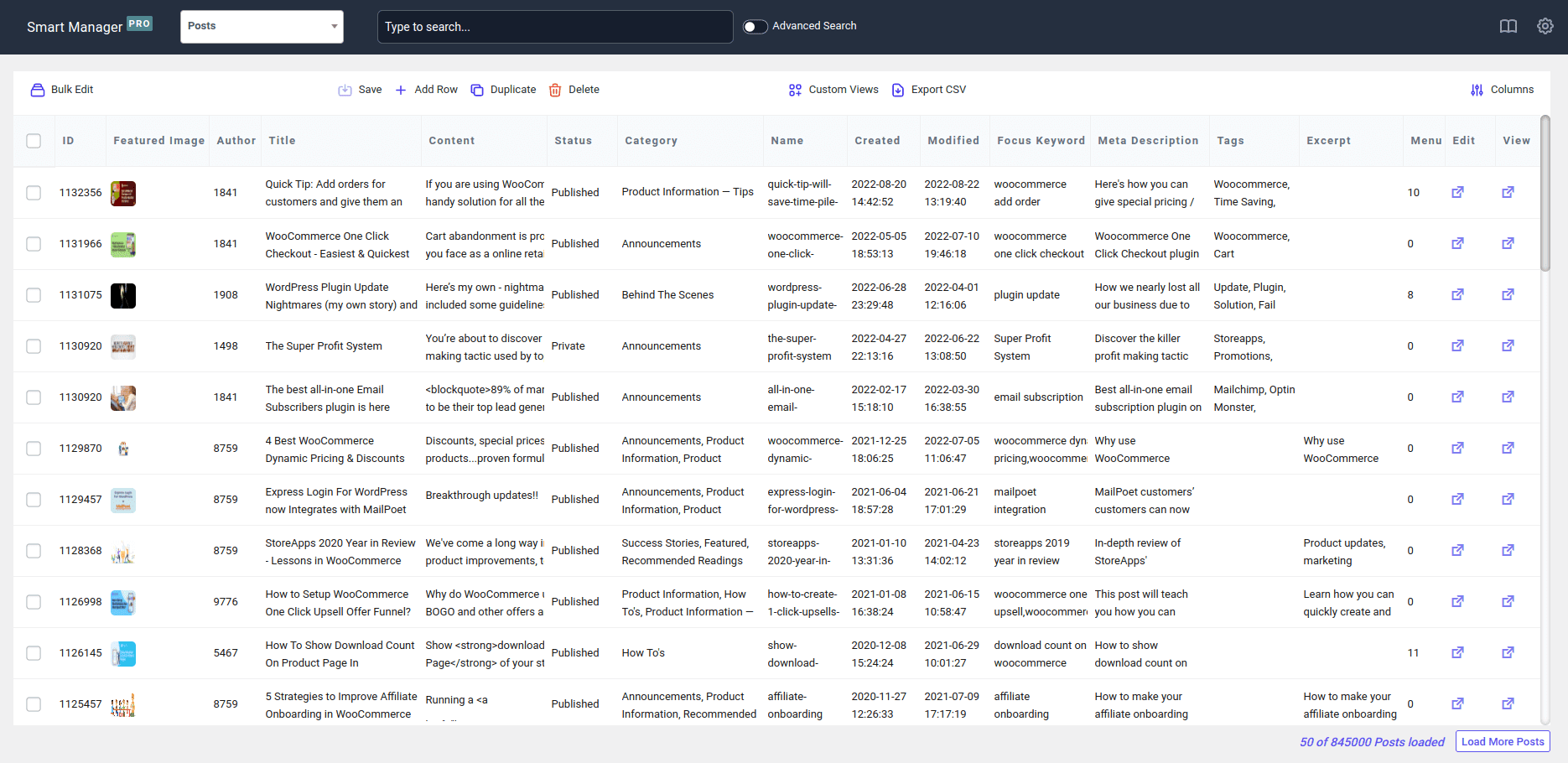
- You see everything in one place.
- You make changes directly where the data is.
- And you apply the same decision consistently across many items.
Smart Manager brings this spreadsheet-style view inside WordPress.
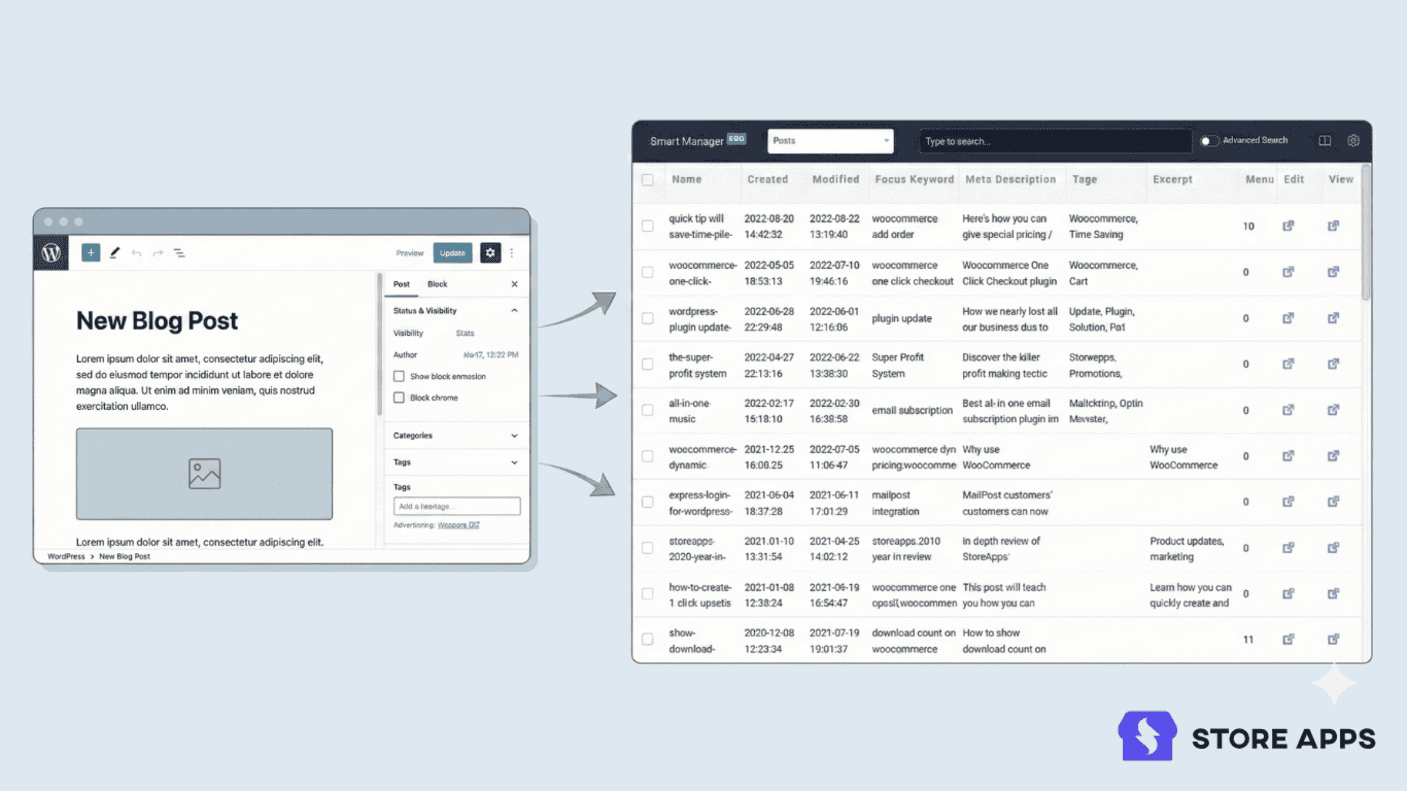
When bulk editing becomes routine, this approach makes updates easier to review, repeat, and manage, without opening posts one by one.
Below are a few common bulk-edit scenarios and how they’re handled.
Bulk update post titles for SEO freshness
Google loves fresh content. Adding the current year to your content, SEO titles, and meta descriptions can give your rankings a nice boost.
At StoreApps, we’ve used this trick in posts like Best WooCommerce Gift Cards Plugins, Best WooCommerce Affiliate Plugins—and it works.
But here’s the challenge: keeping content updated across hundreds of posts is no small feat. It takes time, and lots of it.
So how do you do it without spending hours?
With the Smart Manager plugin.
It lets you update everything from one place—fast. Bulk edit posts, update fields, tweak titles—all without opening each post one by one. Huge time-saver.
Here’s how:
- Go to your
WordPress admin panel > Smart Manager. - From the drop-down, select Posts dashboard.
- Enable Title, Content, and other columns if not shown.
- Click on the
Advanced Searchbar toggle and type Title contains year if you want to replace existing ones. Replace the year with the desired value. - If there are fewer posts, directly edit data from the spreadsheet.
- For hundreds of posts, go to
Bulk Edit > Post Title > search and replace. Enter the values as shown and Update.
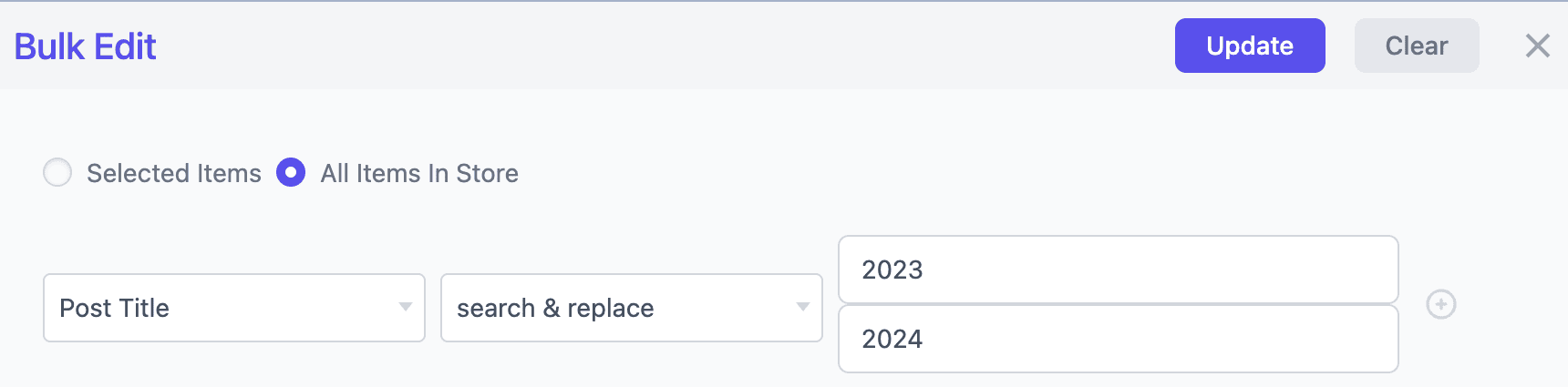
That’s it.
If your posts don’t include the previous year and you’d like to add the current year to your existing titles for an SEO boost, just use the Bulk Edit feature with the Append function — just like in the example below.
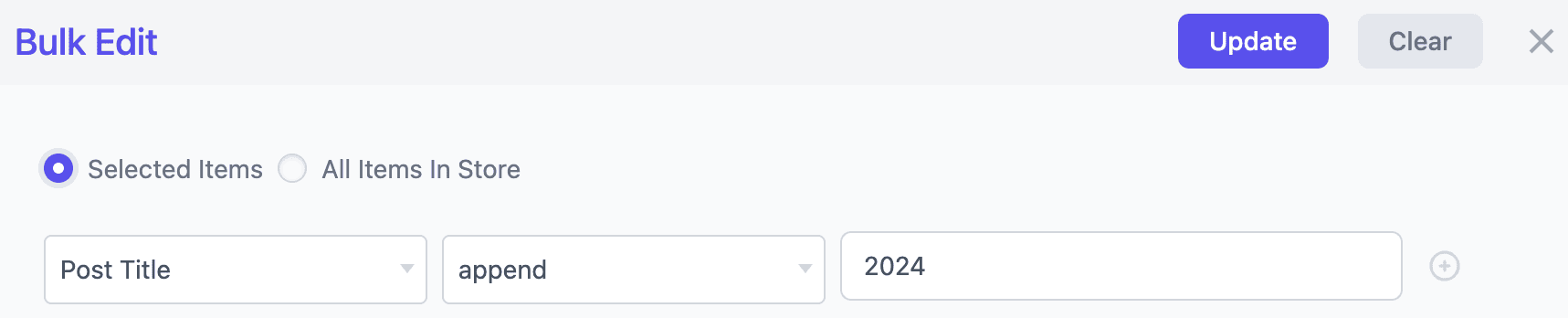
Simple, efficient, and gets the job done in seconds!
Edit and manage Yoast SEO and RankMath SEO fields
Smart Manager works seamlessly with both Yoast and RankMath, letting you manage all your SEO fields in bulk or individually.
You can quickly update focus keywords or keyphrases, edit meta descriptions, tweak post titles, content, status, publish dates, and more, all from one convenient interface.
Bulk edit custom fields and ACF data
Custom fields, whether added by Advanced Custom Fields (ACF), Pods, Meta Box, or plugins like WooCommerce Subscriptions and Memberships, don’t appear in WordPress’s native bulk edit panel at all. Smart Manager automatically detects these fields once at least one post has been saved with them, and displays them as columns in the spreadsheet view.
In Smart Manager Lite (free), you can view and inline-edit up to three custom fields at a time. For bulk editing custom fields across many posts at once, you’ll need Smart Manager Pro.
Bulk edit posts by category
Some updates apply to an entire group of posts.
For example, say you want to change the author for all posts under a specific category after a content review or team change.
Instead of opening each post, you can handle the update at the category level.
How it works:
- Go to your
WordPress Dashboard > Smart Manager. - In the dropdown, select Posts as the post type.
- Toggle the
Advanced Searchoption at the top. - Click
Searchto pull up all the posts from this category. - Now you can make edits directly for post name, post content, post status, or other fields as needed.
- To apply changes to all results at once:
- Check the
header checkboxto select all visible items. - In the bulk edit window, choose
Select all items in the search resultand proceed with your changes. - Under the Author field, change the author name to Dr. Maya in the field.
- Click
Updateto apply the changes.
- Check the
All posts in that category are updated together, without opening individual edit screens.
Add featured images for posts
Featured images are often skipped during content updates because adding them post by post takes time.
With Smart Manager, you can add or update featured images directly from the spreadsheet view.
You simply enable the Featured Image column, click inside the image cell, and choose an image from the Media Library.
This makes bulk visual updates faster and more manageable, especially when working with large numbers of posts or pages.
What else you can bulk edit with Smart Manager?
- Batch update all core WordPress fields in just a few clicks
- Edit post status, categories, publish dates, SEO fields, and more
- Directly edit titles, content, excerpts, tags, comment settings, and parent pages
- Create multiple posts or pages straight from the spreadsheet
- Bulk delete posts (move to trash or delete permanently)
- Update product gallery and featured images via the media library
- Build custom views, for example, one focused only on SEO-related fields
- Bulk delete outdated or duplicate content using filters
- Clean up unnecessary media files by file type or upload
- Copy and paste data between posts
- Sort by any column to find exactly what you need
- Edit hundreds of posts without reloading the page
That’s the kind of flexibility teams rely on once bulk editing becomes part of regular work, not a one-time task.
Bulk editing custom post types beyond WooCommerce
Custom post types aren’t limited to WooCommerce products. If your site runs an LMS like LifterLMS or TutorLMS, or accepts donations through GiveWP, Smart Manager recognizes these as post types too and lets you bulk edit their fields the same way as posts or pages, no separate tool needed.
Smart ways store owners and content teams use bulk editing
Once bulk editing becomes routine, store owners stop using it for quick fixes and start using it for control.
Here are a few real situations where bulk editing makes a noticeable difference in day-to-day WordPress work.
Cleaning up content before a Google update or SEO audit
An SEO audit flags dozens of small issues, missing excerpts, inconsistent publish dates, outdated titles, or empty custom fields.
Instead of opening each post, teams filter affected content, review it in one view, and fix patterns across all posts at once. This turns a stressful audit into a structured cleanup.
Managing content created by freelancers or agencies
Different writers mean different habits.
Some forget categories. Some leave drafts unpublished. Some skip tags or excerpts.
Bulk editing lets teams review content by author, fix gaps in one pass, and bring everything back to a consistent standard, without rewriting or re-uploading anything.
This is the same pattern Biz Nuggets, a high-volume blog, ran into: managing editorial workflow and post scheduling across a large volume of content. Bulk editing by author or status is what turned that from a recurring headache into a routine task.
Preparing content for launches, campaigns, or seasonal updates
Before a launch, teams often need to:
- Update titles and messaging
- Adjust publish status
- Align multiple pages with the same campaign theme
Bulk editing allows everything to be reviewed and updated together, so launches don’t feel rushed or fragile.
Maintaining large help centers, blogs, or documentation libraries
As content grows, small inconsistencies pile up, outdated templates, missing parents, wrong menu order.
Bulk editing helps teams periodically “reset” structure and organization without treating each page as a separate task.
Reviewing and fixing custom fields added over time
Many WordPress sites rely on custom fields added by plugins, page builders, or developers.
When these fields change or need cleanup, bulk editing makes it possible to:
- Spot empty or incorrect values
- Fix them across many entries
- Avoid breaking layouts or templates
When this workflow makes sense (and when it doesn’t)
Not every WordPress site needs a spreadsheet-style bulk editor.
Default WordPress bulk edit is usually enough if:
- You update posts occasionally
- You manage a small number of pages
- Bulk edits are rare, one-off tasks
A real example of this shift

This is the stage agencies like Adeptive reached while managing content-heavy WordPress and WooCommerce sites.
Bulk editing itself wasn’t the issue.
Managing frequent updates across posts, pages, and products one-by-one was.
They moved to a spreadsheet-style workflow so content could be reviewed and updated as a set, not page by page, making bulk edits predictable across client sites.
See how Adeptive streamlined WordPress content management.
And therefore, a spreadsheet-style bulk editing workflow makes sense when:
- You update content regularly for SEO
- You manage posts or pages in groups (by category, campaign, or author)
- You want to review changes before applying them
- You handle large content libraries alongside WooCommerce products
- Bulk editing is part of your weekly or monthly routine
This isn’t about replacing WordPress- it’s about adapting your workflow as your site grows.
Bulk editing is about workflow, not shortcuts
WordPress bulk edit works well for quick, basic updates.
But as content grows, the way you manage it matters more than the individual features.
When bulk editing becomes part of regular work, a spreadsheet-style view helps you:
- See everything in one place
- Reduce repetitive actions
- Apply changes consistently
- Stay in control as your site scales
If you’re spending more time navigating screens than actually editing content, it may be time to rethink how you handle bulk updates.

Your next step
If you’re curious what bulk editing looks like in a spreadsheet-style view, without committing to anything, you can explore Smart Manager at your own pace.
FAQ
What can’t WordPress bulk edit do?
WordPress bulk edit does not allow you to update post titles, post content, featured images, SEO fields, or publish dates in bulk.
For these changes, you typically need to open each post individually or use a spreadsheet-style bulk editing tool like Smart Manager.
Is WordPress bulk edit enough for SEO updates?
Not really. WordPress bulk edit helps with basic organization like categories, authors, and status, but it doesn’t let you bulk edit post titles, content, meta titles, meta descriptions, or featured images.
For SEO refreshes, most changes still have to be done post by post unless you use a bulk editing tool like Smart Manager.
What’s the safest way to bulk edit WordPress posts?
Back up your site or export the affected posts to CSV before making any large or hard-to-reverse change. Then filter first and review what you’re editing: select a small set of posts, apply the change, and confirm the result before scaling up. Avoid bulk editing blindly across large selections without checking fields.
Are there alternatives to Smart Manager for bulk editing WordPress posts?
Yes. If you only need to bulk edit posts and pages and don’t need WooCommerce-specific features, general-purpose tools like WP Sheet Editor or Admin Columns Pro are also worth considering.
What’s the difference between Quick Edit and Bulk Edit in WordPress?
Quick Edit updates one post at a time, you access it by hovering over a single post in the Posts or Pages list. Bulk Edit updates the same fields across multiple selected posts at once. Neither one can touch titles, content, featured images, or SEO fields in bulk, for that you still need a tool like Smart Manager.