

Editing WooCommerce orders one by one is fine until you have 50, 100, or 1,000 of them.
At that point, bulk editing isn’t just about saving time. It’s about avoiding mistakes, keeping order data clean, and fixing issues without breaking your store.
This guide shows you how to bulk edit WooCommerce orders, starting with what WooCommerce can already do and then moving to the situations where store owners usually need something more.
You’ll see real examples, so you can quickly decide the right approach for your situation.
Two very common situations (and how people usually handle them)
Almost every bulk editing request falls into one of these two situations.
- Situation 1: I only need to bulk change order status
- Situation 2: I need to bulk edit order details in WooCommerce (not just status)
The solution depends entirely on which one you’re dealing with.
I just need to mark 20 orders as Completed
This is the most common, simple case.
For example: You run a big sale and ship less orders using a shipping tool.
Orders are shipped. Customers have their packages on the way.
Then support pings you:
“We can’t see tracking details inside WooCommerce.”
- Hundreds of orders still marked Processing
- Customers start asking, “Where is my order?”
- Payment gateways still treat these orders as unfulfilled
- You don’t have time to open and fix each order.
Here’s how to fix it with WooCommerce (no extra tools needed)
- Go to
WooCommerce > Orders - Select the orders you want to update
- Choose
Bulk actions > Change status to > Completed - Click
Apply
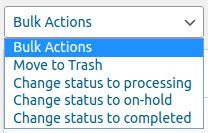
Done.
When is WooCommerce enough?
WooCommerce’s default bulk actions work well if:
- You’re only changing order status
- The batch is small
- This happens occasionally
In these cases, you don’t need anything else.
I need to bulk edit 50+ order details in WooCommerce (not just status)
This is where most real stores eventually land.
Here, the problem isn’t workflow. The problem is order data.
You’re trying to fix, clean, or correct information inside orders, things like products, customers, payment methods, notes, or custom fields.
WooCommerce doesn’t support bulk editing for this kind of data. Editing orders one by one becomes slow and risky.
This is where a dedicated bulk editor like Smart Manager becomes practical, not as a replacement for WooCommerce, but as a tool designed specifically for bulk data work.
How to bulk edit WooCommerce orders using Smart Manager?
When your job is more than just changing order status, you need a tool that lets you see and edit order data directly.
Smart Manager gives you a spreadsheet-like view of your WooCommerce orders.
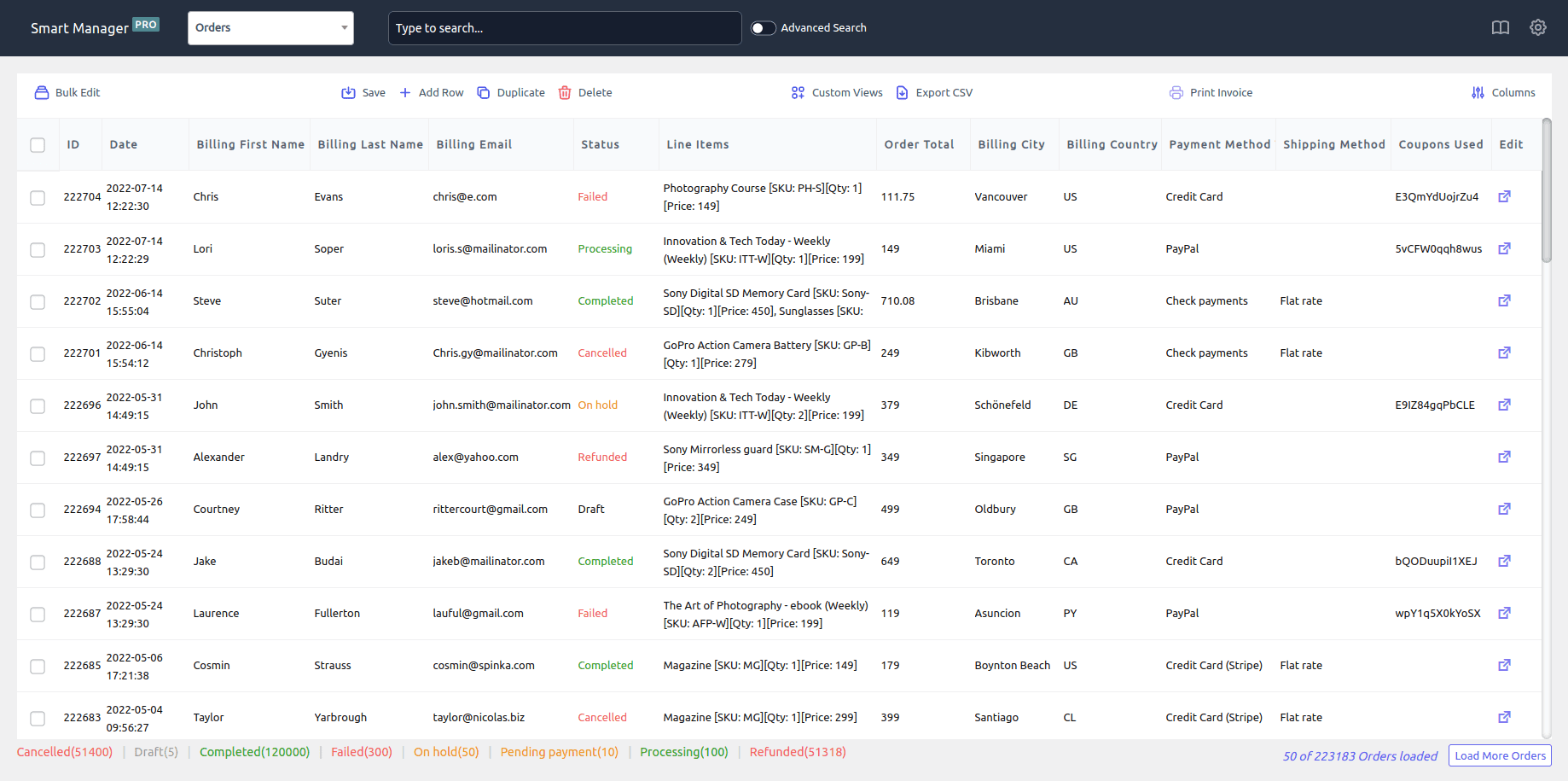
You can:
- Filter the exact orders you want to change
- Review their data in one place
- Edit fields directly (like in Excel or Google Sheets)
- And save the changes in bulk
Below are three common, real-world examples where this approach is typically used.
Example 1: Bulk updating order status (based on payment method)
WooCommerce lets you bulk change order status, but the real struggle starts when you’re dealing with a specific group of orders.
For example, you may want to mark only Stripe-paid orders as Completed, but they’re still stuck in Processing because of webhook delays or payment sync issues.
WooCommerce’s default Orders screen doesn’t make it easy to filter orders using this kind of combination.
So here’s how Smart Manager can help:
- Open
Smart Manager > Orders dashboard - Click
Advanced Search - Set:
Payment method title < is < StripeOrder status < is < Processing
- Select all filtered orders
- Click
Bulk Edit - Set
Order status < Completed Save
Now only Stripe orders are updated, without manually selecting them one by one.
Example 2: Marking orders for accounting or tax review
Your accountant asks you to review all orders from the last financial year and make sure they’re clearly marked for tax filing.
You don’t need to change totals or taxes.
You just need to attach a consistent marker so these orders are easy to identify later.
This could be:
- A specific Customer Note, or
- An internal Tax Category / accounting tag, or
- A custom field your accounting export depends on
Doing this order by order is slow and error-prone.
Here’s how to do this with Smart Manager
- Open
Smart Manager > Orders dashboard. - Use
Advanced filtersto filter orders by:Paid Date >= 2026-01-01Paid Date <= 2026-12-31.
- Now select all the list and click on Bulk edit.
- Customer provided note → FY 2026 – reviewed for accounting, or
- A custom accounting field (order meta) used in your exports
Save.
All orders paid in 2026 are now clearly tagged for tax filing, audits, or accounting exports, without touching totals, taxes, or customer-facing data.
Example 3: Fixing inconsistent payment methods after a gateway change
You upgrade your payment gateway from PayPal Standard to PayPal Checkout.
Everything works fine, but when you look at your orders, half still show the old payment method and half the new one and suddenly your reports don’t make much sense.
Here’s how to fix it with Smart Manager
- Open Smart Manager and select
Orders Dashboard. - Use
Advanced Searchand set the rules:Payment method > is > Old payment method. - Select all affected orders.
- Now click on
Bulk edit. - Here set the rules as:
Payment method > set to > new payment method. - Save.
That’s it. All selected orders now show the same payment method, and your reports line up again, without opening a single order.
Example 4: Finding orders that used a specific coupon and marking them for fulfillment review
If you run campaigns (Black Friday, influencer coupons, affiliate codes), you may want to quickly locate orders that used a particular coupon and flag them for review.
WooCommerce makes this tedious because you often have to open orders one by one.
Here’s how to filter and tag orders using a specific coupon:
- Open
Smart Manager > Orders dashboard - Click
Advanced Search - Set filters:
Coupons Used < contains > WELCOME10Status < is > Processing
- Select all filtered orders
- Click
Bulk Edit - Update:
- Customer provided note < Promo order – verify before shipping (or “Campaign Order – Priority Dispatch”)
- Save
Now all coupon-based campaign orders are grouped and flagged instantly.
Example 5: Bulk tagging “failed renewal” subscription orders for follow-up
If you sell subscriptions, failed renewals pile up quickly. Store owners often need to filter those orders and tag them for follow-up emails or support actions.
WooCommerce doesn’t make it easy to bulk flag these orders.
Here’s how to identify and tag failed renewal orders:
- Open
Smart Manager > Orders dashboard - Click
Advanced Search - Set filters:
Failed Renewal Order < is > YesStatus < is > Failed
- Select all filtered orders
- Click
Bulk Edit - Update:
- Customer provided note → Renewal failed – follow up needed
- Save
Now your team has a clean list of renewal failures and can act fast.
What order details can you bulk edit with Smart Manager?
Once you move beyond order status, bulk editing becomes about data inside orders.
With a bulk editor like Smart Manager, store owners typically bulk edit fields such as:
- Order status
- Payment method
- Shipping method
- Order dates (paid date, completed date)
- Customer assignment (guest → registered user)
- Billing and shipping details
- Coupons and discounts
- Order notes (internal or customer-facing)
- Custom order fields (order meta added by plugins)
This makes it possible to clean, correct, or standardize order data without opening each order individually.
Will bulk editing orders affect customers or send emails?
This is one of the most common concerns and it depends on what you edit.
Here’s what usually happens:
- Changing order status may trigger customer emails, depending on your WooCommerce email settings.
- Editing order data (notes, payment method labels, custom fields, customer assignment, etc.) does not notify customers.
- Internal changes like accounting tags, export fields, or migration fixes stay completely backend-only.
Good practice:
If you’re unsure, test the bulk edit on a small set of orders first or temporarily disable order emails before making large status changes.
Can you undo a bulk edit?
That depends on how you edited the orders.
With WooCommerce’s default bulk actions, there’s no undo.
If you make a mistake, you’ll need to manually fix the orders or restore a backup.
That’s why these actions work best for small, low-risk changes.
Smart Manager allows you to undo recent inline or bulk edits.
If something doesn’t look right, you can roll back the changes instead of editing orders again one by one.
Even so, it’s always smart to double-check your filters and take a backup before making large bulk edits
Choose the right tool for the kind of change you’re making
Bulk editing WooCommerce orders isn’t one-size-fits-all. It depends on what you’re changing.
| Your situation | What to use |
|---|---|
| Only changing order status | WooCommerce default |
| Fixing or cleaning order data in bulk | Smart Manager |
If you’re only changing order status, WooCommerce already handles that well.
If you’re fixing order data, payment details, customer info, notes, or imported orders, you will need a bulk editor makes sense.
The key is choosing the approach that matches the change you’re making, not forcing one tool to do everything.
Get Smart Manager plugin today
FAQs
How many orders can I bulk edit at once?
There’s no fixed limit. WooCommerce can struggle with large selections, especially on shared hosting
However with a bulk editor like Smart Manager, you can bulk edit hundreds or even thousands of orders at once, as long as your filters are correct.
Will customers receive emails when I bulk edit orders?
Only if you change order status and your email notifications are enabled. Editing order data like payment method labels, notes, or custom fields does not notify customers.
What’s the difference between bulk editing and CSV import/export?
Bulk editing lets you fix live orders directly inside WooCommerce. CSV import/export is better for offline edits or large data migrations but comes with higher risk if something goes wrong.
Will bulk editing break my reports or accounting?
If done carefully, no. Editing internal fields like notes or custom accounting tags does not affect totals or reports. Always review filters before saving changes.
When is bulk editing better than fixing data via code?
Bulk editing is better when:
- You need a one-time correction
- You want to review affected orders before changing them
- The issue isn’t recurring
Code or automation makes more sense only when the same issue keeps repeating.