

Updating a few WooCommerce prices is easy. Updating hundreds of products, or different prices across dozens of variations, is where things get tedious.
WooCommerce has a built-in bulk editor for basic price changes, including increasing or decreasing prices by a fixed amount or percentage. But once you need to target specific products, work with variations, or manage a large catalog, the native workflow starts to feel limiting.
In this guide, you’ll learn how to bulk edit WooCommerce prices using the built-in editor, where it falls short, and how to handle more advanced price updates efficiently.
WooCommerce bulk price editing: native vs Smart Manager
WooCommerce’s built-in editor is enough for straightforward price changes. The difference becomes clear when you need to work with variations, filter a specific group of products, or make changes across a large catalog.
| Feature | WooCommerce | Smart Manager |
|---|---|---|
| Bulk edit simple product prices | ✓ | ✓ |
| Bulk edit variation prices | ✗ | ✓ |
| Increase/decrease prices by % | ✓ | ✓ |
| Increase/decrease by fixed amount | ✓ | ✓ |
| Filter by category | Limited | ✓ |
| Filter by attributes | ✗ | ✓ |
| Filter by custom fields | ✗ | ✓ |
| Schedule price changes | ✗ | ✓ |
| Undo bulk edits | ✗ | ✓ |
| Edit thousands of products | Slow | Fast |
If you’re only updating a few simple products, WooCommerce’s built-in editor is enough. If you manage variable products or large catalogs, Smart Manager saves significant time.
Before bulk updating WooCommerce prices
Before changing prices across your catalog, spend two minutes checking these items.
- Back up your website or database before any bulk change.
- Test the change on a few products first before applying it storewide.
- Verify tax-inclusive and tax-exclusive pricing so totals stay accurate.
- Make sure sale prices still make sense after the update.
- Clear your site cache after large updates so customers see the correct prices.
- Review variable products separately, parent price and variation prices are stored independently.
How to bulk edit WooCommerce product prices (default method)
WooCommerce lets you change the prices of multiple products at once using its built-in bulk editor. You can set a new price or increase/decrease the regular or sale price by a fixed amount or percentage.
It works well for straightforward updates to simple products. If you need to update variation prices across multiple products or target products using more specific filters, you’ll need a more advanced bulk editing tool.
How to edit a single WooCommerce product price
For one product, the quickest method is to open the product and edit its pricing fields directly:
- Go to
WordPress admin → Products → All Products. - Open the product you want to update.
- Under
Product data → General, change theRegular priceorSale price. - Click
Update.
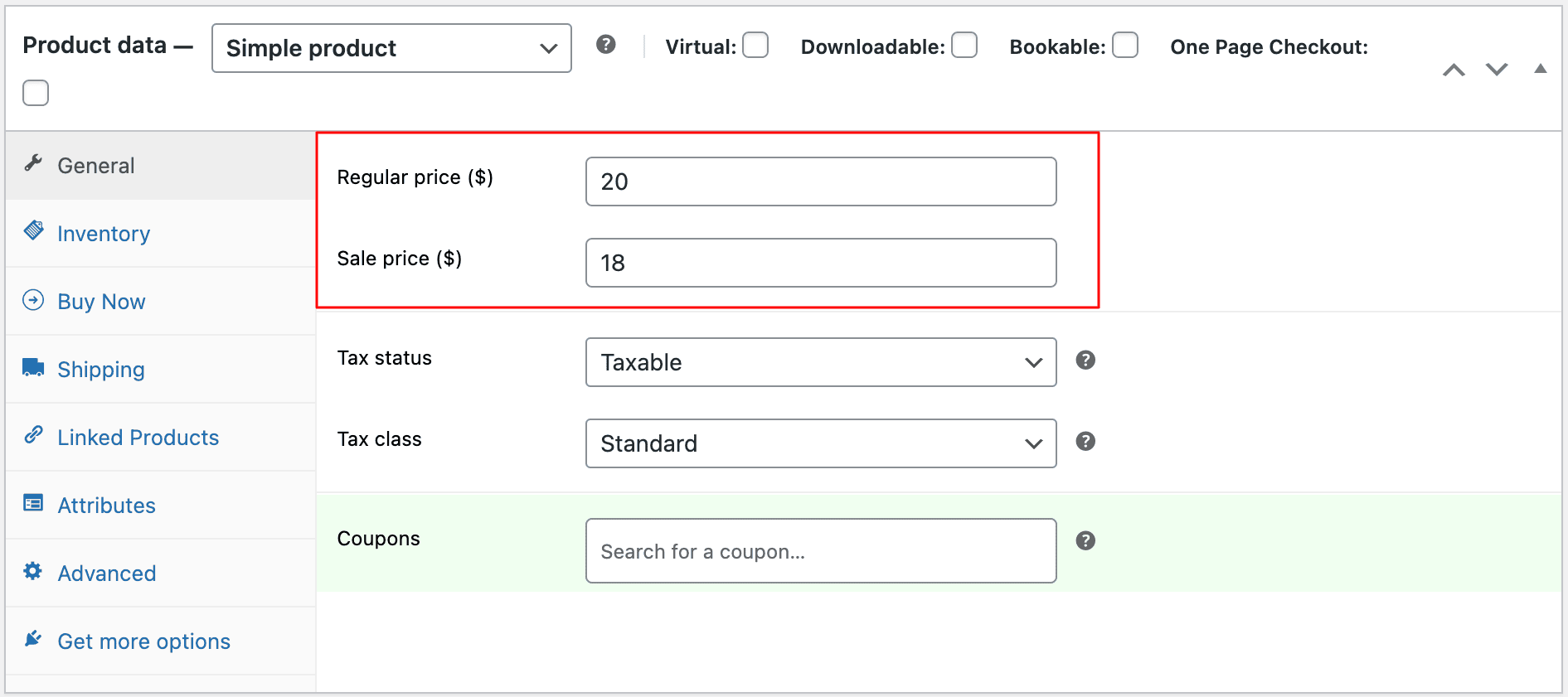
For a quicker one-off change: use Quick Edit from the product list to update the regular or sale price without opening the full product editor.
How to bulk edit WooCommerce product prices
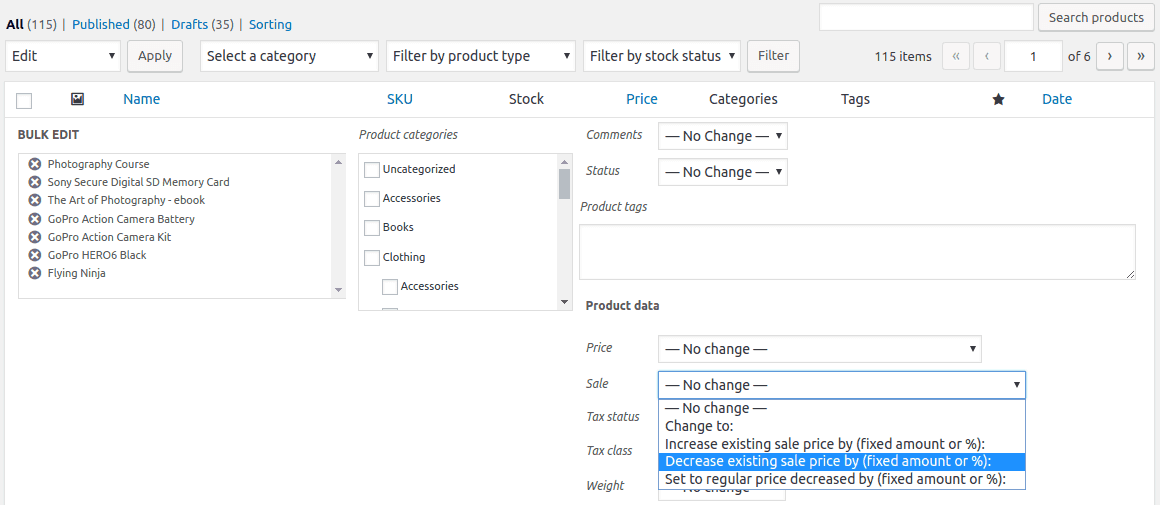
For multiple simple products, WooCommerce’s bulk editor lets you apply the same pricing rule to all selected products.
- Go to
WordPress admin → Products → All Products. - Select the products you want to update.
- Choose
Bulk actions → Edit → Apply. - Under the pricing options, choose how you want to change the price:
- Regular price: change to, increase by, or decrease by a percentage or fixed amount.
- Sale price: change, increase, decrease, or set relative to the regular price.
- Click
Updateto apply the changes.
When is WooCommerce’s built-in bulk editor enough?
The native editor is usually enough when you’re making occasional, straightforward changes to a small catalog of simple products—for example, increasing the prices of selected products for a seasonal sale.
It becomes less practical when your pricing rules depend on variations, attributes, categories, custom fields, or other conditions.
Where does WooCommerce’s bulk price editor fall short?
The built-in editor handles basic bulk price changes, but it isn’t designed for more targeted or complex pricing workflows. For example, it doesn’t let you:
- Bulk edit variation prices across multiple products
- Build detailed filters using attributes, custom fields, suppliers, or other conditions
- Schedule bulk price changes for a future date and time
- Undo a completed bulk price update
Bulk edit WooCommerce product and variation prices with Smart Manager
If your pricing updates go beyond what the native editor handles comfortably, a spreadsheet-style bulk editor can make the workflow much simpler.
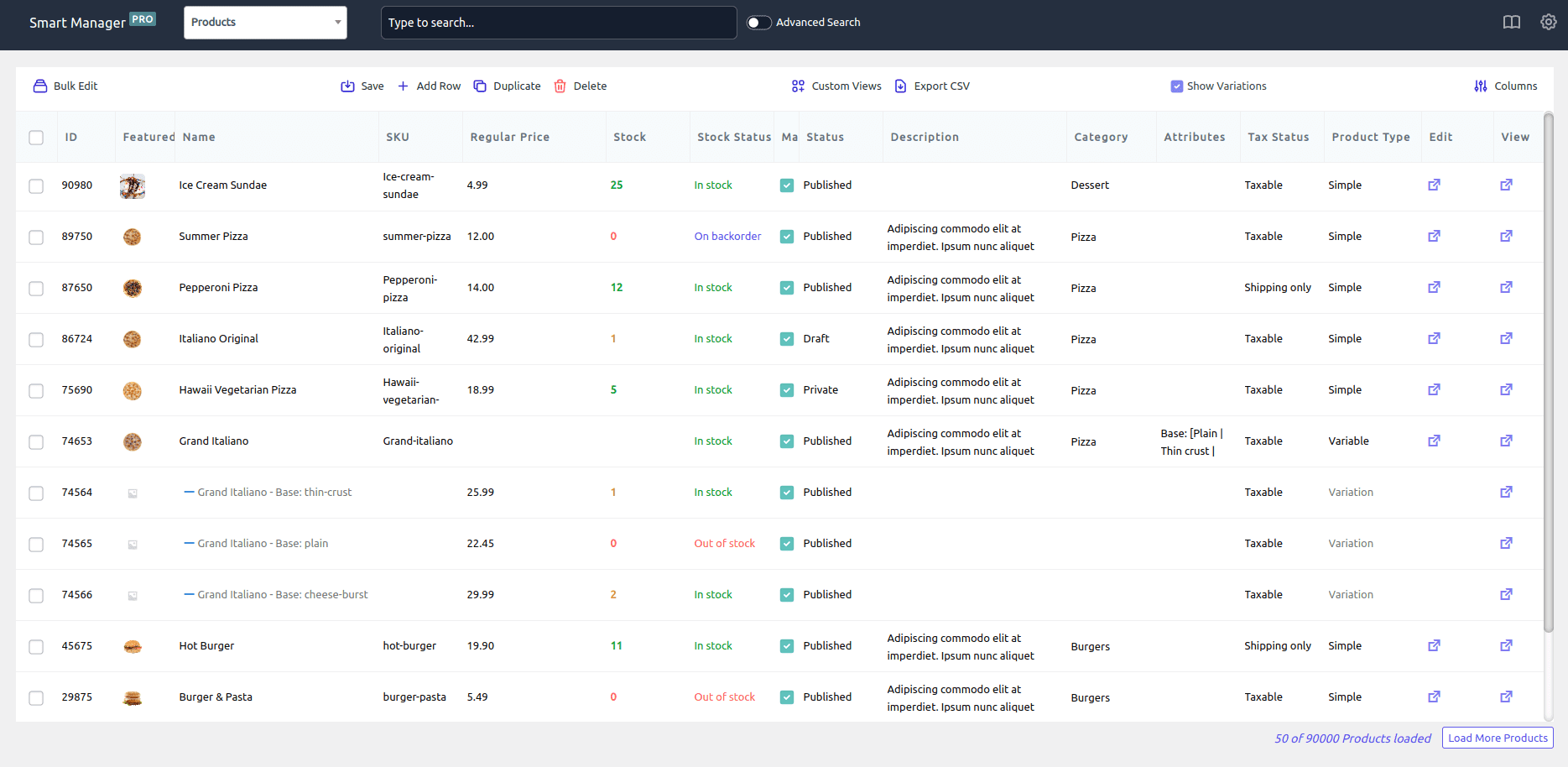
With Smart Manager, you can view products and variations in one grid, filter the records you want to change, and update prices directly instead of opening products one by one.
What makes Smart Manager powerful for price management?
Smart Manager turns price editing into a fast, controlled process.
With it, you can:
- Bulk edit regular price and sale price across products
- Bulk edit variation prices across multiple products
- Increase or decrease prices by percentage or fixed value
- Update prices for selected products only
- Filter products by category, attribute, price range, or stock
- Edit prices directly in the grid (inline editing)
- Undo bulk edits if something goes wrong
- Schedule pricing changes for later
This means you can manage hundreds or even thousands of product prices in minutes.
Instead of opening product pages one by one, you simply filter the products you want and update their prices in bulk.
Now let’s look at some real situations where store owners use Smart Manager to manage pricing faster.
Real store use cases for bulk editing prices
Once you have a grid-based editor like Smart Manager, updating prices becomes much easier.
Instead of editing products individually, you can filter the products you need and update them in bulk.
Here are some common scenarios store owners deal with.
How to set the sale price x% lower than regular price for multiple products at once?
Say you want to run a storewide sale: 20% off everything. Here’s how to set it up:
- Go to
Smart Manager > Products Price List dashboard. - Click on the header checkbox to select all the products and click on
Bulk Edit. - You will have two options:
New ActionandSelect from Presets. Now select New Action. - You will see a slide-over panel. In the Actions option, set the rules as
Sale price > set to regular price and decrease by % > 20. - Now click on
Apply Changes.
Smart Manager sets the regular price (if missing) and applies the % discount, all in one shot.
How to increase the price for all products containing a specific attribute?
Let’s say you sell T-shirts. Now suddenly, the “100% Organic Cotton” ones are getting all the attention.
Because who doesn’t want to save the planet and look good doing it?
It’s time to ride the green wave and give these premium pieces a price lift. Here’s how:
- Head to
Smart Manager > Products Price List dashboard. - Click on
Advanced Search. - Now set the rules as:
Attributes: Fabric > is > 100% Organic Cotton. - Click
Search. - Select all the filtered products.
- Use
Bulk Editto bump up the price, as shown before.
And you are done.
How to increase prices for high-value product variations
Sometimes you may want to adjust prices only for premium variations.
For example, increase prices for products where the highest variation price is above $100.
Here’s how:
- Go to
Smart Manager > Products Price List dashboard. - Click
Advanced Search. - In the first dropdown, select
Max Variation Regular Price. - Set the condition to
greater than. - Enter
100as the value. - Click
Search. - Select the filtered products.
- Click
Bulk Edit. - Set the rules:
Regular price > Increase by > 5%. - Now click on
Apply Changes.
Now only products with higher-value variations will get the price increase.
How to increase the price for all products containing a specific category?
Say you’re a skincare seller and “Ceramide-Infused” is the new buzzword — thanks to that one influencer who swears it fixed their entire life.
Now, everything with that ceramide tag needs a little price glow-up. Here’s how to do that:
- Go to
Smart Manager > Products Price List dashboard. - Select Advanced Search. A slide-up panel will open.
- Here in the first option, select
Category. - Keep the second option as is.
- Next, in the third option, select Ceramides from the drop-down.
- Click on
Search. - Now all the products from the said category would show up.
- Just select them and bulk edit their price as explained before.
And just like that, your trendy ceramide collection is now 20% more expensive, and still 100% sold out.
Many stores price larger sizes slightly higher because they require more material.
For example, a clothing store may want to increase prices of XL and XXL variations by $3 across all products.
Here’s how to do it using Smart Manager:
- Go to
Smart Manager > Products Price List dashboard. - Click
Advanced Search. - In the search filters, set the rule:
Attributes: size > is > choose the values XL and XXL. - Click Search to filter the matching variations.
- Select the filtered rows.
- Click
Bulk Edit. - Choose the action:
Regular price > Increase by > 3.- Now click on
Apply Changes.
All XL and XXL variations across products will now have the updated price.
How to increase prices for products that come back in stock?
Sometimes products go out of stock because of high demand. When they are restocked, many stores slightly increase the price.
For example, if a product sells out quickly, you may decide to increase its price by 5% once it’s back in stock.
Here’s how to do it:
- Go to
Smart Manager > Products Price List dashboard. - Click
Advanced Search. - Set the filter:
Stock status > is > In stock. - Click
Search. - Select the filtered products.
- Click
Bulk Edit. - Set the rule:
Regular price > increase by % > 5. - Now click on
Apply Changes.
Now all restocked products will have the updated price.
How to increase prices for products above a specific price?
Sometimes you only want to update prices for premium products.
For example, if supplier costs increase, you may decide to increase prices of products above $100 by 10%.
Here’s how to do it:
- Go to
Smart Manager > Products Price List dashboard. - Click
Advanced Search. - Set the filters:
Regular price > greater than > 100- Click
Search.
- Select the filtered products.
- Click
Bulk Edit. - Set the rule:
Regular price > increase by % > 10.
- Click
Update.
Now only products above $100 get the price increase.
How to correct pricing errors?
Let’s say you sell premium home decor, vases, lamps, statement mirrors, etc.
Everything is smooth until one little typo later, your $300 mirror is listed at $30. Guess who’s crying? (Hint: it’s not the customer.)
Here’s how to fix it faster than your heart rate after noticing the mistake:
- Go to
Smart Manager > Products Price List dashboard. - Now you will see a
Searchoption at the top. - Type mirror and click on enter. You will see all of your mirror products.
- Next, locate the product, click on the regular price cell and update it to $300.
That’s it. Now just sit and wish no one noticed this and order this yet.
How to set prices for the future?
Imagine you run an electronics store and a new version of your bestselling noise-cancelling headphone collection just dropped. Now, you want to run a product launch sale for an hour and give an exclusive 10% discount.
Here’s how to do this in minutes:
- Go to
Smart Manager > Product dashboard. - Search and select the new headphone models.
- Now click on
Bulk edit. - Under
Actions, selectRegular pricefrom the drop-down. - In the next option, select
decrease by %. - In the last option, add the value, i.e.,
10. - Now click on
Apply Changesand then click onYes. - A new popup will open. Here you need to give your task a title so that you can easily undo the changes if it’s a mistake.
- In the same, you have to enable the Schedule this bulk edit option.
- Now you can set the exact date and time for the bulk edit.
- And click
Ok.
Voila! You’ve got your discount running exactly when you want it, without waking up to update prices at 2 AM.
Now, if you can revert the prices after the promotion ends by simply using the Undo feature. Here’s how to do that:
- First click on
reverse clock iconnext to Export option. - Now, the list of all bulk edit and inline edits tasks will be listed.
- Here select the task and click on the
Undobutton located on the top bar above the grid. - You will see two options:
Selected tasksandAll tasks. - Choose selected tasks.
And that’s it. The prices would go back to as it was before the sale.
Why WooCommerce price updates become difficult?
Editing prices is straightforward for simple products because each product has one regular price and one sale price.
Variable products work differently.
Every variation, such as Size M, Size L, Blue, Black, Cotton, or Leather — stores its own pricing. That means:
- Updating the parent product price doesn’t update variation prices.
- One product may require editing dozens of individual prices.
- Bulk updating hundreds of variations manually becomes impractical.
If your catalog mainly contains variable products, understanding this difference will save hours of work.
Will bulk editing WooCommerce prices affect SEO?
Changing prices alone won’t directly hurt your search rankings. But there’s a side effect worth knowing about.
WooCommerce product pages often include structured data — the pricing information Google displays in search results and Google Shopping. When you change prices in bulk, that structured data updates too. If Google crawls your pages before the cache clears, it may briefly show outdated pricing in search results.
To keep everything consistent after a large price update:
- Clear your website cache so visitors and search engines see the correct prices immediately.
- Regenerate your product feeds if you use a feed plugin for Google Shopping or comparison sites.
- Resubmit your Merchant Center feed if you run Google Shopping ads — mismatched prices between your site and feed can trigger disapprovals.
- Use Google’s Rich Results Test to verify that your structured data reflects the updated prices correctly.
None of this is complicated, it just takes five minutes after a bulk update and saves you from pricing inconsistencies showing up in search.
Make WooCommerce price updates easier to manage
WooCommerce’s built-in bulk editor is perfectly fine for occasional price changes on simple products. But if you’re regularly updating variations, targeting specific product groups, or managing a large catalog, a more advanced bulk editing workflow can save a lot of repetitive work.
The key is simple: find the right products first, then make the change in bulk.
FAQ
Does editing the main product price update variation prices in WooCommerce?
No. WooCommerce stores variation prices independently from the parent product price. Updating the main product price does not change individual variation prices, each variation must be updated separately, or in bulk using a grid-based editor like Smart Manager.
Can WooCommerce’s default bulk editor update variation prices?
No. The default bulk editor in WooCommerce handles simple product prices only. It does not provide a way to update variation prices across multiple products. For that, you need to edit each variable product individually or use a dedicated bulk editing tool.
Can I bulk edit WooCommerce variation prices?
Not with WooCommerce’s default tools. Variation prices must be edited individually per product unless you use a bulk editing plugin that supports product variations, like Smart Manager.
Can I increase WooCommerce prices by percentage?
Yes. WooCommerce’s bulk editor lets you increase or decrease prices by a fixed amount or percentage for selected simple products. Smart Manager extends this to variable products, specific categories, and attributes.
Can I bulk edit sale prices in WooCommerce?
Yes. WooCommerce lets you change sale prices in bulk for simple products. For variation sale prices or category-based sale price updates, a dedicated bulk editing tool is needed.
Is it possible to increase prices for one category only?
Not with WooCommerce’s default tools, the built-in bulk editor applies changes to all selected products without filtering by category. Smart Manager lets you filter by category first, then apply percentage-based price changes only to those products.
Can I schedule a price change to go live at a specific time?
WooCommerce does not include native scheduling for price changes. Smart Manager supports scheduled bulk edits, you can set a future date and time for price changes to take effect, and undo them afterward using the task history.
Can I undo a bulk price update in WooCommerce?
Not with the default WooCommerce bulk editor, it has no undo function. Smart Manager includes a task history that lets you reverse bulk edits by selecting the relevant task and clicking Undo, restoring prices to their pre-edit state.
Does changing prices affect product variations?
No. Parent product prices and variation prices are stored separately in WooCommerce. Updating one does not automatically update the other.