

Organizing products into categories helps customers navigate your WooCommerce store easily. But once your catalog grows, managing those categories becomes harder.
You may need to reorganize category hierarchy, update descriptions, change display settings, or standardize slugs across many categories. Doing this manually means opening each category and editing it one by one.
WooCommerce lets you create and manage categories, but bulk updating them isn’t straightforward.
In this guide, you’ll see what WooCommerce allows by default, where it falls short, and how store owners manage WooCommerce product categories much faster.
What WooCommerce allows you to do by default
WooCommerce lets you manage product categories from: WordPress Admin > Products > Categories.
From this screen, you can:
- Create new categories
- Add subcategories (parent–child structure)
- Edit category name, slug, and description
However, this page mainly manages the categories themselves, not the products inside them.
Bulk actions are also very limited.
If you select multiple categories, the only option available is Delete.

That means WooCommerce does not allow you to:
- update multiple category settings at once
- reorganize category hierarchy in bulk
- modify category fields like description, slug, or display type together
So if you want to reorganize categories, you usually have to edit each category individually.
Bulk edit WooCommerce product categories using Smart Manager
Once your store grows, category management rarely stays static.
Maybe you’re reorganizing your catalog. Maybe you’re launching a new collection.
Or maybe your navigation structure just isn’t working anymore and you need to move categories around.
Doing that from the default Products > Categories screen means opening and editing each category individually.
That’s where Smart Manager makes things easier.
Instead of jumping between category pages, Smart Manager gives you a Product Categories dashboard where you can search, select, and update multiple WooCommerce product categories at once.
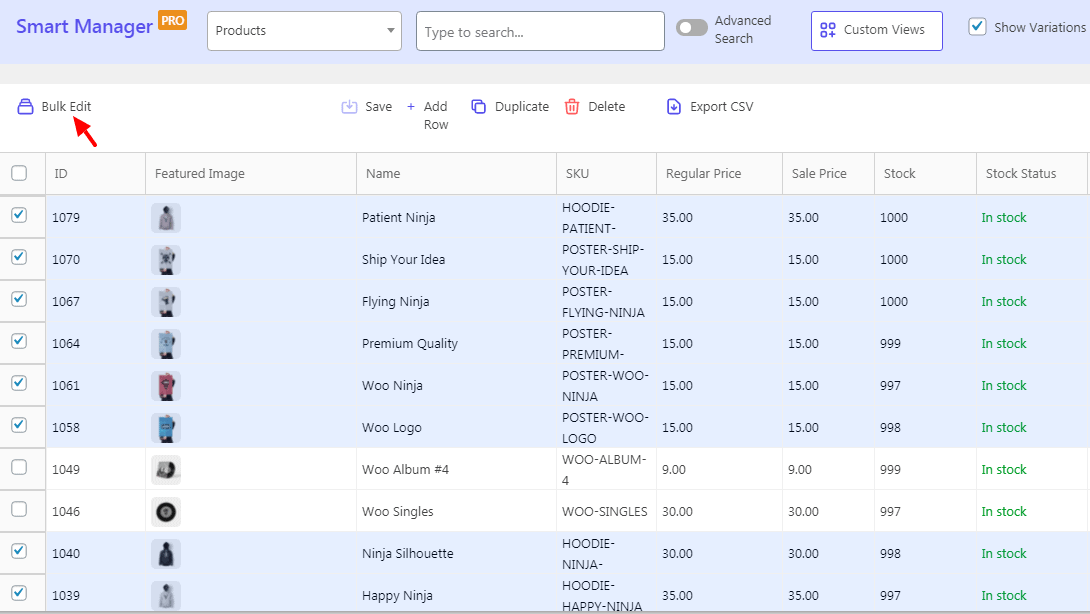
For example, imagine you want to reorganize your store by grouping T-shirts, Hoodies, and Jackets under a parent category called “Clothing.”
Instead of editing each category one by one, you can bulk edit them together.
Steps to move multiple categories under a parent category
- Go to
WordPress Admin > Smart Manager. - Select
Product Categoriesfrom the dashboard dropdown. - Click
Advanced Search. - Add a filter rule:
Name > contains > T-shirt / Hoodie / Jacket - Click Search to display the matching categories.
- Select the categories from the results.
- Click
Bulk Edit. - Set the rule:
Parent > set to > Clothing - Click
Update.
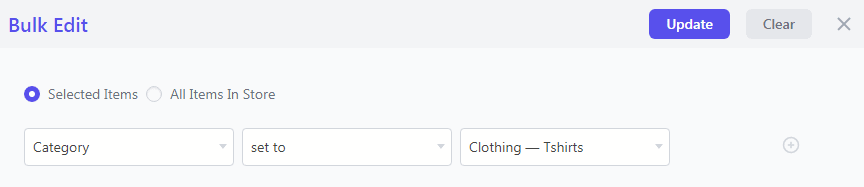
All selected WooCommerce product categories will now move under the Clothing parent category.
This kind of bulk edit is useful when you’re reorganizing your catalog or restructuring store navigation.
But moving categories under a parent is just one example. Stores often use the same workflow to update several other category settings as well.
Bulk managing WooCommerce product categories
Here are some common category updates WooCommerce stores handle this way.
How to update category descriptions in bulk
Category descriptions often support SEO and category landing pages. Updating them one by one can take time.
For example, you may want to add a line like “Free shipping on orders over $50” across several promotional categories.
Instead of editing each category manually, you can append the same text to all selected categories in one action.
Here’s how to do this with Smart Manager:
- Open
Smart Manager > Product Categories dashboard. - Use
Advanced Searchto filter categories. - Select the categories you want to update.
- Click
Bulk Edit. - Under
Actions, chooseDescription > append > enter the text you want to add. - Click
Update.
How to standardize category slugs
Category slugs can become inconsistent over time.
For example, your store might have slugs like mens-shirts, men-shirts, and shirt-men for similar categories.
If you want them to follow one consistent format, Smart Manager lets you update them together instead of fixing each slug individually.
Here’s how to do this:
- Open
Smart Manager > Product Categories dashboard. - Filter categories using
Advanced Search. - Select the categories.
- Click
Bulk Edit. - Choose
Slugin the field dropdown. - Select
search & replace. - Enter the old text and new text.
- Click
Update.
How to reorder WooCommerce product categories
Many stores adjust category order to control how categories appear in navigation or on the shop page.
For example, you might want categories like Best Sellers, New Arrivals, or Featured Products to appear first.
Here’s how to do this with Smart Manager:
- Open
Smart Manager > Product Categories dashboard. - Filter the categories you want to reorder.
- Select them.
- Click
Bulk Edit. - Choose
Orderin the field dropdown. - Set the new order value.
- Click
Update.
How to update category display type
WooCommerce categories can display products, subcategories, or both. If you’re restructuring your catalog, you may want to update this setting across multiple categories at once.
Here’s how to do this with Smart Manager:
- Open
Smart Manager > Product Categories dashboard. - Filter the categories using
Advanced Search. - Select the categories.
- Click
Bulk Edit. - Choose
Display Type. - Select the required value.
- Click
Update.
How to update category images in bulk
Stores often update category images during seasonal campaigns or when refreshing their store design.
For example, before a seasonal sale, you might want to replace images for categories like Winter Collection, Jackets, and Sweaters. Instead of opening each category page, you can update them together using Smart Manager.
Here’s how to do this:
- Go to
WordPress Admin > Smart Manager. - Select
Product Categoriesfrom the dashboard dropdown. - Click
Advanced Search. - And set the rule:
Featured Image > is > empty(This helps find categories that don’t have an image yet.) - Click
Search. - Select the categories from the results.
- Click
Bulk Edit. - Under Actions, set the rule:
Featured Image > set to > select image(camera icon) - Choose the image from the WordPress media library.
- Click
Update.
The selected categories will now use the new image.
Stop organizing categories one by one
Editing WooCommerce product categories manually works when your store has only a few categories. But as your catalog grows, reorganizing hierarchy, updating descriptions, or fixing slugs quickly becomes time-consuming.
Smart Manager lets you manage categories from a single Product Categories dashboard. You can search, select, and update multiple category fields in seconds.
For stores managing large catalogs, this means faster category organization with far less manual work.
FAQs
What are WooCommerce product categories?
WooCommerce product categories are a way to group similar products together on an online store created with the WooCommerce plugin for WordPress. Customers can browse and filter products by category, making it easier for them to find what they’re looking for.
How do I find a product category ID in WooCommerce?
- Log in to your WordPress dashboard and navigate to
Products > Categoriesto view all product categories - Hover over the category whose ID you want to find and click Edit.
- Look at the URL in your browser’s address bar. You will see something like this:
wp-admin/term.php?taxonomy=product_cat&tag_ID=12&post_type=product. The number after tag_ID=is the category ID. In this example, the category ID is 12.
Alternatively, you can use a plugin.
How Do I Add the Products Categories List Block?
You can add this block by navigating to the post or page where you want to include it, and then clicking on the Add block button. Next, simply search for “product categories list” and select the first option that appears.
How do you categorize products in WooCommerce?
- Navigate to
Dashboard > Products > Categories. - Start filling the fields below “Add new category”.
- After finishing adding the required information, click on the “Add new category” button.
How do I get product category WooCommerce?
- Go to:
Products > Categories. - Hover over a category name.
- Select the category or Edit.
- Find the page URL.
How to add product categories and subcategories in WooCommerce?
Adding product categories and subcategories in WooCommerce is similar to adding categories to your blog posts in WordPress. Refer to this doc for more details.
How to display products by category in WooCommerce?
For information on displaying products by category in WooCommerce, check out the blog post “WooCommerce Categories Shortcodes for Products (2025)”.
Can you create subcategories within a product category in WooCommerce?
Yes, you can create subcategories within a product category in WooCommerce.
Can I display my product category list in a sidebar or menu on my website?
Yes, you can display your product category list in a sidebar or menu on your website. It is easy for customers to navigate and find products within specific categories.