

WooCommerce inventory management feels simple when your store is small.
You add products, set stock quantities, and WooCommerce automatically reduces inventory whenever a customer places an order. With a small catalog, this built-in system usually works smoothly and doesn’t require much attention.
But as your store grows, inventory management becomes less about settings and more about daily operations.
Stock updates become frequent, product variations multiply, and even small mistakes can start affecting orders.
In this guide, we’ll walk through how WooCommerce inventory management actually works, what typically changes as your store grows, and how store owners keep stock under control as their catalog scales.
Stage 1: Basic WooCommerce inventory management (small stores)
For stores with only a few dozen products, the built-in WooCommerce inventory tools are genuinely sufficient. The setup is straightforward.
Go to WooCommerce > Settings > Products > Inventory and enable Manage Stock.
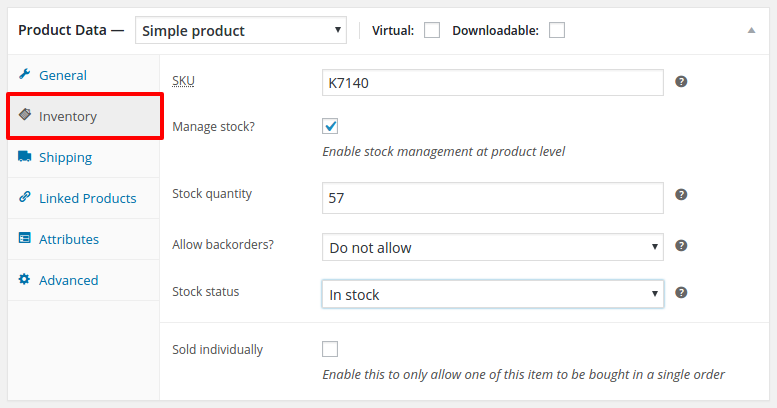
This tells WooCommerce to automatically track quantities, reducing stock whenever an order is placed and restoring it if an order is cancelled.
From there, a few basic settings cover most inventory needs:
- Enable variation-level stock for products with sizes or colors
- Set a hold stock time so items are reserved during checkout
- Turn on low-stock alerts so you know when to reorder
At this stage, updating stock takes only seconds, and WooCommerce handles most inventory changes automatically.
But once your catalog grows beyond a few dozen products, the same approach starts to feel slow.
Stage 2: Growing store friction (30–300 products)
WooCommerce is still tracking stock correctly at this stage. The issue isn’t accuracy, it’s workflow.
- Need to update stock for 20 products? You end up opening 20 product pages.
- Need to adjust variation quantities? You click through each variation screen.
- Need to find low-stock items? You search and filter again and again.
Managing inventory one product page at a time simply doesn’t scale.
A more practical approach
Tools like Smart Stock & Inventory Manager provide a table-style dashboard for managing all product types, simple, variable, grouped, or subscription, from one screen.
Here’s how a more efficient inventory workflow looks at this stage:
- Import new stock quickly
If a supplier sends an updated inventory sheet, you can import products using a CSV file instead of adding them manually.
- Edit stock data directly in the table
You can update quantities, prices, SKUs, stock status, or tax fields directly in table cells, similar to editing a spreadsheet.
- Update multiple products using inline editing
You can edit several products or variations at once without opening each product page.
- Filter products to find inventory issues faster
You can filter by category, product type, SKU, or stock status to quickly locate low-stock items.
- Track stock changes with stock history logs
You can check the inventory levels change over time and identify fast-selling or slow-moving products.
- Export inventory when needed
You can also export stock data as CSV files for further reporting, warehouse coordination, or external updates.
For stores managing dozens or hundreds of products, this type of dashboard dramatically reduces the time spent maintaining inventory.
Get Smart Stock & Inventory Manager
Stage 3: Scaling risk (300+ products, large catalogs or high traffic)
Once your WooCommerce store grows large, inventory problems stop being small inconveniences and start becoming operational risks.
During flash sales, product launches, or high-traffic promotions, inventory updates can happen very quickly across many products.
At this stage, you might notice issues such as:
- Updating prices or product details across categories becomes repetitive
- Editing product variations individually takes too much time
- Running promotions requires changing prices across entire categories
- Creating similar products means copying details again and again
- Finding specific products in a large catalog becomes difficult without advanced filters
At this stage, what you need isn’t just faster stock updates, it’s control over your entire catalog from one place.
Improving WooCommerce inventory management with grid-based control
Tools like Smart Manager make this easier by letting you manage products, variations, prices, and inventory together from one place inside WooCommerce.
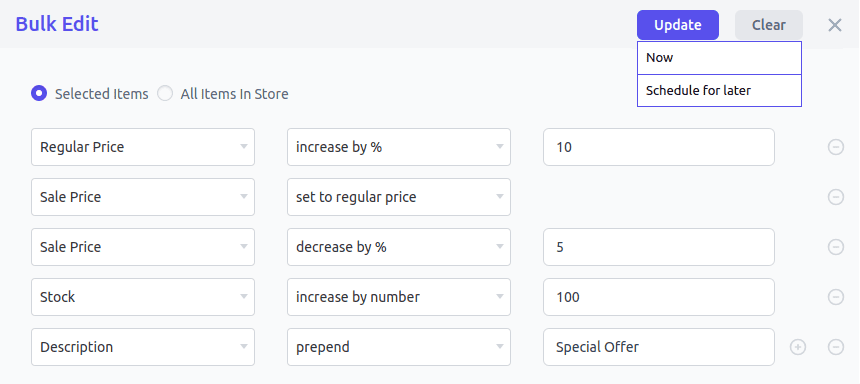
Here’s what catalog management typically looks like with it.
1. Add or import products
If you’re adding new inventory, you can either create products directly from the grid or import them using a CSV file.
For example, if you receive 200 new items from a supplier, you can import them in one step instead of creating each product manually.
2. Update stock and prices in bulk
Once products are in your catalog, you often need to update stock quantities or adjust prices.
Instead of editing each product individually, you can bulk edit fields like stock, regular price, sale price, SKU, or descriptions.
For instance, if you want to increase the prices of all products or certain categories by 10% during a sale, you can select those products and update them in one operation.
3. Make quick inline edits
Sometimes you only need to change a few values.
In that case, you can edit the product directly in the grid, similar to editing a spreadsheet cell.
For example, if a product’s stock changes from 12 to 9 after a warehouse update, you can simply click the stock cell and update it instantly.
4. Manage variations and backorders
For stores with variable products, you can view and edit variations directly from the dashboard.
You can update variation stock levels, change SKUs, or enable backorders for multiple products without opening each variation page.
5. Duplicate or delete products
If you’re adding similar products, you can duplicate an existing product and adjust the details instead of starting from scratch.
And if you need to clean up inventory, you can filter products and delete them in bulk.
6. Find products faster using filters
Large catalogs often require searching.
With advanced filters, you can quickly find products by stock status, SKU, category, or price.
For example, you might filter all products with low stock to decide which items need restocking.
7. Track stock changes with history logs
The built-in stock log lets you see how stock levels change over time.
This helps identify which products are selling quickly and which items are slow-moving.
8. Export inventory for reports or updates
Finally, if you need to analyze or update inventory outside WooCommerce, you can export stock data as a CSV file, edit it, and re-import it.
Many stores use this to prepare restocking lists or share inventory data with warehouse teams.
Because all of these actions happen from a single dashboard, you can scan your catalog, make changes, and manage inventory far more efficiently.
For large catalogs or frequent updates, this kind of centralized control with Smart Manager makes WooCommerce inventory management far easier to handle.
Know where your store stands
WooCommerce handles inventory well at every stage. But the way you manage it needs to change as your store grows.
If stock updates are starting to feel slow or errors are slipping through, that’s usually a sign you’ve outgrown your current workflow.
Go back to the quick decision guide at the top, find your stage, and start there.
FAQs
How often should I audit inventory in WooCommerce?
For most stores, a weekly inventory check is enough. High-volume stores often review stock daily to catch errors, overselling, or low-stock issues early.
How do I check stock levels across all products in WooCommerce?
By default, WooCommerce displays stock information inside the Products list in the admin dashboard. However, reviewing stock across a large catalog may require filtering or using tools that provide a centralized inventory view.
Why does WooCommerce sometimes oversell products?
Overselling can occur when multiple customers attempt to purchase the last available item at nearly the same time. During high-traffic situations, two orders may be processed before the system finishes updating stock quantities.
Can WooCommerce track inventory for product variations?
Yes. WooCommerce allows inventory tracking at the variation level, which means each variation (such as size or color) can have its own stock quantity.
How do I get notified when stock is running low in WooCommerce?
WooCommerce includes low-stock and out-of-stock notifications that can be enabled in the inventory settings. These alerts notify store administrators when product quantities fall below a defined threshold.
Thanks for your help. Am lacking with the stock management options. But after reading your post, am very clear on this options. Once again thanks!
Glad to know that it helped you clear your doubts on inventory management.
This is one of the major challenge, supply chain managers faces now a days is order management. In order to avoid obsolescence and spoilage, inventory forecasting must be utilised to keep inventory levels low yet adequate to match customer demands. Thanks.
Thank you! Great tips!
I still have not found any tips on how to manage a store where selling unique products is common. Is there a way to reserve products, or is it simply the first one to pay who gets it?
Thanks!
Are you saying that your store is going to have only one product at a time & when purchased it’ll never be added to store again?
With WooCommerce, currently, it’s possible only by keeping the inventory as 1.
Great overview, thank you.
Do any of those applications allow you to create inventory reports that show how much went out and how much went in during a certain time period?
You won’t get specific detailed inventory reports. However, using Smart Manager you can surely export CSV of the products which do contain the product inventory which you can then compare multiple exports to calculate inventory report.
I assumed Woo Commerce Stock Manager would reduce stock when sold. Am I being too optimistic and do I have to do it myself.
Functionality to reduce stock on sale is handled by WooCommerce itself. You may not need any other plugin for that.
HI,
We are confused a bit which way to go, we have a multichannel store, and they the stock of a particular product to be updated automatically on woocommerce just by scanning the product on the checkout of the physical shop…
Which system would combine such a feature in multiple channels?
Thank you
Hey Emmanuel,
Currently, we are not aware of any such plugin which does that.
Hello and thank you for the helpful article! Do any of these plugins allow batch code tracking (from raw product to customer or at least 1 back and 1 forward)?
Hi Ed,
I’m not sure but Finale Inventory software may be doing batch code tracking. You may check it for yourself from their website.
hi
Thanks for the article. Im wondering if there is a plugin that can track restocking history. I mean, show you the dates a particular product was stocked up?
thanks
Good Day Akshat Kothari,
Literally some of the best advice I’ve come across in my 5 years of blogging. Thanks for sharing this in-depth information about the 19 Best WooCommerce Inventory Management Plugins (2022). Keep Posting.
Stock movements tracking
Is there a way to track stock movements for each product, meaning that I could track history of stock increase and decrease for each product. Like where it was and from which order and if done hardcore way by hand? I need it for pcpraha.cz
Thank you
So if I click on a product I could see how many were shipped in order A, then in order B, then how many were restocked from my ‘Inventory log’ entry or from my received PO,…
Thanks!
Hi,
You can use the Orderhive plugin to achieve your desired task.
Also, using Smart Manager plugin Orders dashboard, you can get product specific filtered list of orders using advanced search conditions based on product SKU or Title.