

Can you bulk edit attributes in WooCommerce?
No. WooCommerce’s default bulk editor does not let you add, remove, or update product attributes across multiple products.
You can bulk edit fields such as prices, categories, tags, stock, and product status, but attributes like Color, Size, Material, or custom attributes require a different workflow.
For bulk attribute updates, you have two main options:
- CSV export/import: Export your products, edit the attribute data in a spreadsheet, and import the file back into WooCommerce.
- Bulk editing plugin: Use a tool such as Smart Manager to filter products and update attributes directly from a spreadsheet-style interface.
If you only need to update a few products, manual editing may be sufficient. For hundreds or thousands of products, a bulk editing tool is much more practical.
WooCommerce attributes vs. variations: What’s the difference?
Before changing product data in bulk, make sure you know whether you need to edit an attribute or a variation. They serve different purposes in WooCommerce.
- Attributes describe product characteristics or options, such as Color, Size, Material, or Brand.
- Variations are purchasable versions of a variable product created from combinations of attributes, such as Blue + Large.
For example:
- Adding Black as a color option to multiple products → edit the attribute.
- Changing the price or stock of the Blue + Large version → edit the variation.
- Creating new purchasable combinations → generate variations.
Editing the wrong data can leave products with missing options or incorrectly configured variations, so identify what needs changing before starting a bulk update.
What can you bulk edit in WooCommerce without a plugin?
WooCommerce’s native bulk editor is useful for common product updates, but it does not include product attributes.
Go to Products → All Products, select the products you want to change, choose Edit from Bulk Actions, and click Apply.
You can bulk update fields such as:
- Categories and tags
- Regular and sale prices
- Tax status and tax class
- Product visibility and status
- Shipping class
- Stock status and quantity
- Backorders
- Weight and dimensions
However, the native editor cannot bulk add, remove, replace, or copy product attributes across your catalog.
That means updating something like Color = Blue across 200 products still requires another method.
How can you bulk edit WooCommerce attributes without a plugin?
There is no native WooCommerce bulk action for updating product attributes. However, you can use two workarounds: manage attribute terms from the Attributes screen or edit product data through CSV import/export.
Option 1: Manage attribute terms
Go to Products → Attributes to create or edit global attributes and their terms.
For example, you can create a Color attribute and add terms such as Blue, Black, Red, and Green.
However, this only manages the attribute itself. It does not assign those terms to hundreds of existing products at once.
Option 2: Use CSV export and import
You can export your WooCommerce products, modify attribute data in a spreadsheet, and import the CSV back into your store.
This can work for controlled catalog updates, but it becomes difficult when you have complex products or variations. Attribute formatting, taxonomy names, variation relationships, and import settings all need to be handled correctly.
For frequent or large-scale attribute changes, editing directly from a bulk management interface is usually easier to review and manage.
Why is bulk editing WooCommerce attributes difficult at scale?
Updating attributes manually is manageable for a small catalog. Once your store has hundreds or thousands of products, the same task can involve hours of repetitive editing.
Common catalog problems include:
- Inconsistent attribute names: Color, colour, and Colour may appear as separate values.
- Missing attributes: Imported or newly created products may not have the attributes they need.
- Outdated values: Products may still contain discontinued sizes, colors, or materials.
- Variation mismatches: Variation attributes may not follow your current naming conventions.
- Manual updates: Each product has to be opened, edited, saved, and repeated.
This is especially time-consuming for stores with large catalogs of apparel, electronics, furniture, accessories, or other products with multiple options.
A bulk editor solves the repetitive part of the job: filter the products, make the required change, review the selection, and apply the update in one workflow.
How to bulk edit WooCommerce product attributes with Smart Manager
Smart Manager lets you manage WooCommerce products from a spreadsheet-style dashboard. Instead of opening products individually, you can filter the catalog, select the products you want, and apply attribute changes in bulk.
You can use it to:
- Add or remove existing attributes
- Add custom attributes
- Copy attributes from one product to multiple products
- Update attributes for variable products
- Filter products before making changes
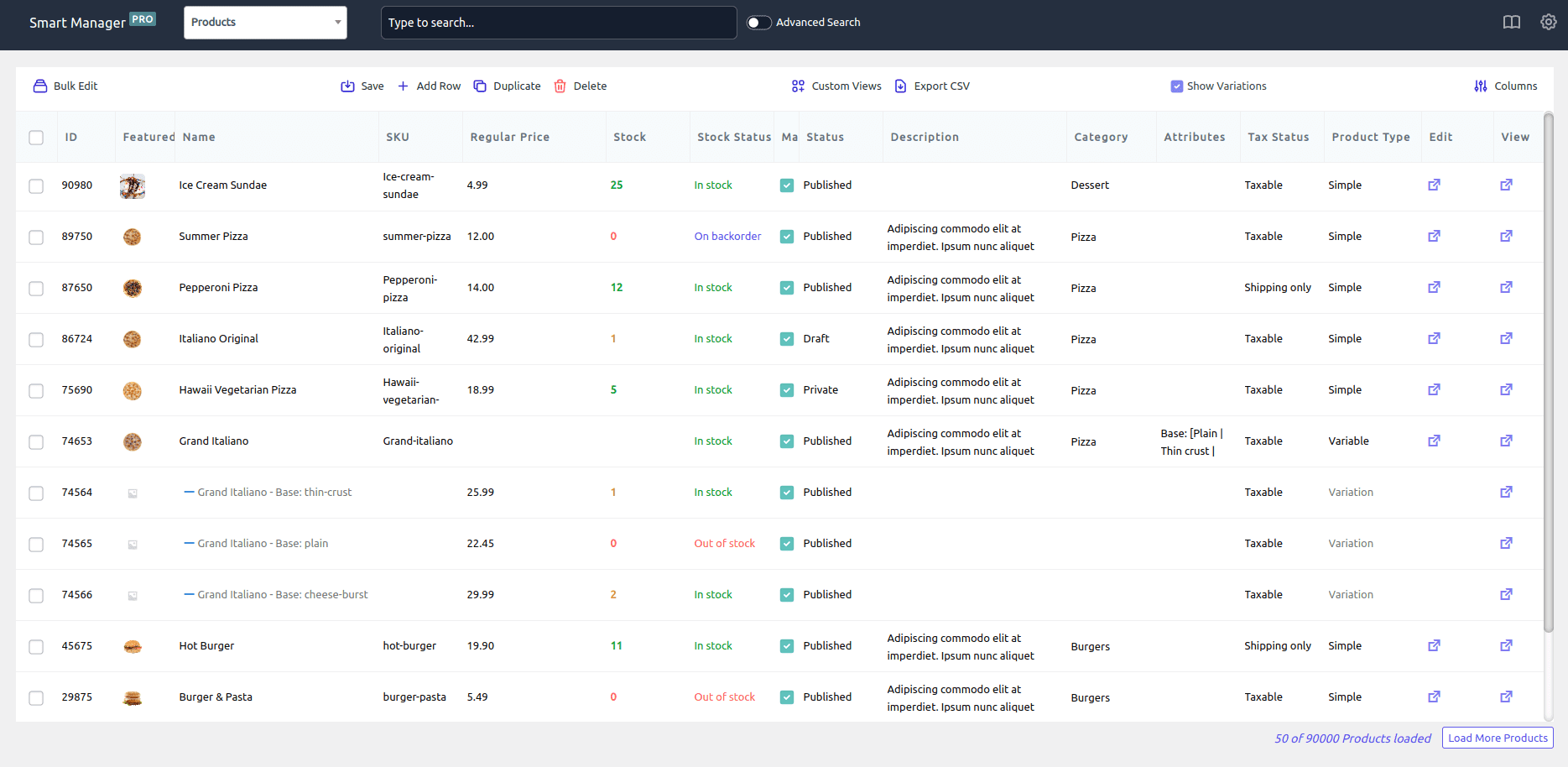
How to bulk add or remove an attribute
Suppose you want to add Blue as a Color attribute to a group of products.
- Go to
WordPress Admin → Smart Manager. - Select the
Productsdashboard. - Use
Advanced Searchto find the products you want to update. - Select the matching products.
- Click
Bulk Edit. - Choose
Add Attribute. - Select
Colorand enterBlue. - Click
Update.
The selected products are updated together. You can use the same workflow to remove an outdated attribute value from multiple products.
How to bulk add custom attributes
Custom attributes are useful when a product needs information that doesn’t fit your existing global attributes.
For example, you could add a custom Print attribute with the value Avengers Weapons to a group of products.
- Open
Smart Manager → Products. - Select the products you want to update.
- Click
Bulk Edit. - Choose
Attribute → Custom. - Enter the attribute value.
- Click
Update.
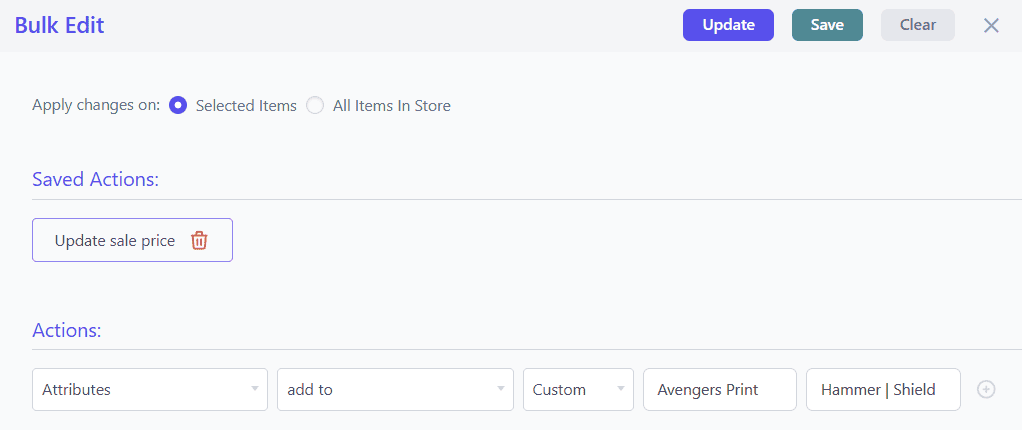
How to copy attributes from one product to multiple products
If several products should use the same attribute structure, you can copy attributes from an existing product instead of recreating them manually.
- Open the
Productsdashboard in Smart Manager. - Select the products you want to update.
- Click
Bulk Edit. - Set the attribute action to
Copy From. - Select the product whose attributes you want to copy.
- Click
Update. - Choose whether to apply the changes now or schedule them for later.
This is useful when new products share the same material, size options, color set, or other product specifications.
How to bulk edit attributes for WooCommerce variations
If you need to change attributes attached to individual variations, enable Show Variations in the Smart Manager Products dashboard. You can then filter the variations you need and update them together.
- Go to
Smart Manager → Products. - Enable
Show Variations. - Use
Advanced Searchto find the variations you want to change. - Select the filtered variations.
- Click
Bulk Edit. - Choose the attribute field and the required action.
- Enter the new value.
- Click
Update.
For example, you could filter variations where Color = Red and Size = Large, then change the size value across the selected variations.
How to find products before bulk editing attributes
The biggest advantage of bulk editing is being able to narrow down the products before making a change. Instead of applying an attribute to your entire catalog, filter the exact products that need it.
You can use criteria such as:
- Product category
- Product tag
- SKU
- Product type
- Stock status
- Product status
- Existing attributes
- Other available product fields
Use AI Search to create filters faster
Smart Manager’s AI Search can turn a natural-language request into search filters. For example, you can ask it to:
- Show products without SKUs
- Find out-of-stock T-shirts
- Show products missing the Color attribute
Once the matching products are displayed, select them and use Bulk Edit to update their attributes.
WooCommerce bulk attribute editing use cases
Bulk attribute editing is useful whenever the same catalog change needs to be applied to many products.
Standardize inconsistent attribute values
If your catalog contains values such as Blue, blue, and Blu, filter the affected products and standardize the attribute value.
Remove discontinued attributes
If a size, color, material, or other option is no longer available, filter the relevant products and remove the outdated attribute value in bulk.
Add seasonal attributes
Launching a seasonal collection? Add attributes such as Winter, Festive, or specific seasonal colors to the relevant products in one operation.
Standardize imported products
Imported catalogs often contain inconsistent naming, such as Colour instead of Color. Bulk editing lets you standardize those values without opening every product.
Update variation attribute names
If your store changes from Large to L, you can filter the affected variations and update the attribute value in bulk instead of editing each variation separately.
Copy attributes to a new product collection
When a new product line shares the same material, size options, colors, or other specifications, copy the attribute setup from an existing product to the new products.
What else can you bulk edit in WooCommerce?
Product attributes are only one part of catalog management. Smart Manager also lets you bulk edit other WooCommerce product data from the same interface.
- Prices: Increase or decrease regular and sale prices by a fixed amount or percentage.
- Categories: Add, remove, replace, or copy product categories.
- Tags: Apply or remove tags across multiple products.
- Descriptions: Search and replace product description content.
- Inventory: Update stock quantities, stock status, SKUs, and backorders.
- Images: Manage featured and gallery images.
- Product status: Change products between Published, Draft, and other statuses.
For example, you could filter products in a specific category with a particular Color attribute and then change their sale price in one bulk operation.
See our complete guide to bulk edit WooCommerce for more examples.
Bulk edit WooCommerce attributes without the repetitive work
WooCommerce’s native bulk editor is useful for basic product changes, but it doesn’t handle product attributes. If you only have a few products, manual editing or CSV import may be enough. For a large catalog, a bulk editing tool can save hours of repetitive work.
With Smart Manager, you can filter products, add or remove attributes, update custom attributes, copy attribute data, and manage variations from one spreadsheet-style dashboard.
The result is a cleaner, more consistent catalog without opening and updating products one at a time.
FAQ
Can I bulk edit attributes in WooCommerce?
No, not with WooCommerce’s default bulk editor. The native editor does not support bulk adding, removing, or updating product attributes. You need a CSV workflow or a dedicated bulk editing plugin such as Smart Manager.
How do I bulk add attributes to WooCommerce products?
WooCommerce does not provide a native bulk action for assigning attributes to multiple products. With Smart Manager, filter the products, select them, open Bulk Edit, choose the attribute, enter the value, and apply the update.
Can I bulk remove WooCommerce product attributes?
Yes. Smart Manager lets you select multiple products and remove an existing attribute or attribute value in bulk.
Can I bulk edit custom attributes in WooCommerce?
Yes. You can use Smart Manager to add and update custom attributes across multiple WooCommerce products from its Bulk Edit interface.
Can I bulk edit attributes for WooCommerce variations?
Yes. Enable Show Variations in Smart Manager, filter the variations you want to change, select them, and use Bulk Edit to update their attributes.
Can I bulk edit WooCommerce attributes without a plugin?
Not directly. WooCommerce’s native bulk editor cannot update product attributes. A CSV export/import workflow is one workaround, but it requires manually editing and reimporting product data.
Does bulk editing WooCommerce attributes affect SEO?
Changing product attributes does not normally affect SEO by itself. However, attribute changes can affect product filtering, variation data, and how customers navigate your catalog. Avoid changing important URLs or other SEO data unintentionally during bulk updates.
Once I have imported products/attributes into woocommerce, is there anyway I can set a batch process to convert attributes to variables?
Hi Ellie,
From converting attributes to variables, are you referring to generating new variations using Smart Manager? Then sorry, currently the same is not supported in the plugin.
However, you can have a check with our other plugin Bulk Variations Manager, using which you would be able to create variations in bulk.
Is Smart manager also compatible with Uni CPO plugin? https://wordpress.org/plugins/uni-woo-custom-product-options/
Hi there,
We haven’t tested the Smart Manager plugin with Uni CPO plugin. However, the Smart Manager plugin is designed in a way that it automatically scans your WordPress database and detects and lets you manage any custom field for any custom post type.
Would suggest you go ahead and try the plugin on your site and try to manage the same custom fields. Feel free to reach out to us if any queries.